---
title: "Availability events: PV systems"
url: "https://ensights.productfruits.help/en/article/availability-events-pv-systems"
language: "en"
last_updated: "2026-10-01T08:33:45.883Z"
---
# Availability events: PV systems
Availability events record *why* a PV system's availability changed. Use them to excuse agreed downtime, explain a low month to an owner, or correct an exclusion made by mistake. This page is for asset managers who report availability to owners, investors or lenders. For how availability itself is calculated, see **Availability: PV systems**.
## Two availability figures
| Figure | What it is | Affected by events? |
| --- | --- | --- |
| **Raw Availability** | What the plant actually delivered, from the data only. Shown as
**Availability**
in the Analysis tab and PV Systems table. | No. |
| **Contractual Availability** | Availability after excluded events are removed. Shown as
**Adjusted Availability**
in the Analysis tab, PV Systems table and reports. | Yes. Downtime covered by an
**excluded**
event doesn't count against the plant. |

Because an excluded event only removes downtime, Contractual Availability is always equal to or higher than Raw Availability. An event that is not excluded is recorded for context and changes neither figure.
## The Availability Events tab
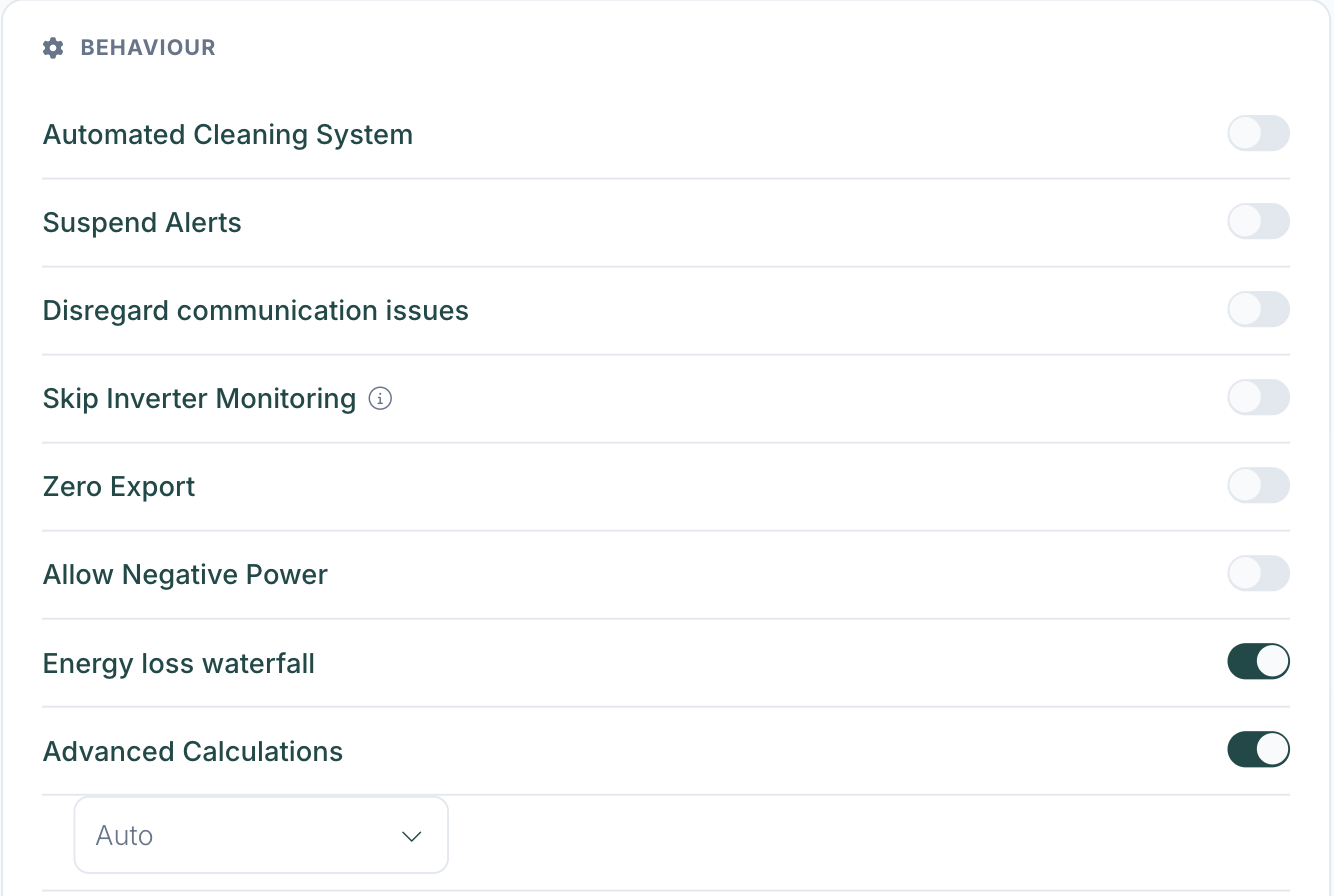
Open a PV system and go to **Availability Events**. The tab appears on systems with **Advanced Calculations** switched on (**Edit → Advanced**).
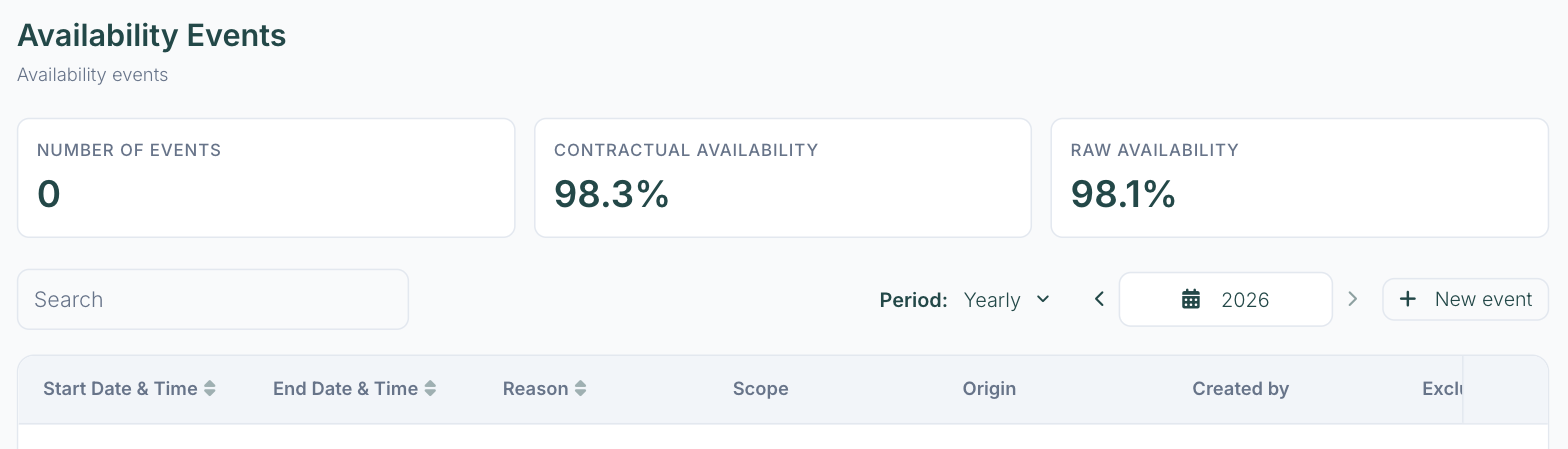
| Item | What it shows |
| --- | --- |
| **Number of events**
/
**Contractual Availability**
/
**Raw Availability** | Totals for the selected period. |
| **Period** | **Daily**
,
**Monthly**
,
**Yearly**
or
**Custom**
. |
| **Start Date & Time**
/
**End Date & Time** | The interval the event covers. An event still open shows as
**Ongoing**
. |
| **Reason** | Free text. Events created from an alert carry the alert's description. Use
**Search**
to find events by reason. |
| **Scope** | What the event covers: the
**System**
, or a single inverter, string, meter, PPC, sensor, tracker or indicator. |
| **Origin** | **Manual**
(added by a user) or
**Automated**
(created from an alert). |
| **Created by** | Who added the event. |
| **Excluded** | Whether the event's downtime is removed from Contractual Availability. |
| **Actions** | **Delete event**
. |
## Three ways to create an event
### 1\. By hand
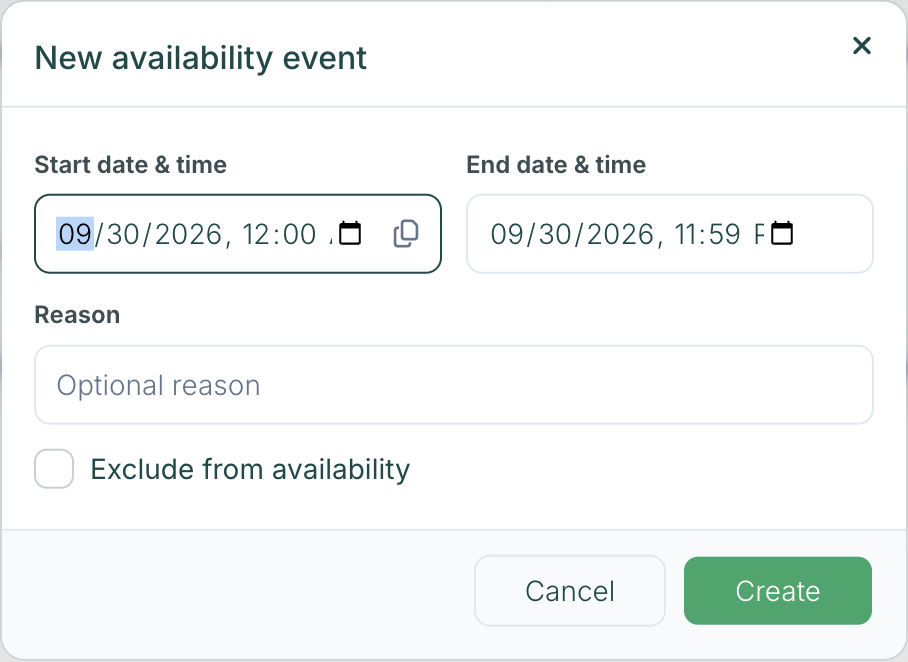
Click **New event**, set the **Start date & time** and **End date & time**, add an optional reason, and tick **Exclude from availability** if the period shouldn't count against the plant.
### 2\. From an alert
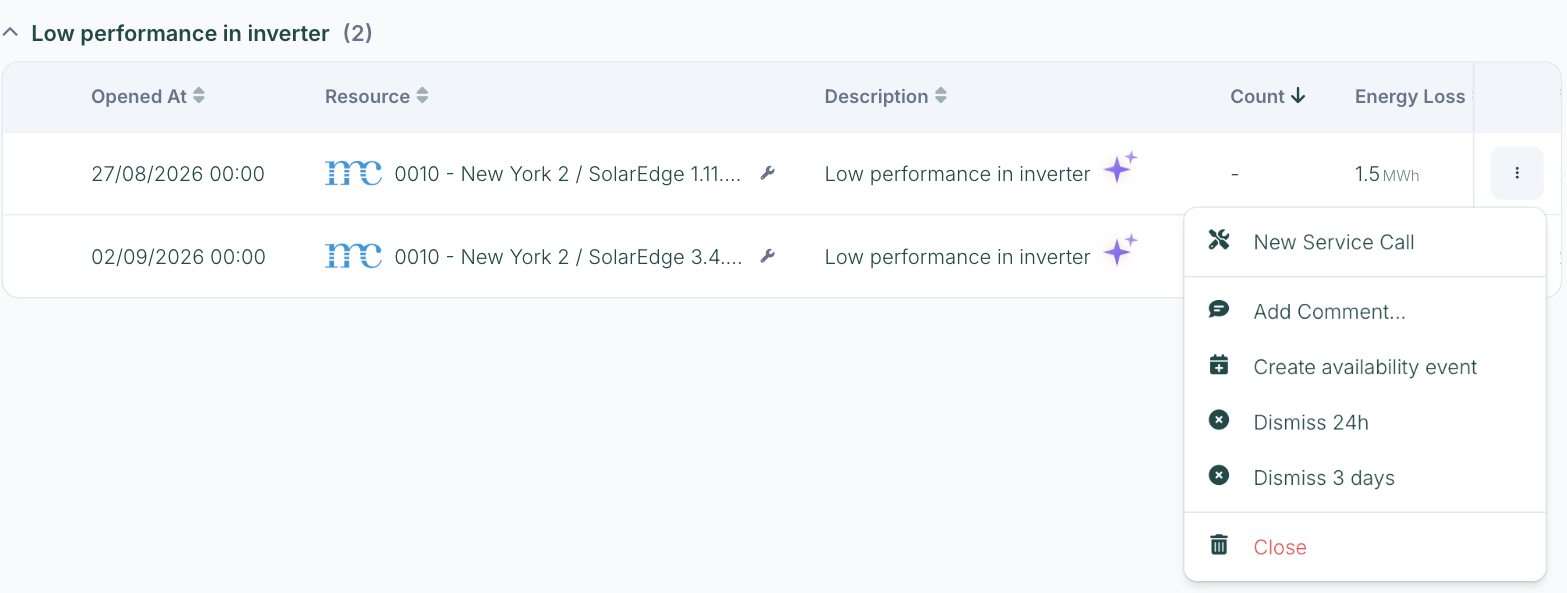
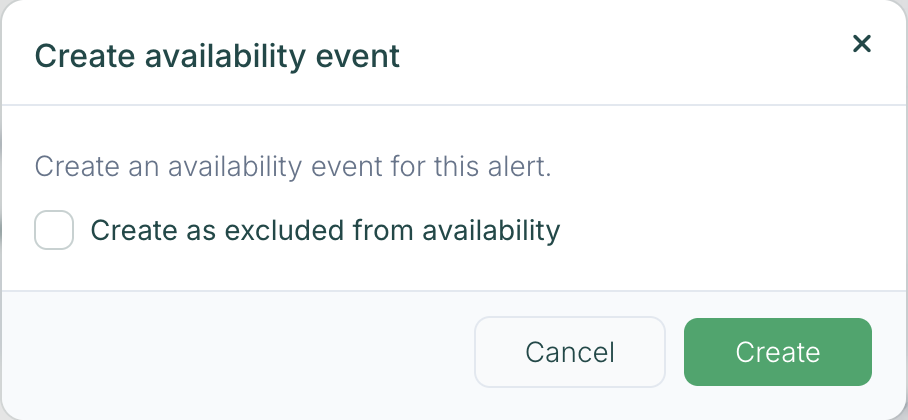
In the system's **Insights** tab or in **Insights & Alerts**, open the alert's row menu and choose **Create availability event**. The event covers the alert's open-to-close period. Tick **Create as excluded from availability** to excuse it straight away.
### 3\. Automatically, per alert code
In **Edit → Alerts Management**, each alert code has two options:
| Option | What it does |
| --- | --- |
| **Automatically create availability event** | An availability event is created whenever an alert of this code opens. |
| **Auto-exclude from availability** | Auto-created events are marked excluded, so their downtime is removed from Contractual Availability and the affected period is recalculated. Available only when automatic creation is on. |
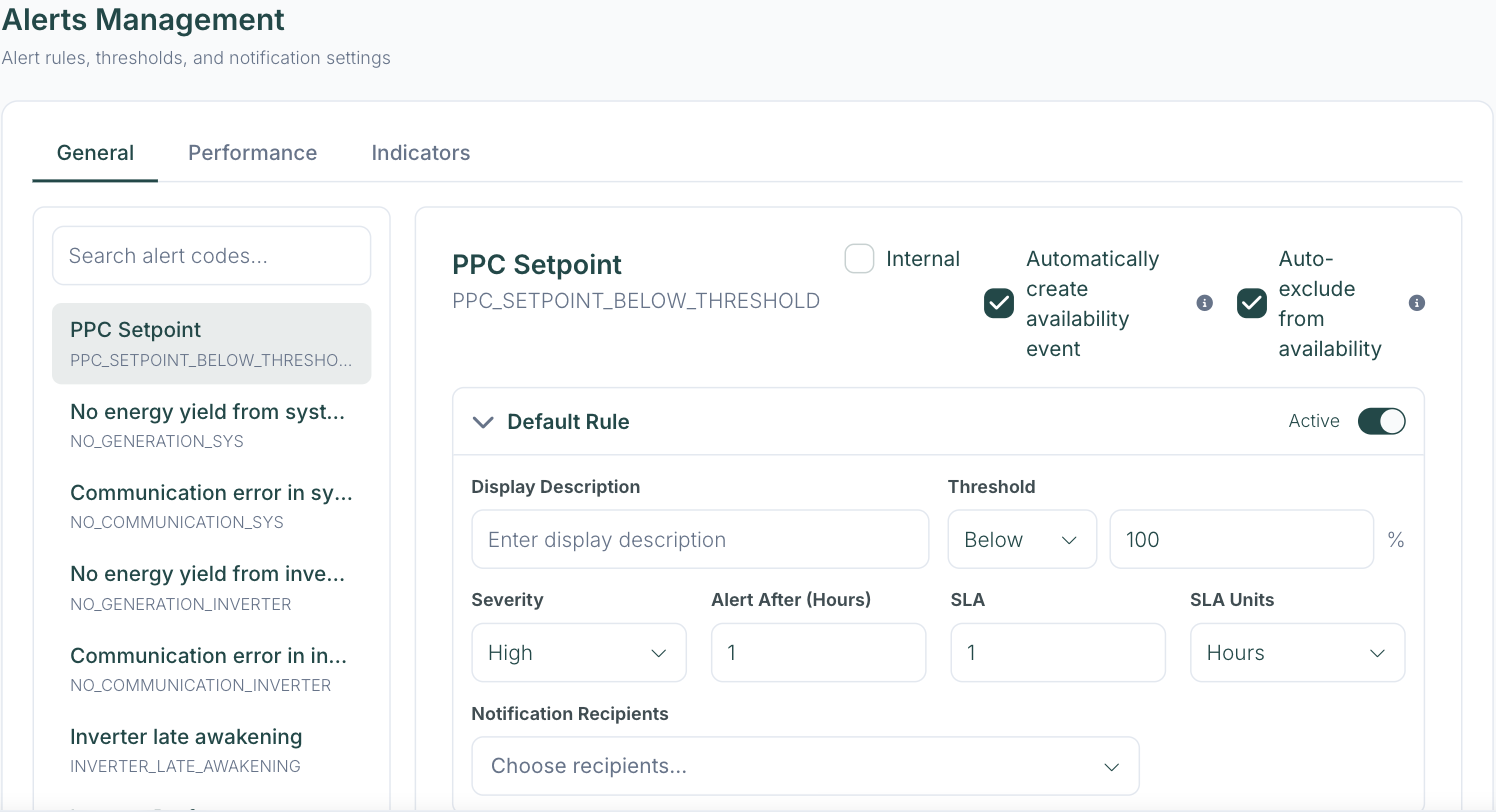
Alerts that opened before you turned automatic creation on don't get events on their own. The settings show how many historical alerts of the code have no availability event. Click **Create events** to backfill them, optionally as excluded, or create them one at a time from each alert's row menu.
## Communication gaps
By default, intervals where a device isn't reporting count as downtime and lower availability. To stop that for a system, switch on **Disregard communication issues** in **Edit → Advanced**. It applies to both Raw and Contractual Availability.
## How to
### Excuse planned maintenance for a contract report
1. Open the system's **Availability Events** tab and click **New event**.
2. Set the start and end of the maintenance window and enter the reason.
3. Tick **Exclude from availability** and click **Create**.
4. Report Contractual Availability where the contract excludes agreed downtime, and Raw Availability where it doesn't.
### Excuse every grid curtailment without doing it by hand
1. In the system's **Alerts Management**, select the alert code, for example **PPC Setpoint**.
2. Tick **Automatically create availability event** and **Auto-exclude from availability**, then save.
3. Use **Create events** to cover the alerts that were already there.
### Explain a low month to an owner
1. Set the tab's period to the month and compare **Raw** with **Contractual** Availability.
2. A large gap means most of the downtime was excused. The event list shows which periods and why.
3. A small gap with low availability means the downtime wasn't excused. Check the alerts for that month.
### Undo an exclusion made by mistake
1. Find the event on the **Availability Events** tab.
2. Delete it from the **Actions** menu. Availability for its period is recalculated.
3. If the downtime should still be recorded, create the event again without **Exclude from availability**.
## Notes
- **Recalculation isn't instant.** After you create or delete an excluded event, availability is recalculated in the background and can take up to a day to show.
- **Events change availability only.** They carry no kWh or monetary loss value.
- **No Availability Events tab?** The system needs **Advanced Calculations** switched on.
- BESS availability events work separately. See **Availability: BESS**.