---
title: "Connect Slack to enSights"
url: "https://ensights.productfruits.help/en/article/connect-slack-to-ensights"
language: "en"
last_updated: "2026-10-13T12:00:25.747Z"
---
# Connect Slack to enSights
## What this connector does
The Slack connector lets enSights post into your Slack channels: alerts, reports and notifications land where your team already works. You set it up once, in about 10 minutes, and it needs two things: a small Slack app in your workspace, and that app's **Bot User OAuth Token** pasted into enSights.
You need to be a Slack workspace member who is allowed to install apps (ask your Slack admin if you are not sure), and an enSights user with access to **Data Hub**.
The flow has two halves. Part A happens on Slack's website. Part B happens in enSights.
## Part A: Create the Slack app
### Step 1: Create a new app
1. Open [api.slack.com/apps](https://api.slack.com/apps) and sign in to your Slack workspace.
2. Click **Create New App** (top right).
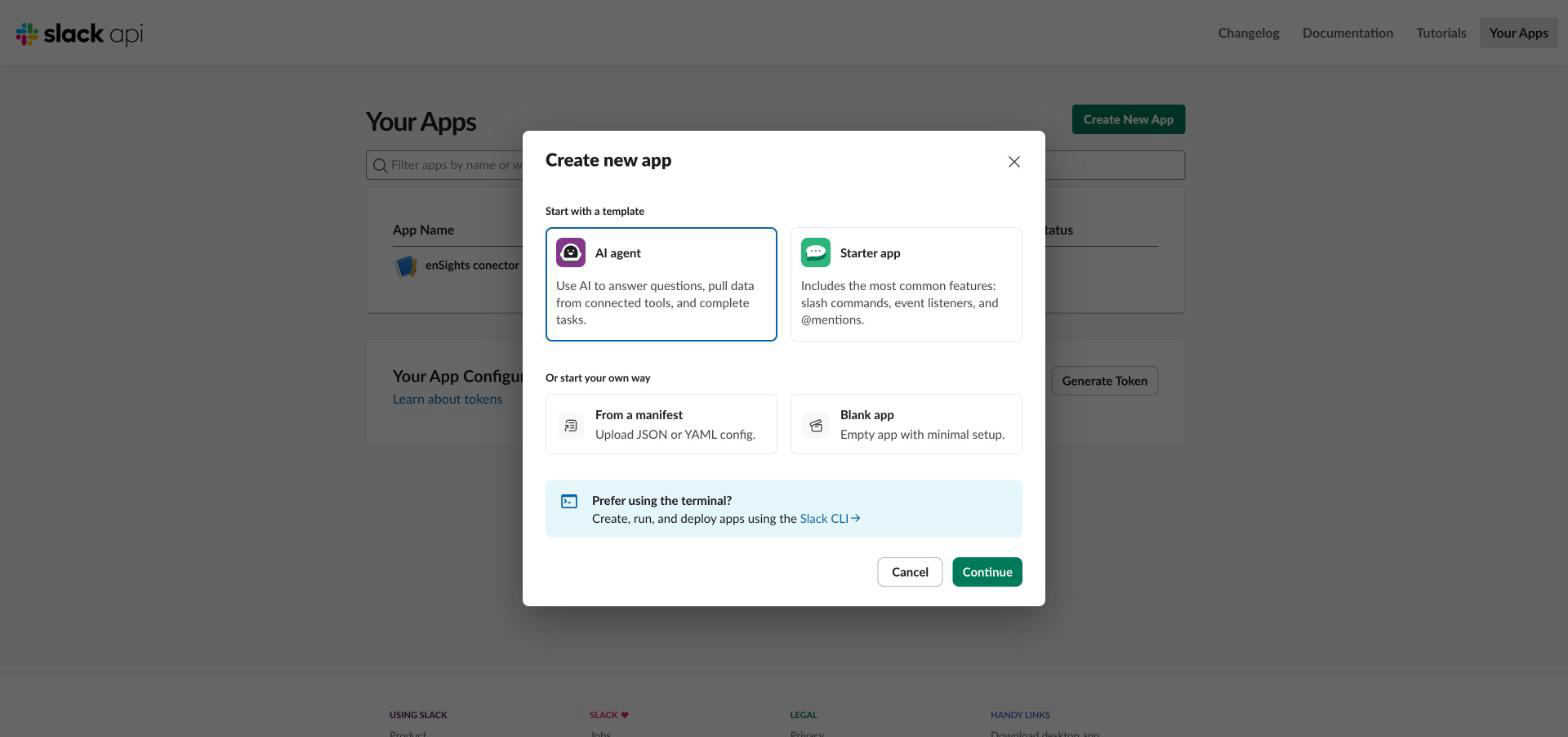
3. In the **Create new app** dialog choose **Starter app** and click **Continue**. Any template works, but Starter app already includes the basics.
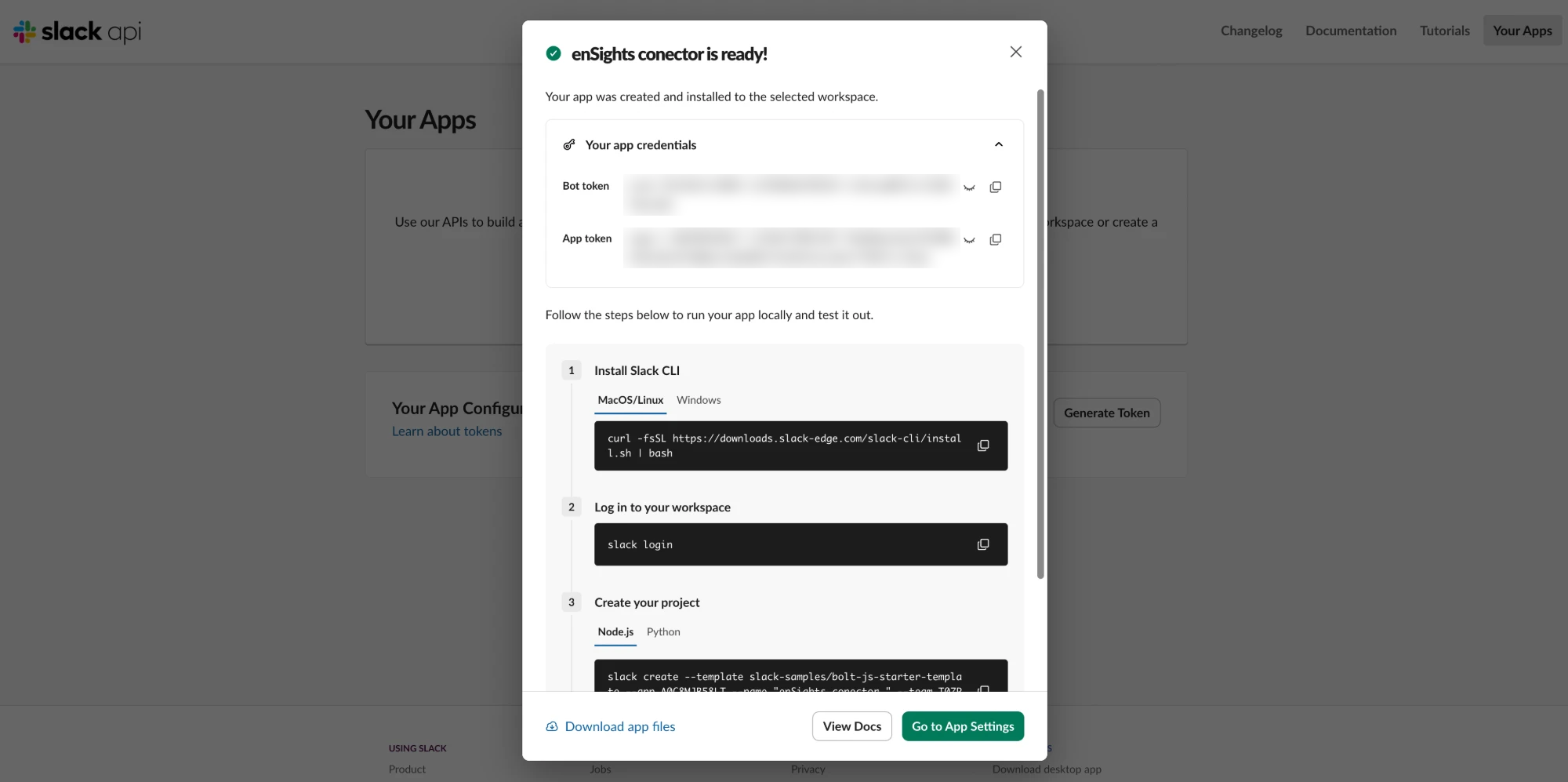
4. Give it a name your team will recognise, for example **enSights connector**, pick your workspace, and finish the wizard. When Slack shows the **is ready!** screen you can close it. Ignore the terminal commands it lists; enSights does not need them.
### Step 2: Give the app permission to post
1. In the left menu click **OAuth & Permissions**.
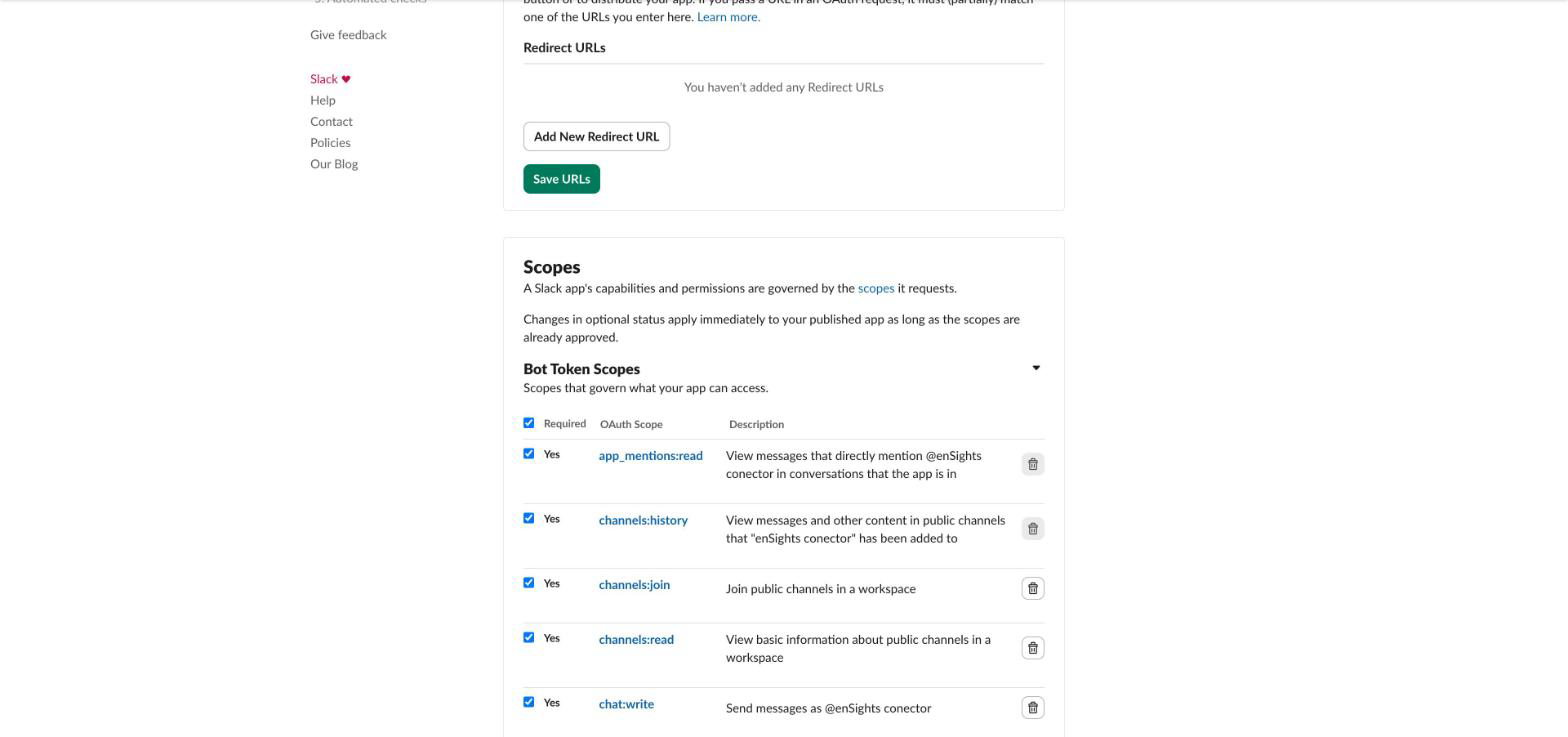
2. Scroll to **Bot Token Scopes** and click **Add an OAuth Scope**. Add each of these, one at a time:
| Scope | Why enSights needs it |
| --- | --- |
| **chat:write** | Send messages as the app. Required. |
| **chat:write.public** | Post to any public channel without being invited first. |
| **channels:read** | Lets the enSights channel picker list your public channels. |
| **channels:join** | Lets the app join public channels by itself. |
| **groups:read** | Lets the channel picker list private channels the app has been invited to. |
### Step 3: Install the app and copy the token
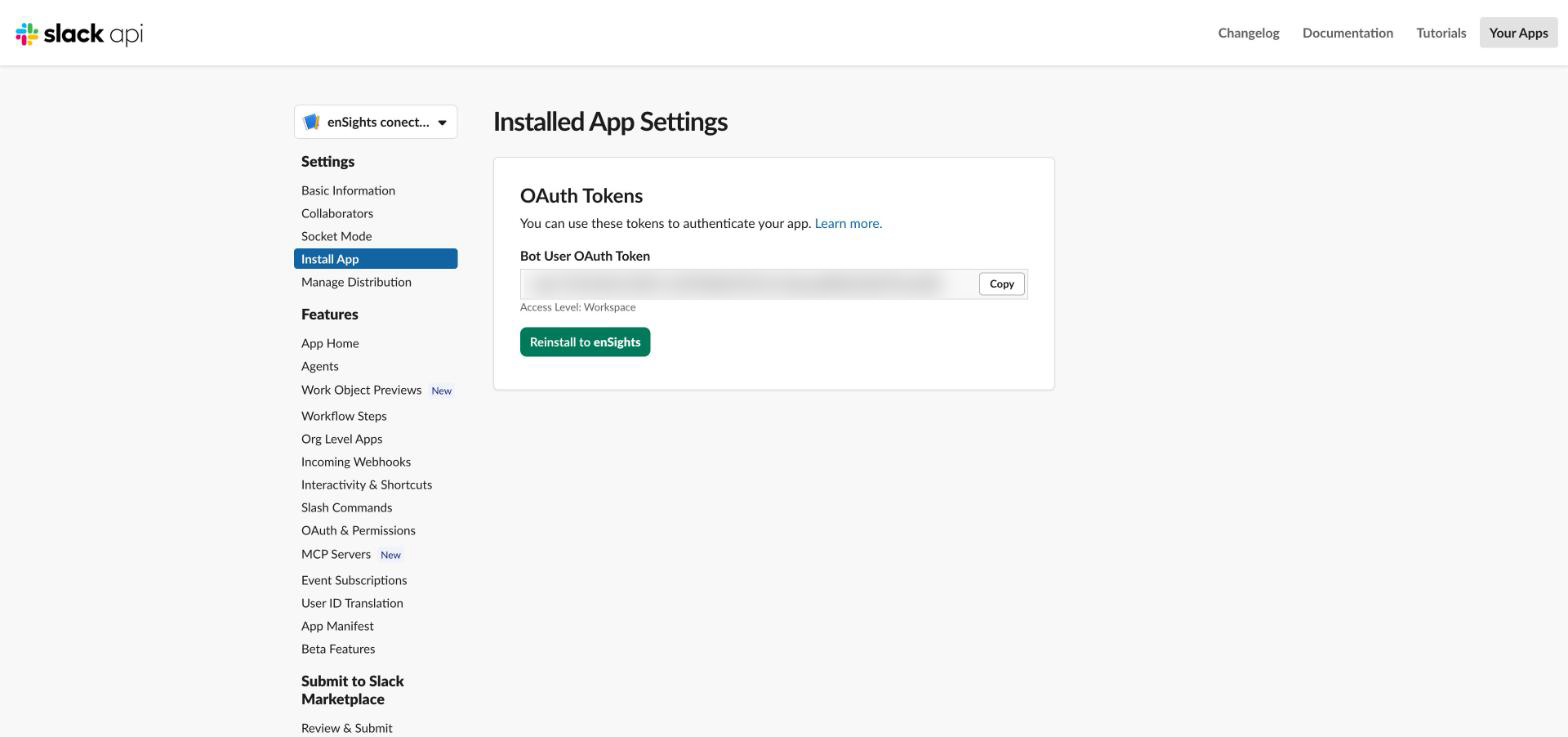
1. In the left menu click **Install App**.
2. Click **Install to Workspace** (or **Reinstall to Workspace** if you added scopes after a first install) and click **Allow**.
3. Under **Bot User OAuth Token** click **Copy**. The token starts with **xoxb-**. This is the only value enSights needs.
Treat the token like a password. Anyone who has it can post to your Slack as the app. Do not paste it into chats or tickets.
### Step 4 (optional): Tidy up the app in Slack
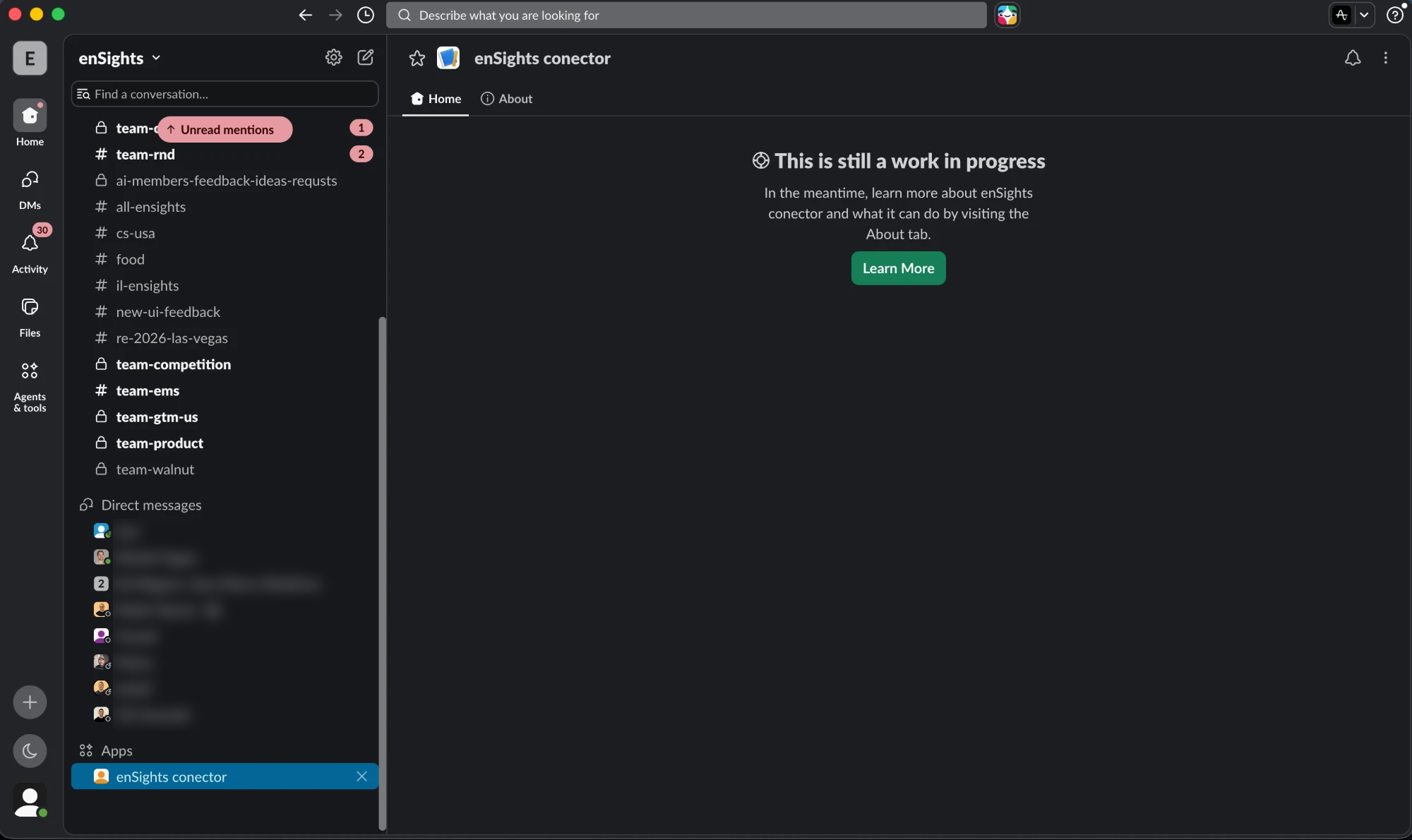
Without this step the app still works, but it shows a "This is still a work in progress" page when someone clicks it in Slack. To give it a normal chat tab:
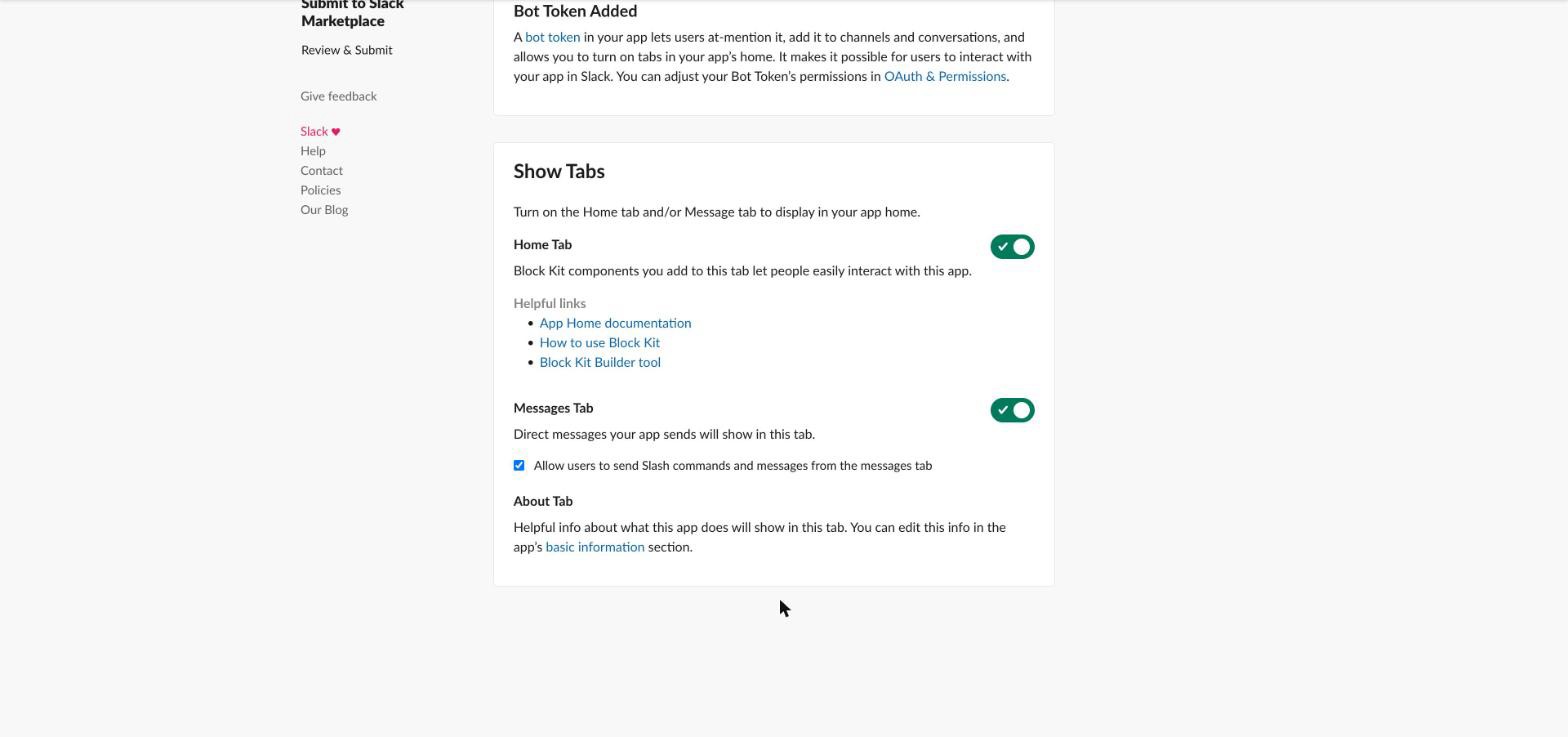
1. In the left menu click **App Home**.
2. Scroll to **Show Tabs** and turn on **Messages Tab**.
The app now appears under **Apps** in your Slack sidebar.
## Part B: Connect it in enSights
1. In enSights go to **Data Hub** → **Connectors**.
2. Open the **3rd Party Apps** tab and click the **Slack** card.
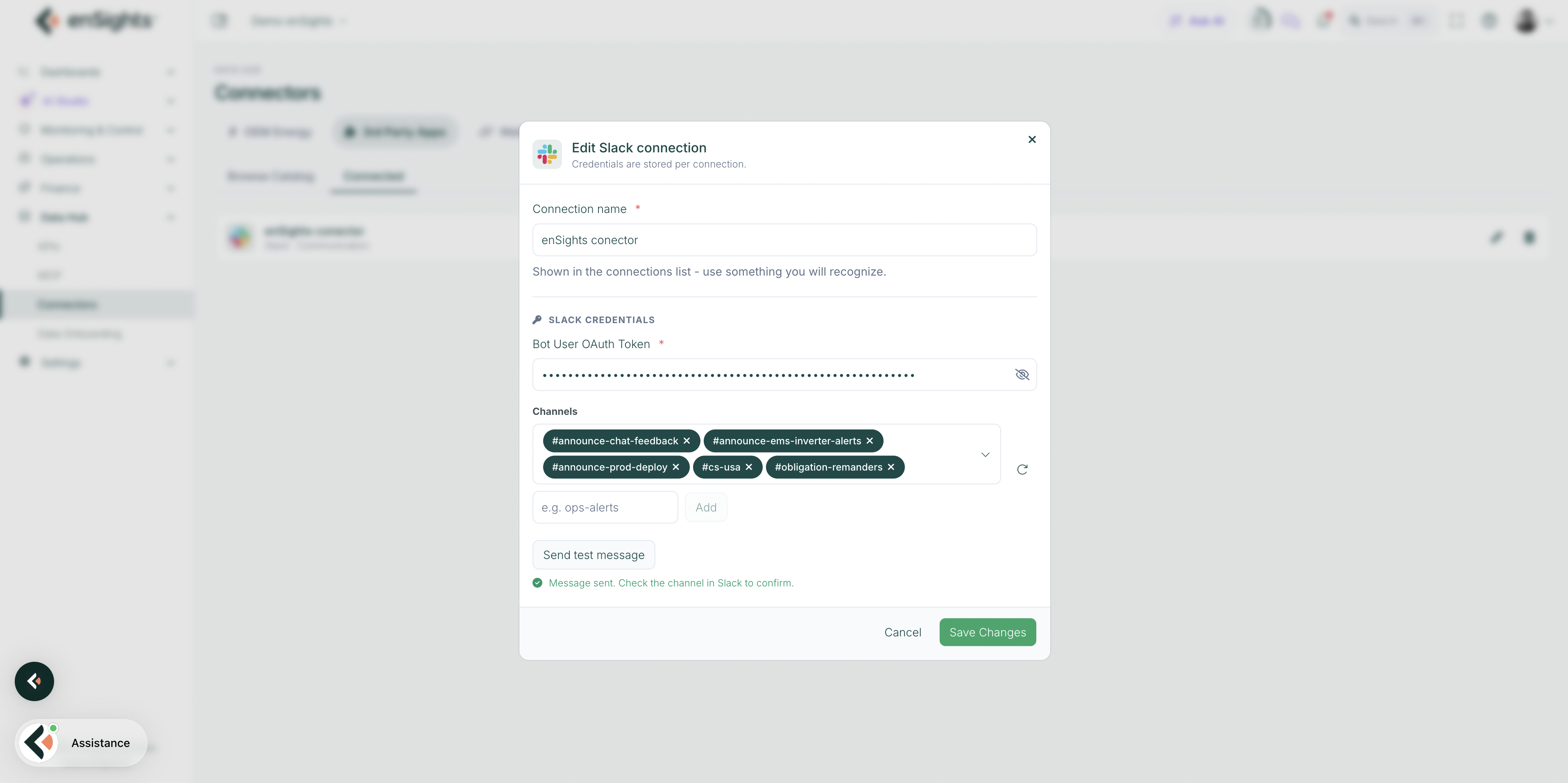
3. In the **Connect Slack** dialog fill in:
4. - **Connection name**: anything you will recognise in the connections list, for example "Slack - Operations".
- **Bot User OAuth Token**: paste the **xoxb-** token you copied in Step 3.
- **Channels**: pick the channels enSights may post to. Click the refresh icon next to the field if the list is empty.
5. Click **Send test message**. A message from the app should appear in each selected channel within a few seconds.
6. Click **Save Changes**. The connection now shows under the **Connected** tab.
## If the test message fails
| Message you see | What it means and what to do |
| --- | --- |
| **The app is not in that channel. Invite it in Slack, then test again.** | The app can only post to channels it is a member of. Open the channel in Slack, type
**/invite @your-app-name**
and press Enter, then test again. Adding the
**chat:write.public**
scope (Step 2) removes this requirement for public channels. |
| **The app cannot list channels. Add channels:read in Slack...** | The
**channels:read**
scope is missing, or you added it but did not reinstall. Go back to Step 2 and Step 3, then click the refresh icon in the dialog. You can also type a channel name manually in the
**e.g. ops-alerts**
box and click
**Add**
. |
| **invalid\_auth**
or
**not\_authed** | The token is wrong or incomplete. Copy it again from
**Install App**
in Slack. It must start with
**xoxb-**
; a token starting with
**xapp-**
or
**xoxp-**
is a different kind and will not work. |
| **missing\_scope** | A scope from Step 2 is missing. Add it, then click
**Reinstall to Workspace**
. Scope changes only take effect after a reinstall. |
| Private channel is not in the list | Private channels only appear after the app is invited to them (
**/invite**
inside the channel) and
**groups:read**
is granted. |
## Notes
- **One app, many connections.** You can reuse the same token in several enSights connections with different channel lists. Credentials are stored per connection.
- **Every scope change needs a reinstall.** Slack shows a yellow banner reminding you. Until you click **Reinstall** and **Allow**, the old permissions stay in force even though the settings page shows the new ones.
- **The token does not change on reinstall** to the same workspace, so you normally do not need to update it in enSights afterwards.
- **Revoking access.** To cut enSights off, delete the connection in enSights, or in Slack go to **OAuth & Permissions** → **Revoke Tokens**.