---
title: "Finance: Projects"
url: "https://ensights.productfruits.help/en/article/finance-projects"
language: "en"
last_updated: "2026-11-11T16:30:55.903Z"
---
# Finance: Projects
## What this page is for
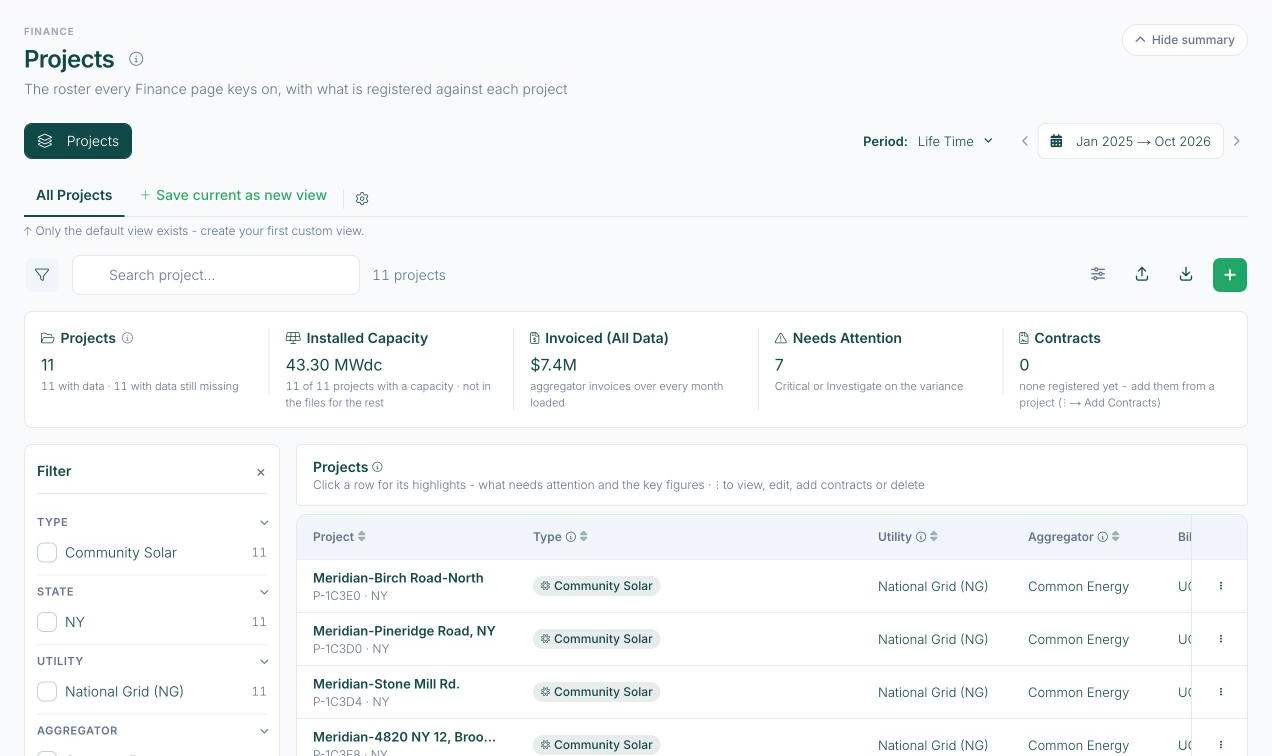
Projects is the roster every Finance page keys on. Open it to see every project, add new ones, fix the details your files don't carry, and register a project's contracts. Revenue Assurance, Obligations and SREC Reporting all read their project list from here.
Find it under **Finance → Projects**. The figures follow the **Period** control at the top right.
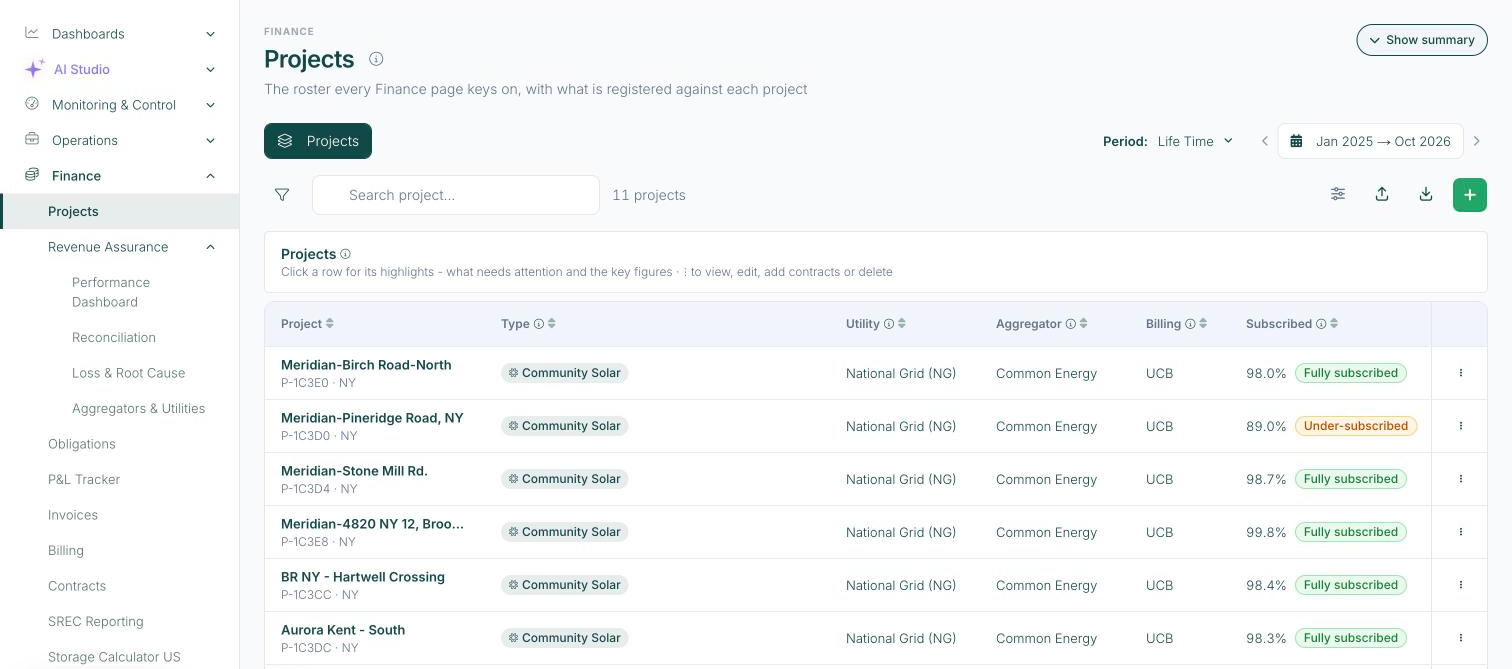
## The toolbar
| Control | What it does |
| --- | --- |
| **Show summary**
/
**Hide summary** | Shows or hides the summary strip above the table. |
| **Period** | Monthly, Quarterly, Annually or Life Time. The arrows step one period back or forward. Subscribed, Invoiced, Variance, Flag and Data follow it. |
| Filter (funnel icon) | Opens the filter panel: Type, State, Utility, Aggregator and more, each with a count. |
| **Search project...** | Finds a project by name. The counter next to it shows how many projects match. |
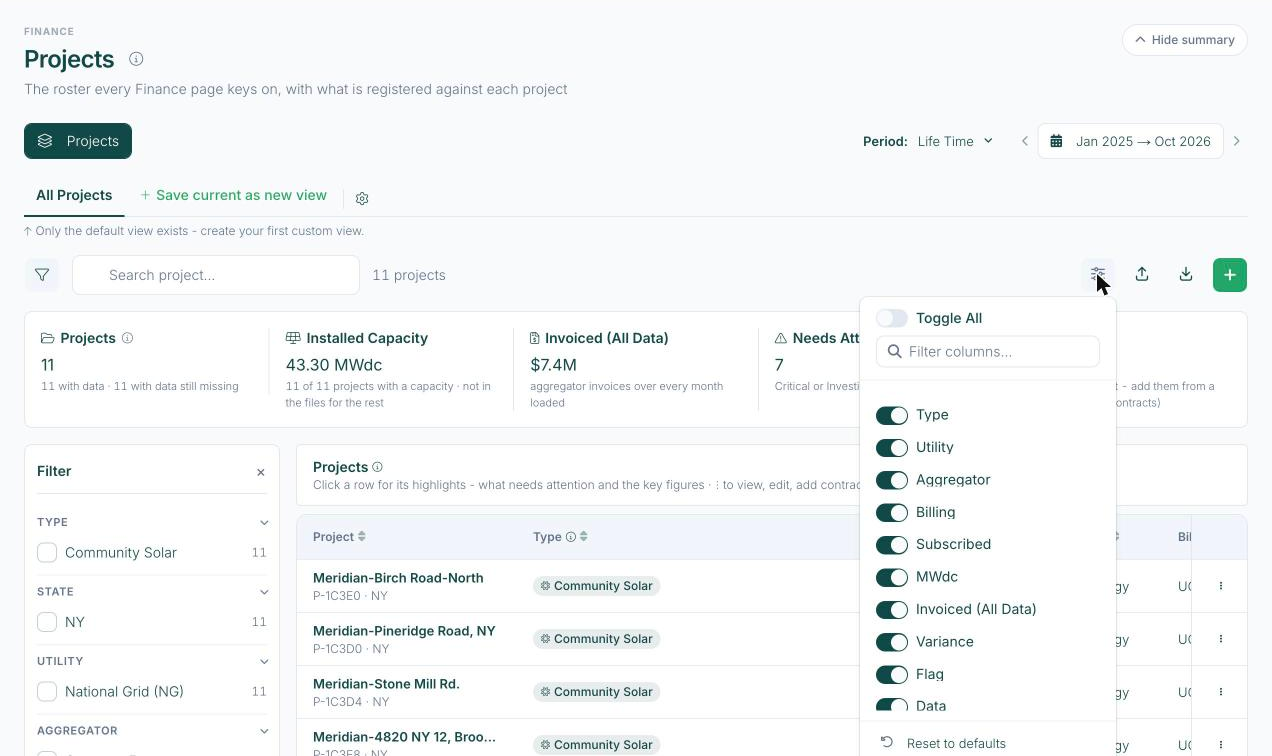
| Preferences (sliders icon) | Chooses the columns: switch each one on or off, search the list,
**Toggle All**
or
**Reset to defaults**
. |
| Batch upload (up-arrow icon) | Creates many projects at once from an Excel or CSV list. See "Adding many projects at once" below. |
| Export CSV (down-arrow icon) | Downloads the rows and columns you see, as CSV. |
| **+**
(green) | Starts the
**Start a New Project**
wizard. |
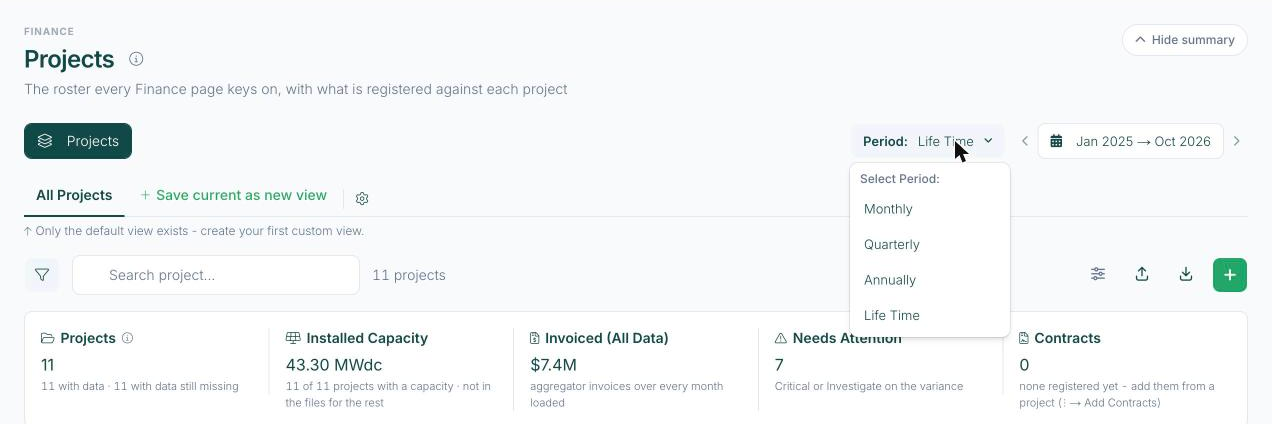
## Saved views
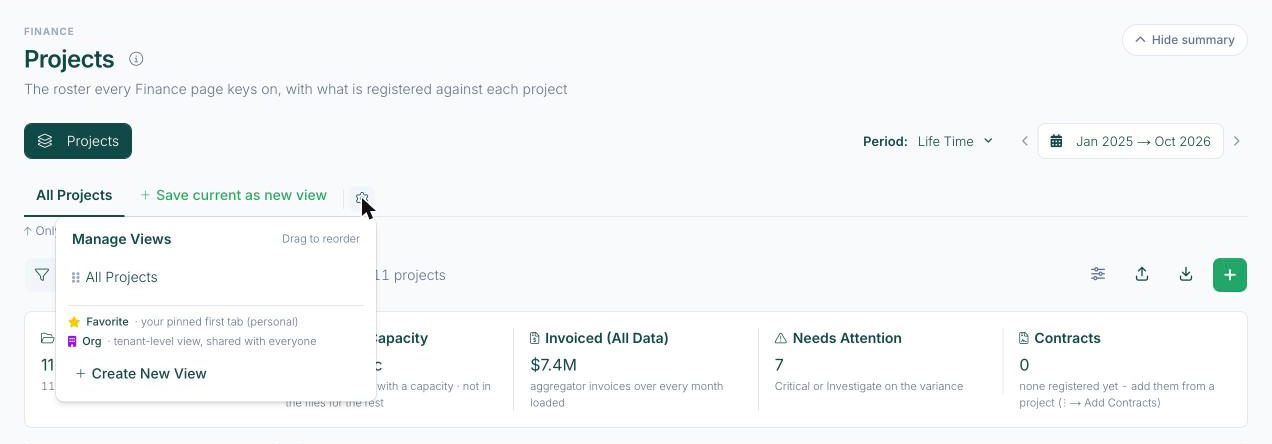
A view remembers your columns, sorting and filters. **All Projects** is the default view.
- **\+ Save current as new view** opens a name field next to the tabs. Type a name and press Enter; Escape cancels.
- The gear opens **Manage Views**. Drag views to reorder them. A **Favorite** is your own pinned first tab; an **Org** view is shared with everyone in your organisation. **\+ Create New View** starts a new one.
## The summary strip
| Figure | What it shows |
| --- | --- |
| **Projects** | How many projects are on the roster, how many have data, and how many still have files missing. |
| **Installed Capacity** | Total MWdc, and how many projects have a capacity recorded. |
| **Invoiced (All Data)** | What the aggregator invoiced over every month loaded. |
| **Needs Attention** | Projects flagged Critical or Investigate on their variance. |
| **Contracts** | Contracts registered across the projects. Add them from a project (⋮ →
**Add Contracts**
). |
## The table
Click a column header to sort. Every header with an ⓘ explains where its figure comes from.
| Column | Meaning |
| --- | --- |
| **Project** | The project name, its ID and state. |
| **Type** | Community Solar, PPA or SREC reporting. One project can be several. |
| **Utility** | The utility whose grid the system feeds. Its credit statements are the reference the other figures are checked against. |
| **Aggregator** | The aggregator or off-taker on the other side of the contract. |
| **Billing** | **UCB**
: the utility applies the credit and bills the subscriber.
**Dual**
: the aggregator bills the subscriber. |
| **Subscribed** | Share of the project's generation allocated to subscribers over the newest three months that can be checked, with a badge: Fully subscribed, Under-subscribed or Over-subscribed. |
| **MWdc** | Installed DC capacity. |
| **Invoiced (All Data)** | What the aggregator invoiced for the project. |
| **Variance** | The gap between what was produced and what reached subscriber bills (kWh) or, where no allocation data exists, between invoiced and collected (cash). The basis is printed next to the %. |
| **Flag** | **OK**
under 2%,
**Investigate**
2-5%,
**Critical**
5% and above,
**Feed pending**
when no file carries a basis yet,
**Onboarding**
for a new project with no month of data. |
| **Data** | Whether the figures are verified from files, and which files are still missing. |
| **System**
,
**State**
,
**Contracts** | Optional columns: the linked platform site, the state, and the project's contracts. |
## Project highlights (click a row)
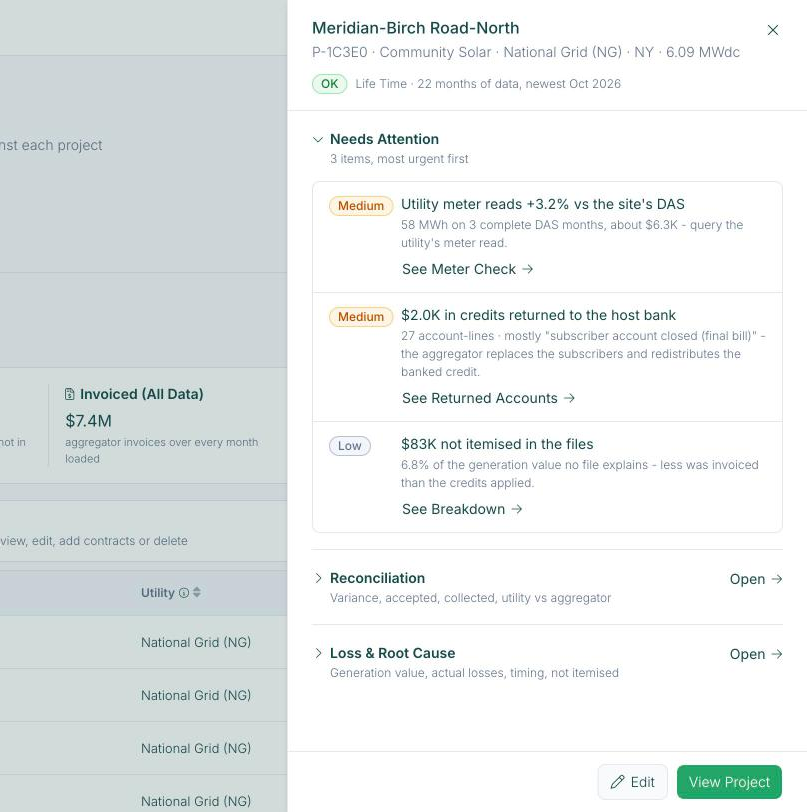
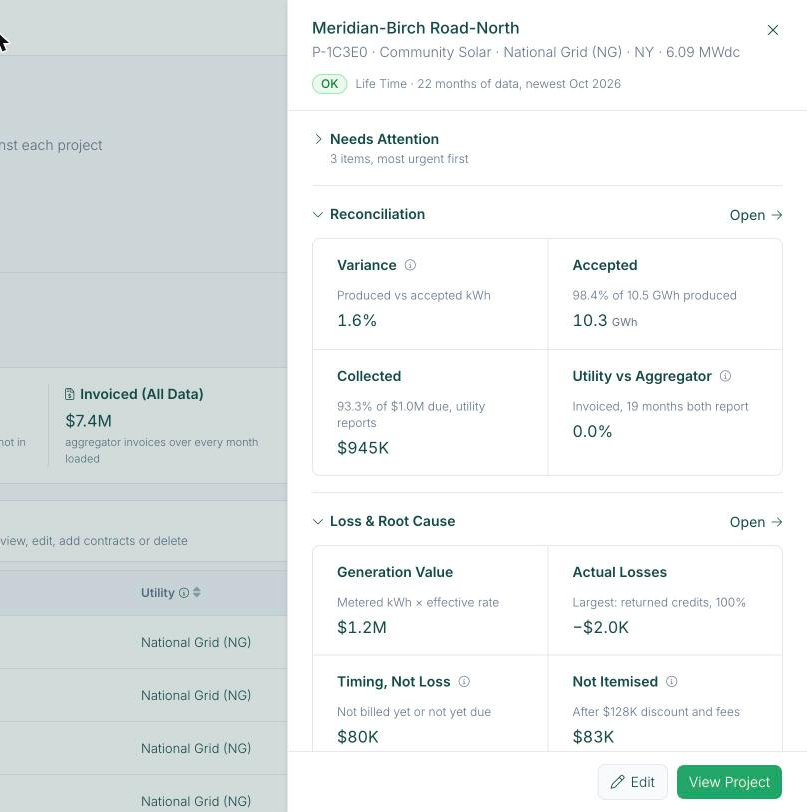
Clicking a row opens a panel on the right with what needs attention and the key figures for the selected period. The browser's Back button closes it.
- The header shows the project's ID, type, utility, state and capacity, its flag, and how many months of data it has.
- **Needs Attention** lists the issues found in the files, most urgent first. Each one has a **High**, **Medium** or **Low** badge, what the files show, and a link to the page that explains it (for example **See Meter Check** or **See Returned Accounts**).
- **Reconciliation** and **Loss & Root Cause** are folded by default. Open them for the project's key figures; **Open →** takes you to that page filtered to this project.
- **Edit** and **View Project** sit at the bottom.
## Row actions (⋮)
The ⋮ at the end of each row offers **View**, **Edit**, **Add Contracts** and **Delete**.
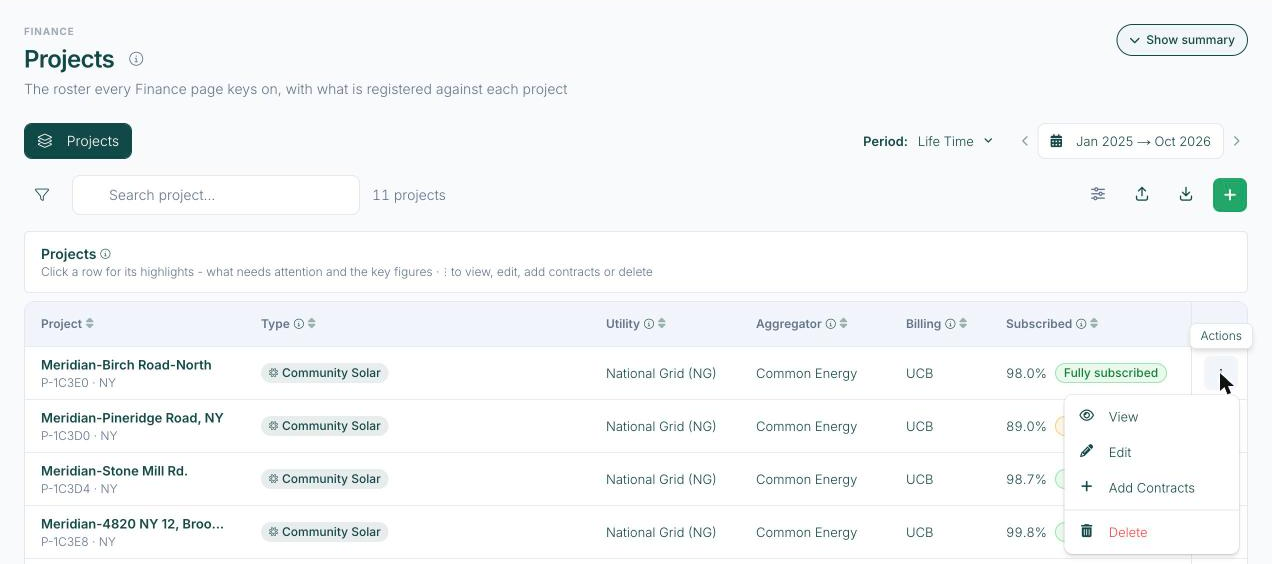
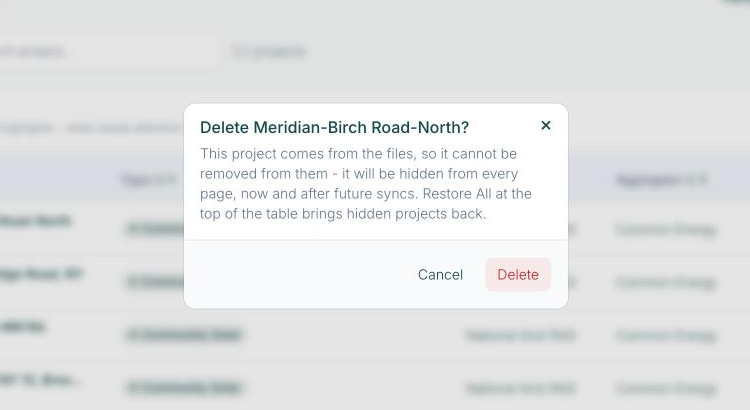
**Delete** asks for confirmation first. A project that comes from your files can't be removed from them, so deleting it hides it from every page, now and after future syncs. **Restore All** at the top of the table brings hidden projects back.
## The project page
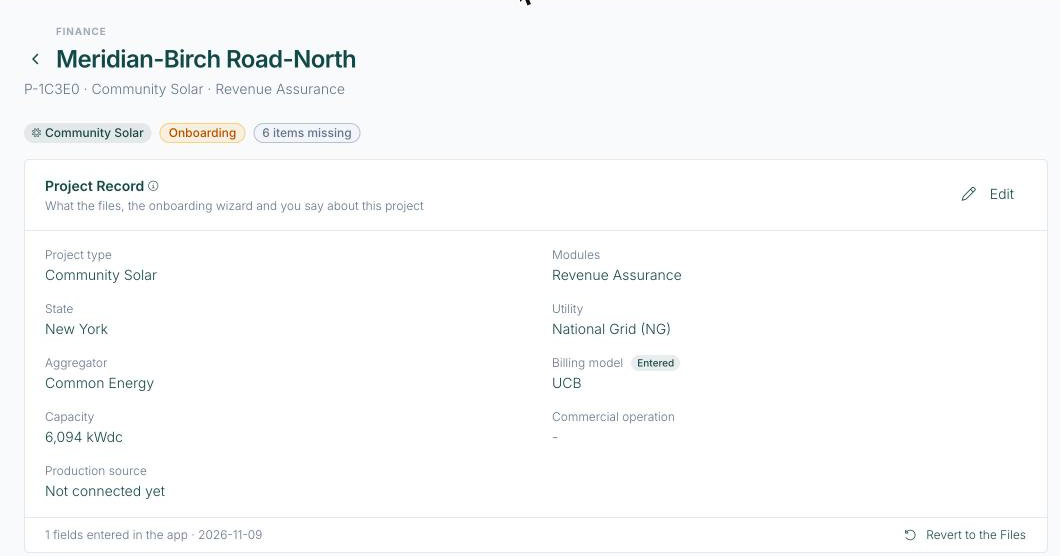
**View** opens the project as its own page. The ← arrow returns to the roster.
- The badges under the name show the type, the onboarding status and how many items are still missing.
- **Project Record** holds what the files, the onboarding wizard and you say about the project. A value you typed in carries an **Entered** mark. The footer counts the fields entered in the app, and **Revert to the Files** removes your edits.
- **Data Coverage** lists each part of the chain (production, allocation, invoiced, collected, host bank) with the months and the file it comes from.
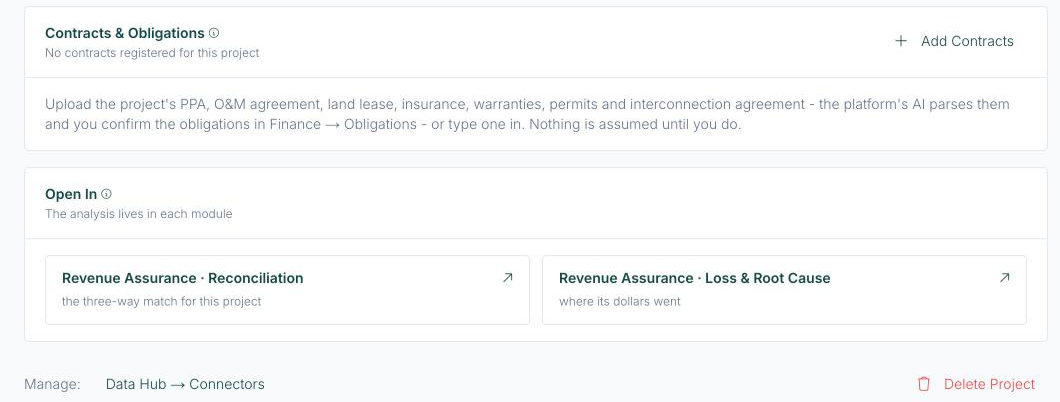
- **Contracts & Obligations** lists the project's contracts, with **\+ Add Contracts**.
- **Open In** jumps to Reconciliation or Loss & Root Cause for this project. **Data Hub → Connectors** manages the production connection, and **Delete Project** sits at the bottom.
## Editing a project
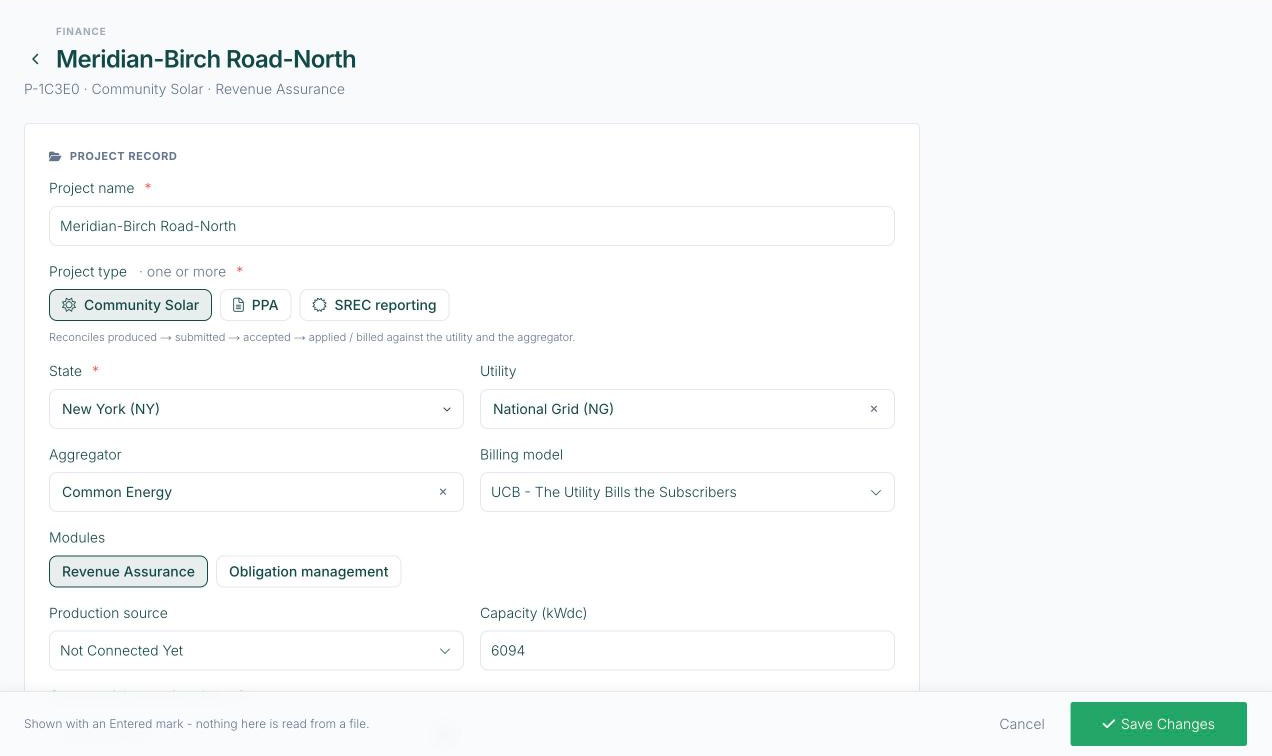
**Edit** opens the project record as a form: project name, project type (one or more), state, utility, aggregator, billing model, modules (Revenue Assurance, Obligation management), production source, capacity (kWdc), commercial operation date, the linked platform system, and notes. **Save Changes** stores them; **Cancel** leaves without saving.
## Adding contracts
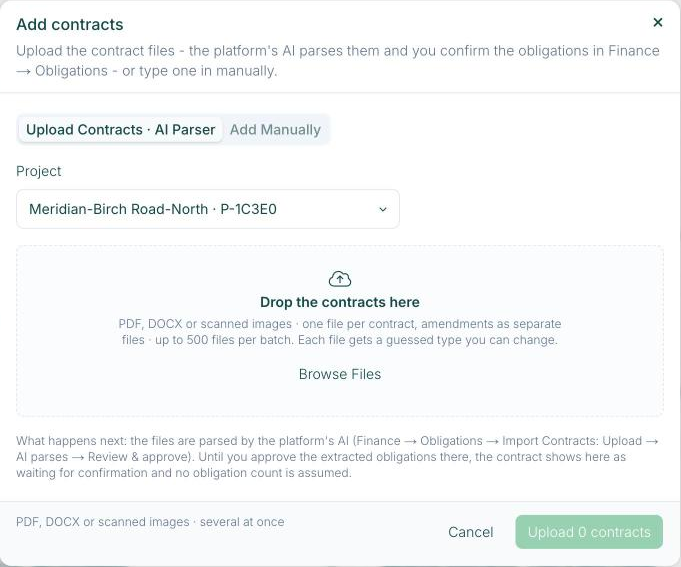
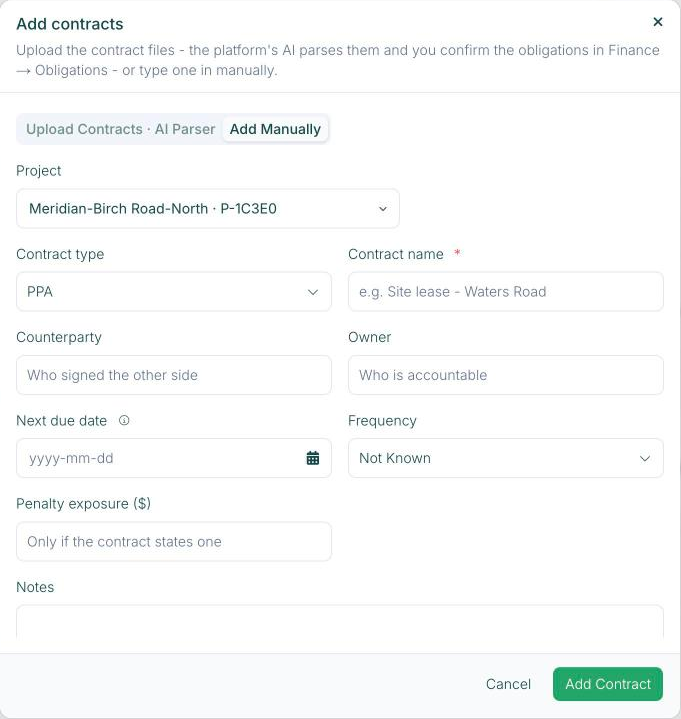
**Add Contracts** opens a dialog with two tabs.
- **Upload Contracts · AI Parser**: drop PDF, DOCX or scanned contracts, one file per contract (amendments as separate files), up to 500 at a time. Each file gets a guessed type you can change. The platform's AI then extracts the obligations, and you confirm them in **Finance → Obligations**. Until you do, the contract shows as waiting for confirmation and no obligation count is assumed.
- **Add Manually**: contract type, contract name, counterparty, owner, next due date, frequency, penalty exposure and notes.
## Starting a new project
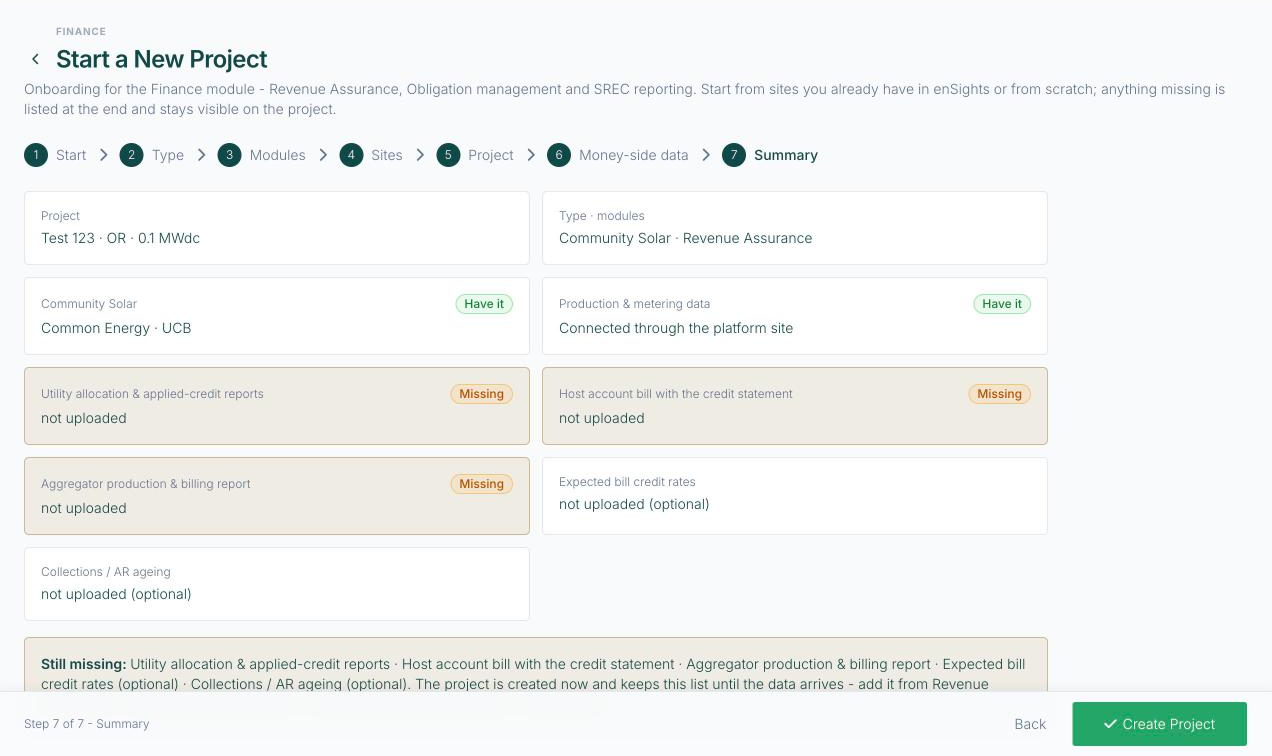
The green **+** opens **Start a New Project**, a seven-step wizard. Anything you skip is listed at the end and stays visible on the project until the data arrives.
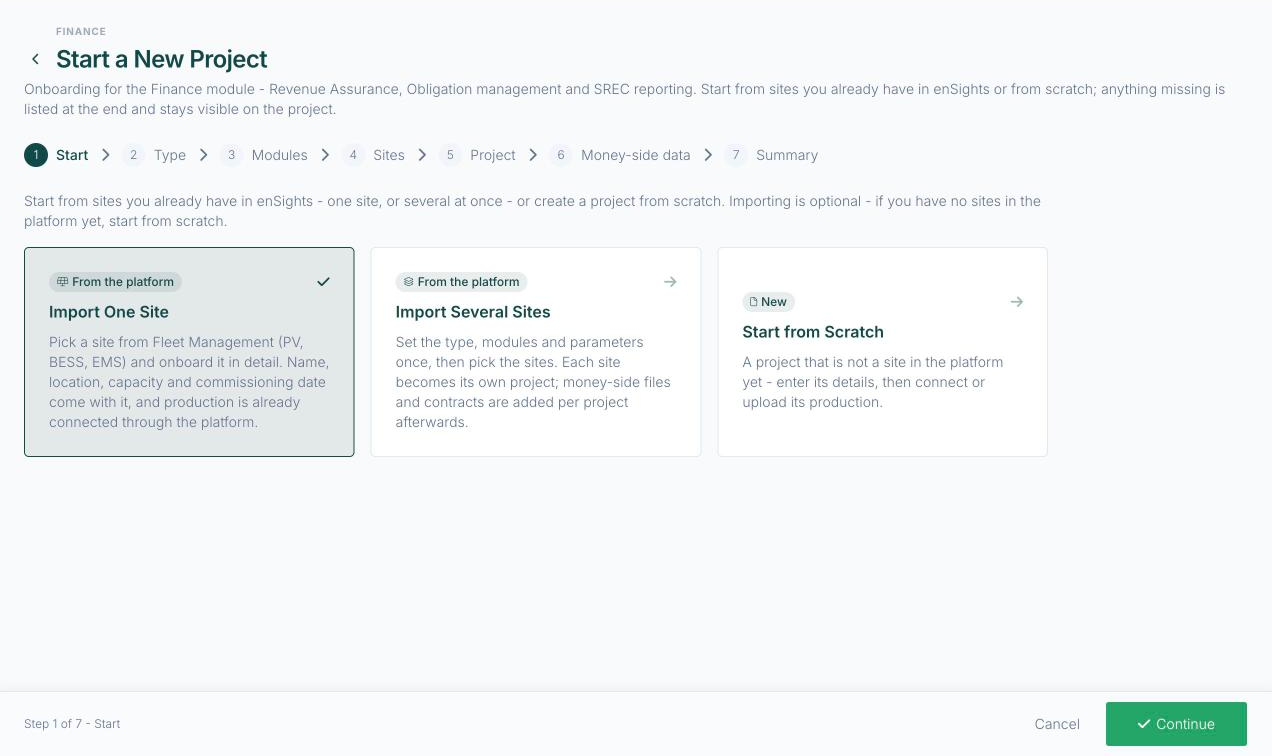
1. **Start**: **Import One Site** from Fleet Management (name, location, capacity and commissioning date come with it, and production is already connected), **Import Several Sites** (set type, modules and parameters once, then pick the sites), or **Start from Scratch**.
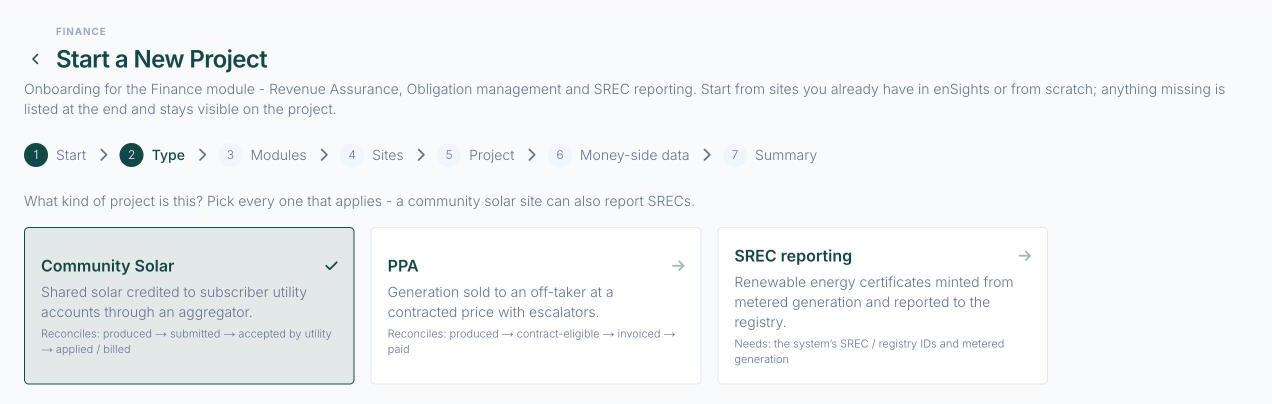
2. **Type**: Community Solar, PPA or SREC reporting. Pick every one that applies.
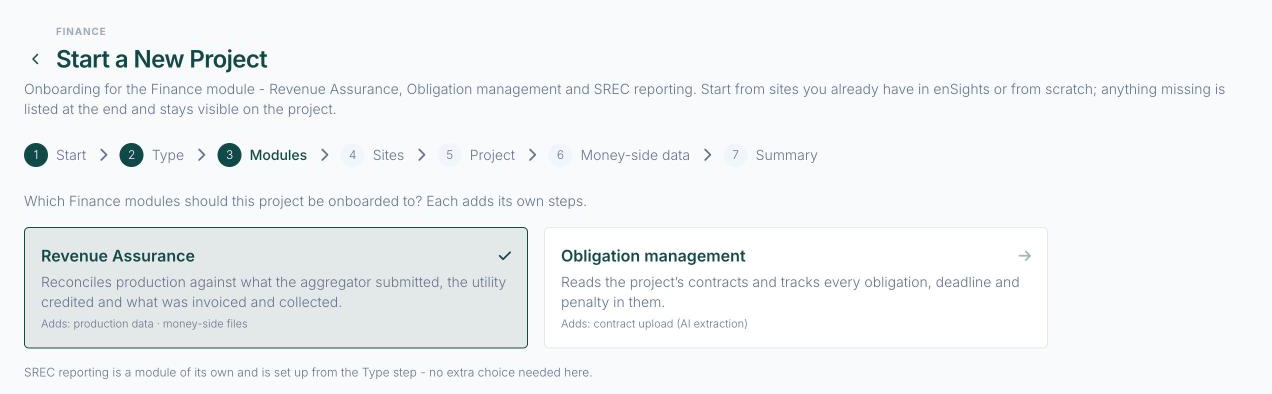
3. **Modules**: Revenue Assurance and/or Obligation management. Each adds its own steps.
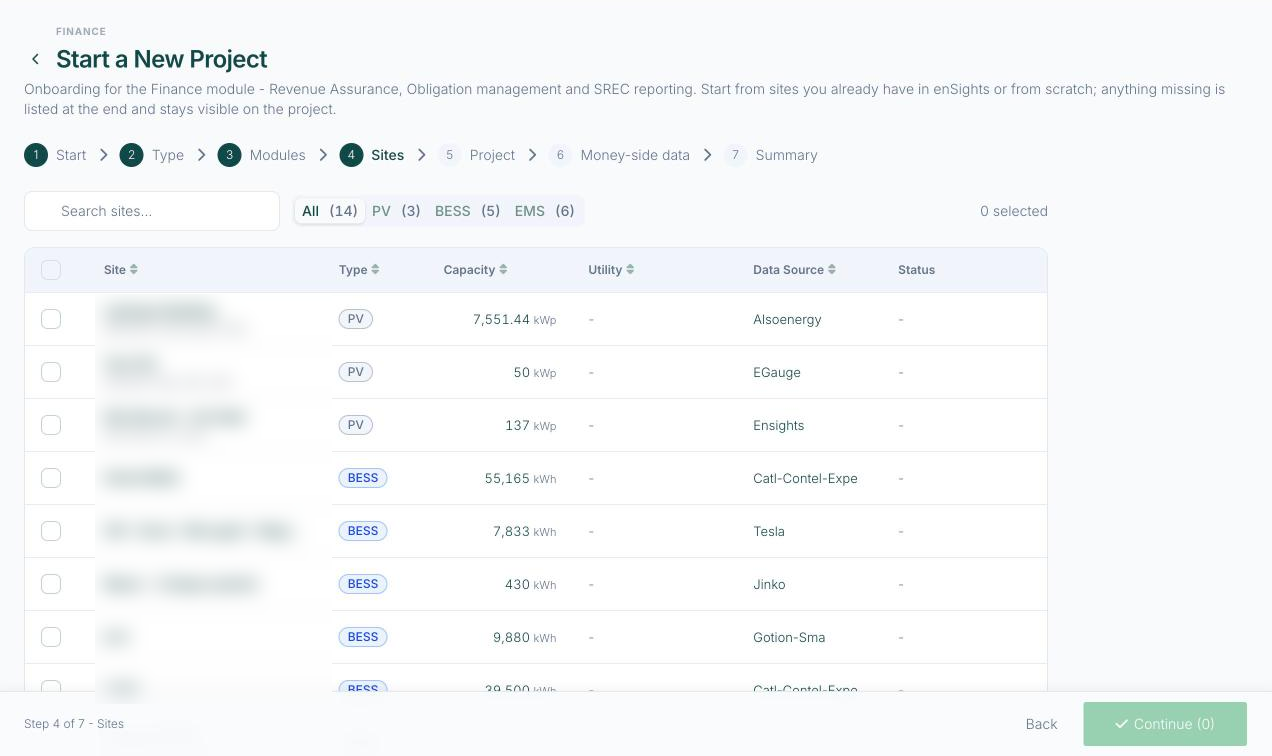
4. **Sites**: pick the platform sites to import. Filter by PV, BESS or EMS, or search.
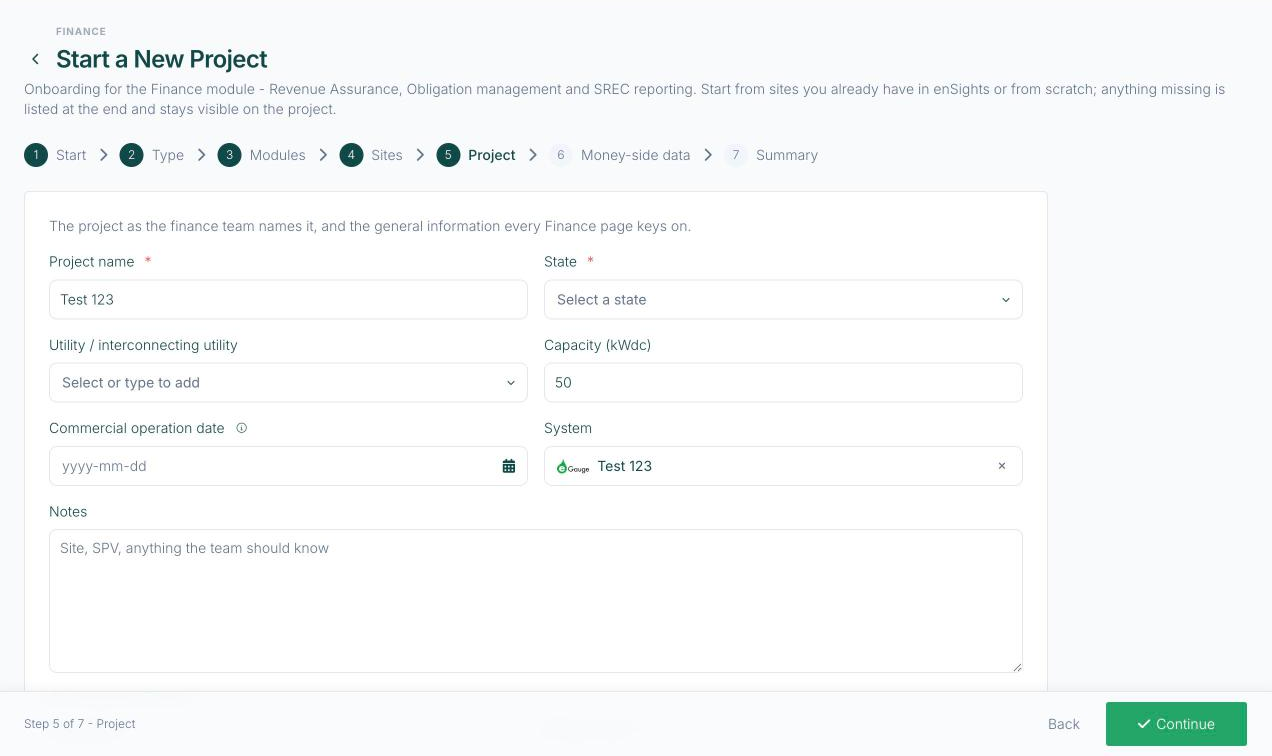
5. **Project**: the project's name, state, utility, capacity, commercial operation date, linked system and notes. Imported sites arrive prefilled.
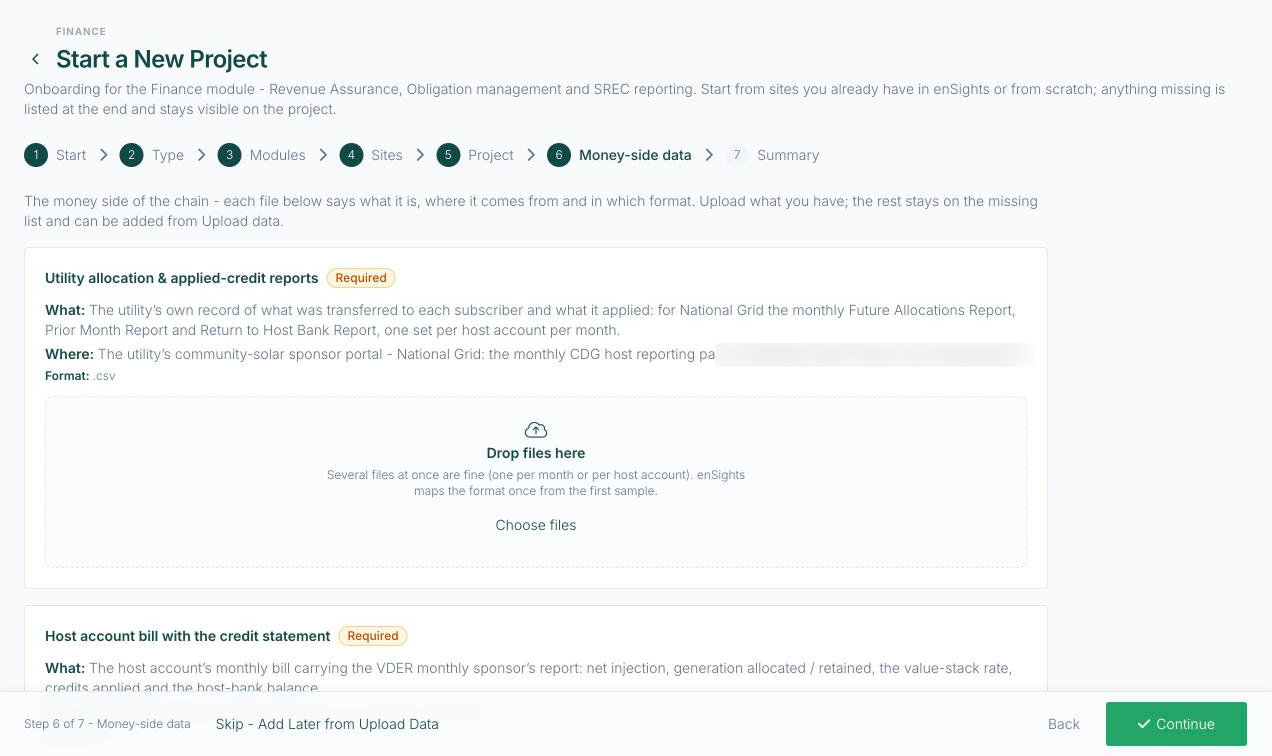
6. **Money-side data**: one card per file, each saying what it is, where it comes from and its format, marked **Required** or **Optional**. Upload what you have, or click **Skip - Add Later from Upload Data**.
7. **Summary**: every item marked **Have it**, **Missing** or optional. **Create Project** creates it; the missing list stays on the project.
## Adding many projects at once
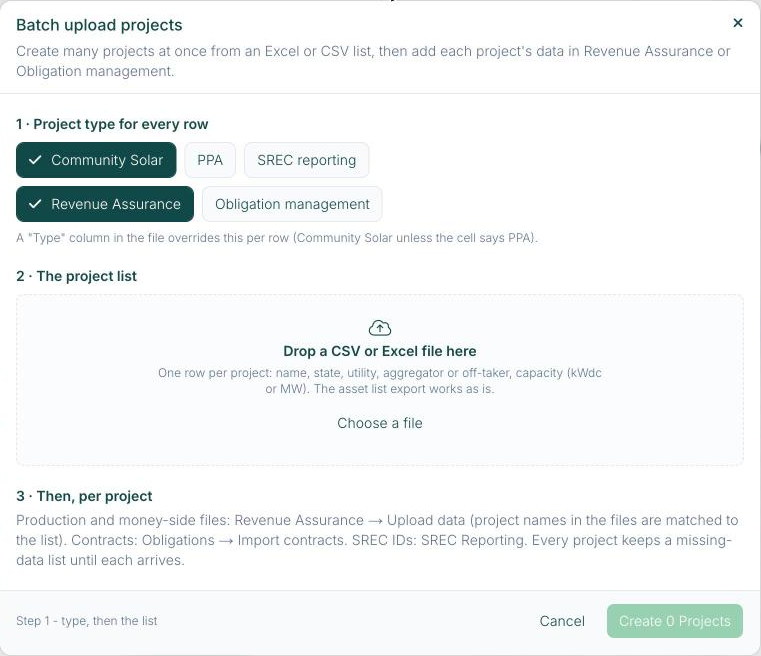
The upload icon opens **Batch upload projects**.
1. Choose the project type and modules for every row. A "Type" column in the file overrides this per row.
2. Drop the project list (CSV or Excel), one row per project: name, state, utility, aggregator or off-taker, capacity. An asset-list export works as it is. enSights maps the columns and previews the first rows; check each mapping and fix any that are wrong.
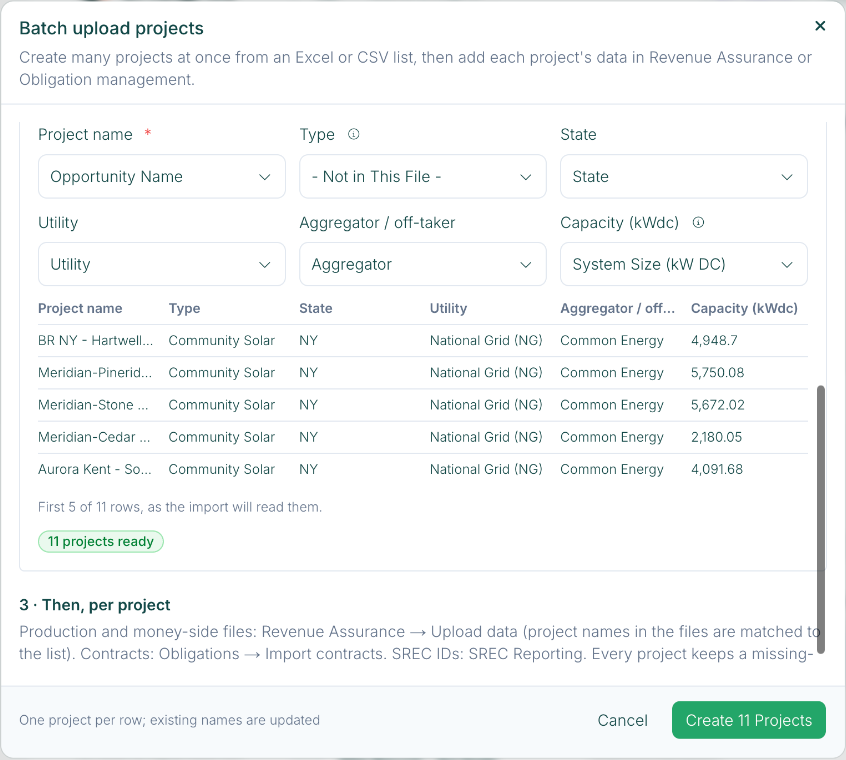
3. Click **Create N Projects**. A name that already exists is updated rather than duplicated. Then add each project's files in Revenue Assurance → Data Feeds, contracts in Obligations, and SREC IDs in SREC Reporting.
## How to
### Find the projects that need attention this period
1. Click **Show summary** and read **Needs Attention**.
2. Open the filter panel and pick **Critical** and **Investigate** under Flag.
3. Click a project for its highlights, then follow the link on the top item.
### Onboard a portfolio from an asset list
1. Click the upload icon and choose the type and modules.
2. Drop the list, check the column mapping, and click **Create N Projects**.
3. Go to Revenue Assurance → Data Feeds and upload each project's files.
### Record details your files don't carry
1. Open the project (⋮ → **Edit**).
2. Fill in the capacity, commercial operation date or billing model and click **Save Changes**. The values carry an **Entered** mark.
3. To undo, open the project page and click **Revert to the Files**.
### Share a list with your team
1. Set the filters, columns and sort you want.
2. Save it as a view and make it an **Org** view, or click **Export CSV**.
## Notes
- A dash means the figure isn't in any file yet. It is not a zero.
- Revenue Assurance counts Community Solar and PPA projects only. A project that only reports SRECs stays here and in SREC Reporting.
- Your edits never overwrite figures read from files. Reconciled figures can't be edited.
- Deleting a project that came from your files hides it; **Restore All** brings it back.