---
title: "Finance: Revenue Assurance — Aggregators & Utilities"
url: "https://ensights.productfruits.help/en/article/finance-revenue-assurance-aggregators-utilities"
language: "en"
last_updated: "2026-11-11T16:12:28.720Z"
---
# Finance: Revenue Assurance — Aggregators & Utilities
## What this page is for
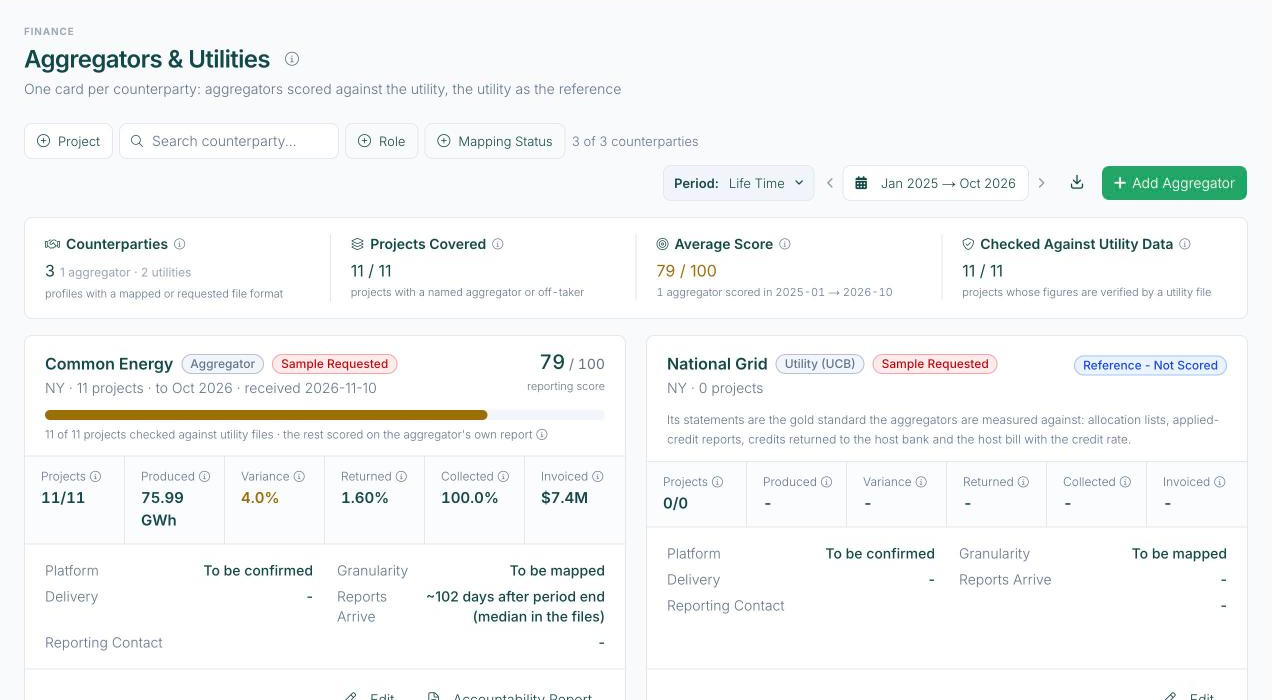
Aggregators & Utilities shows one card per counterparty. Aggregators are scored on how well their reporting matches the utility's data; the utility is the reference they are checked against and is never scored. Open it to see which aggregator to talk to, and to keep each counterparty's profile (reporting SLA, contact, file format) up to date.
Find it under **Finance → Revenue Assurance → Aggregators & Utilities**.
## The toolbar
| Control | What it does |
| --- | --- |
| **⊕ Project** | Limits the page to the counterparties of the projects you pick. |
| **Search counterparty...** | Finds a counterparty by name. |
| **Role**
and
**Mapping Status** | Filter chips, each with a count per value. |
| **Period** | Monthly, Quarterly, Annually or Life Time. Scores and figures follow it. |
| Export CSV (download icon) | Downloads the counterparties and their figures. |
| **\+ Add Aggregator** | Creates a new aggregator, utility or off-taker profile. |
## The KPI strip
| Figure | What it shows |
| --- | --- |
| **Counterparties** | Every aggregator, off-taker or utility with a profile. |
| **Projects Covered** | Projects that name a counterparty. |
| **Average Score** | The mean reporting score of the aggregators whose files reconcile in the period. |
| **Checked Against Utility Data** | Projects that carry the utility's own allocation, applied-credit and host-bank reports. Only for these is the aggregator checked against an independent source. |
## The counterparty card
- The header shows the name, the role (**Aggregator**, **Utility (UCB)** or **Off-taker**), the mapping status of its file format, the states and projects it covers, and when its newest file arrived.
- An aggregator shows its **reporting score** out of 100 with a bar: green from 85, amber from 70, red below. A utility card reads **Reference - Not Scored**.
- Figures: **Projects** (with data / assigned), **Produced**, **Variance**, **Returned**, **Collected** and **Invoiced**. Hover the ⓘ for each definition.
- Profile: **Platform**, **Granularity**, **Delivery**, **Reports Arrive** (the median delay after period end, measured from the files) and **Reporting Contact**.
- **Edit** opens the profile. Aggregator cards also have **Accountability Report**.
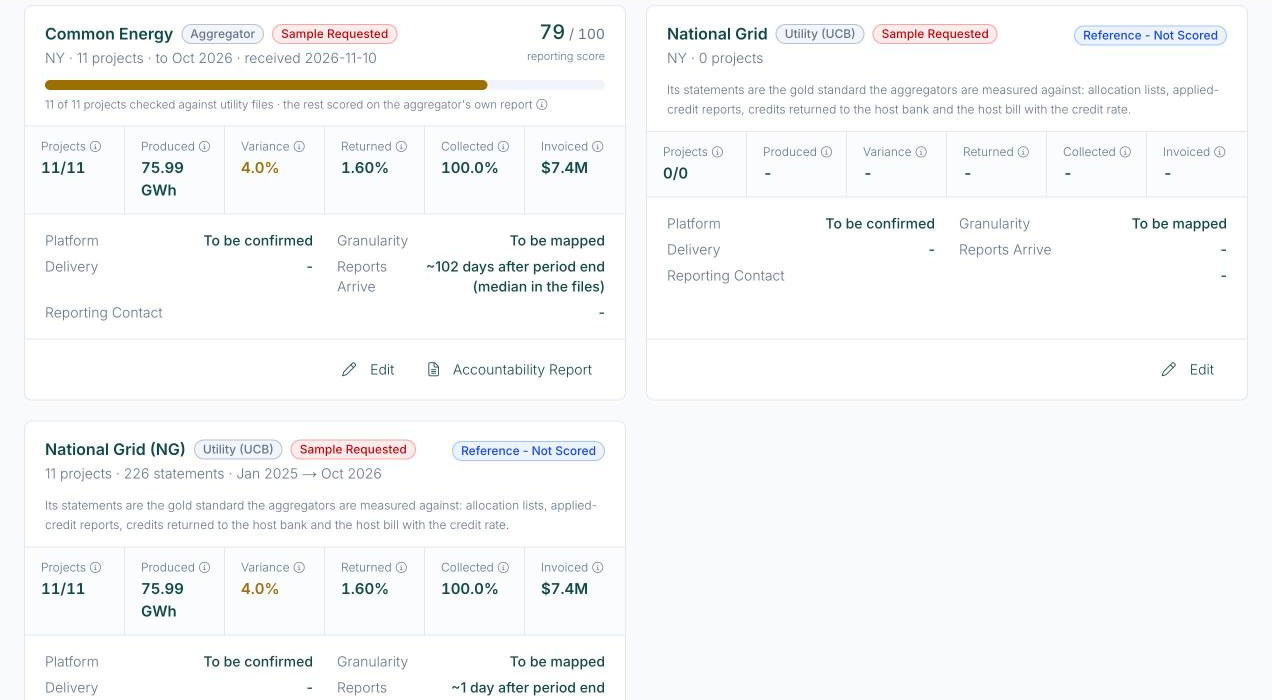
The reporting score is 100 − rejection rate % × 8 − allocation gap % × 2 − past-due % × 1.5, floored at 0. Each term only counts when the file carrying it is loaded.
## Editing a profile
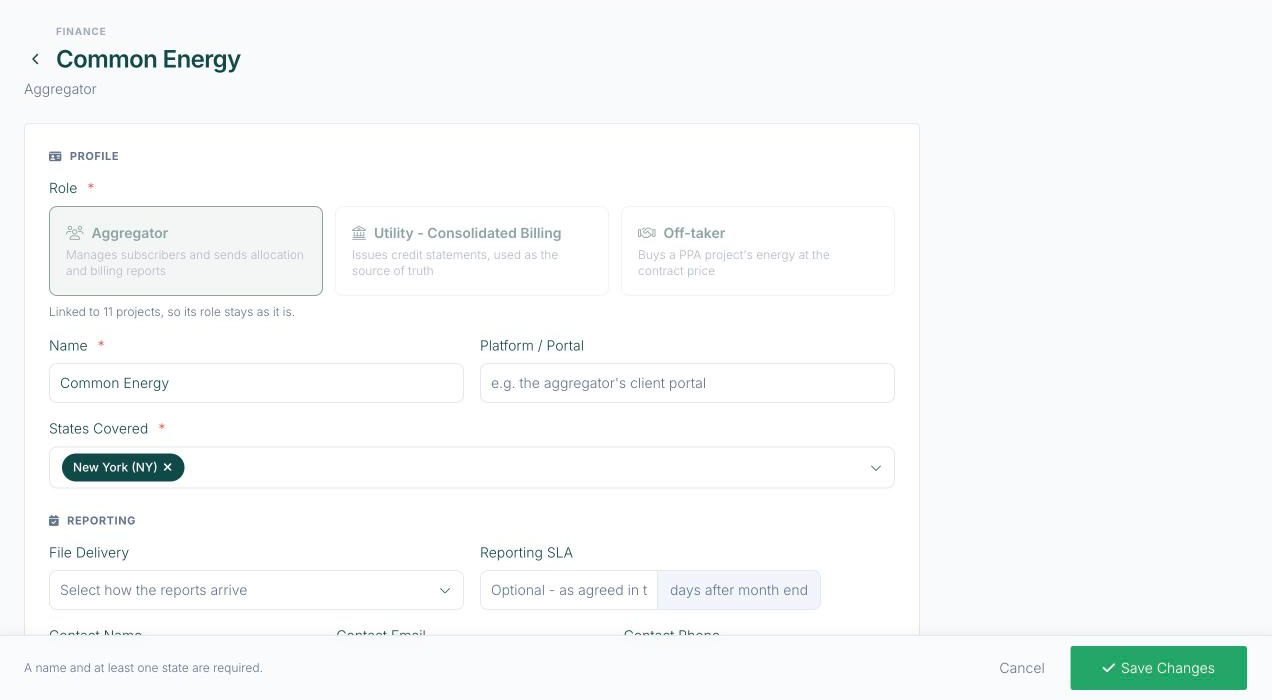
**Edit** opens the profile as a page:
- **Profile**: role, name, platform or portal, and states covered. The role is locked once the counterparty is linked to projects.
- **Reporting**: file delivery, reporting SLA (days after month end, as agreed in the contract), and the contact's name, email and phone.
A name and at least one state are required. **Save Changes** stores the profile; **Cancel** leaves without saving.
## Adding a counterparty
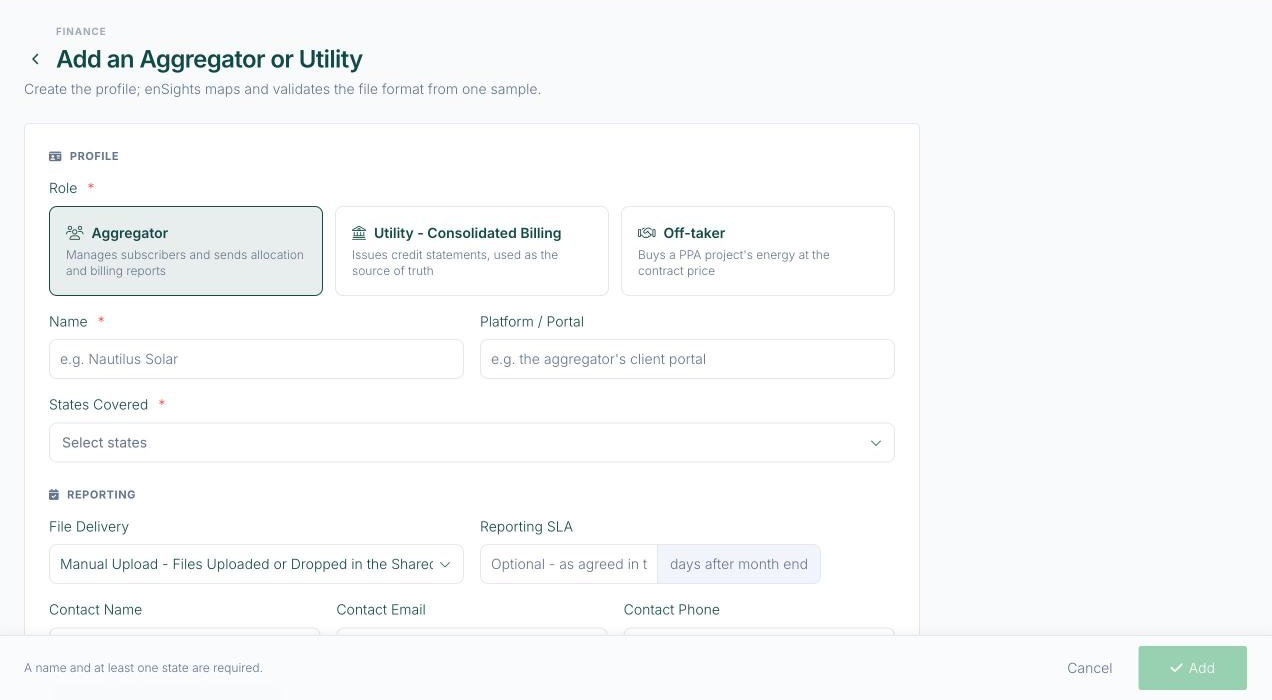
**\+ Add Aggregator** opens **Add an Aggregator or Utility**: pick the role (Aggregator, Utility - Consolidated Billing, or Off-taker), then fill in the profile and reporting fields as above. Under **File Format**, add a sample report (CSV, XLSX or PDF) to start the format mapping straight away. Click **Add** to create it.
## How to
### Decide which aggregator to call this month
1. Sort your attention by the reporting score: red and amber first.
2. On that card, read **Returned** and **Collected** to see whether the issue is allocation or cash.
3. Open Loss & Root Cause for the account list to send.
### Set up an aggregator before its first report
1. Click **\+ Add Aggregator** and choose **Aggregator**.
2. Enter the name, states, delivery and reporting SLA, and the contact.
3. Attach a sample report so enSights can map the format, then click **Add**.
### Hold an aggregator to its reporting SLA
1. Click **Edit** and enter the reporting SLA from the contract.
2. Compare it with **Reports Arrive** on the card, which is measured from the files.
## Notes
- The utility is never scored: its statements are what everything else is checked against.
- Projects without utility files are scored on the aggregator's own report only. The line under the score says how many were checked against utility files.
- "To be mapped" and "To be confirmed" mean the profile field hasn't been filled in yet.