---
title: "Reports: organising reports in folders"
url: "https://ensights.productfruits.help/en/article/reports-organising-reports-in-folders"
language: "en"
last_updated: "2026-10-01T08:34:22.482Z"
---
# Reports: organising reports in folders
Folders let you organise every report on the **Reports** page, whatever its type, into a structure that matches how you work: by owner, fund, region or audience. This page is for anyone who manages more than a handful of reports and wants to find them again quickly. For what each report type contains, see **Reports: templates and archive**. For the settings inside a report, see **Reports: building and scheduling a report**.
## What it does
- Folders work for **all report types**, not only Draft Invoice reports.
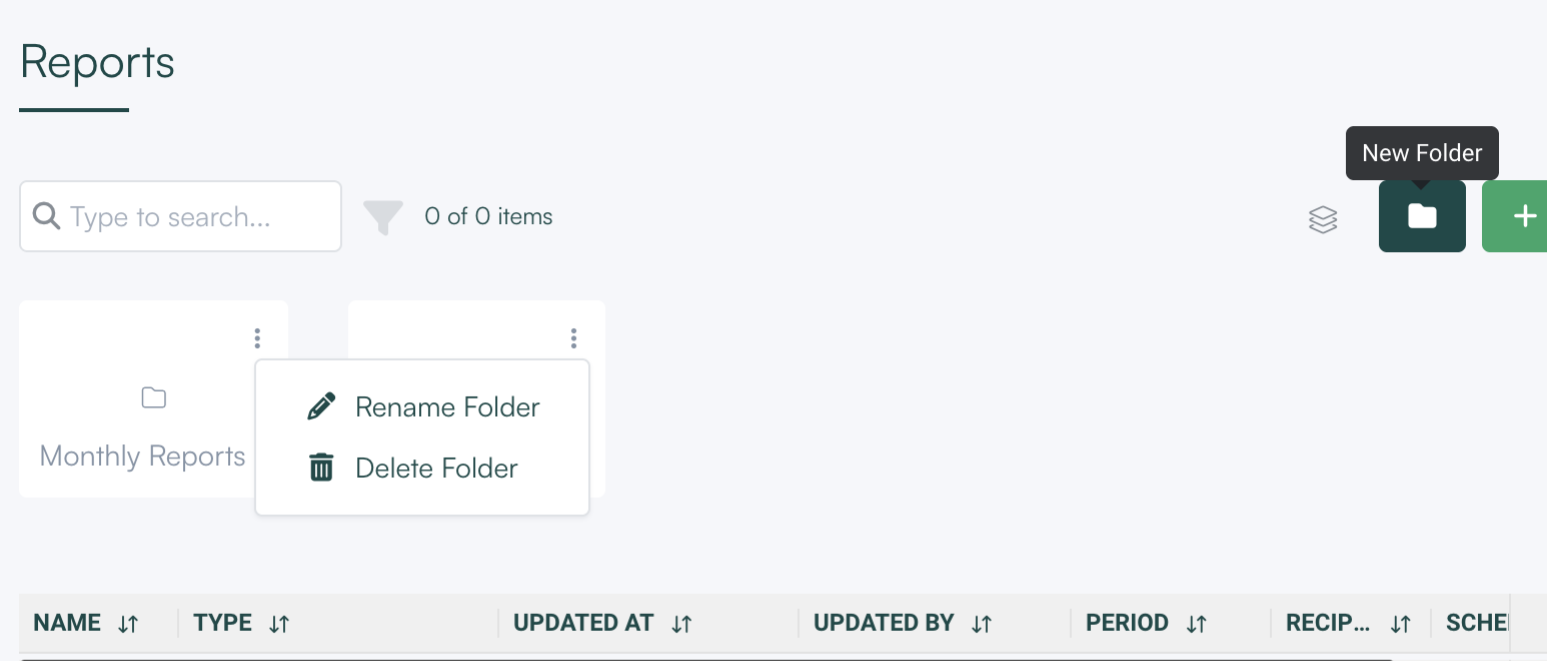
- Folders appear as **cards** at the top of the page, with the reports table below them. Inside a folder, the table shows that folder's reports.
- Folders can contain **sub-folders**.
- A report can sit in **more than one folder** at the same time.
- You can file reports one at a time or **in bulk**.
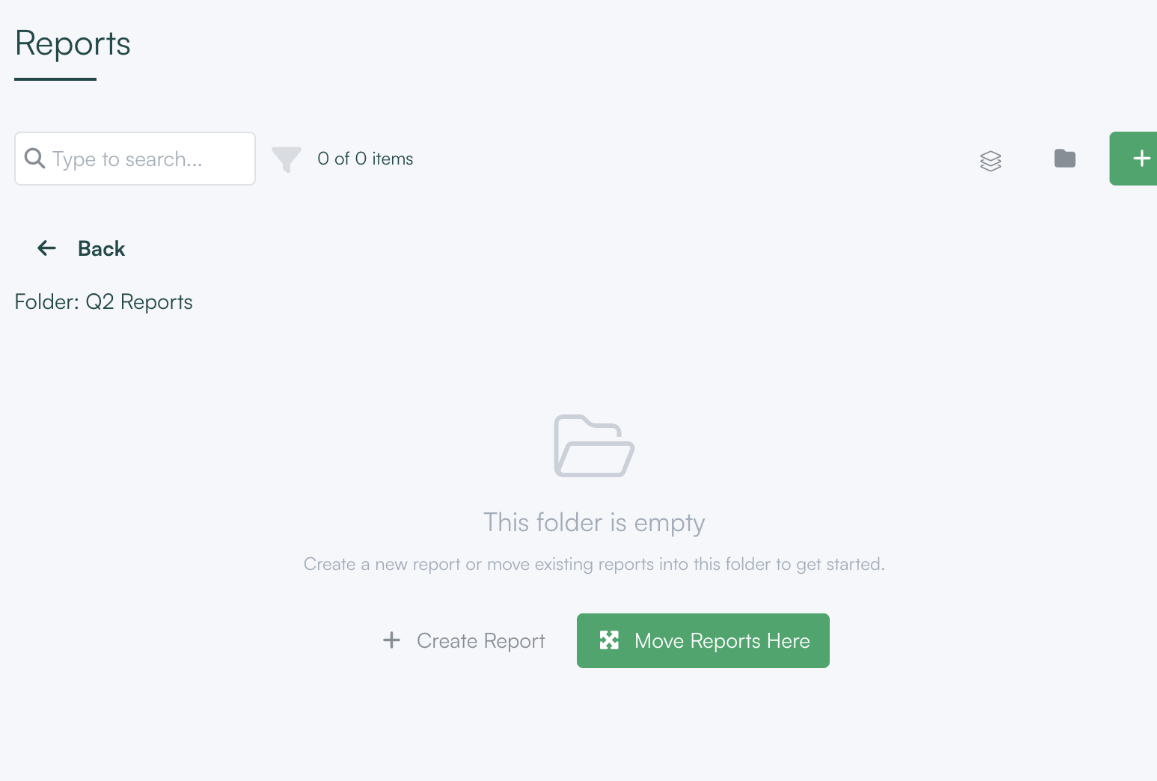
- A **breadcrumb** at the top shows where you are: Reports → Folder → Sub-folder → Report.
## Controls
| Control | What it does |
| --- | --- |
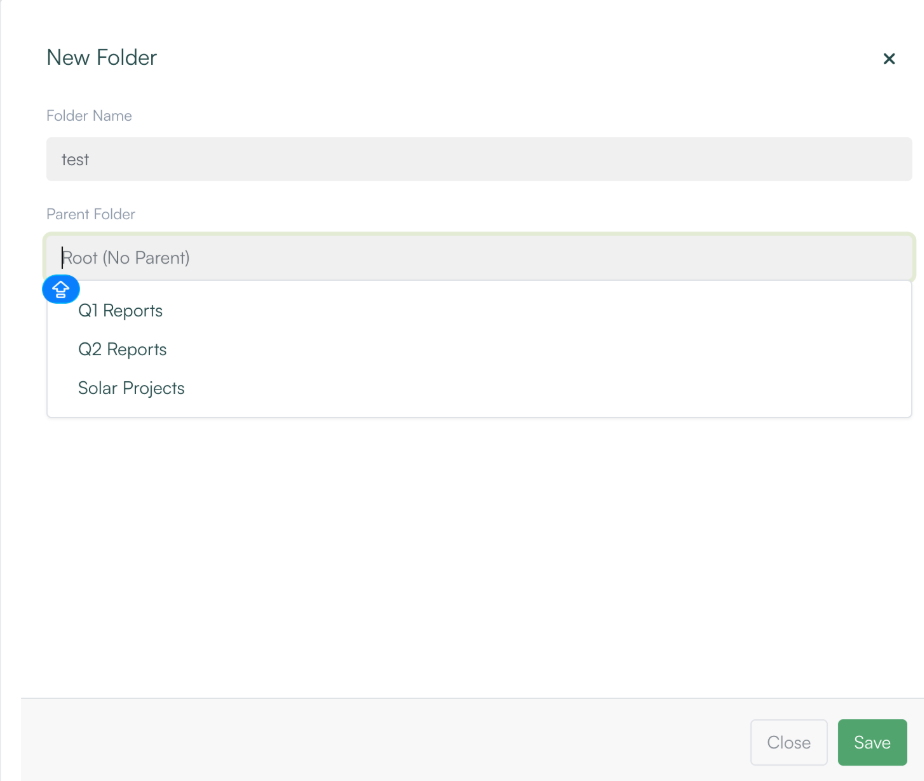
| Create folder (on the main Reports page) | Creates a new folder. You can choose a parent folder to make it a sub-folder, or leave it at the top level. |
| Folder card | Click to open the folder and see its sub-folders and reports. |
| Breadcrumb | Click any level to go back up, for example from a report to its folder, or from a sub-folder to the top of
**Reports**
. |
| Folder context menu | **Rename Folder**
or
**Delete Folder**
the folder. |
| Report edit (drawer) | Open a report's settings to choose the folder or folders it belongs to. |
| Multi-select in the table | Select several reports, then delete them or add/move them to a folder. When you choose a folder, you can scroll the list or search it by name. |
## How it works
### Folders are labels, not locations
A report can be in several folders at once, so putting a report in a folder does not take it out of anywhere else. The same monthly owner report can live in both "Fund A" and "Monthly owner reports". There is still only one report: editing it from either folder changes the same report, and it is generated and sent once.
### Deleting a folder never deletes reports
When you delete a folder, enSights asks you to confirm and reminds you what will happen:
- The folder **and all of its sub-folders** are deleted.
- The **reports inside are not deleted**. They remain available in the main reports table.
### Filing reports in bulk
If a report you selected is already in the folder you pick, it is not duplicated. It stays where it is and the rest of the selection is added.
### Draft Invoice categories
Draft Invoice reports keep their existing categories. Folders sit alongside those categories and do not replace or change them.
## How to
### Set up a folder per fund or owner
1. On the **Reports** page, create a folder for each fund or owner.
2. If you need a second level, for example monthly and yearly reports per fund, create sub-folders and choose the fund folder as their parent.
3. Select the reports that belong to each fund in the table and add them to the folder in one go.
### File a single report
1. Open the report's edit drawer.
2. Choose one or more folders.
3. Save.
### Tidy up an empty folder
1. Open the folder. An empty folder shows an empty state with **Create Report** and **Move Reports Here**.
2. Use **Create Report** to start a new report in this folder, or **Move Reports Here** to file existing ones.
3. If you no longer need the folder, delete it from its context menu. No reports are affected.
### Share a direct link to a folder
1. Open the folder.
2. Copy the page address from your browser. Each folder view has its own URL, so you can bookmark it or send it to a colleague with access.
## Notes
- Deleting a folder deletes its sub-folders too, even if you only meant to remove the top level. The reports in all of them stay in the main table.
- Breadcrumbs and folder badges are hidden when you print, so they do not appear in printed reports.
- Folders organise reports only. They do not change which systems a report covers, who receives it or when it is sent.