
Activity: Processes and Audits
What this page is for
Activity is the platform's memory of itself. It answers two different questions, on two tabs:
- Processes — what the platform ran, when, and whether it succeeded. Use this when data looks stale or missing.
- Audits — who changed what, and when. Use this when a setting is not what you expected, or when you need a record of a change.
Processes
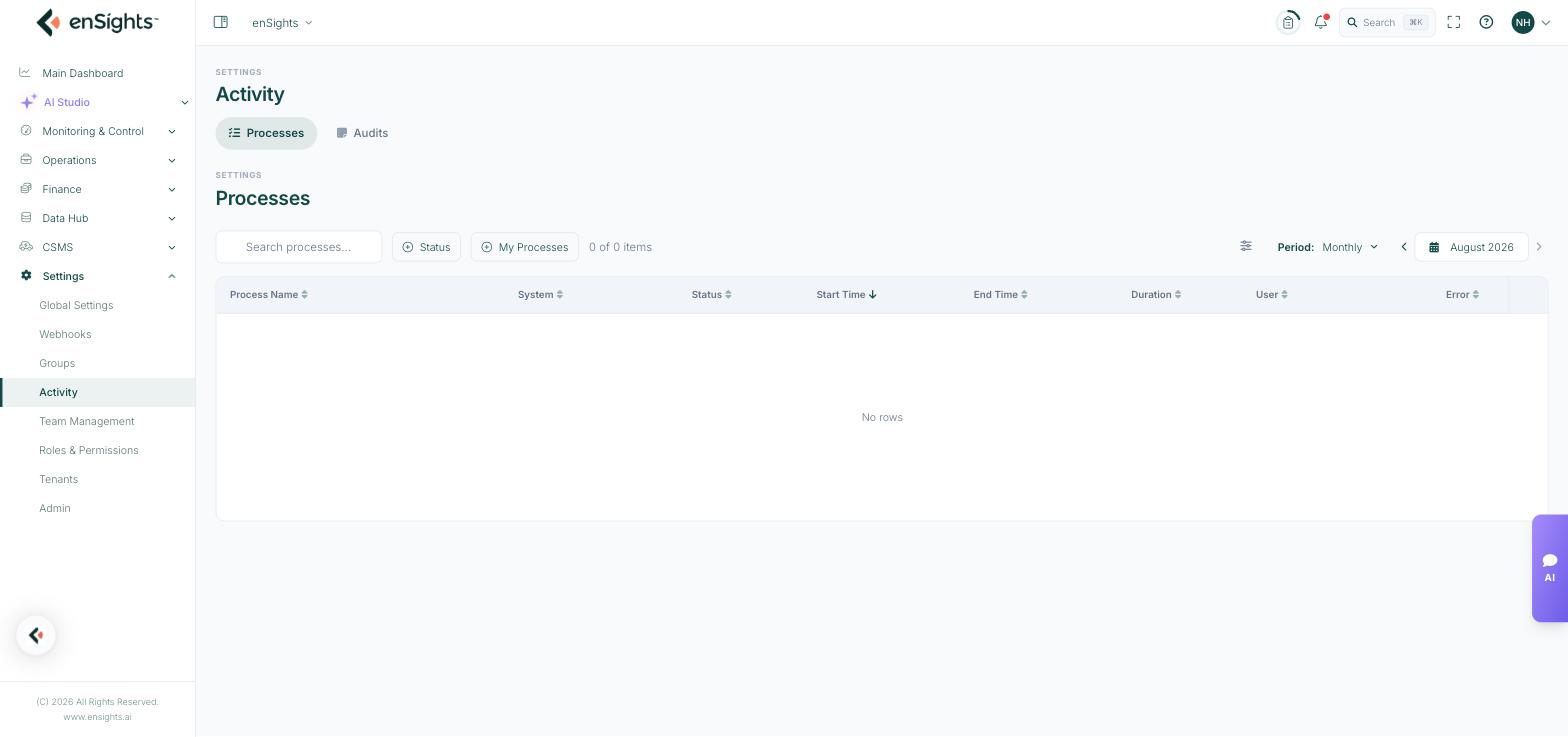
A log of background jobs — data imports, calculations, report generation and similar work the platform does on a schedule or on demand.
Column | Meaning |
|---|---|
Process Name | Which job ran. |
System | The asset it ran for, where the job is asset-specific. |
Status | Whether it succeeded, failed or is still running. |
Start Time / End Time | When it began and finished. |
Duration | How long it took. A job that suddenly takes much longer is worth noticing. |
User | Who triggered it, where a person did. |
Error | The failure reason, when there is one. Quote this when raising support. |
Controls
- Search processes… — find a job by name.
- Status — filter to failures only, which is usually what you want.
- My Processes — restrict to jobs you triggered yourself.
- Period — Daily, Monthly, Yearly or Custom, with arrows to step through periods and a date picker.
The period control is the first thing to check when the table is empty: an empty month is normal, and often means you are looking at a period in which nothing ran rather than at a problem.
Audits
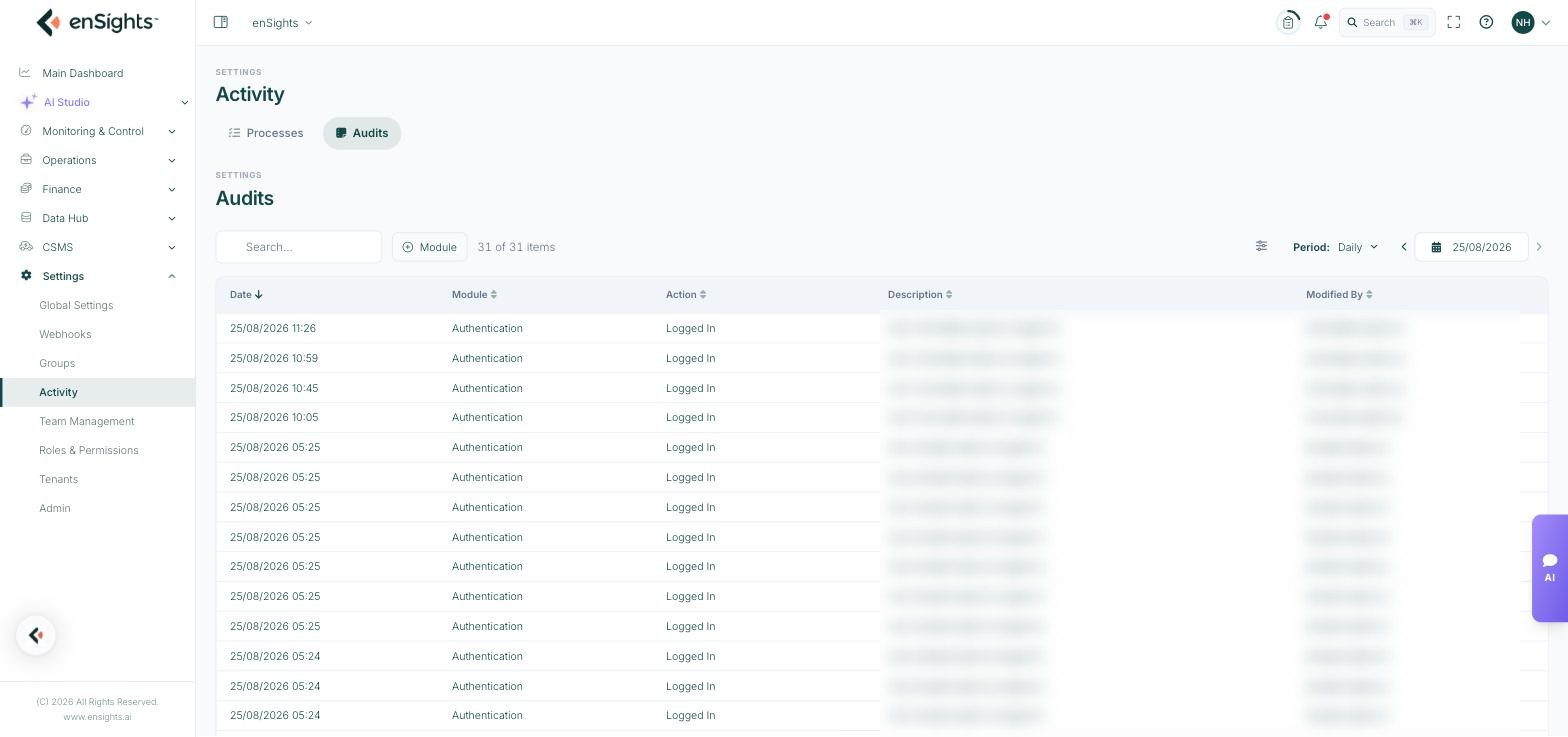
The change trail. Every recorded action gets a row.
Column | Meaning |
|---|---|
Date | When it happened, to the minute. Sorted newest first by default. |
Module | Which part of the platform: Authentication, Customers, Insights, Maintenance, PV Systems, Reports, Tenants or Users. |
Action | What was done, for example Logged In. |
Description | A sentence describing the event. |
Modified By | The user responsible. |
Controls
- Search — free text across the entries.
- Module — a multi-select filter with a count against each module, so you can see at a glance where the activity is.
- Period — Daily, Monthly, Yearly or Custom, with a date picker.
How to investigate a change
- Open Settings → Activity → Audits.
- Set Period to the window you suspect. Widen it before narrowing it.
- Filter Module to the relevant area — Users for access changes, Maintenance for service call changes, and so on.
- Read the Description and Modified By columns to see what happened and who did it.
How to check whether data is up to date
- Open Settings → Activity → Processes.
- Set Period to today.
- Filter Status to failures.
- If the import for a site failed, the Error column usually says why — and explains a gap in that site's data.
Notes
- Both tabs are read-only. Nothing here can be edited or deleted, which is what makes the audit trail worth having.
- Audits is a separate permission in Roles & Permissions — a role can hold Global Settings without seeing the audit trail.
- Login events are recorded, so the Authentication module tends to dominate the log. Filter it out to see substantive changes.
- The trail records changes made through the platform. Changes made directly at a device or inverter portal do not appear here.