
Global Settings: EOS App
What this page is for
EOS App configures the enSights mobile app — the app your customers or field users install on their phones. Everything here shapes what they see in the app and in the emails it sends. It does not affect the web portal.
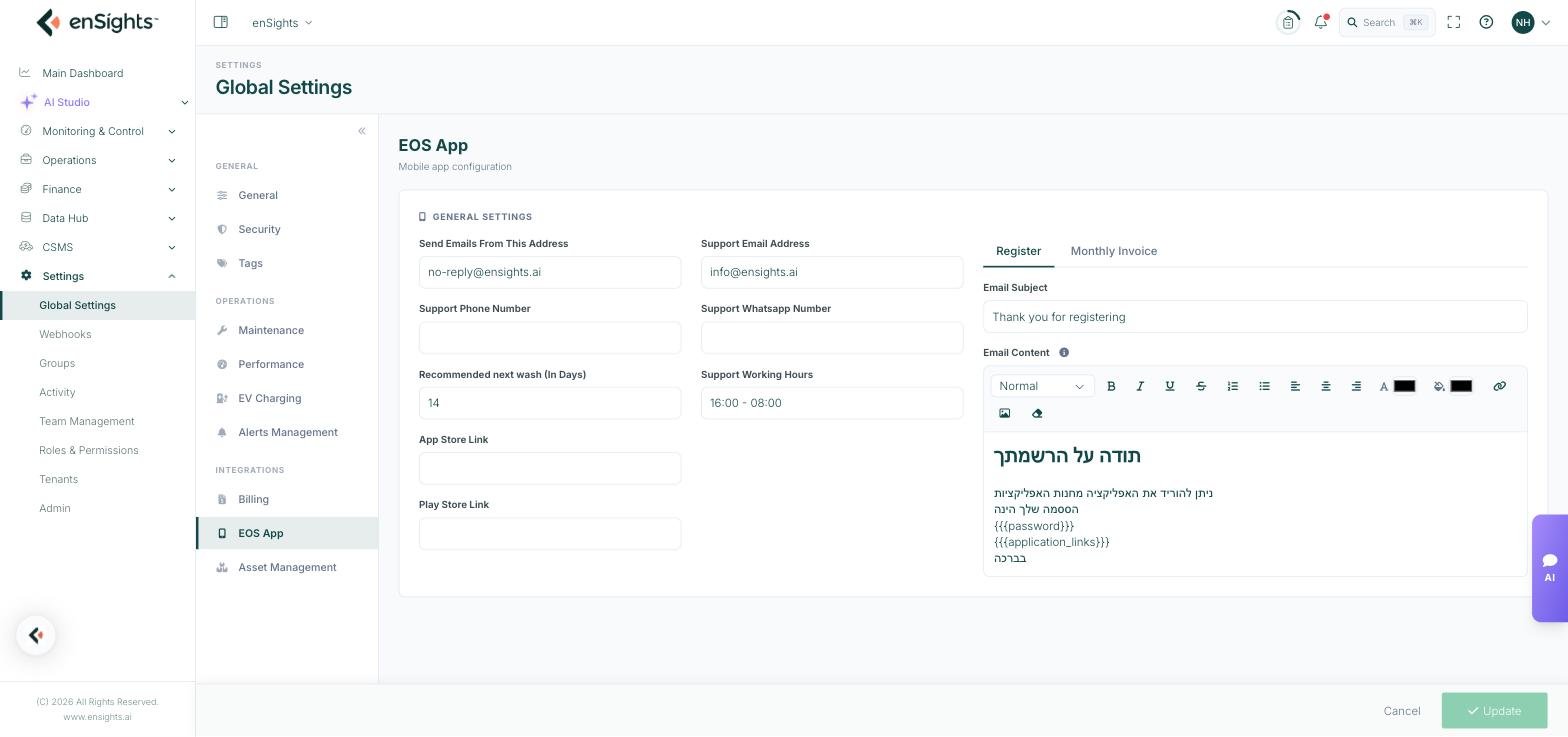
General Settings
Field | What it does |
|---|---|
Send Emails From This Address | The sender address on emails the app generates, typically a no-reply address. |
Support Email Address | The address app users are told to write to. Point it at a monitored inbox. |
Support Phone Number | The support line shown in the app. |
Support Whatsapp Number | A WhatsApp contact, where that is how your users prefer to reach you. |
Support Working Hours | Free text, for example 16:00 - 08:00. |
Recommended next wash (In Days) | The cleaning interval the app recommends after a wash, in days. Default 14. |
App Store Link | The iOS download URL, used in invitation and registration emails. |
Play Store Link | The Android download URL, used the same way. |
Recommended next wash
This is a prompt, not a schedule — it sets when the app suggests the next cleaning is due. Scheduled cleaning work itself lives in the CMMS. Set it to match the soiling rate you actually see: dusty or agricultural sites need a shorter interval than sites that get regular rain.
Store links
Fill both in before inviting anyone. A registration email whose download link is empty is the most common reason a new user never gets started.
Email Templates
Two tabbed templates, Register and Monthly Invoice, each with an Email Subject and a rich-text Email Content body supporting headings, formatting, lists, colour, links and images.
Placeholders are substituted when the email is sent — {{{password}}} for the initial password and {{{application_links}}} for the store links entered above. Type them exactly, triple braces included; a typo is delivered to the user as literal text.
How to edit a template
- Go to Settings → Global Settings → EOS App.
- Choose the Register or Monthly Invoice tab.
- Edit the subject and body, inserting variables where needed.
- Press Update at the bottom of the page.
- Register a test user and check the email that arrives.
Notes
- Write the templates in the language your app users read, not the language of the portal.
- These settings are shared by every app user in the account.
- The Register template carries an initial password. Keep the wording short and tell people to change it.
- Nothing saves until you press Update.