
Global Settings: Security
What this page is for
Security controls how people get into the platform. There are exactly two settings, and both apply to every user in the account.
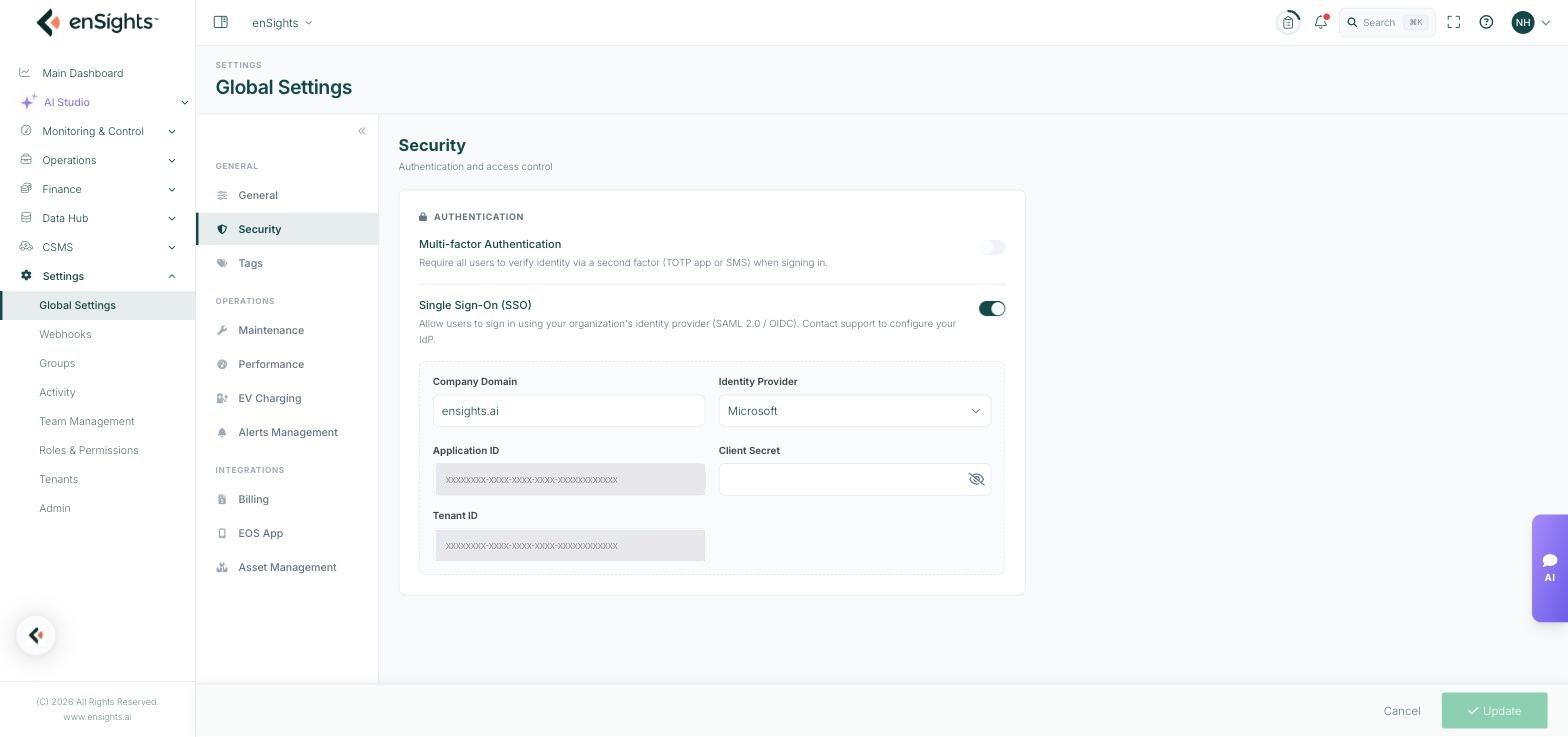
Multi-factor Authentication
A single toggle. When on, every user must verify their identity with a second factor — a TOTP authenticator app or SMS — in addition to their password when signing in.
There is no per-user exemption: the setting is all-or-nothing for the account. Turn it on when you are confident every user can enrol a second factor, since people who cannot will be locked out until they do.
Single Sign-On (SSO)
When on, users sign in through your organisation's own identity provider using SAML 2.0 or OIDC, instead of holding a separate enSights password. Access follows your directory: someone disabled in your IdP loses access here too.
Turning the toggle on reveals the connection fields:
Field | What it is |
|---|---|
Company Domain | The email domain that routes to your identity provider, for example yourcompany.com. Users with an address on this domain are sent to your IdP to sign in. |
Identity Provider | Which IdP you are connecting, for example Microsoft. |
Application ID | The client or application identifier issued by your IdP when you register enSights as an application. |
Client Secret | The secret paired with that application ID. Masked on screen, with an eye icon to reveal it. |
Tenant ID | Your directory identifier at the IdP. Required for Microsoft Entra ID (Azure AD). |
The exact set of fields follows the provider you choose. enSights support configures the IdP side with you — the on-screen note says as much — so treat this page as where the finished values are entered, not as a self-service setup wizard.
How to enable SSO
- Register enSights as an application in your identity provider and note the application ID, secret and tenant/directory ID.
- Contact enSights support so the matching configuration is prepared on the platform side.
- Go to Settings → Global Settings → Security and turn Single Sign-On (SSO) on.
- Fill in the fields above.
- Press Update, then test with a single non-administrator account before telling the whole team.
Notes
- Keep at least one administrator able to sign in by password while you test SSO. A misconfigured IdP can otherwise lock everyone out at once.
- The client secret is a credential. Treat it the way you treat any other secret — it is masked here, but anyone with access to this page can reveal it.
- Secrets issued by identity providers usually expire. Note the expiry date when you create one, or sign-in will fail without warning months later.
- MFA and SSO are independent. If your IdP already enforces MFA, you do not need to enable it here as well.