
Data Hub: APIs
What this page is for
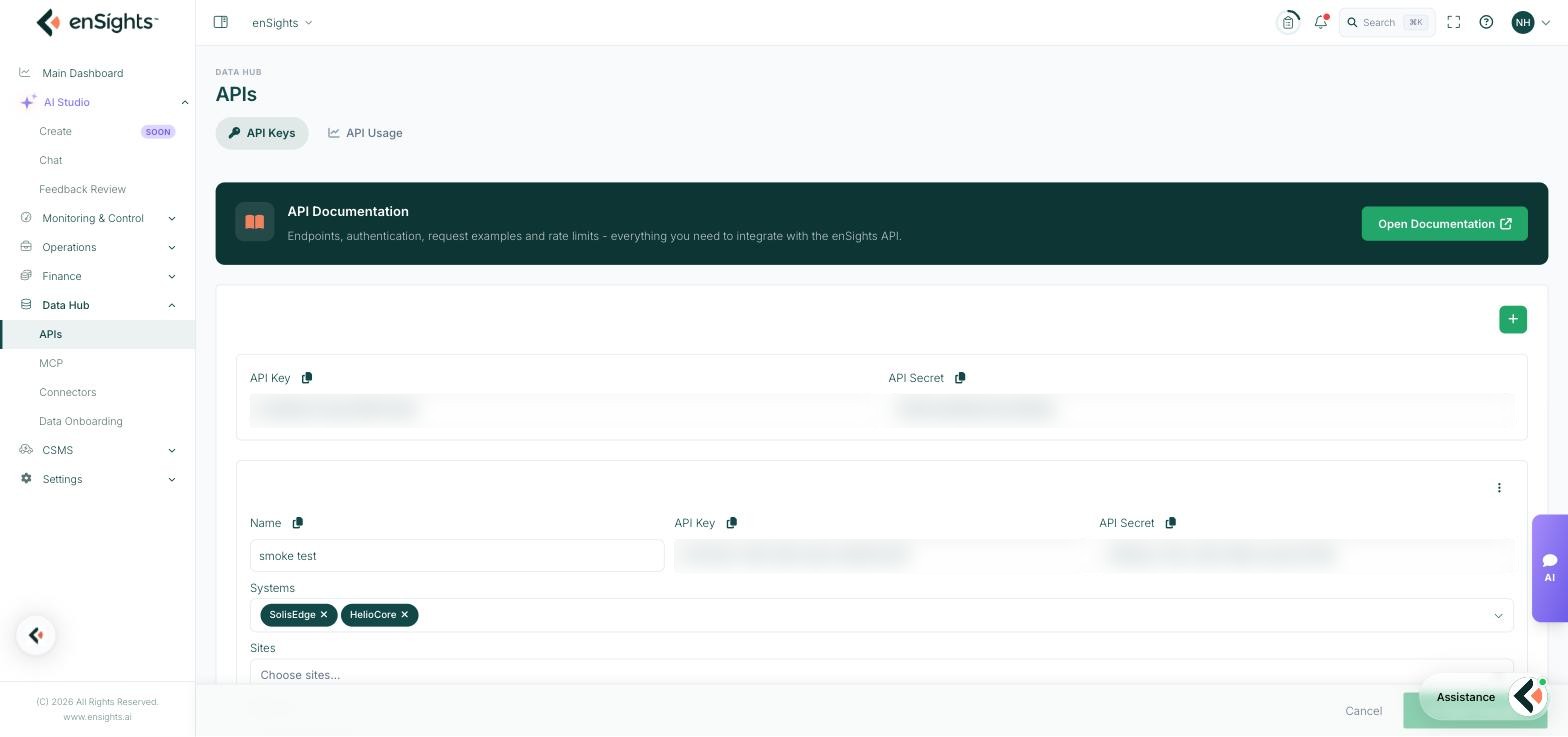
The APIs page lets your own software read enSights data. You issue a key, decide which assets that key may see, and hand it to whatever needs the data — a BI tool, a customer portal, a billing system, a script.
Two tabs: API Keys for issuing and scoping keys, and API Usage for seeing what each key has actually been doing.
At the top sits a link to the API Documentation: endpoints, authentication, request examples and rate limits. That is the reference for writing the integration; this page is only where credentials live.
API Keys
Every account has a default key pair — an API Key and an API Secret — shown at the top. Below it, any number of additional named keys. The + button adds one.
Each field has a copy icon next to its label, which is the right way to move a key: select-and-copy from a text field is where transcription errors come from.
Fields on a named key
Field | What it is |
|---|---|
Name | A label for the key. Name it after the consumer, not the person — "customer portal" beats "Dan's key". |
API Key | The public identifier sent with each request. |
API Secret | The secret paired with it. Treat as a password. |
Systems | Which PV systems this key may read. Leave empty for all. |
Sites | Which sites this key may read. |
Batteries | Which battery systems this key may read. |
Scoping is the point
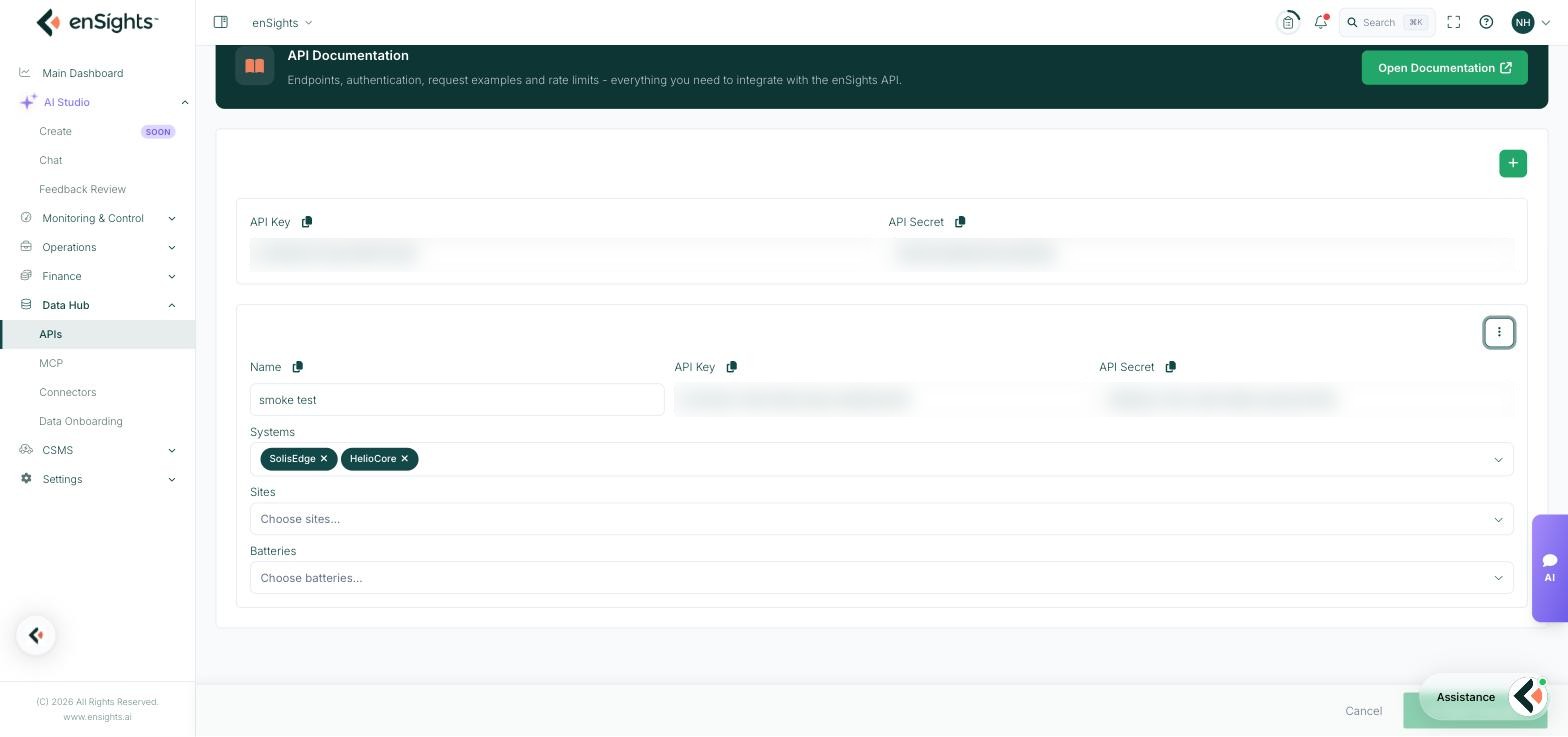
The asset pickers are what make additional keys worth creating. A key scoped to two systems can only ever return those two systems, whatever the request asks for. That means a customer-facing integration cannot accidentally expose the rest of your fleet, and a key that leaks does limited damage.
The default key is unscoped. Use it for internal work and issue narrow keys for everything that leaves your own systems.
How to issue a scoped key
- Go to Data Hub → APIs → API Keys.
- Press the + button.
- Enter a Name describing what will use the key.
- Select the Systems, Sites and Batteries it may read. Leaving all three empty grants the whole fleet.
- Press Save Changes.
- Copy the key and secret with the copy icons and store them in your own secret manager.
Revoking a key
The three-dot menu on a key offers Delete. Deleting takes effect immediately and cannot be undone — any integration using that key stops working at once. That is exactly what you want when a key has leaked, and exactly what you must plan for otherwise.
API Usage
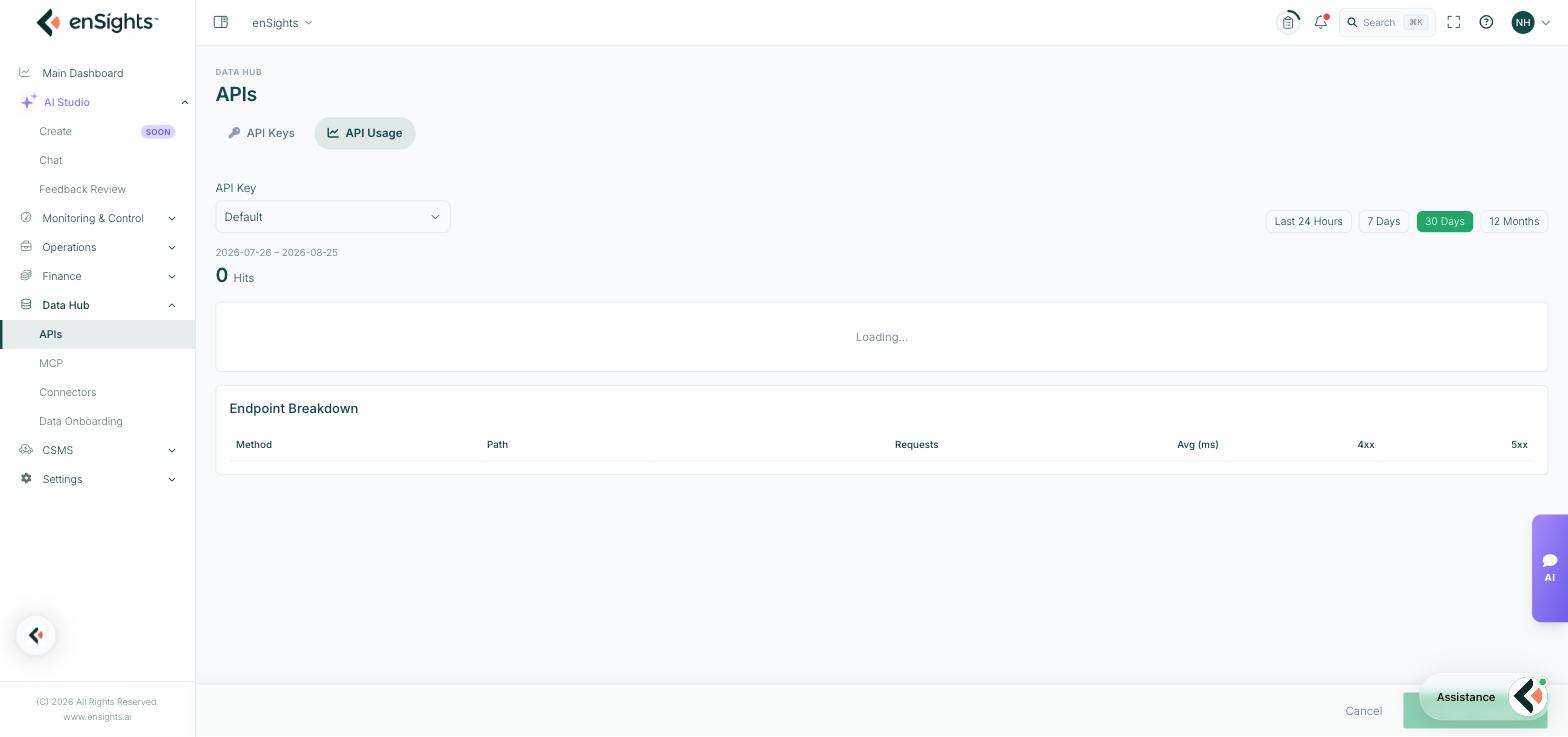
Usage statistics for one key at a time. Choose the key from the API Key selector, then a window: Last 24 Hours, 7 Days, 30 Days or 12 Months. The date range covered is shown beneath, with the total Hits for the period.
Below that, an Endpoint Breakdown table:
Column | Meaning |
|---|---|
Method | The HTTP method used. |
Path | Which endpoint was called. |
Requests | How many times, in the selected window. |
Avg (ms) | Average response time. A climbing average usually means the queries are asking for too much at once. |
4xx | Client errors — bad requests, wrong parameters, or an asset the key is not scoped to see. |
5xx | Server errors. Worth raising with support if they persist. |
Reading it
- Zero hits on a key you expect to be busy means the integration is not reaching the platform at all — check the credentials on your side before anything else.
- A wall of 4xx on one endpoint is normally a scoping mismatch: the integration is asking for assets the key cannot see. Widen the scope, or narrow the request.
- Requests far above what the integration should need usually means a retry loop, or a poll interval set far tighter than the underlying data changes.
Notes
- Secrets are shown in full on this page. Anyone who can open it can copy them — keep the Datapoints permission narrow.
- Use one key per consumer. Shared keys cannot be revoked without breaking everything at once, and their usage figures tell you nothing.
- An empty asset picker means all assets, not no assets. This is the mistake worth double-checking before you hand a key out.
- Rate limits are documented in the API documentation, not enforced visibly here — watch the Requests column against them.