
Set up a system from a PVsyst report
What this does
Setting up a PV system used to mean typing tilt, capacity, expected production and a dozen other values by hand from the PVsyst report. Now you drop the report onto the system and enSights reads it for you. Every value it finds is shown next to the current value, with the page and sentence it came from, and nothing is written until you confirm and save the form.
Use this when a new system is onboarded, when a system's onboarding completeness is stuck below 100%, or when a revised PVsyst report arrives and the expected production needs updating.
Where to start
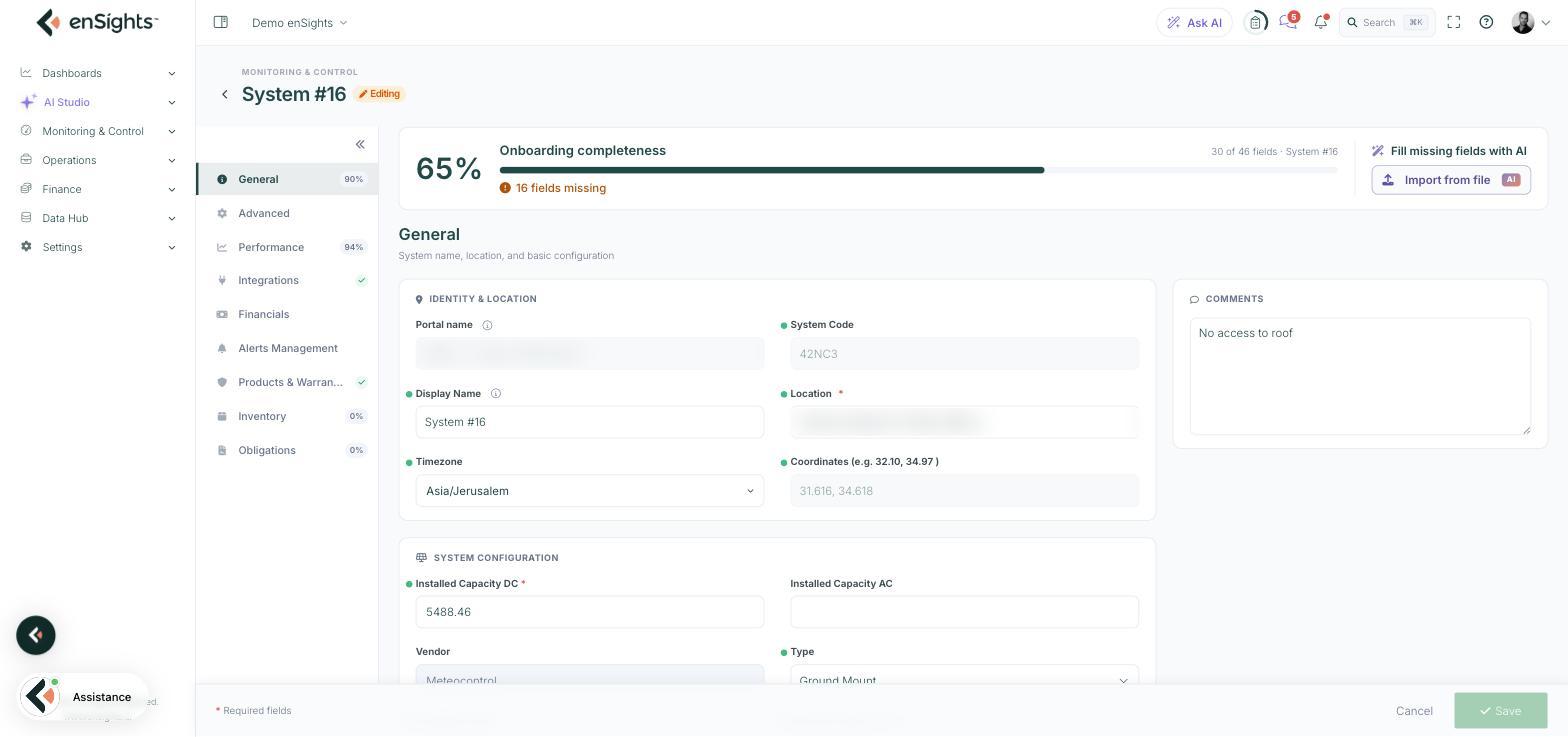
Open any PV system in edit mode. The Onboarding completeness banner at the top shows how many scorable fields are filled and how many are still missing. The banner is the same on every section of the system, so you can start from General, Performance or anywhere else.
Click Import from file (marked AI) on the right of the banner.
Step 1 — Upload
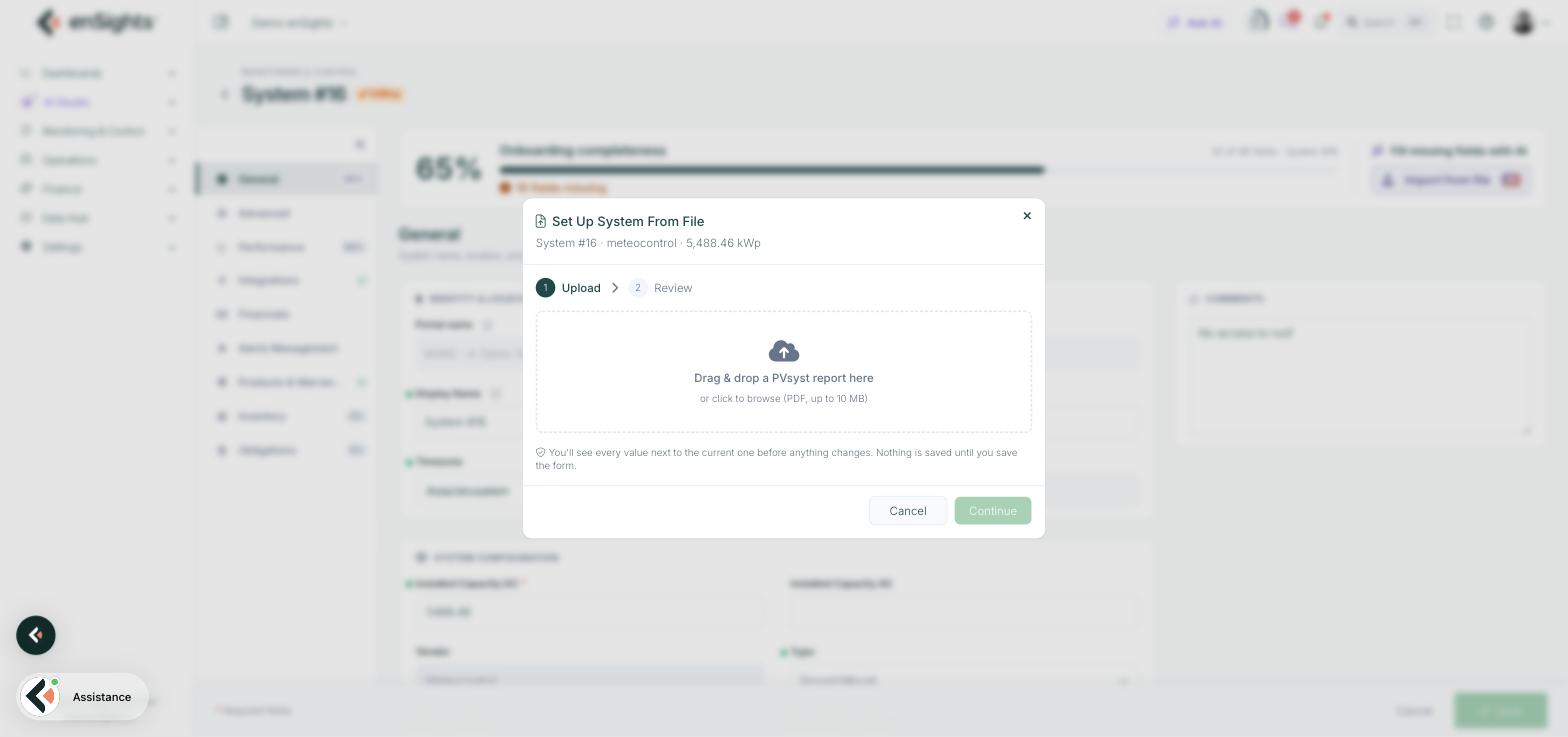
The Set Up System From File dialog opens with the system's name, vendor and installed capacity in the header, so you can check you are on the right system before you upload anything.
Drag the PVsyst report onto the dashed area, or click it to browse. The file must be a PDF of up to 10 MB. Continue stays disabled until a file is chosen and read.
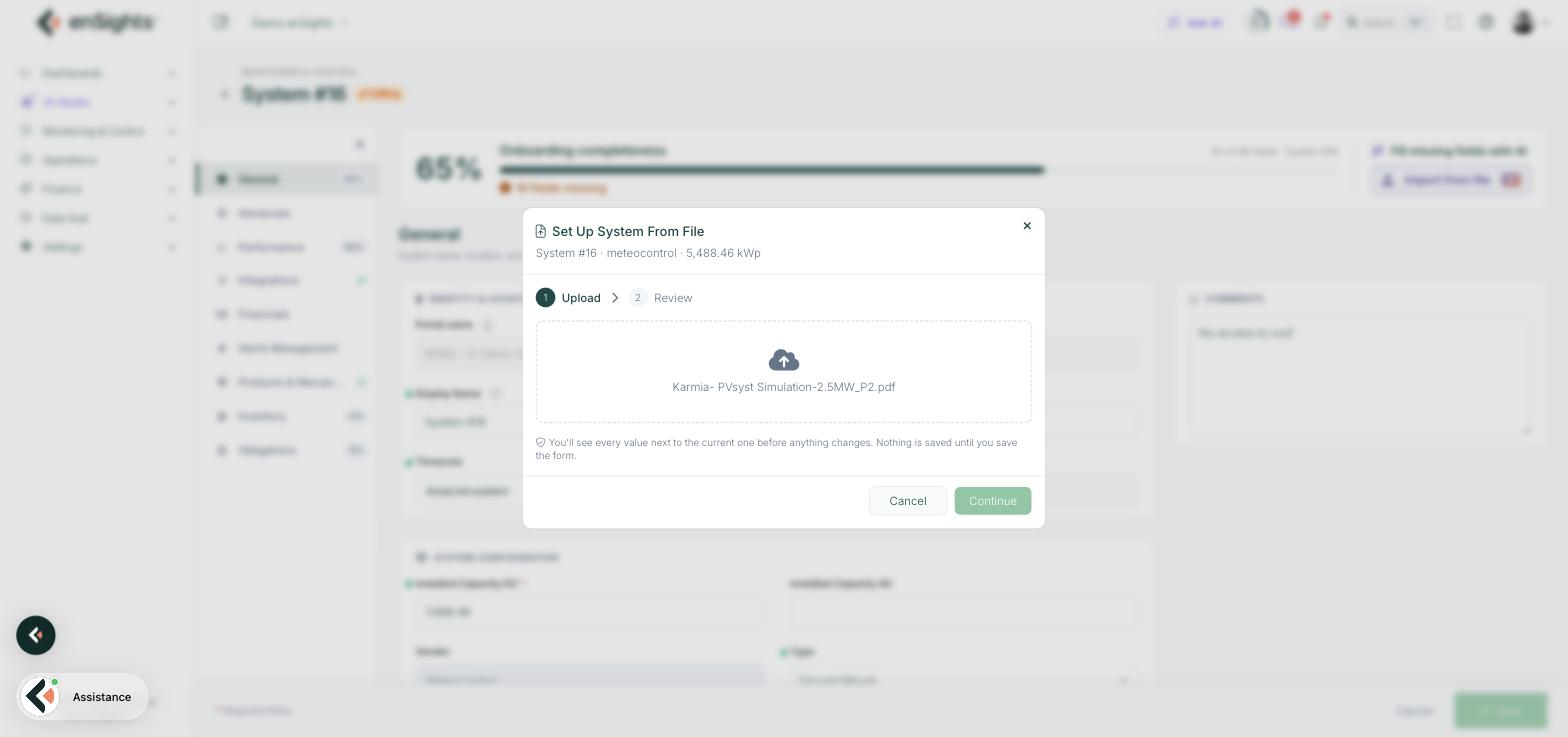
Once the file is accepted its name appears in the dropzone and Continue turns green. Reading a report takes a few seconds.
Step 2 — Review
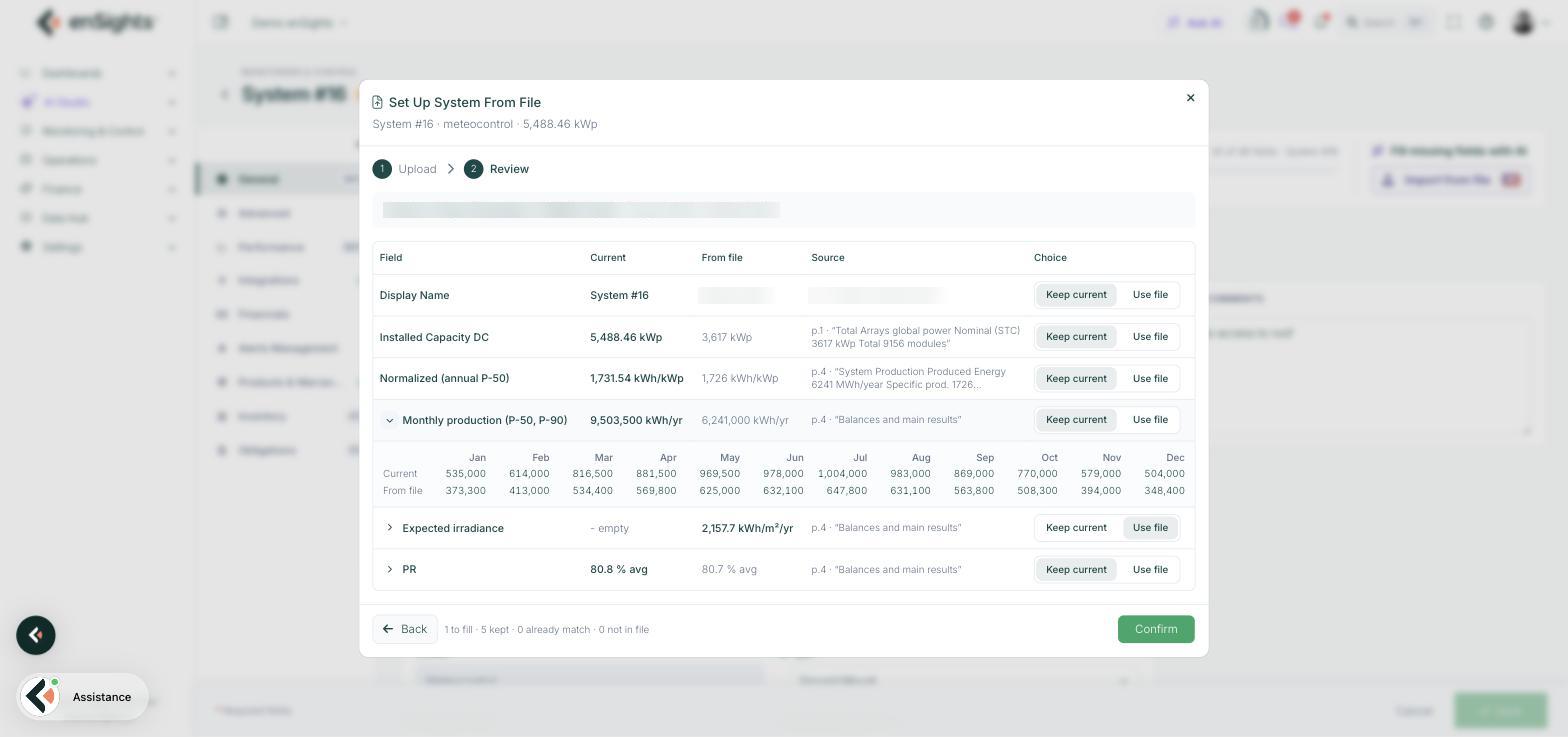
The review table is the heart of the feature. The bar above it shows the file name, the PVsyst version that produced it and the project name printed in the report.
Column | What it shows |
|---|---|
Field | The enSights field the value maps to. Monthly fields have a Show months arrow that expands the twelve values. |
Current | What the system holds today. - empty means the field has never been filled. |
From file | The value read from the report, in the system's units. |
Source | The page number and the sentence the value was taken from, so you can check it against the PDF without opening it. |
Choice | Keep current or Use file , per row. |
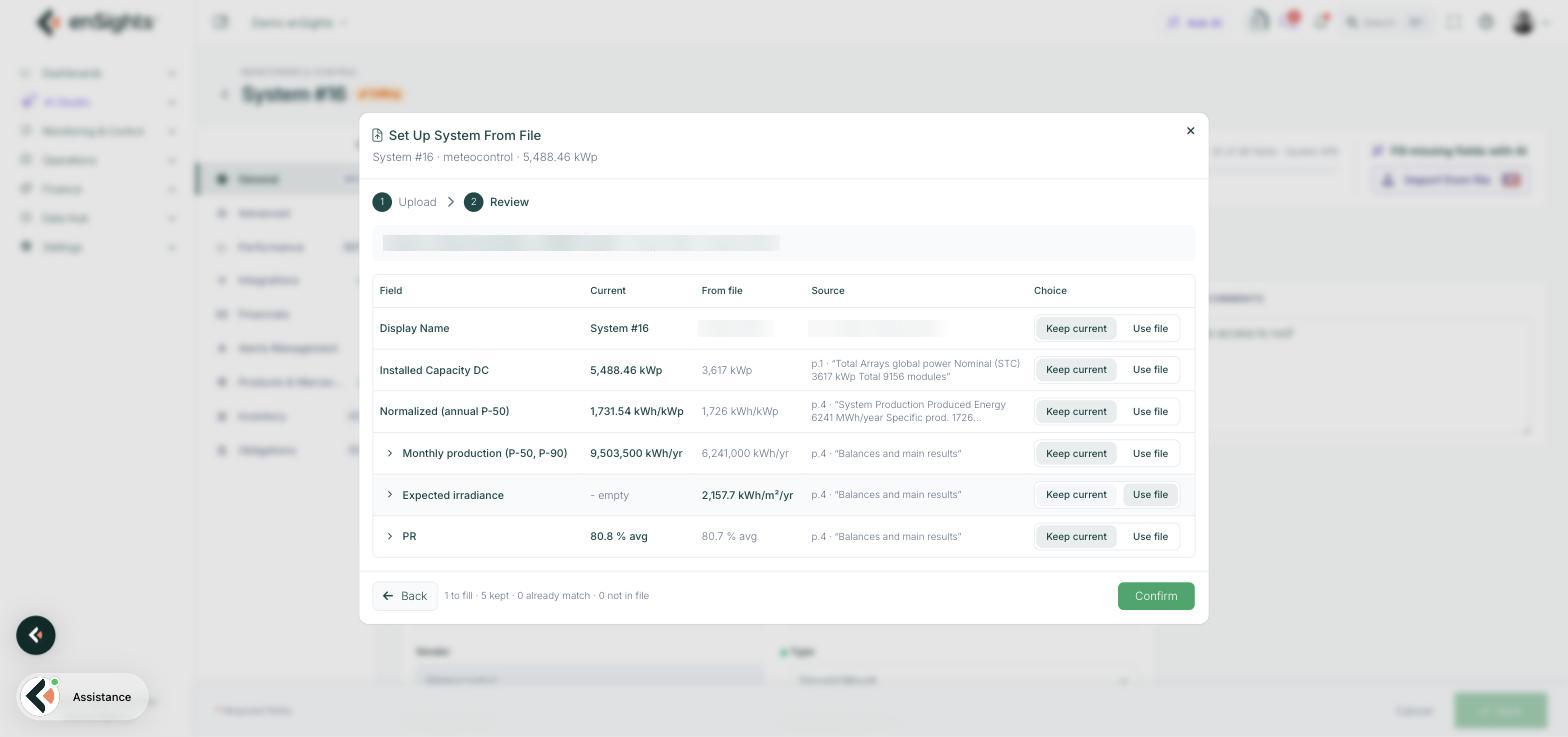
The fields a PVsyst report can fill today are Display Name, Installed Capacity DC, Normalized (annual P-50), Monthly production (P-50, P-90), Expected irradiance and PR.
How the defaults are chosen
enSights never overwrites a value you already have without being told to. The default choice follows one rule:
- A field that is empty defaults to Use file.
- A field that already has a value defaults to Keep current, even when the file disagrees.
The summary in the footer tells you what will happen if you confirm now, for example 1 to fill · 5 kept · 0 already match · 0 not in file. "Already match" means the file and the system agree, so the choice makes no difference. "Not in file" means the report did not contain that field at all.
Expand a monthly row to compare the current and file values month by month before deciding.
Confirm, then save
Click Confirm to copy the chosen values into the system form. The dialog closes and the form shows the new values as unsaved edits. Nothing is stored until you click Save on the form itself. If you change your mind, click Cancel on the form and the system is exactly as it was.
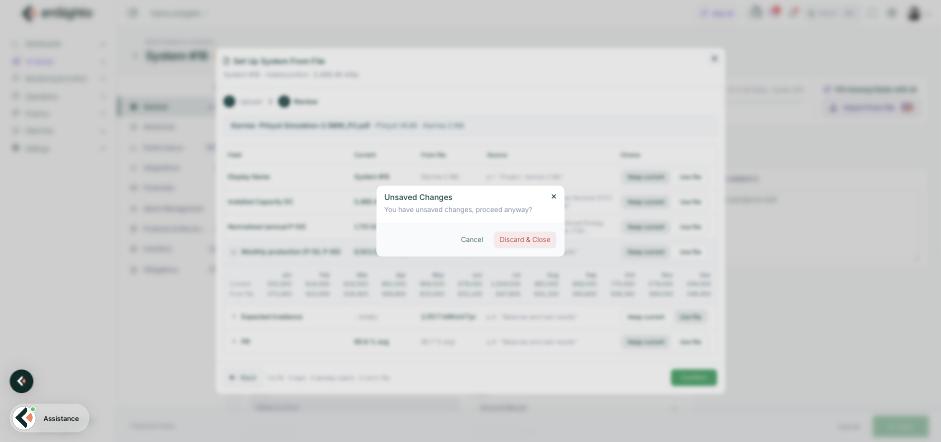
If you close the dialog before confirming, enSights asks whether to discard the review. Choosing Discard & Close throws away the file reading only. Anything you had typed into the form before opening the dialog is kept.
How to
- Finish a half-set-up system. Open the system, click Import from file, upload the PVsyst report and confirm. Empty fields are filled; everything you had already entered is left alone. Save the form and watch the completeness percentage rise.
- Update expected production from a revised report. Upload the new report, switch Normalized (annual P-50), Monthly production and Expected irradiance to Use file, confirm and save. Performance comparisons use the new expectation from the next calculation.
- Check a suspicious value before accepting it. Read the Source column. It quotes the page and the line the number was taken from. If the quote does not match the field, keep the current value and enter the right one by hand.
- Compare the report to what you have. Upload the report, leave every row on Keep current and read the table. Then close the dialog with Discard & Close. No value changes.
Notes
- Only PVsyst PDF reports are read in this version. A scanned report is an image and has no text to read. Export the report from PVsyst again or enter the values by hand.
- The report must be for this system. The dialog header shows the system name and capacity, and the review bar shows the project name from the report. If they do not match, cancel.
- Fields that are not in a PVsyst report, such as location, timezone or vendor, are never touched by the import. Fill them on the form as usual.
- The same banner also offers Fill missing fields with AI, which is a different feature: it suggests values without a file.
- Importing a signed contract works the same way from the PPA record. See Import contract terms from a PPA.