
AI Studio: Feedback Review
What this page is for
Every thumbs up or thumbs down given in Chat lands here, with the conversation attached. Feedback Review turns those ratings into a queue someone can actually work: read what the assistant said, judge whether it was right, and track the item to a conclusion.
The page is titled Chatbot Feedback Review.
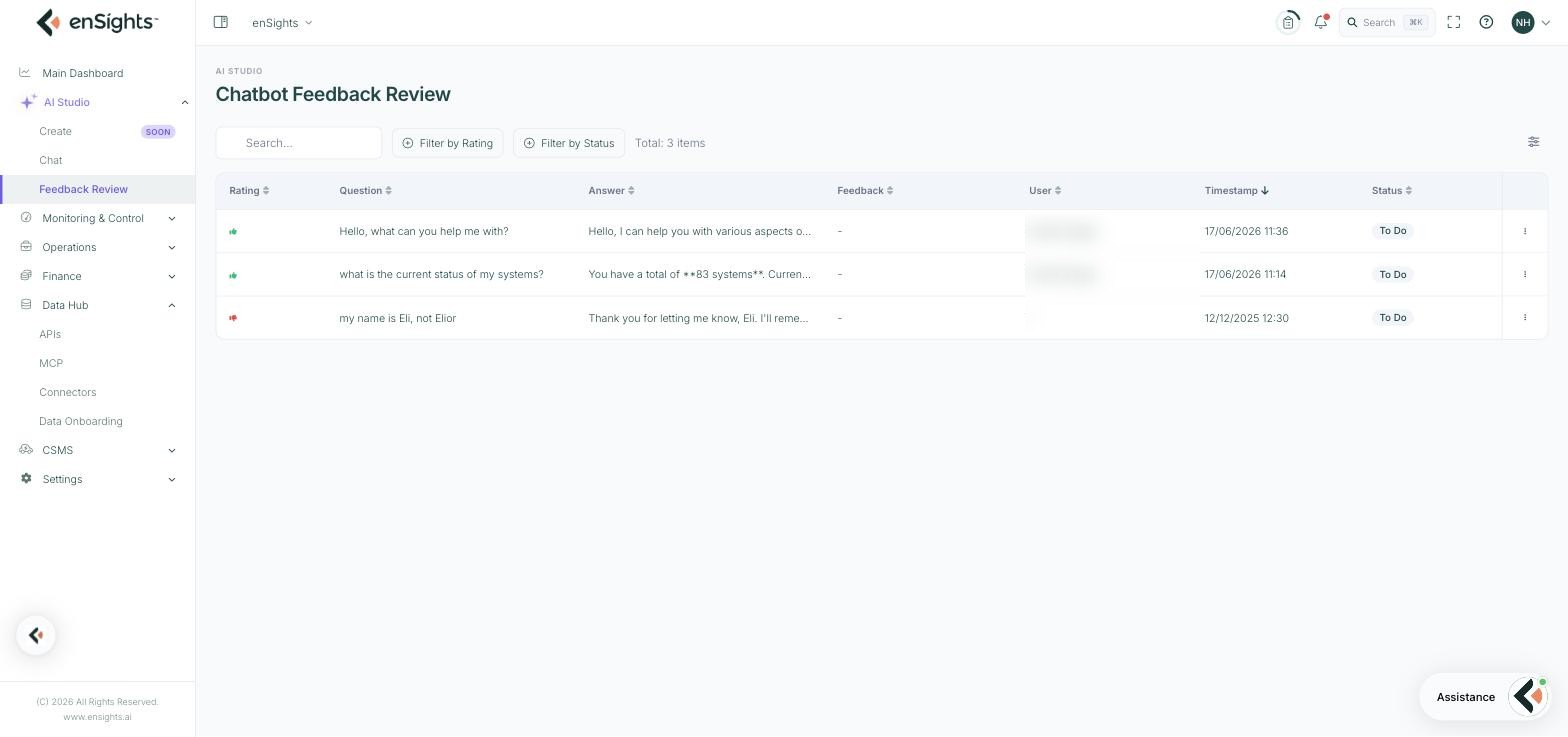
The list
Column | Meaning |
|---|---|
Rating | The thumbs up or thumbs down the user gave. |
Question | What was asked. |
Answer | The beginning of what the assistant replied. |
Feedback | Any written comment the user added, or a dash. |
User | Who submitted it. Can be blank on older entries. |
Timestamp | When the rating was given. Newest first by default. |
Status | To Do, In Progress or Closed. |
Above the table: a search box, Filter by Rating, Filter by Status, the item count, and a column-settings button. Each row's three-dot menu offers View Details.
Filter by thumbs down and To Do to get the working list. Thumbs-up entries are worth reading occasionally too — they tell you which kinds of question the assistant is already good at, which is useful when deciding what to point people at.
Feedback Details
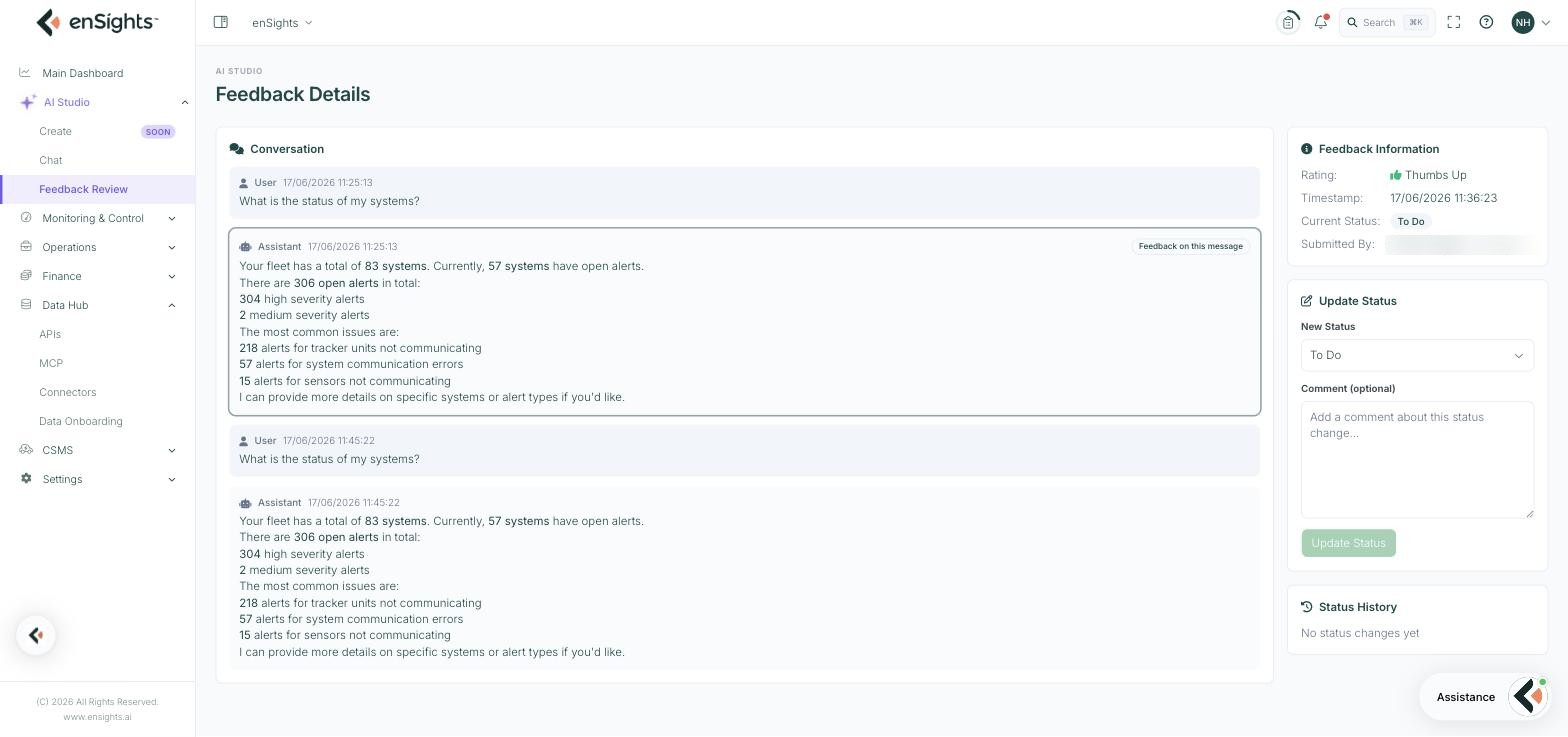
Opening an entry shows the whole thing rather than a snippet.
Conversation
The full exchange, each message labelled User or Assistant with its timestamp, and the rated message marked Feedback on this message and outlined. That marker matters: a conversation can contain several answers, and only one of them was rated.
Seeing the whole conversation is usually what explains a bad rating. An answer that looks wrong on its own is often correct given the question before it — and sometimes the reverse.
Feedback Information
A panel on the right with the Rating, the Timestamp, the Current Status and who Submitted it, with their email.
Update Status
A New Status selector — To Do, In Progress, Closed — and an optional Comment. Press Update Status to apply.
Write the comment. "Closed — answer was right, user expected AC not DC" is the kind of note that stops the same item being reopened in three months, and builds a record of what the assistant is actually getting wrong.
Status History
Every status change with its comment, so the trail of who looked at it and what they concluded stays attached to the item.
How to work the queue
- Filter Rating to thumbs down and Status to To Do.
- Open the oldest item with View Details.
- Read the whole conversation, not just the rated message.
- Decide which it is: the answer was wrong; the answer was right but unclear; or the data behind it was incomplete.
- Set the status and write what you concluded in the comment.
- If the cause was missing data, fix it in Data Hub → Data Onboarding rather than treating it as an assistant problem.
What the patterns tell you
- Repeated thumbs down on the same kind of question is the signal worth acting on. One bad answer is noise; five on the same topic is a gap.
- Bad answers about specific sites usually trace back to onboarding completeness on those sites.
- Thumbs down where the answer was actually correct means the wording misled someone — worth reporting to enSights, since it is fixable.
- A queue nobody works makes rating pointless, and people stop rating. If no one owns this page, the loop is broken.
Notes
- This page shows conversations from across your account, including other users' questions. Treat it accordingly.
- Entries are read-only apart from the status and comment — you cannot edit or delete the conversation.
- Only rated messages appear. Unrated answers are invisible here, which is why encouraging people to rate matters.
- Closing an item records a conclusion; it does not retrain anything by itself. Genuine product issues should also reach enSights.