
Settings: overview
What Settings is for
Settings is where the platform is configured rather than used. Nothing here shows you how a site is performing; everything here changes how the rest of the platform behaves for everyone in your account — which numbers appear, which alerts fire, who can see what, and how the platform talks to the systems around it.
Because these settings are account-wide, a change made here affects every user and every asset. That is the main thing to keep in mind: Settings is a small section with a large blast radius.
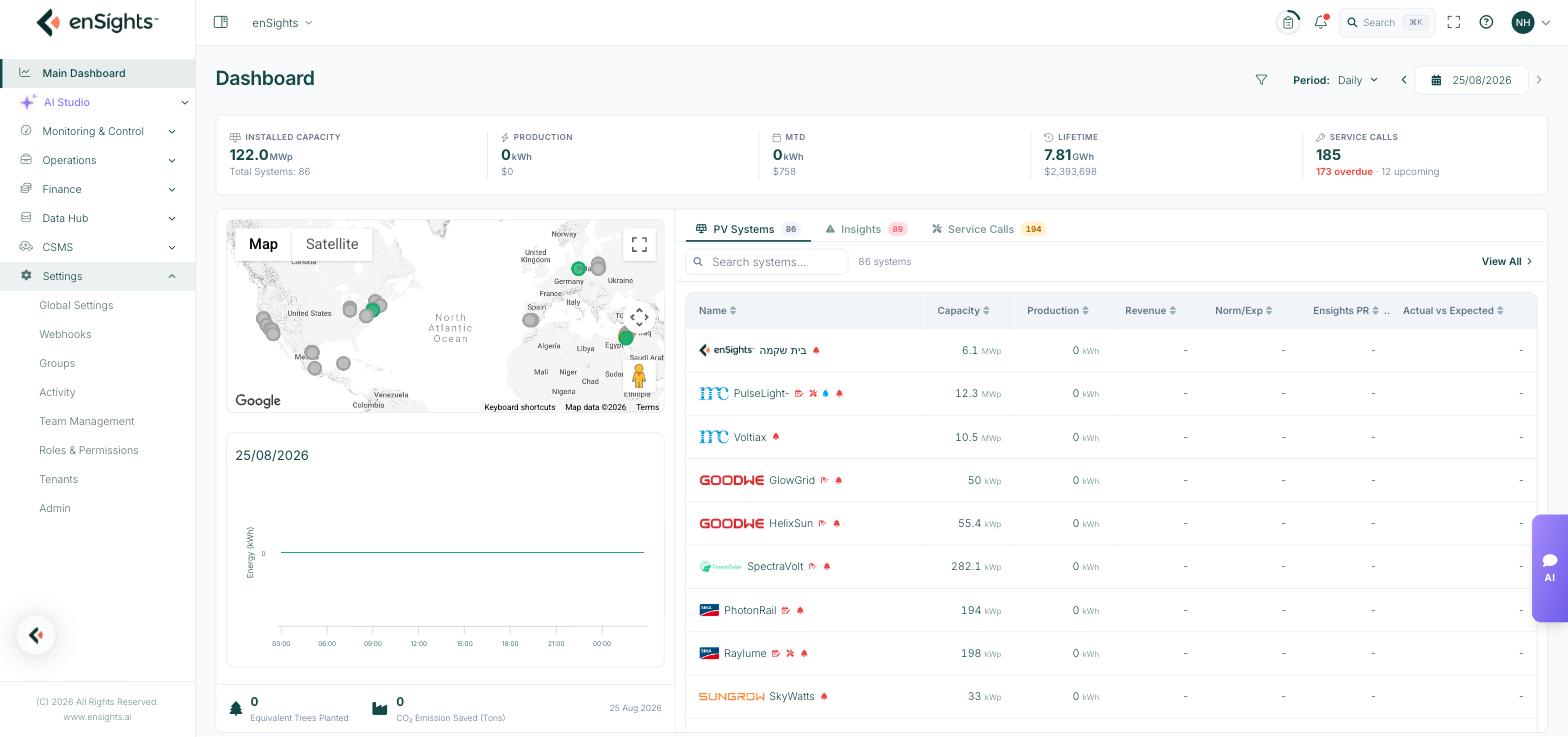
The eight pages
Page | What it controls |
|---|---|
Global Settings | The largest page by far — ten sub-pages covering display preferences, security, tags, maintenance, performance thresholds, EV charging, alert rules and three integrations. |
Webhooks | Outbound HTTP callbacks that push events to your own systems as they happen. |
Groups | Named collections of assets used for filtering, reporting and access control. |
Activity | Two logs: background Processes, and the Audits trail of who changed what. |
Team Management | The user list — invite people, set their role, and limit which assets they can see. |
Roles and Permissions | The permission matrix behind those roles, module by module. |
Tenants | Tenant accounts, their billing setup, which product features they have, and the shared banner. Visible to partner and administrator accounts. |
Admin | Internal enSights administration. Not part of normal customer use. |
How the pages relate to each other
Four of these pages work together as the access model, and it helps to see them in order:
- Roles & Permissions defines what a role can do — view PV, update contracts, see financials, and so on.
- Team Management assigns a role to a person, and optionally restricts which assets that person can see.
- Groups gives you named sets of assets, so that restriction can be "the Schools group" rather than a list of thirty sites.
- Activity → Audits records what everyone then did with that access.
The rule of thumb: role decides what actions are possible, asset access decides what data those actions apply to, and the two are independent. A user with a powerful role and a narrow asset list is powerful only within that list.
Settings that change what you see
Several settings quietly change numbers across the whole platform. If a figure looks different from what a colleague sees, or different from last month, check these first:
- Default Production Source (Global Settings → General) — whether production charts and yield use meter energy or inverter production.
- Show Raw Energy Values (Global Settings → General) — normalized (irradiance-corrected) readings versus raw.
- Systems Performance thresholds (Global Settings → Performance) — where the boundary between Optimal, Average and Low sits.
- Performance colours — the percentage bands behind the colour coding on dashboards.
- Date format — dd/MM/yyyy versus MM/dd/yyyy, which changes how every date on screen reads.
Settings that change what happens
Others don't change the display at all — they change what the platform does:
- Alerts Management — which alert codes are active, at what threshold and severity, after how long, and who gets notified. This is the single highest-leverage page in Settings.
- Webhooks — pushes events out to your own systems.
- Maintenance → Scheduled Task Email — emails technicians their next-day task list automatically.
- Billing → Automatically Generate Tax Invoice — creates invoices without anyone pressing a button.
- Security → SSO and MFA — how everyone signs in.
Who can get here
Settings is gated by the Global Settings permission in Roles & Permissions, with Audits and Web Hooks as separate permissions of their own. Most organisations give this to a small number of administrators, because a single change here reaches every user. If you can see the section but a page is missing, your role doesn't hold that permission.
Before you change anything
- Every page saves explicitly. Global Settings pages have Cancel and Update in a fixed bar at the bottom; nothing takes effect until you press Update. Leaving the page discards unsaved edits.
- Threshold changes are retroactive in appearance, not in history. Changing a performance band re-colours what you see now; it doesn't rewrite alerts that already fired.
- Alert changes can be loud. Loosening a threshold on a fleet-wide rule can generate a large number of alerts on the next evaluation. Change one rule at a time and watch the result.
- Deletions here are wide. Deleting a tag key, a group or a role affects every asset or user attached to it.
- Audits records it. Every change is attributed to the person who made it, which makes "when did this start?" answerable later.
Where to go next
- Setting up a new account? Global Settings → General first (units, dates, production source), then Team Management.
- Too many alerts, or too few? Global Settings → Alerts Management.
- Someone can't see something? Team Management for their asset access, then Roles & Permissions for their role.
- Connecting enSights to another system? Webhooks for outbound events; the Integrations sub-pages of Global Settings for invoicing, the mobile app and accounting.