
Connect Slack to enSights
What this connector does
The Slack connector lets enSights post into your Slack channels: alerts, reports and notifications land where your team already works. You set it up once, in about 10 minutes, and it needs two things: a small Slack app in your workspace, and that app's Bot User OAuth Token pasted into enSights.
You need to be a Slack workspace member who is allowed to install apps (ask your Slack admin if you are not sure), and an enSights user with access to Data Hub.
The flow has two halves. Part A happens on Slack's website. Part B happens in enSights.
Part A: Create the Slack app
Step 1: Create a new app
- Open api.slack.com/apps and sign in to your Slack workspace.
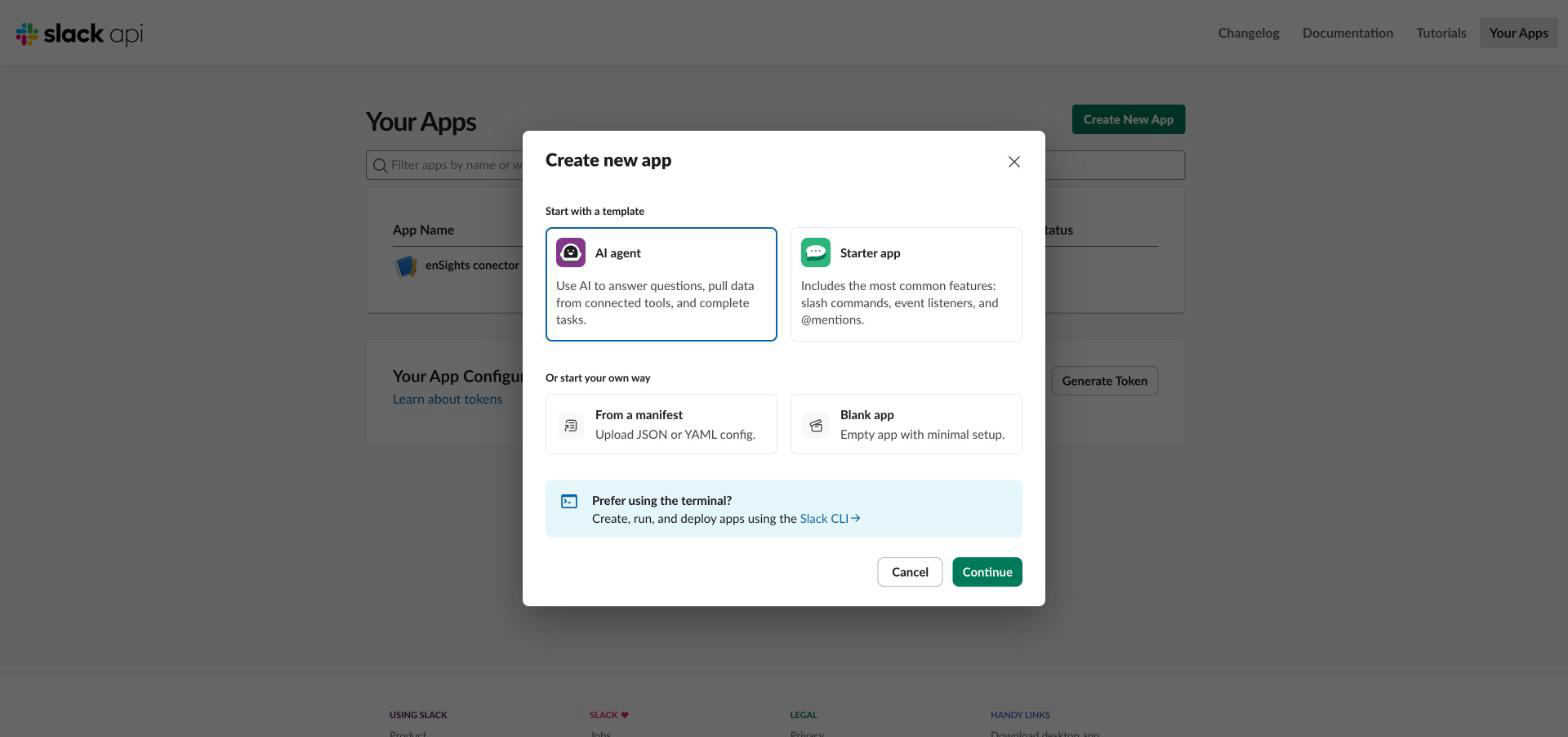
- Click Create New App (top right).
- In the Create new app dialog choose Starter app and click Continue. Any template works, but Starter app already includes the basics.
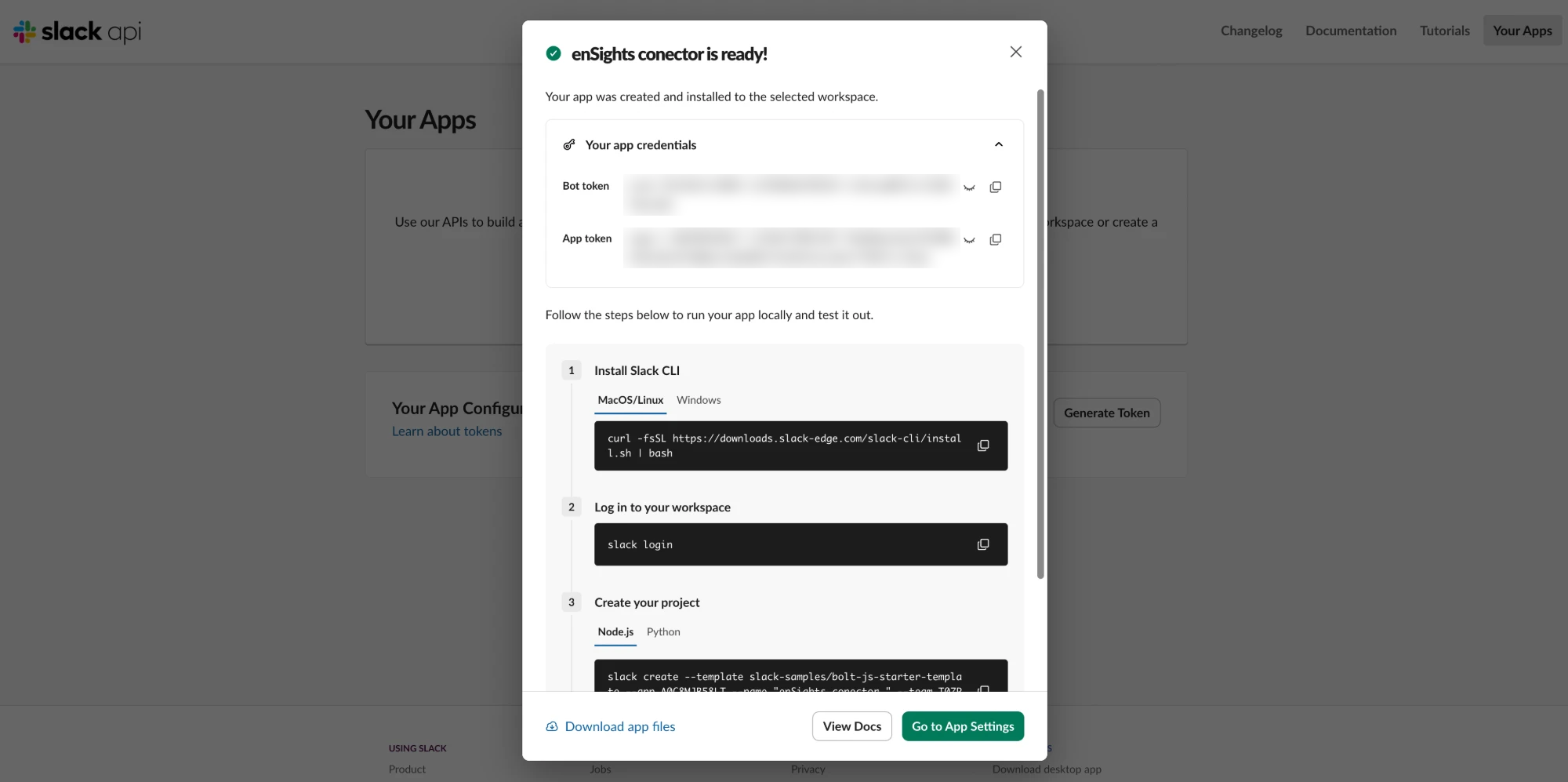
- Give it a name your team will recognise, for example enSights connector, pick your workspace, and finish the wizard. When Slack shows the is ready! screen you can close it. Ignore the terminal commands it lists; enSights does not need them.
Step 2: Give the app permission to post
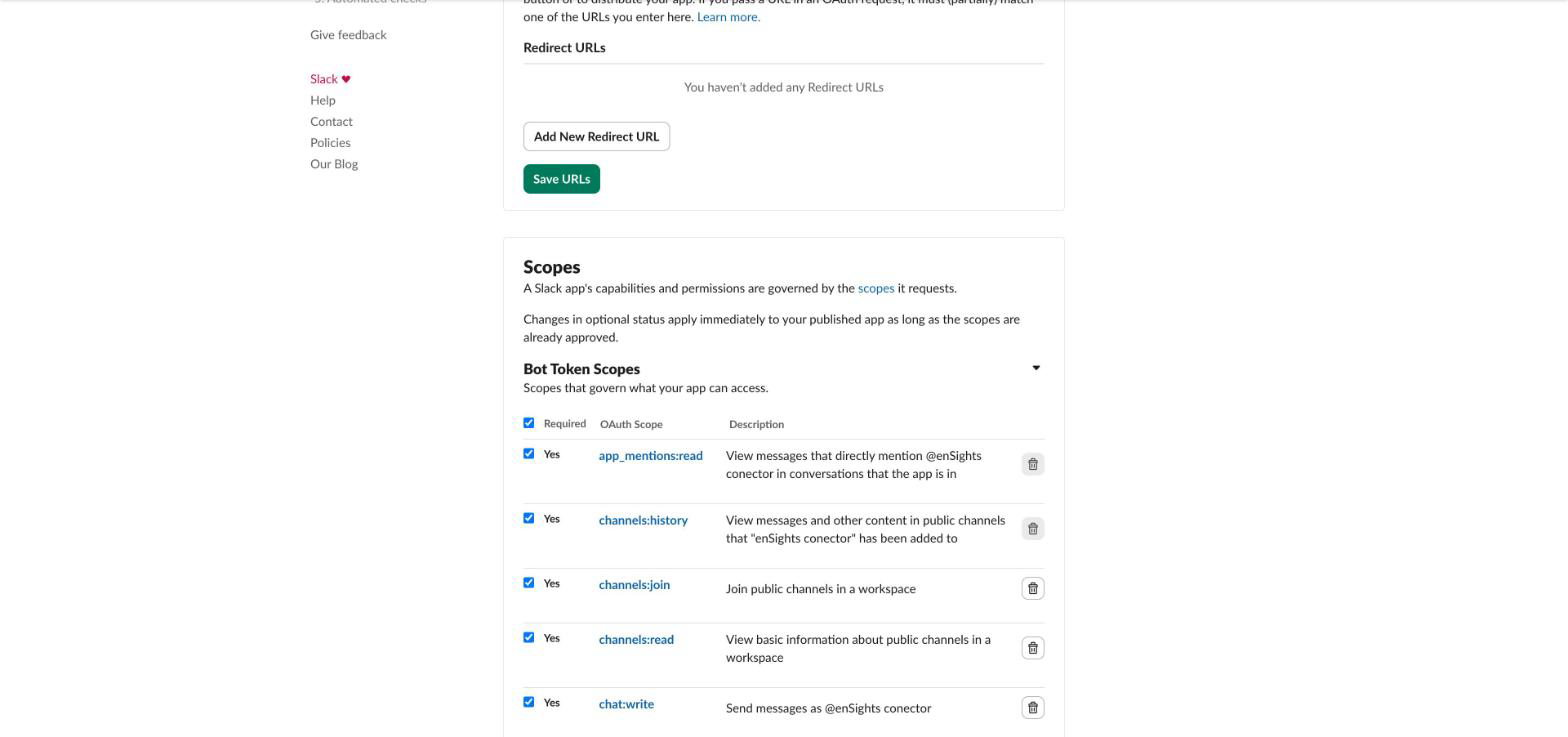
- In the left menu click OAuth & Permissions.
- Scroll to Bot Token Scopes and click Add an OAuth Scope. Add each of these, one at a time:
Scope | Why enSights needs it |
|---|---|
chat:write | Send messages as the app. Required. |
chat:write.public | Post to any public channel without being invited first. |
channels:read | Lets the enSights channel picker list your public channels. |
channels:join | Lets the app join public channels by itself. |
groups:read | Lets the channel picker list private channels the app has been invited to. |
Step 3: Install the app and copy the token
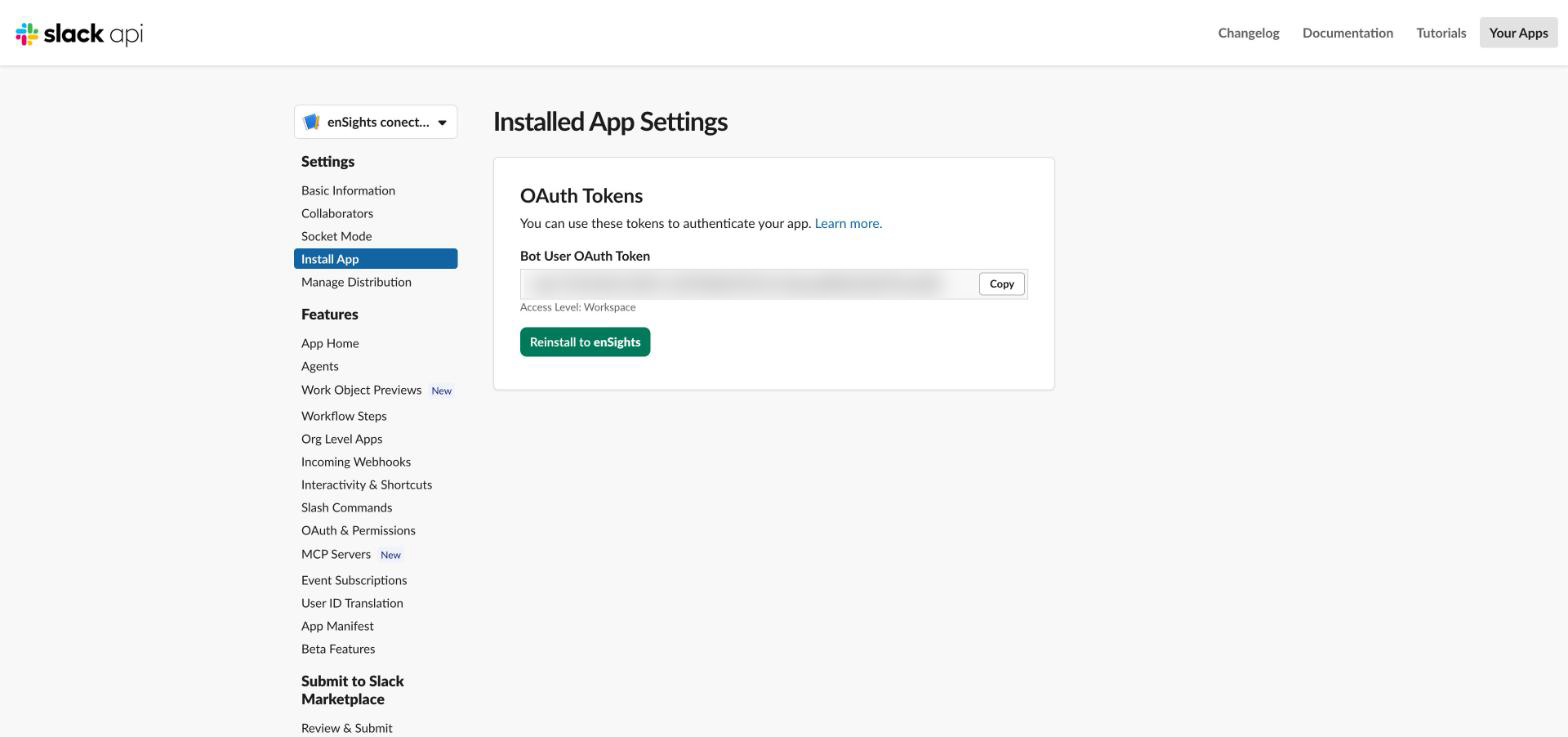
- In the left menu click Install App.
- Click Install to Workspace (or Reinstall to Workspace if you added scopes after a first install) and click Allow.
- Under Bot User OAuth Token click Copy. The token starts with xoxb-. This is the only value enSights needs.
Treat the token like a password. Anyone who has it can post to your Slack as the app. Do not paste it into chats or tickets.
Step 4 (optional): Tidy up the app in Slack
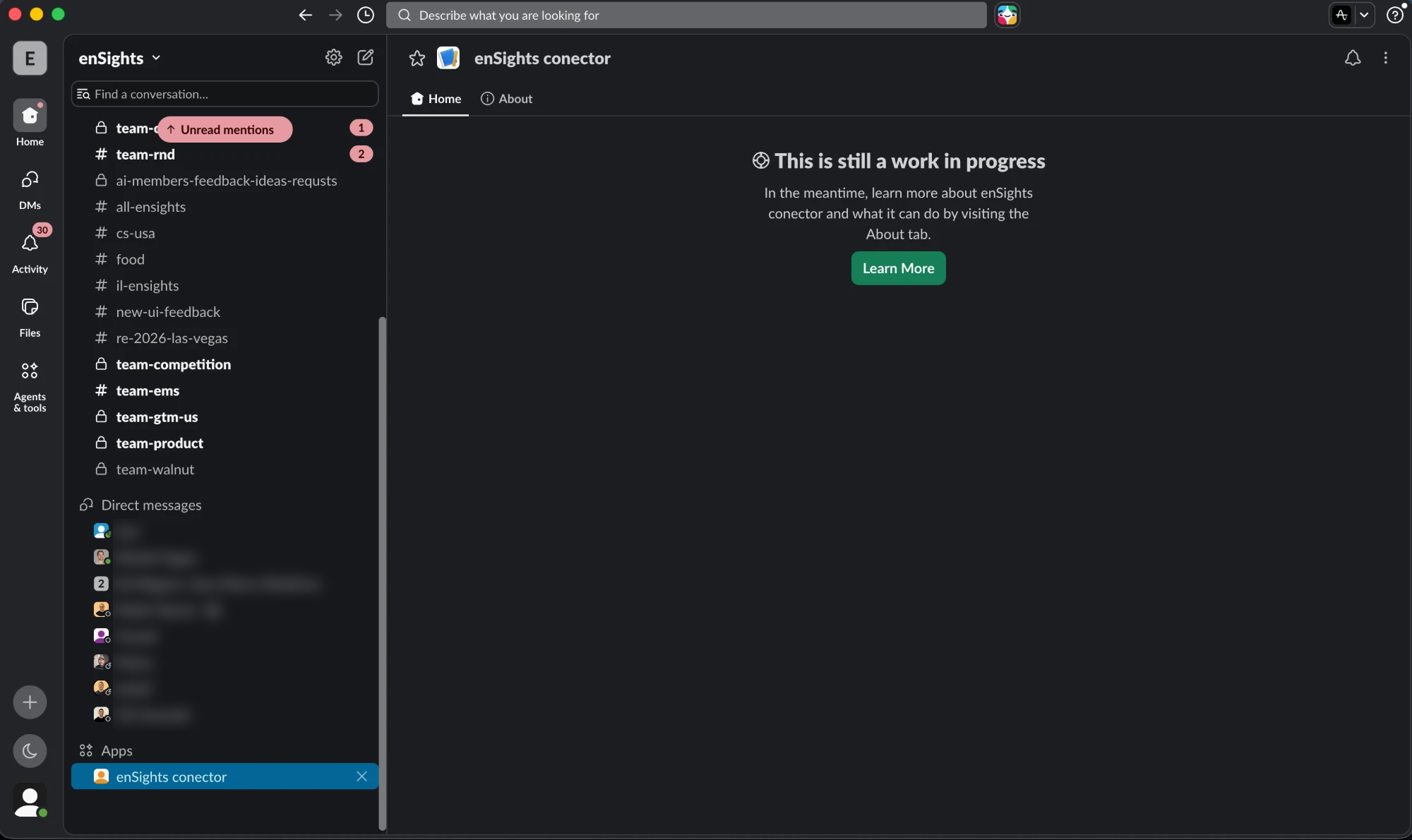
Without this step the app still works, but it shows a "This is still a work in progress" page when someone clicks it in Slack. To give it a normal chat tab:
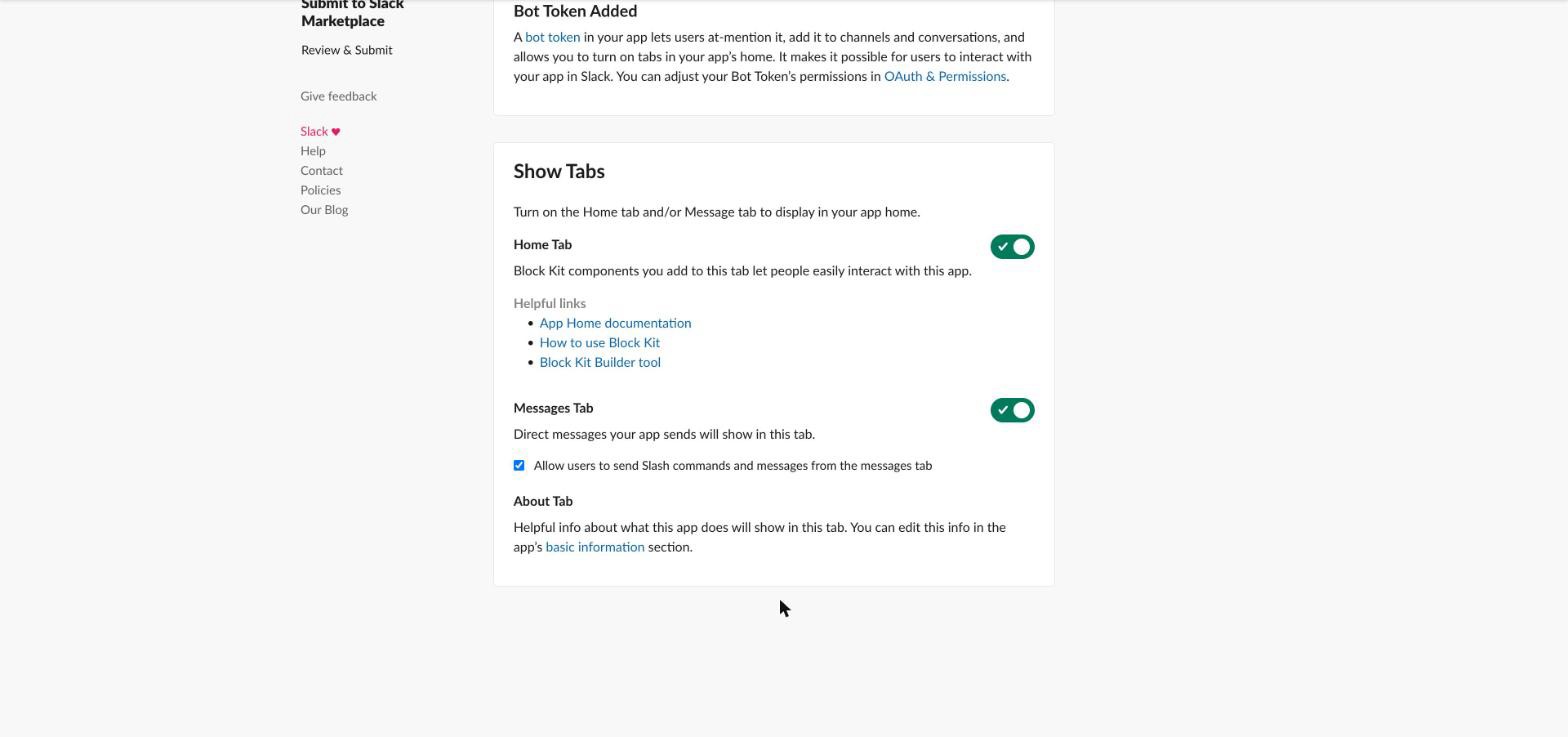
- In the left menu click App Home.
- Scroll to Show Tabs and turn on Messages Tab.
The app now appears under Apps in your Slack sidebar.
Part B: Connect it in enSights
- In enSights go to Data Hub → Connectors.
- Open the 3rd Party Apps tab and click the Slack card.
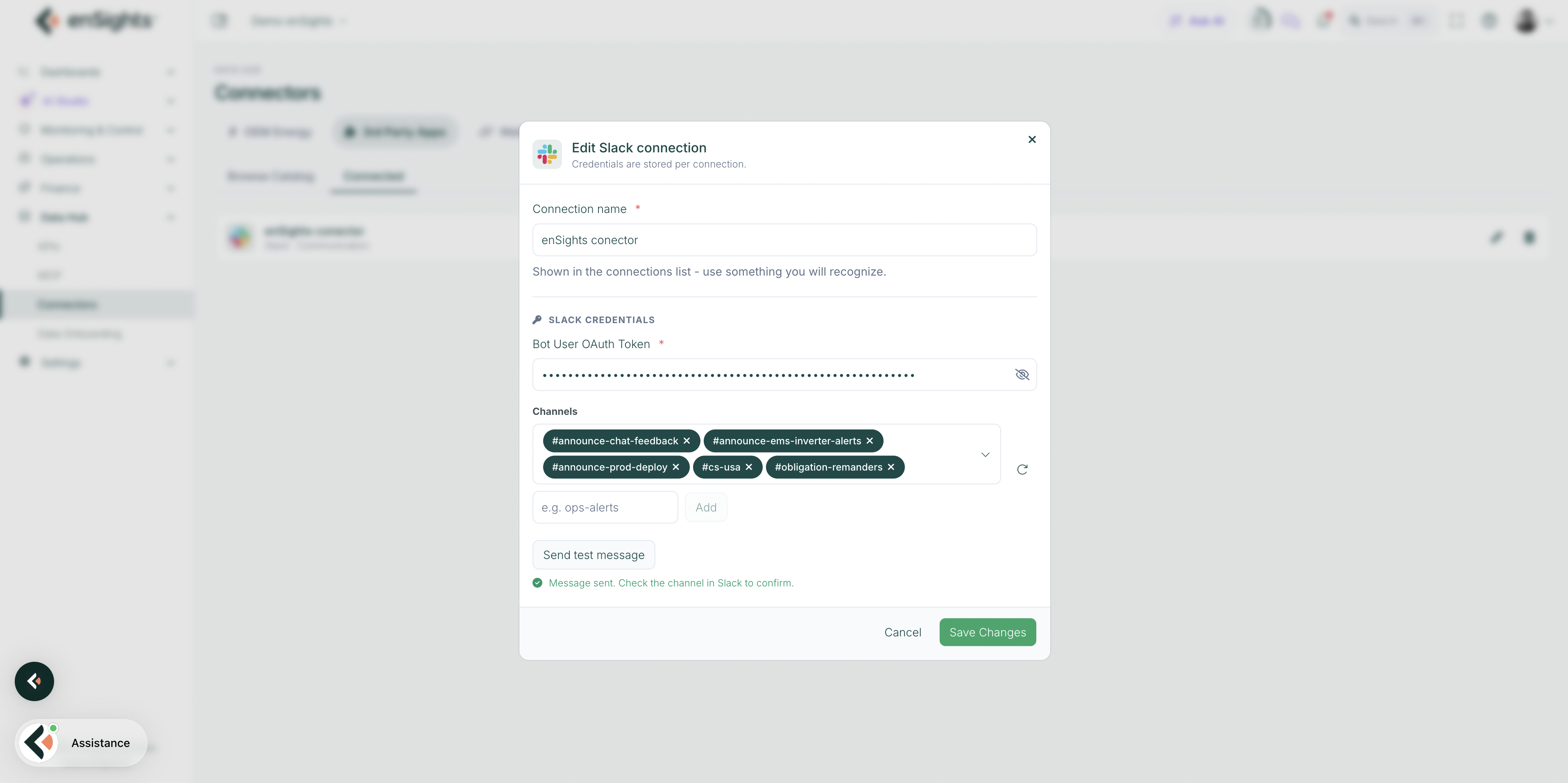
- In the Connect Slack dialog fill in:
- Connection name: anything you will recognise in the connections list, for example "Slack - Operations".
- Bot User OAuth Token: paste the xoxb- token you copied in Step 3.
- Channels: pick the channels enSights may post to. Click the refresh icon next to the field if the list is empty.
- Click Send test message. A message from the app should appear in each selected channel within a few seconds.
- Click Save Changes. The connection now shows under the Connected tab.
If the test message fails
Message you see | What it means and what to do |
|---|---|
The app is not in that channel. Invite it in Slack, then test again. | The app can only post to channels it is a member of. Open the channel in Slack, type /invite @your-app-name and press Enter, then test again. Adding the chat:write.public scope (Step 2) removes this requirement for public channels. |
The app cannot list channels. Add channels:read in Slack... | The channels:read scope is missing, or you added it but did not reinstall. Go back to Step 2 and Step 3, then click the refresh icon in the dialog. You can also type a channel name manually in the e.g. ops-alerts box and click Add . |
invalid_auth or not_authed | The token is wrong or incomplete. Copy it again from Install App in Slack. It must start with xoxb- ; a token starting with xapp- or xoxp- is a different kind and will not work. |
missing_scope | A scope from Step 2 is missing. Add it, then click Reinstall to Workspace . Scope changes only take effect after a reinstall. |
Private channel is not in the list | Private channels only appear after the app is invited to them ( /invite inside the channel) and groups:read is granted. |
Notes
- One app, many connections. You can reuse the same token in several enSights connections with different channel lists. Credentials are stored per connection.
- Every scope change needs a reinstall. Slack shows a yellow banner reminding you. Until you click Reinstall and Allow, the old permissions stay in force even though the settings page shows the new ones.
- The token does not change on reinstall to the same workspace, so you normally do not need to update it in enSights afterwards.
- Revoking access. To cut enSights off, delete the connection in enSights, or in Slack go to OAuth & Permissions → Revoke Tokens.