
Customer Management
Operations → Customer Management
What this page is for
Customer Management is the register of the people and organisations you deliver to. A customer record ties together three things that otherwise live apart: the assets they own, the services you provide on those assets, and the people who should hear about them.
Because customers are linked to systems, this record is also what makes "filter by customer" work on the fleet list, on Insights & Alerts, and in reports.
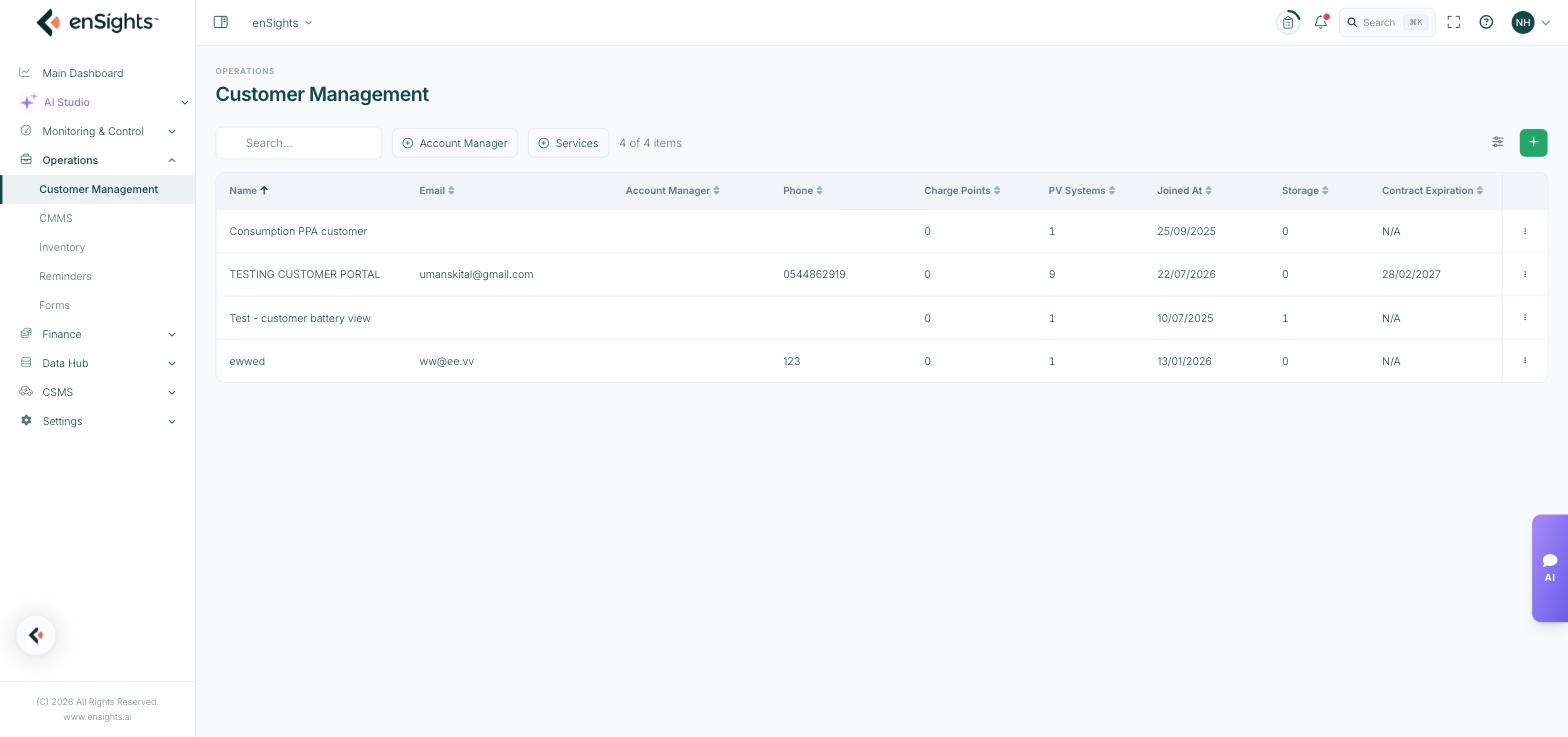
The customer list, with the assets and contract columns.
The list
- Name, Email, Phone — the primary contact details.
- Account Manager — the colleague who owns the relationship. Also a filter, both here and on the fleet list.
- Charge Points, PV Systems, Storage — how many assets of each type are attached. A zero here is the usual reason a customer's data looks empty elsewhere.
- Joined At and Contract Expiration — the commercial window. Sort by Contract Expiration to see what needs renewing.
The toolbar has search, an Account Manager filter, a Services filter, the column picker and + to add a customer. The row menu offers Edit and Delete.
The customer record
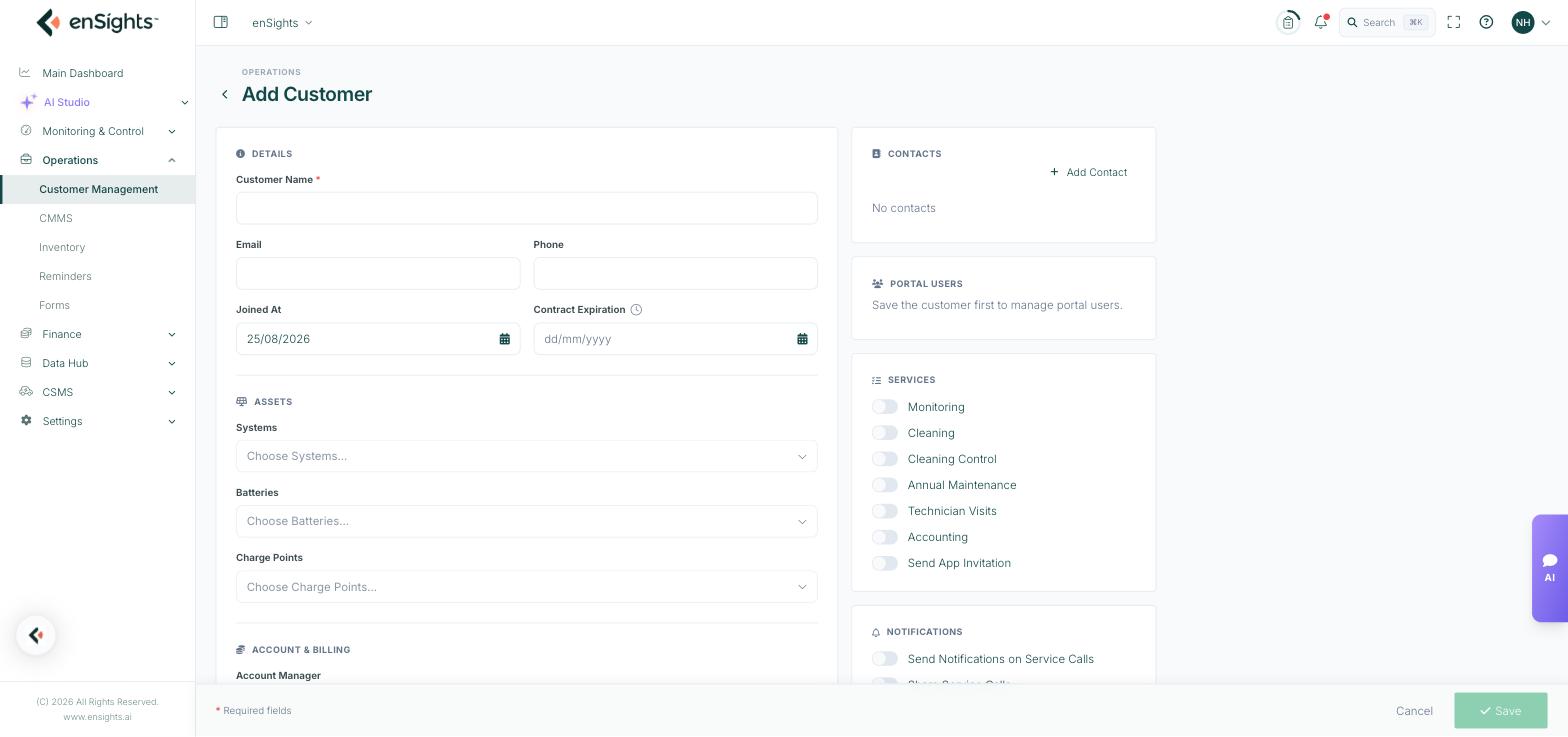
Adding a customer — details, assets, services and contacts on one page.
Details
Customer Name (required), Email, Phone, Joined At and Contract Expiration.
Assets
Systems, Batteries and Charge Points — multi-select pickers. Everything downstream depends on this: revenue attribution, the customer's portal view, which alerts they can be notified about, and which sites a customer-scoped report covers.
Account & Billing
Account Manager, Service Cost, Annual Washes and the Billing Address that appears on the invoice.
Contacts
Add Contact holds the people around the account — site manager, facilities, finance — separately from the portal login.
Portal Users
People who can sign in to the customer portal and see their own assets. The panel is only available once the customer is saved: Save the customer first to manage portal users. Add a user, and they receive access scoped to that customer's assets.
Services
Toggles for what you deliver: Monitoring, Cleaning, Cleaning Control, Annual Maintenance, Technician Visits, Accounting and Send App Invitation.
These are not decoration — they drive the Services filter on the list, and they tell your team at a glance whether a site visit is covered by contract or chargeable.
Notifications
Send Notifications on Service Calls and Share Service Calls control whether the customer is told when work is raised on their assets, and whether they can see it. Turn them on for customers who want visibility, off for those who prefer a monthly summary.
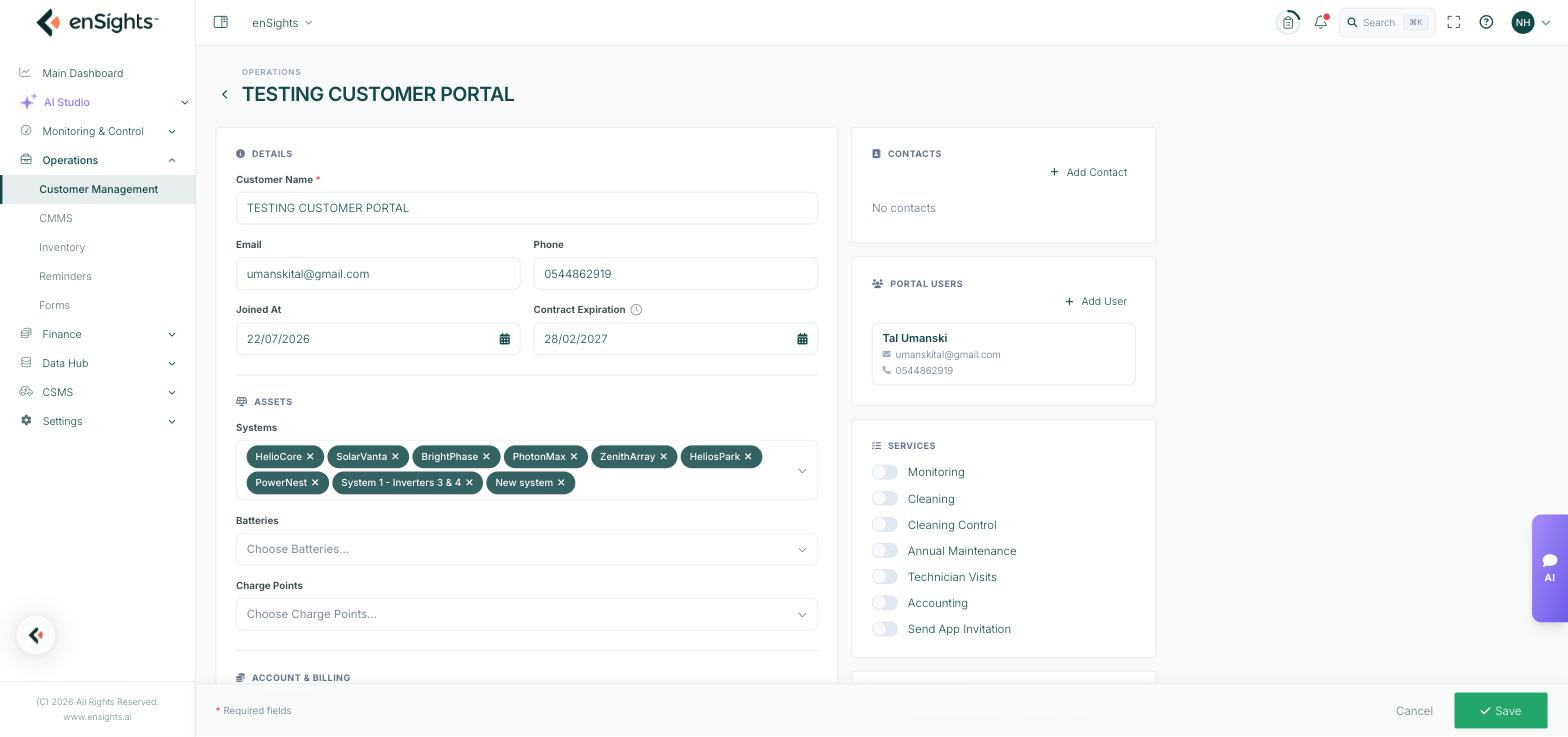
A saved customer with systems attached and a portal user.
Common tasks
Onboard a new customer. + → name and contract dates → attach their systems → set the services you deliver → Save → add portal users and contacts.
Give a customer portal access. Open the customer → Portal Users → Add User. They see only the assets attached to this record.
Find contracts expiring this quarter. Sort by Contract Expiration.
Hand over an account. Change the Account Manager; the fleet list and insights can then be filtered by the new owner.
Check what a customer is entitled to. Open the record and read the Services toggles before quoting a visit.
Common questions
A customer's portal is empty.
No assets are attached to the record, or the portal user was created against a different customer.
Why can't I add portal users yet?
The customer must be saved first — the panel says so.
The customer is not offered when I filter the fleet list.
Customer filters only show customers with systems attached.