
Operations: overview
Operations
What Operations is for
Monitoring & Control watches the equipment. Operations is where watching turns into doing. It holds the people, the work, the parts and the paperwork: who the customer is, who fixes the fault, what was used, what was signed, and what falls due next month.
Everything in this section exists to answer one question that no chart can: did somebody actually deal with it, and can we prove it?
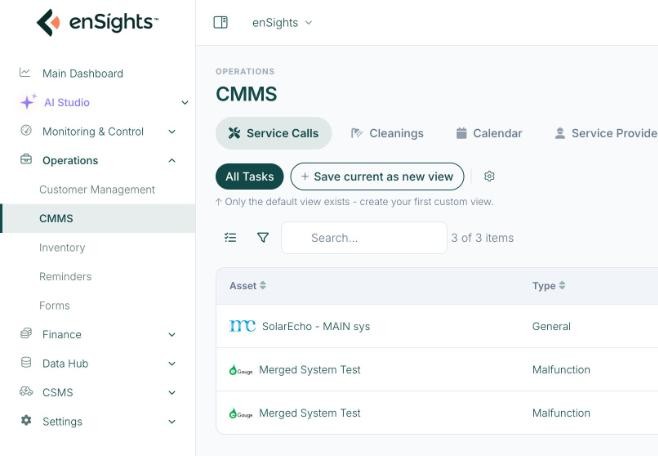
The five pages of the Operations section.
The five pages
- Customer Management — the register of who you deliver to. Links customers to their assets, records the services they are entitled to, and controls what they see in the customer portal.
- CMMS — the maintenance system, in four tabs: Service Calls (the work queue), Cleanings (the wash log), Calendar (the same work on a month or week grid) and Service Providers (your technicians and cleaners).
- Inventory — spare parts and equipment stock, including what is already committed to open jobs.
- Reminders — date-driven follow-ups across the fleet: warranties, contracts, licences and renewals.
- Forms — the checklists and reports technicians complete on site, and every submission they have made.
How a job flows
The five pages are not independent tools; they are stages of one process.
- Something is detected. An alert opens in Monitoring & Control → Insights & Alerts, or a planned visit falls due.
- Work is raised. New Service Call from the insight carries its context into CMMS. Planned work is created directly on the Service Calls tab.
- It is assigned and scheduled. An assignee comes from Service Providers; the due date places the job on the Calendar.
- It is equipped. Parts are attached from Inventory — which reserves them — and a checklist is attached from Forms.
- It is carried out. The technician completes the form on site; photographs and a signature travel with the answers.
- It is closed. Resolution and costs are recorded on the service call. The completed form lands in Forms → Results against the system.
- The customer is informed — if their record in Customer Management has service call notifications switched on.
- The future is booked. Anything with a date — a warranty, a recertification, the next annual visit — becomes a Reminder.
How Operations connects to the rest of the portal
- Monitoring & Control feeds work in. Every site also has its own Maintenance, Documents and Reminders tabs, showing the same records filtered to that asset — and the fleet list can filter on Service Call Status, so "which sites have open work" is one click.
- Finance takes work out. Service costs and the parts consumed on a job are what turn maintenance into a number in the P&L, and the customer record carries the billing address and service cost that invoices are built on.
- Reports draws on both: the Insights & Alerts report covers alerts and their resolution, and the Cleaning report pairs soiling losses with the wash schedule you record here.
Setting the section up
If you are configuring Operations for the first time, do it in this order — each step depends on the one before:
- Service Providers — add your technicians and cleaners, with roles, colours and system scope. Without them there is nobody to assign work to.
- Customer Management — create customers, attach their assets, set the services they receive and their notification preferences.
- Inventory — load the parts you hold, with minimum quantities and locations.
- Forms — build the checklists you want completed on site, and lock them once they are in use.
- Reminders — add the dates that matter on each asset: warranty, contract, recertification.
Who uses what
- Operations manager — Service Calls and Calendar daily; Inventory weekly; Reminders monthly.
- Technician — their own assigned calls and the forms attached to them, usually from the technician app.
- Account manager — Customer Management, and service call notifications on behalf of their accounts.
- Finance — the service costs and parts recorded on closed jobs.
Common questions
Where do I start when an alert needs a technician?
In Insights & Alerts, not here — use New Service Call on the alert so the job keeps its context.
Cleaning: service call or cleaning record?
Log routine contracted washes on the Cleanings tab. Raise a service call when the visit needs an assignee, a form or parts.
Why is a reminder not created automatically from a warranty date?
The date is recorded on the asset; the reminder is a deliberate act, so you choose the lead times and who chases it.
Can customers see any of this?
Only what their record allows — the Services toggles and the two notification switches in Customer Management decide it.