
Finance: Invoices
What this page is for
Invoices is where the commercial side of the platform produces something you can send. enSights takes the rate structure from a contract, multiplies it by the energy actually metered in the billing period, and produces an invoice. This page lists those invoices, shows how far each one has got through the approval and payment process, and flags the ones where the numbers look wrong.
The important thing to understand before using it: an invoice here is derived. You don't type the amount. If an amount is wrong, the cause is in the contract, the meter data, or the period — not on this page.
Saved views
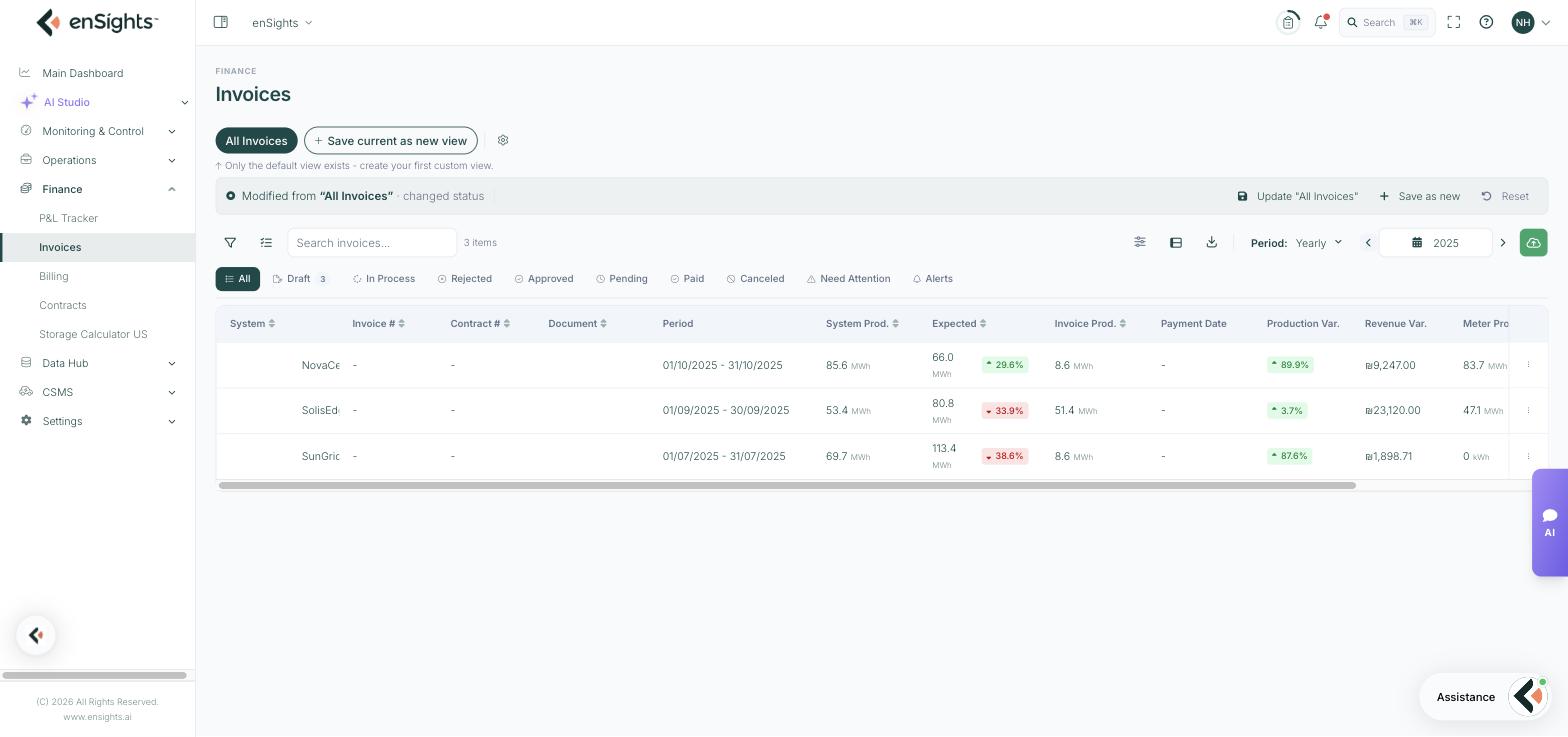
The row of pills under the page title holds your saved views. All Invoices is the built-in default; a fresh account has only that one, and the hint underneath says so.
A view remembers everything: the status tab, the filter panel, the period, the visible columns and the sort. As soon as you change any of those, a bar appears telling you the view has been Modified from "All Invoices" and naming what changed. From there you have three choices:
- Save current as new view / Save as new — keeps the default intact and adds a new pill.
- Update "All Invoices" — overwrites the default with your current setup, for everyone who uses it.
- Reset — throws the changes away and returns to the saved definition.
The gear icon beside the pills manages the views themselves. Prefer Save as new over Update unless you genuinely intend to change the default for the whole team.
The status tabs
Along the top of the table is a row of status filters, each with a count of the invoices in it. They are a filter, not a workflow diagram — clicking one narrows the table to that status.
Tab | What it holds |
|---|---|
All | Everything in the selected period, whatever its status. |
Draft | Generated but not yet issued. Still safe to correct. |
In Process | Being worked on — generation or approval under way. |
Rejected | Turned back during approval. Needs a fix and a resubmission. |
Approved | Signed off internally and ready to go out. |
Pending | Issued and waiting on the customer to pay. |
Paid | Settled. The Payment Date column is filled in. |
Canceled | Voided. Kept for the record rather than deleted. |
Need Attention | Something about the invoice looks wrong — most often a production or revenue variance outside tolerance. |
Alerts | Invoices carrying an alert raised by the platform. |
Need Attention and Alerts are the two worth checking before a billing run. They are the difference between catching a wrong invoice and sending one.
The columns
Column | Meaning |
|---|---|
System | The asset being billed, with its data-source logo. |
Invoice # | The tax invoice number, once one has been generated. A dash means it hasn't yet. |
Contract # | The contract the invoice was calculated from. |
Document | The generated PDF, when one exists. |
Period | The billing window, as an explicit from–to date range. |
System Prod. | Energy the monitoring platform recorded for the asset in that period. |
Expected | What the model said the asset should have produced, with the percentage difference beside it. |
Invoice Prod. | The energy figure the invoice was actually calculated on. This is the number that matters commercially. |
Payment Date | When it was paid. Empty until it is. |
Production Var. | Variance between production figures, coloured green or red with an arrow. |
Revenue Var. | The money equivalent of that variance. |
Meter Prod. | The raw meter reading, as distinct from the platform's system production figure. |
Every column header carries a sort control, and the table scrolls horizontally — the columns beyond Meter Prod. and the row Actions menu are off the right edge at most window widths.
Why there are three production numbers
System Prod., Invoice Prod. and Meter Prod. are three different things, and a mismatch between them is the single most common reason an invoice is wrong:
- System Prod. is what the monitoring platform believes the asset generated.
- Meter Prod. is what the revenue meter recorded.
- Invoice Prod. is what the invoice charged for.
Where a contract bills on meter energy, Invoice Prod. should track Meter Prod. A large gap between System and Meter usually means a data-collection problem on one of them; a gap between Invoice and Meter usually means the contract is pointed at the wrong source.
The filter panel
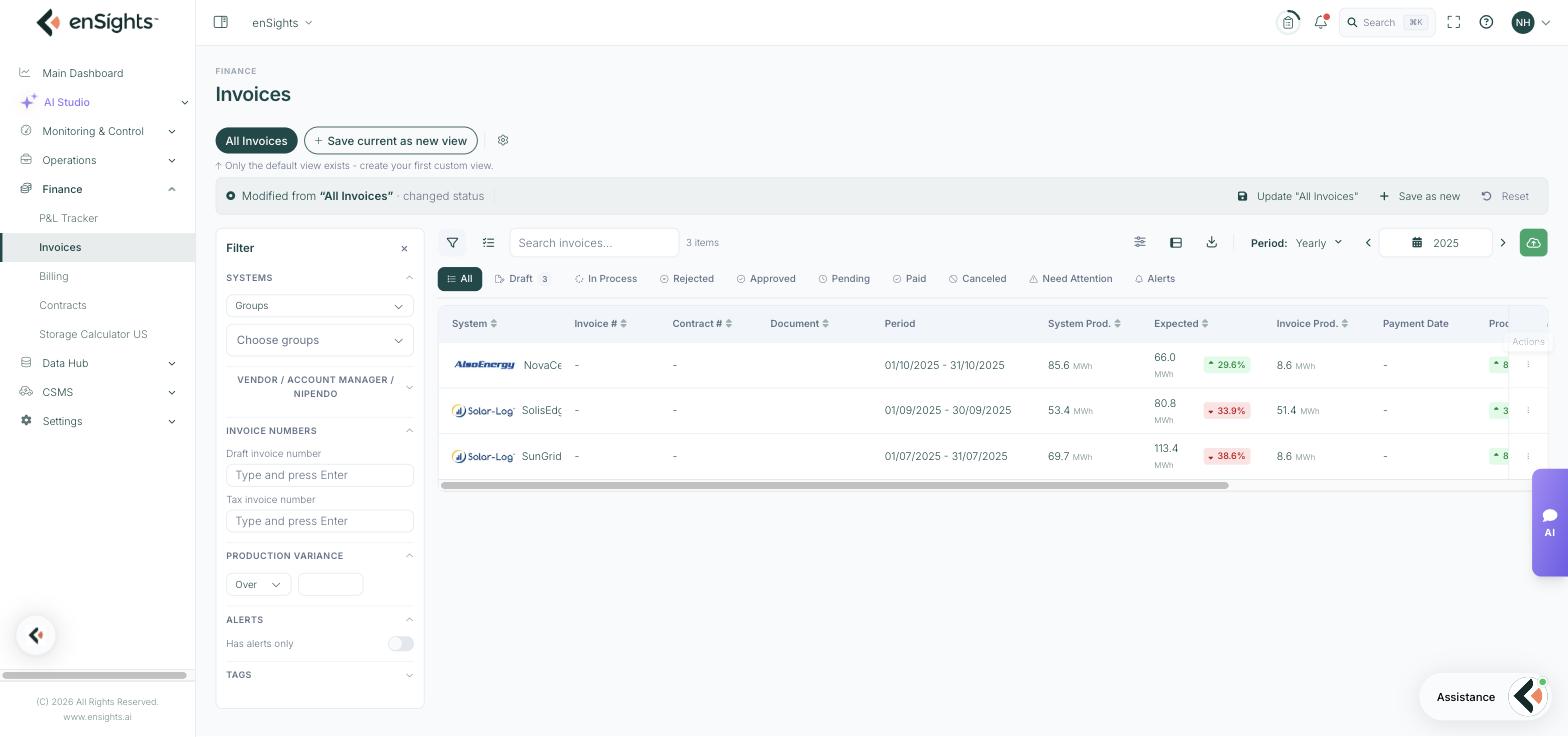
The funnel icon opens a filter panel down the left, independent of the status tabs. It holds:
- Systems — filter by Groups, then choose which groups; or by vendor / account manager / Nipendo.
- Invoice Numbers — look up a specific Draft invoice number or Tax invoice number. Type the number and press Enter.
- Production Variance — Over or Under a percentage you set. This is how you find every invoice whose production is more than, say, 20% off expectation.
- Alerts — Has alerts only, as a toggle.
- Tags — filter on the tags applied to systems.
Beside the funnel, the list icon switches the layout, the sliders icon controls which columns are visible, the panel icon changes row density, and the download icon exports the current result set. On the right, Period (Yearly and other granularities) with a year selector bounds the whole page.
Acting on an invoice
The three-dot Actions menu at the end of each row is where invoice-level operations live. The two that matter most:
- Send Invoice — delivers the invoice to the customer contacts on the contract.
- Generate Tax Invoice — turns a draft into a numbered tax invoice. This is the point at which the document becomes a formal one, so check the figures first.
The green button at the top right of the toolbar area triggers invoice generation for the current scope.
How to
Run a billing cycle safely
- Set Period to the cycle you are billing.
- Open Need Attention and Alerts first, and clear anything there before generating.
- Open the filter panel and set Production Variance to Over 20% — review whatever it returns.
- Check Invoice Prod. against Meter Prod. on the rows you are about to issue.
- Move through Draft → Approved, then use Generate Tax Invoice and Send Invoice from the row menu.
Find one specific invoice
- If you have the number, use the filter panel's Draft invoice number or Tax invoice number field.
- If you have the customer or site, use Search invoices… and check the Period column to pick the right cycle.
- Widen Period if nothing comes back — the page only searches within the selected year.
Build a working view for your own use
- Set the status tab, filters, columns and sort you want.
- Click Save as new when the modified-view bar appears.
- Name it for the job it does — "Unpaid over 30 days", "Variance review" — rather than for the filters it holds.
Notes
- The period bounds everything. An invoice missing from the list is very often just outside the selected year.
- A dash in Invoice # is meaningful. It means no tax invoice has been generated, so the row is still a draft regardless of what the status tab says.
- Variance colours are relative to expectation, not to good. Green means above expected production; on a revenue-share contract that is not automatically good news for the payer.
- Fix the contract, not the invoice. A systematically wrong amount means the rate, tiers or escalation on the contract need correcting; re-generating without that gives you the same wrong number again.