
Roles & Permissions
What this page is for
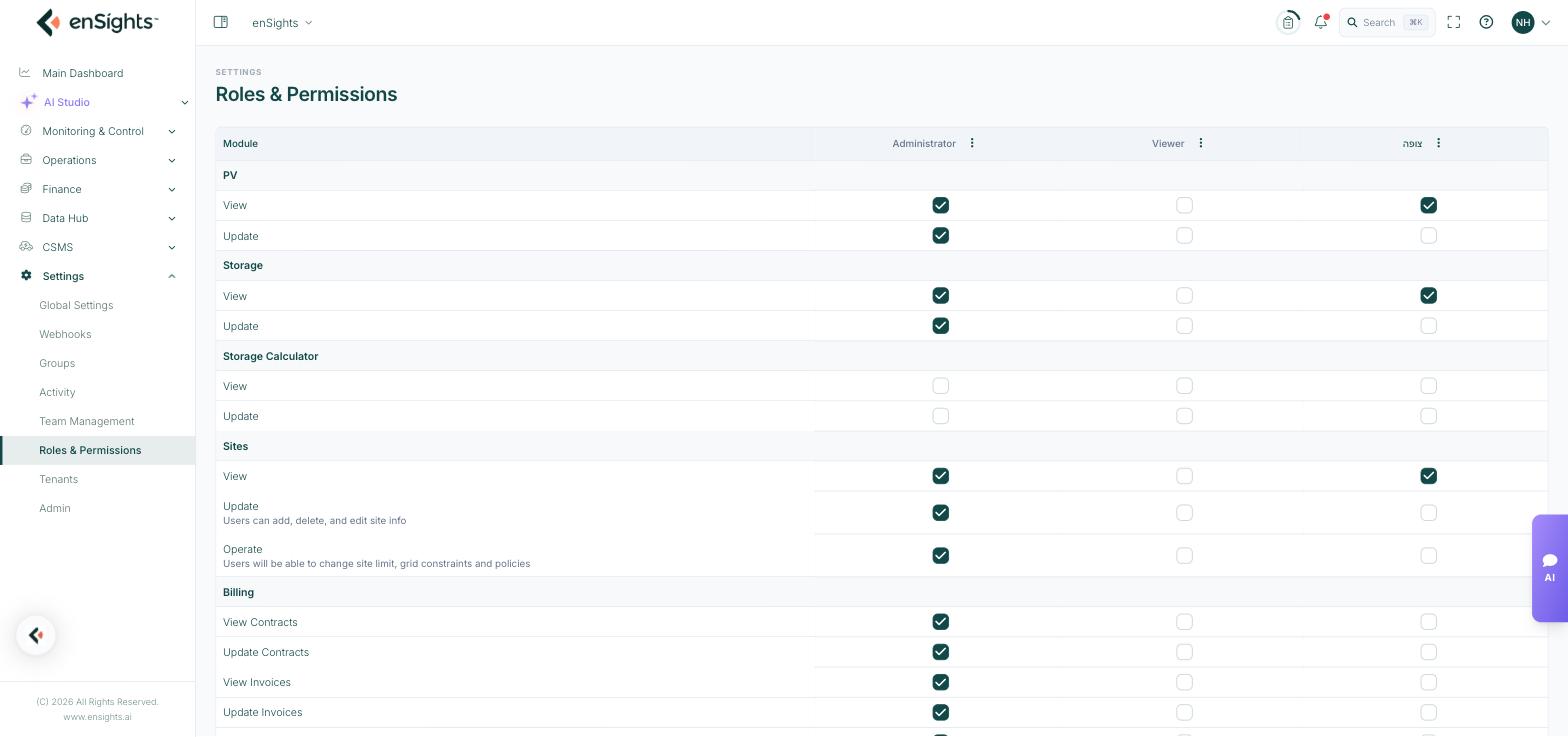
Roles & Permissions is the matrix behind every role in your account. Modules run down the left, roles run across the top, and each cell is a checkbox saying whether that role holds that permission.
This page answers "why can't they see that?" definitively. If someone is missing a screen, either their role lacks the permission here, or their asset access in Team Management excludes the data — and this page settles which.
How to read it
Most modules offer View and Update as separate permissions. That split matters: View lets someone look, Update lets them change. A monitoring team usually wants View across the board and Update almost nowhere.
Some rows carry a note explaining their reach — for example, Sites Update says "Users can add, delete, and edit site info", and Sites Operate says "Users will be able to change site limit, grid constraints and policies". Read those notes; Operate is a genuinely powerful permission, not a variation on Update.
The modules
Group | Permissions |
|---|---|
PV | View, Update |
Storage | View, Update |
Storage Calculator | View, Update |
Sites | View, Update, Operate |
Billing | View Contracts, Update Contracts, View Invoices, Update Invoices |
Asset Management | Asset management access |
CRM | View, Update |
Maintenance | View Service Calls, Update Service Calls, View Inventory, Update Inventory, View Service Providers |
Insights | Insights access |
Reports | Reports access |
Forms | View, Update |
Reminders | Reminders access |
EV Charging | View, Update |
General | Financial Monitoring, View Groups, Update Groups, Global Settings, Audits, Webhooks, ChatBot, Datapoints |
Two in the General group are worth singling out. Financial Monitoring — "Users can view the revenues and costs of the account" — is the commercial data gate, and is often the one permission a technical role should not have. Global Settings is what opens this whole section, including this page.
Managing roles
Each role column has a three-dot menu in its header.
- Built-in roles (Administrator, Viewer) offer only Duplicate — they cannot be renamed or deleted, and their permissions are fixed.
- Custom roles offer Rename, Duplicate and Delete.
How to create a custom role
- Find the built-in role closest to what you want.
- Open its three-dot menu and choose Duplicate.
- Rename the copy to something that describes the job, not the person.
- Tick and untick permissions in the new column until it matches the job.
- Assign it to users in Team Management.
Duplicating rather than starting from nothing is the safer path — it is easier to remove permissions you can see than to discover which ones you forgot.
Notes
- Permissions and asset access are independent. This page decides what actions are possible; Team Management decides which assets those actions apply to.
- Changes affect every user holding the role, immediately for new sessions. Existing sessions may keep their old permissions until the user signs out — use Sign Out in Team Management if a change must take effect now.
- Deleting a custom role leaves the users who held it without one. Move them to another role first.
- Do not remove Global Settings from every role. If nobody holds it, nobody can get back in to fix it.
- Grant View widely and Update narrowly. Most incidents come from an Update permission nobody meant to give.