
Finance: Billing
What this page is for
Billing is the customer-facing invoice ledger. Where the Invoices page is about producing invoices from contracts and meter data, Billing is about the resulting account: one row per invoice, with the amount, what is still outstanding on it, and a link to the document itself.
It is the page to open when the question is "has this been paid?" rather than "is this figure right?".
A note on the interface
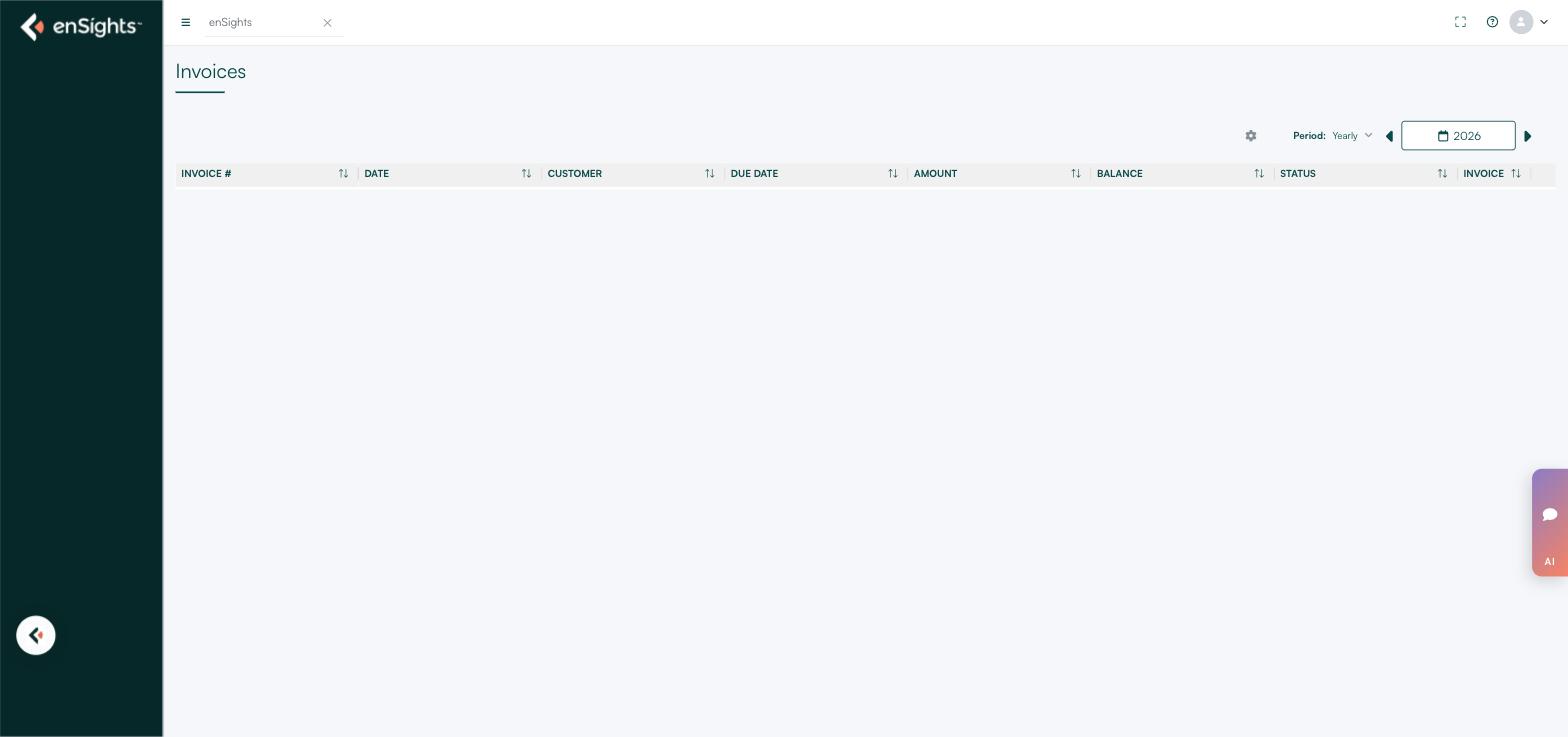
Billing still uses the previous enSights interface — a dark left navigation, a full page load and a different table style from the newer Finance pages. The data and the permissions are the same; only the styling differs. Reach it from Finance → Billing in the left navigation rather than by typing an address, because its URL does not follow the same pattern as the newer pages.
The columns
Column | Meaning |
|---|---|
Invoice # | The invoice number, as it appears on the document sent to the customer. |
Date | The invoice date — when it was issued, not when the energy was delivered. |
Customer | The customer account the invoice belongs to. |
Due Date | Payment deadline, derived from the payment terms on the contract. Net 30 on an invoice dated the 1st gives a due date on the 31st. |
Amount | The full invoiced total, including tax where the contract is not tax exempt. |
Balance | What is still outstanding. Equal to Amount when nothing has been paid, zero when settled, and something in between after a part payment. |
Status | Where the invoice stands — issued, paid, overdue and so on. |
Invoice | A link to the invoice document itself. |
Every column header has a sort control beside it. Sorting by Balance descending is the fastest way to see the largest amounts still outstanding; sorting by Due Date ascending gives you the oldest overdue first.
Amount versus Balance
These two columns together tell you the payment story without opening anything. Amount never changes once the invoice is issued. Balance moves as payments arrive. A row where the two are equal and the due date has passed is an overdue invoice; a row where Balance is smaller but not zero is a part payment, which usually needs a different conversation from a complete non-payment.
The controls
- Period — the granularity of the view, Yearly by default, with a year selector and arrows either side to step through years.
- Gear icon — column settings, for choosing which of the columns above are shown.
The period is the main thing to check when the ledger looks wrong. An empty table almost always means the selected year has no invoices, not that there are none at all.
How to
Find out what a customer still owes
- Set Period to the year in question — step back through years if you are chasing something older.
- Sort by Customer to bring their rows together.
- Read the Balance column; anything above zero is outstanding.
- Check Due Date against today to separate overdue from simply not yet due.
Build an aged-debt picture
- Sort by Due Date ascending.
- Read down until the due dates reach today — everything above that line with a non-zero Balance is overdue, oldest first.
Retrieve a copy of an invoice
- Find the row, by customer or by invoice number.
- Use the link in the Invoice column to open the document.
Notes
- An empty table is normal on a new or non-billing tenant. Billing only has rows once invoices have been issued to customer accounts.
- This page reflects; it doesn't calculate. Amounts come from the invoices generated on the Invoices page, which in turn come from Contracts. A wrong amount is corrected upstream.
- Due dates come from the contract. If a due date looks wrong across a customer's invoices, the payment terms on their contract are the place to look — see the Contracts article.
- Billing and Invoices are different views of the same money. Invoices is the operational view for a billing run; Billing is the account view for collections.