
Global Settings: Maintenance
What this page is for
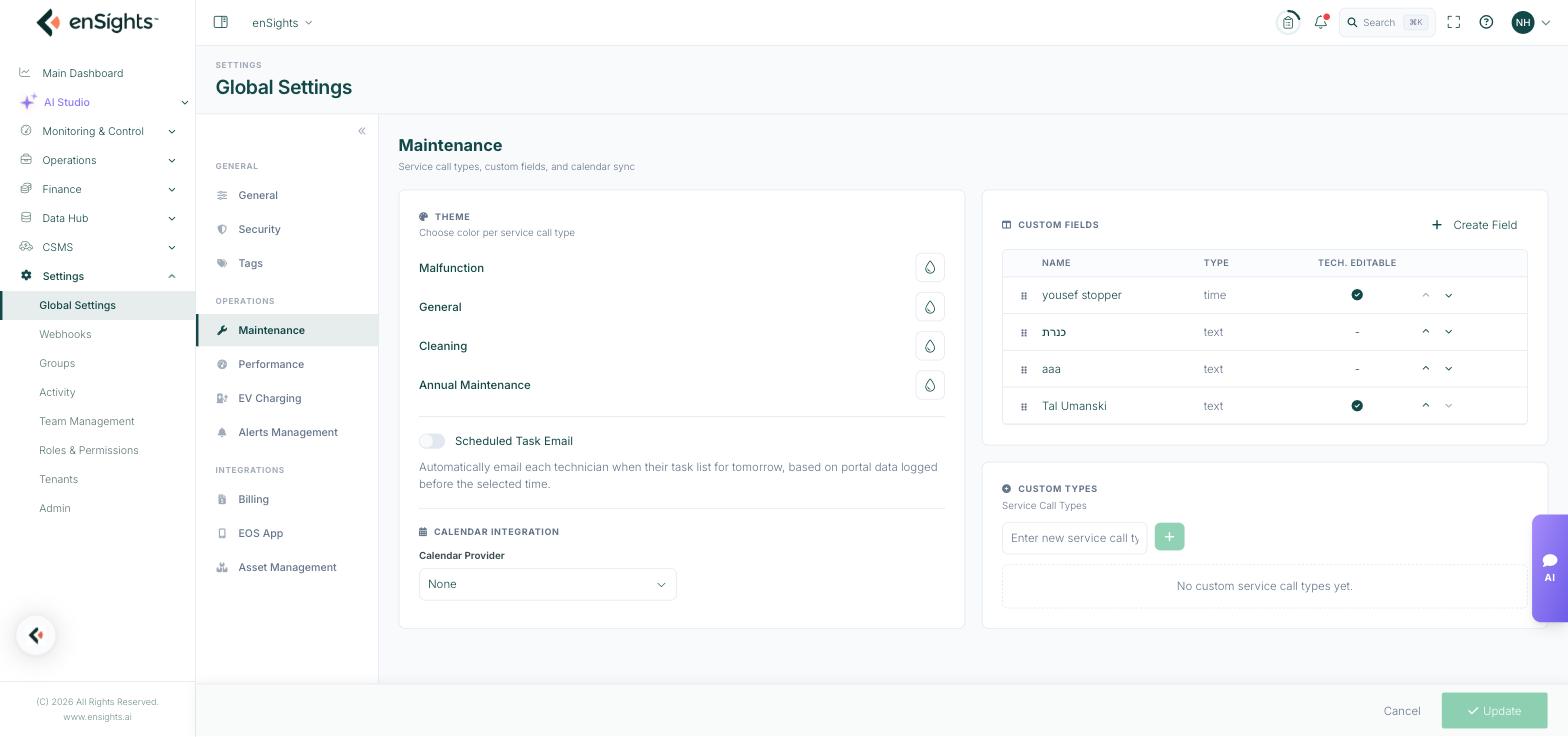
Maintenance configures the CMMS — the service call, cleaning and task side of the platform. Nothing here creates work; it defines the shape that work takes: what colour each type of call is, what extra fields technicians fill in, what types of call exist, whether technicians are emailed their schedule, and whether calls sync to an external calendar.
Theme
A colour per service call type. The four built-in types are Malfunction, General, Cleaning and Annual Maintenance; each has a colour swatch you click to change.
These colours are what you actually read on the CMMS calendar and in the service call lists, so pick them for contrast rather than for taste — the point is telling a malfunction from a routine cleaning at a glance.
Scheduled Task Email
Off by default. When on, each technician is automatically emailed their task list for the following day, built from the calls logged in the portal before the cut-off time you set.
The cut-off matters: work added after it lands in the next day's email, not tonight's. Set it late enough that same-day dispatching is captured, early enough that the email arrives before people finish for the day.
Calendar Integration
A single Calendar Provider choice: None or Teamup. Choosing a provider pushes service calls into that shared calendar, so field teams can see their schedule in a tool they already have open.
Custom Fields
Extra fields added to service calls beyond the built-in ones. The table lists them with three columns:
Column | Meaning |
|---|---|
Name | The label shown on the service call form. |
Type | The kind of input: text, number, date, time, checkbox or dropdown. |
Tech. Editable | A tick means field technicians can fill in or change the value. A dash means it is read-only to them. |
Rows can be reordered with the up and down arrows, which sets the order the fields appear on the form.
How to create a custom field
- Press Create Field.
- Enter a Field Name.
- Choose a Field Type: Free Text, Number, Date, Time, Checkbox or Dropdown.
- Turn Editable on if technicians should be able to change the value in the field.
- Under Choose Service Call Type, pick All to put the field on every call, or Specific to limit it to certain types.
- Press Save Changes, then Update at the bottom of the page.
Custom Types
Your own service call types, in addition to the four built-in ones. Type a name into the Enter new service call type box and press the + button. New types then appear wherever a call type is chosen, and get their own colour in the Theme section.
Add a type when the work genuinely follows a different process — vegetation management, inverter replacement, grid compliance testing. Avoid adding types that are really just a description of one job; that is what the call's own fields are for.
Notes
- The whole page saves with Update at the bottom. Creating a custom field in its dialog is not enough on its own.
- Custom fields set to Specific types only appear on those types — if a field seems to be missing, check which types it was scoped to.
- Making a field non-editable does not hide it from technicians; it shows as read-only.
- Removing a custom field removes the values recorded against it on existing calls. Consider making it non-editable instead if you only want to stop new entries.