
Finance: Contracts
What this page is for
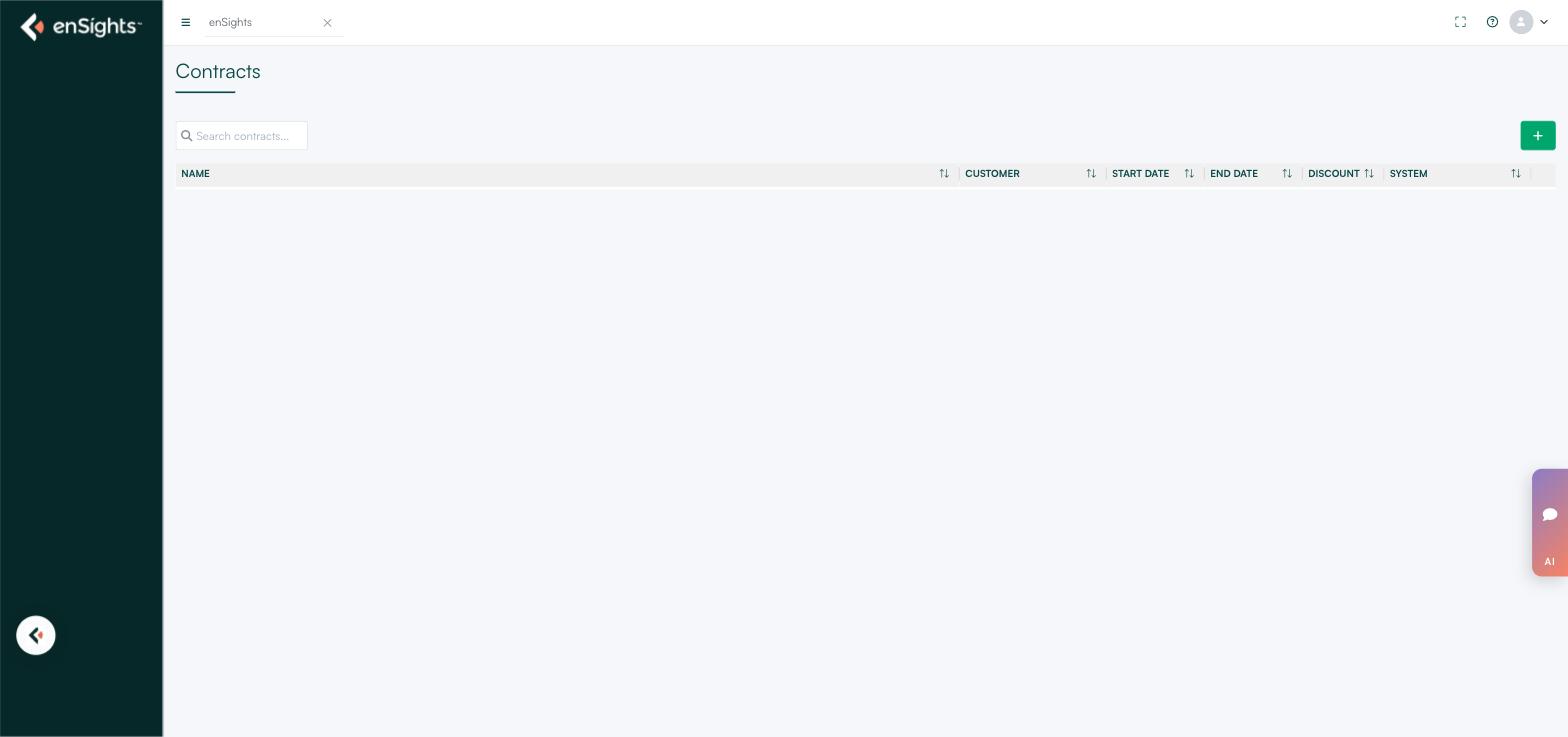
Contracts is the source of truth for the commercial side of the platform. Everything the Invoices page produces and everything the revenue rows of the P&L Tracker show is calculated from what is recorded here: who the customer is, what rate they pay, how that rate escalates, how tax is treated, and when payment is due.
That makes this the highest-consequence page in Finance. A rate typed wrong here does not produce an error — it produces correct-looking invoices for the wrong amount, for as long as the contract runs.
A note on the interface
Contracts still uses the previous enSights interface, like Billing. Open it from Finance → Contracts in the left navigation rather than by typing an address.
The contract list
Column | Meaning |
|---|---|
Name | The contract's name. Defaults to "Contract" plus the date and time it was created, which is worth replacing with something readable. |
Customer | The customer account the contract belongs to. |
Start Date | When the agreement begins. Also the anchor for escalation years. |
End Date | When it ends. |
Discount | Any discount applied to the contract. |
System | The asset or assets the contract covers. |
Search contracts… filters the list; the green + button at the top right opens the Create Contract form. Clicking an existing row opens the same form populated with that contract's values.
Creating a contract
The form is one modal with a header block and six collapsible sections. Fields marked with a red asterisk are required.
The header block
Field | Notes |
|---|---|
Language | The language the invoice document is produced in. |
Contract Name | Required. Internal identifier — this is what appears in the list and in the Contract # column on Invoices. |
Currency | The billing currency for this contract. |
Invoice Title | Required. This one is customer-facing — it appears on the proforma, so write it as the customer should read it. |
Contract Type | PPA or Subscription. PPA bills for energy delivered; Subscription bills a recurring fee. |
Status | Active or otherwise. Only active contracts generate invoices. |
Start Date / End Date | The contract term. Start Date also sets when escalation years begin. |
Customer | Required. Chosen from the customers set up in Operations, not typed here. |
Energy Source | Which energy figure the contract bills on — Production. This is the setting behind the Invoice Prod. column on the Invoices page. |
Invoice Calculations
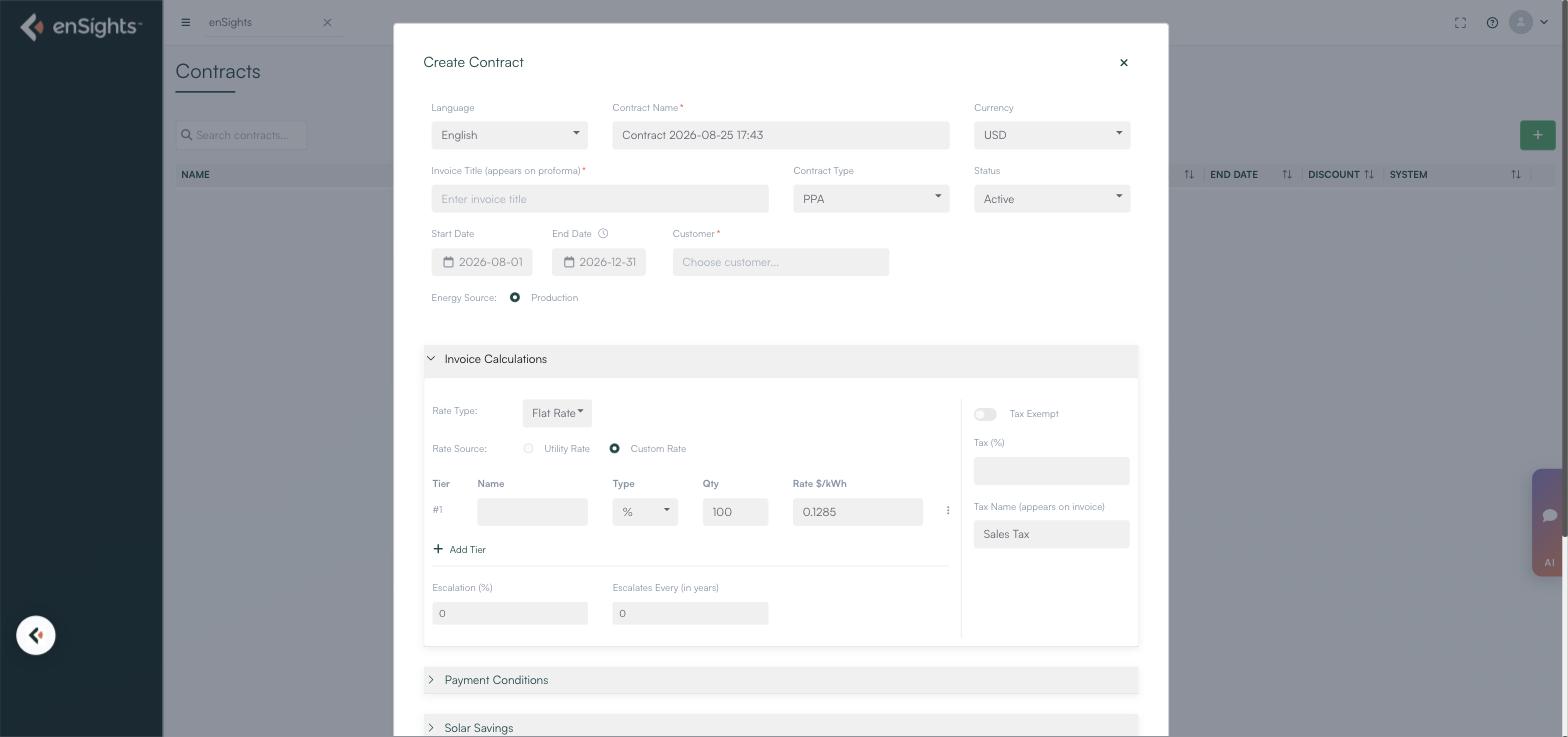
This section is the pricing engine. It has two halves — the rate structure on the left, tax on the right.
- Rate Type — Flat Rate, or a tiered structure.
- Rate Source — Utility Rate takes the price from the applicable utility tariff; Custom Rate uses the rate you type. Custom is the usual choice for a PPA.
- Tier table — each tier has a Name, a Type (for example %), a Qty and a Rate $/kWh. Add Tier adds another row, and the row menu removes one. With a single tier at 100%, all energy is billed at that rate; with several, energy is split across them by quantity.
- Escalation (%) and Escalates Every (in years) — the annual price step and how often it applies. Both default to 0, meaning a flat price for the whole term. A 2% escalation escalating every 1 year raises the rate on each contract anniversary.
- Tax Exempt — a toggle. When off, Tax (%) sets the rate and Tax Name (appears on invoice) sets the label the customer sees, for example "Sales Tax".
Escalation runs on contract years, not calendar years. A contract starting in August steps its rate each August, which is worth knowing before you go looking for a rate change in January.
Payment Conditions
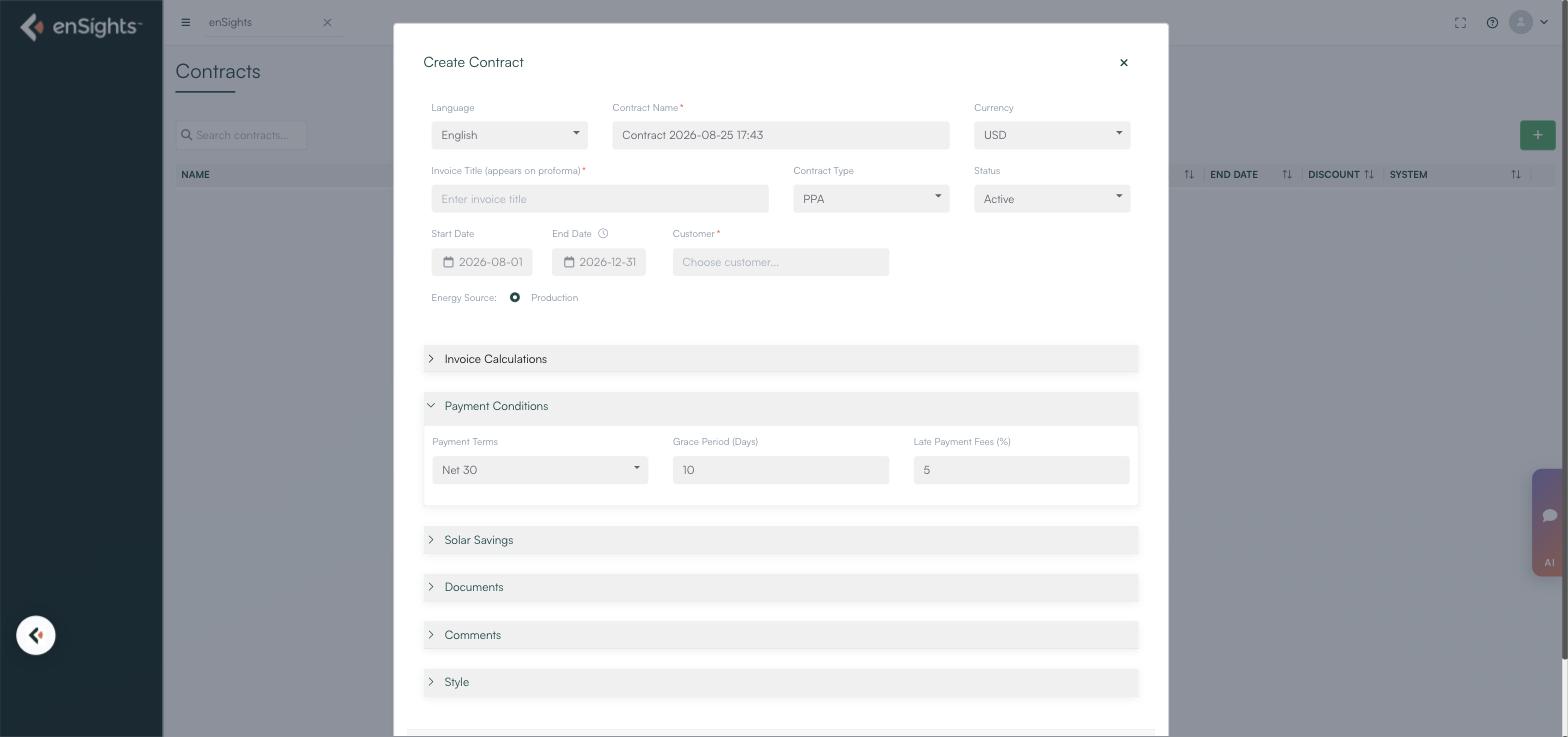
- Payment Terms — Net 30 and similar terms. This is what produces the Due Date on the Billing page.
- Grace Period (Days) — how long after the due date before the invoice is treated as late.
- Late Payment Fees (%) — the charge applied once the grace period has passed.
The remaining sections
- Solar Savings — the savings calculation shown to the customer, for contracts that present a saving against a utility baseline.
- Documents — the signed agreement and any attachments, kept with the contract rather than in a separate drive.
- Comments — internal notes. The place to record why a rate is unusual, so the next person doesn't "correct" it.
- Style — the visual presentation of the generated invoice document.
How to
Set up a new PPA
- Make sure the customer exists in Operations → Customer Management first — you can only choose from existing customers.
- Open Contracts and click the green +.
- Give it a readable Contract Name and a customer-facing Invoice Title. Set Contract Type to PPA, pick the currency, and set the term.
- Choose the Customer and confirm the Energy Source.
- Open Invoice Calculations. Set Rate Source to Custom Rate and enter the $/kWh. Add tiers only if the agreement is genuinely tiered.
- Enter Escalation and Escalates Every if the agreement escalates. Leave both at 0 if not.
- Set tax — either turn on Tax Exempt, or enter the percentage and the name the customer should see.
- Open Payment Conditions and set terms, grace period and late fee.
- Attach the signed agreement under Documents, then save.
- Generate one invoice on the Invoices page and check the amount by hand before running a full cycle.
Diagnose a wrong invoice amount
- Note the Contract # from the invoice row.
- Open that contract and check Invoice Calculations — rate, tiers and quantities first.
- Check Escalation: if the invoice period crosses a contract anniversary, the expected rate may not be the one you remember.
- Check the tax settings against what the invoice shows.
- If all of that is right, the problem is the energy figure, not the contract — go back to the Invoices page and compare Invoice Prod. with Meter Prod.
Notes
- Contract changes are forward-looking. Editing a rate does not change invoices already generated. Those have to be cancelled and reissued.
- The default contract name is a timestamp. Leaving it makes a list of contracts unreadable within a month. Rename it to customer plus site.
- Contract Name and Invoice Title serve different audiences. One is for you, one is for the customer. They do not have to match, and usually shouldn't.
- Tax Name appears on the document. Whatever you type there is printed on the customer's invoice, so it should be the correct legal label for the jurisdiction.
- One contract can cover several systems. Check the System column before assuming a change affects only the site you have in mind.