
Forms: templates and the form designer
Operations → Forms → Templates
What forms are for
A form is a structured record filled in by a person, usually on site: a commissioning checklist, a safety inspection, an annual maintenance sheet, a customer sign-off. Attaching one to a service call is how you turn "the technician visited" into evidence you can search, export and show a customer.
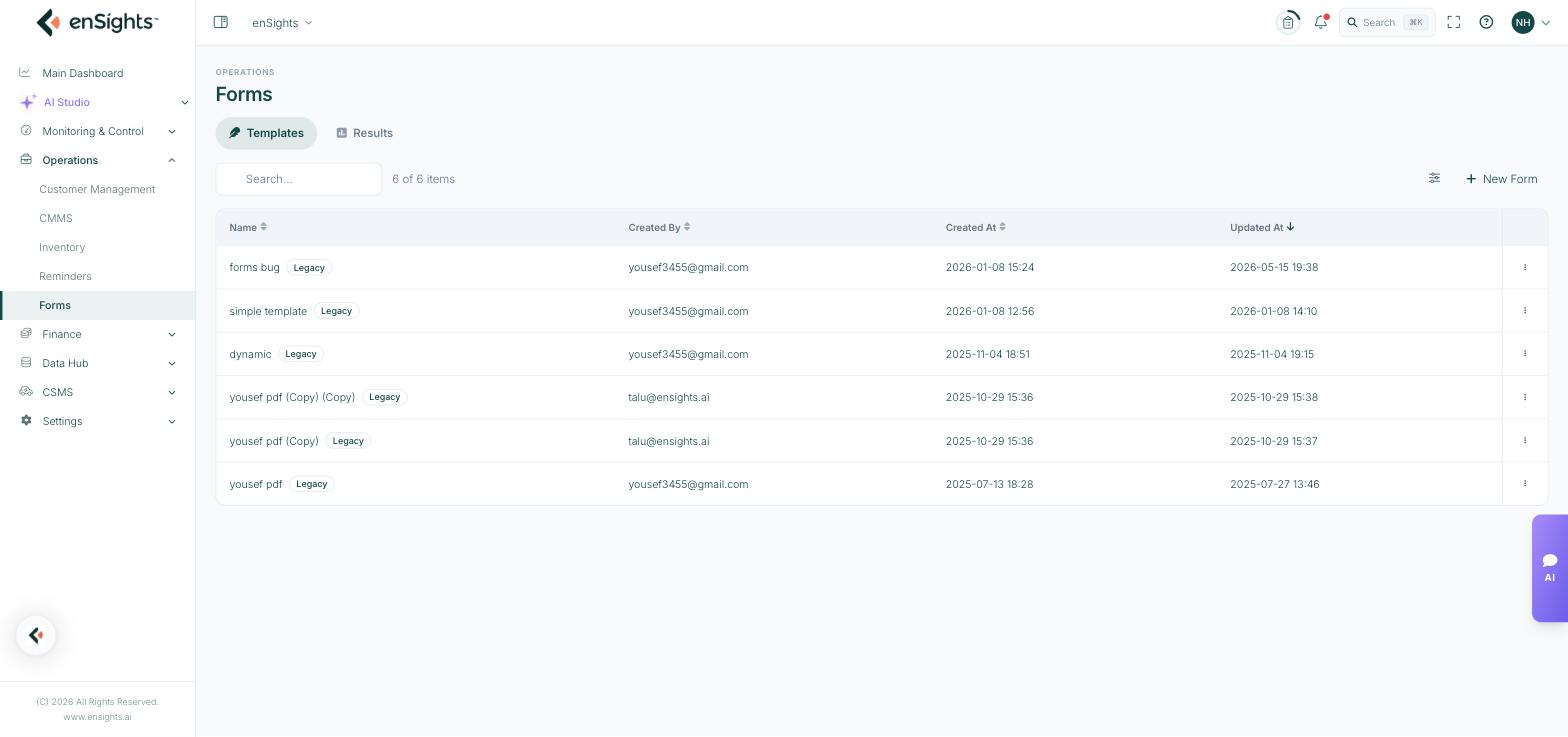
The template library.
The template library
Columns are Name, Created By, Created At and Updated At, with search and the column picker. A Legacy badge marks templates built in the older editor — see the note below.
The row menu offers:
- Design — open the builder.
- Edit — the form's settings.
- Duplicate — the safe way to change a form that is already in use: copy it, edit the copy, and leave submitted results attached to the original.
- Delete.
Creating a form
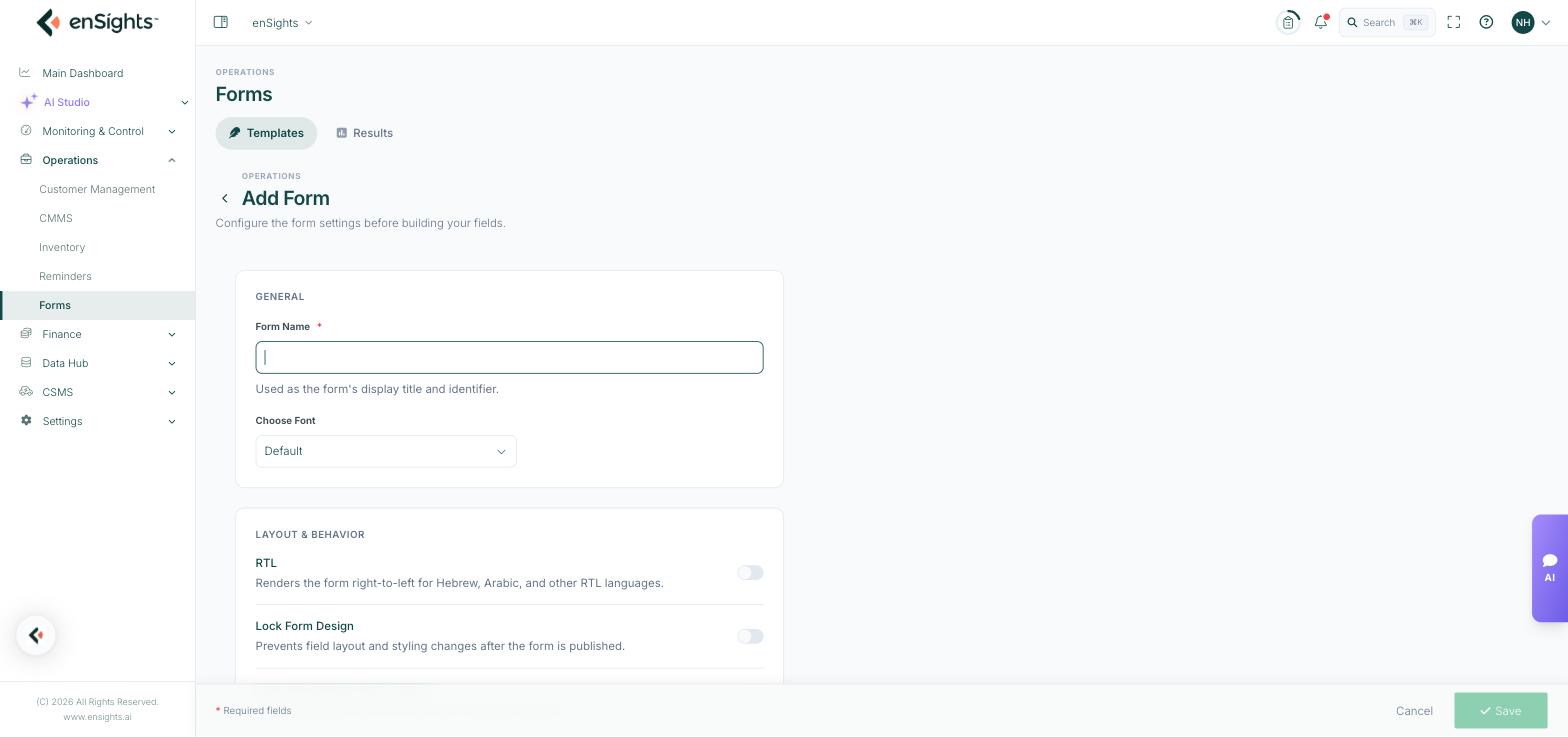
Form settings, configured before you build the fields.
- Form Name — the display title and identifier.
- Choose Font.
- RTL — renders right-to-left for Hebrew, Arabic and other RTL languages.
- Lock Form Design — prevents field layout and styling changes after the form is published. Switch this on once a form is in real use, so a well-meaning edit cannot invalidate a run of submissions.
- Allow Results Edits After Submit — lets respondents return and correct their answers.
- Hide Logo — removes the enSights branding from the bottom of the form, for customer-facing documents.
The designer
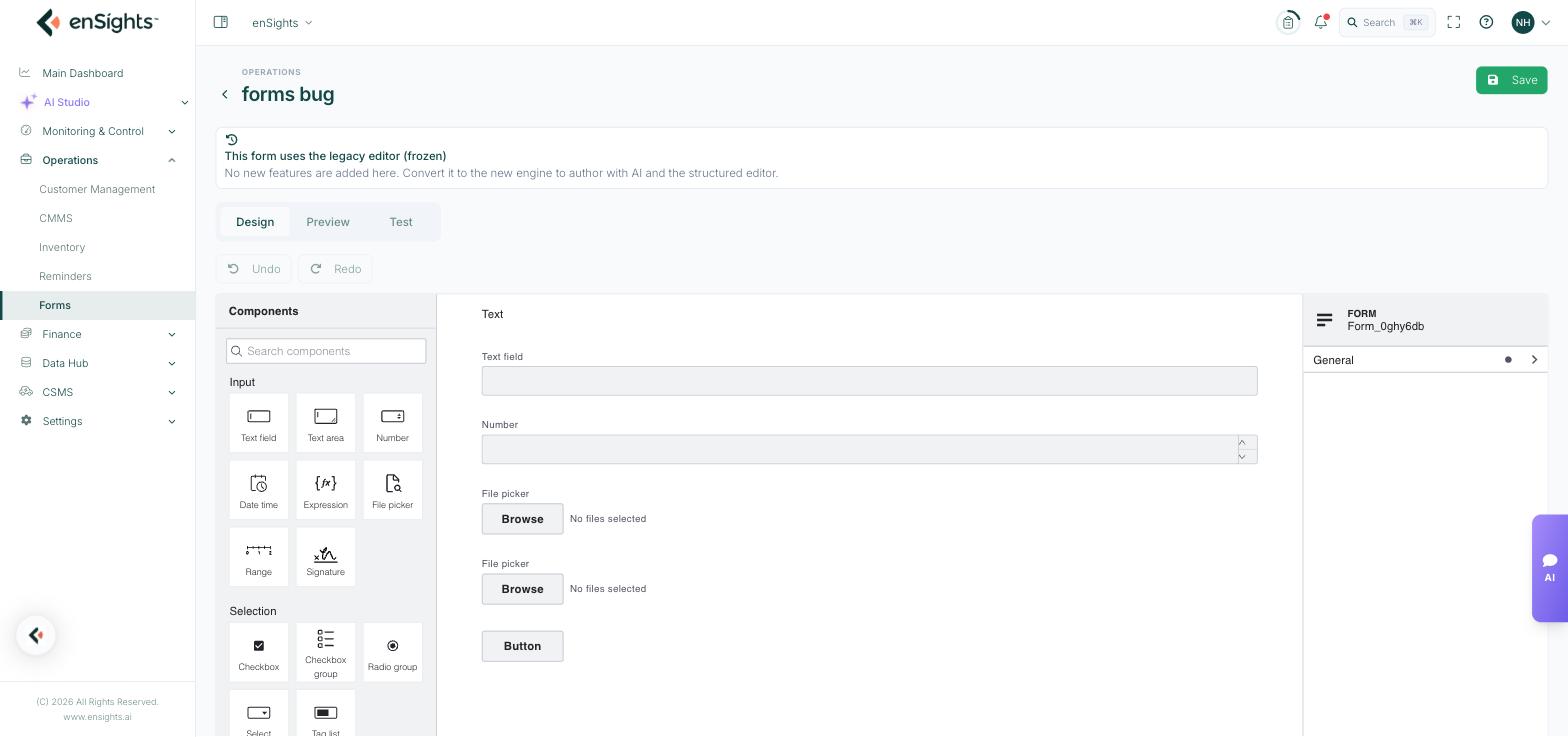
The form designer: component palette on the left, canvas in the middle, structure on the right.
Three tabs run across the top — Design to build, Preview to see what the technician sees, and Test to try a submission — with undo and redo.
Components are grouped by purpose:
- Input — Text field, Text area, Number, Date time, Expression (a calculated value), File picker, Range, Signature.
- Selection — Checkbox, Checkbox group, Radio group, Select, Tag list.
- Presentation — Text view, Image view, Table, HTML view, Document preview, Spacer, Separator, Page Break.
- Containers — Group, Dynamic list (a repeating block, for "one row per inverter" checks), iFrame.
- Action — Button.
The right-hand panel shows the form's structure and identifier, and its sections. Signature plus File picker is the combination that makes a form stand up as a site record: the photographs and the sign-off travel with the answers.
A note on legacy forms
Older templates open with a banner: This form uses the legacy editor (frozen). No new features are added here. Convert it to the new engine to author with AI and the structured editor. Legacy forms keep working, but new capability only lands in the new engine — so convert a form when you next need to change it substantially.
How a form reaches a job
On a service call, Attach Forms adds one or more templates. The technician completes it as part of the job, and the completed answers land in Forms → Results, linked to the system.
Common tasks
Build an annual maintenance checklist. New Form → name it, set RTL if needed → Design → drop in checkboxes for the inspection points, a Dynamic list for per-inverter checks, a File picker for photos and a Signature at the end → Preview → Test.
Change a form already in use. Duplicate it, edit the copy, and attach the new version to future service calls.
Protect a form in production. Turn on Lock Form Design.
Produce a customer-facing report. Turn on Hide Logo and use Text view and Image view components to lay the document out.
Common questions
Can I edit a form after submissions exist?
You can, but existing results were captured against the old structure. Duplicating is safer.
What is Expression for?
A calculated field — a value derived from other answers, such as a total or a pass/fail.
Where do completed forms go?
Forms → Results, with the system and submitter recorded.