
Saved views, filters and columns
Applies to: Fleet Management (PV, BESS, EMS), Insights & Alerts, Maintenance, Invoices and the other list pages.
Why this matters
The portal's lists are deliberately configurable, because an asset manager, a technician and a finance analyst need very different columns from the same fleet. Four controls do the work: period, filters, columns and views. A view is simply all three of the others, saved under a name.
Period
Every list has a period control: Daily, Monthly, Yearly or Custom, with arrows to step backwards and forwards and a date picker to jump. It drives the KPI cards, the values in the table and anything you export, so check it first when a number looks wrong.
Note that some pages default to a period that suits them — Invoices opens Yearly, Maintenance opens Monthly — rather than to Daily.
Filters
The funnel icon opens the filter panel. It is grouped by subject and the groups differ per page; on PV Sites they are vendor, systems, live status, performance category, customer, account manager, groups, capacity range, service-call status, general flags, alerts and tags.
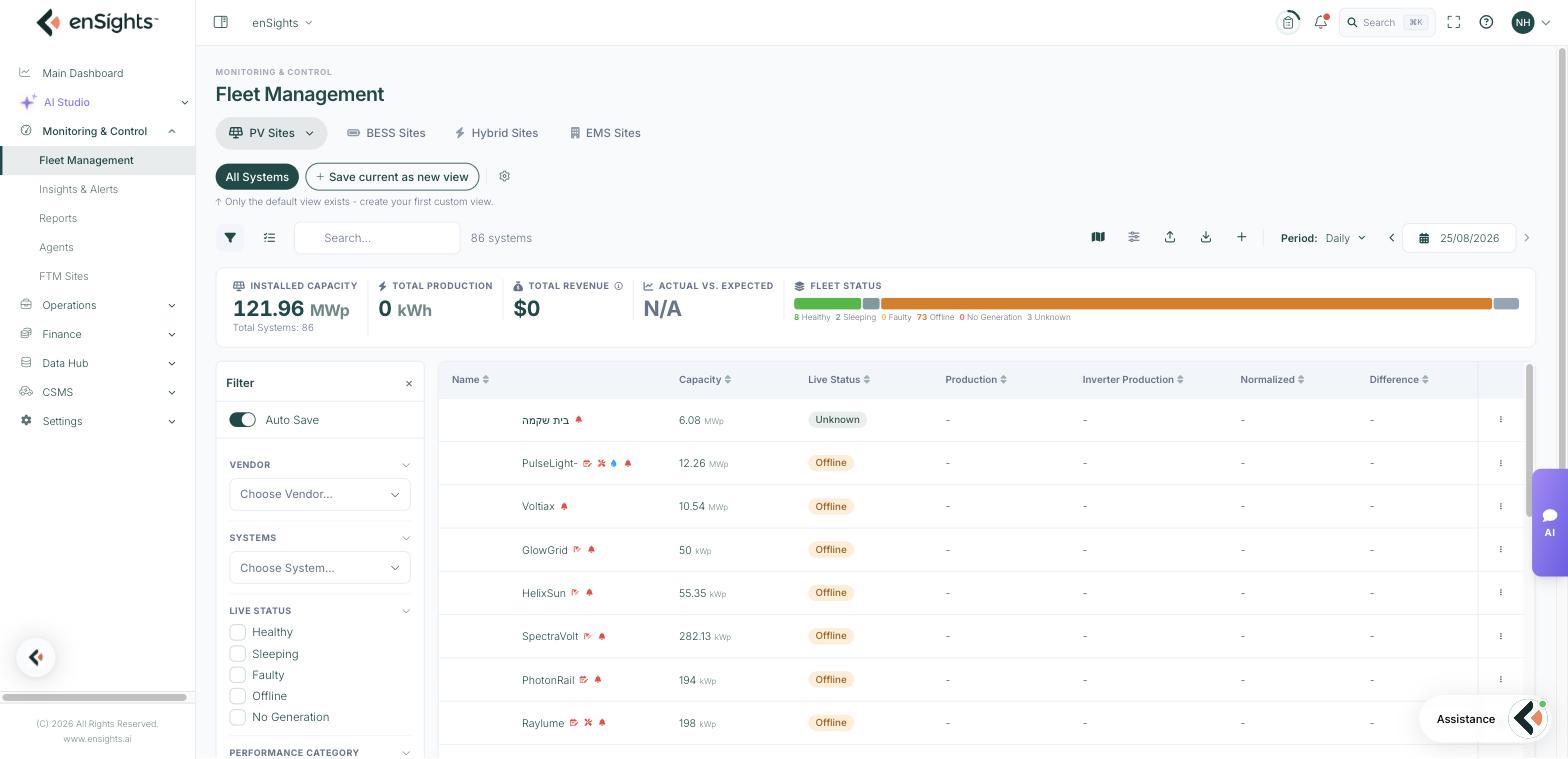
Two things are worth knowing:
- Auto Save (top of the panel) keeps your filter selection when you leave the page and come back. Turn it off when you want a one-off look that does not become your new normal.
- Collapsed sections still hold options — click a section header to expand it. The General section is where the structural flags live: Hide Virtuals, Hide References, Include Splitted Systems, Include Merged Systems, Show deleted systems and the equipment flags (revenue grade meter, automated cleaning system, irradiance sensor).
The counter next to the search box always tells you how many rows the current filter leaves — "38 systems", "89 of 472 items". If a system you expect is missing, that counter and the filter panel are the first places to look.
Columns
The Preferences icon (sliders) opens the column picker. Search the list by name, toggle columns on and off, use Toggle All for a clean slate, and Reset to defaults to get back to the standard set. Your tenant's tags appear as their own group at the right, so a tag such as production can be shown as a column and sorted like any other.
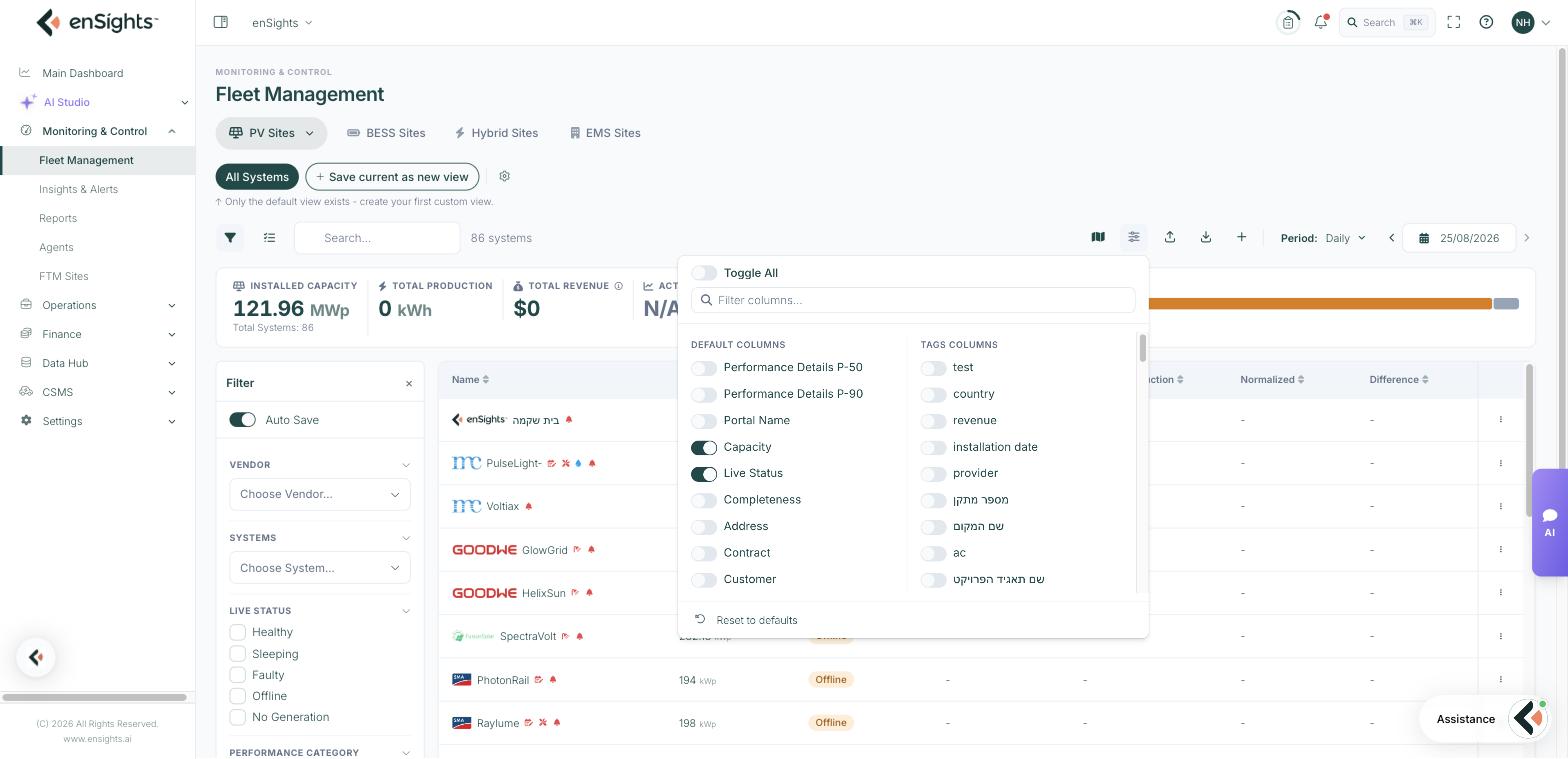
Columns can also be dragged to reorder and dragged at their edge to resize. Both are part of the view, so a colleague opening your shared view sees the same layout you built.
Views
A view is a saved combination of filters, columns, sorting, layout and grouping. The chips above the toolbar are your views; the leftmost is the default (All Systems, All BESS, All Sites, All Insights, All Tasks).
Creating one
- Set up the list the way you want it — filters, columns, sort, period.
- Click Save current as new view.
- Name it for the job it does ("Offline > 24h", "Ohio PPA sites", "Cleaning candidates").
When a view has unsaved changes
Change anything while a view is active and a bar appears above the table: Modified from "All Sites" · resized columns, with three choices — Update "All Sites" (fold the change into the view), Save as new (keep the original and branch), or Reset (discard and return to the saved view). Nothing is written to a shared view unless you choose Update.
Managing views
The gear next to the view chips opens Manage Views: drag to reorder the chips, and see how each view is marked.
- Favorite — your pinned first tab. Personal to you; it is the view the page opens on.
- Org — a tenant-level view shared with everyone in the organisation. Use these for team conventions, and edit them with care: an update changes what your colleagues see.
Create New View from the same menu starts a view from the current state.
Grouping
Some lists add a Group By control — Insights & Alerts can group by Dates, Type or Priority, and Maintenance behaves the same way. Grouping is part of the view, so "open insights by priority" can be one click for the whole team.
Common tasks
Build a morning triage view. On PV Sites: Filter → Live Status → Offline and Faulty; add the Last update and Actual vs. Expected columns; sort by Last update; Save current as new view → "Morning triage". Mark it as your favourite so the page opens there.
Share a convention with the team. Build the view, save it, then set it as an Org view from Manage Views so everyone has the same starting point.
Get back to normal. Reset in the modified bar, or Preferences → Reset to defaults for columns only.
Common questions
I changed a view and my colleague's list changed too.
You updated an Org view. Org views are shared; use Save as new for personal variations.
My filters came back after I left the page.
Auto Save is on in the filter panel. Turn it off, or clear the filters before leaving.
A column I need is not in the list.
Check whether it belongs to a different asset type — each Fleet Management tab has its own column catalogue — and whether it is a tag column, which appears in the tags group of the picker.