
Fleet Management: PV Sites
Monitoring & Control → Fleet Management → PV Sites
What this page is for
PV Sites is the working list for every photovoltaic system in your portfolio. It answers two questions at a glance — how is the fleet doing today, and which sites need me — and it is the entry point to each individual site.
Fleet Management holds one tab per asset type: PV Sites, BESS Sites, Hybrid Sites and EMS Sites. Each tab keeps its own columns, filters and saved views, so switching tabs never disturbs the setup you built on another.
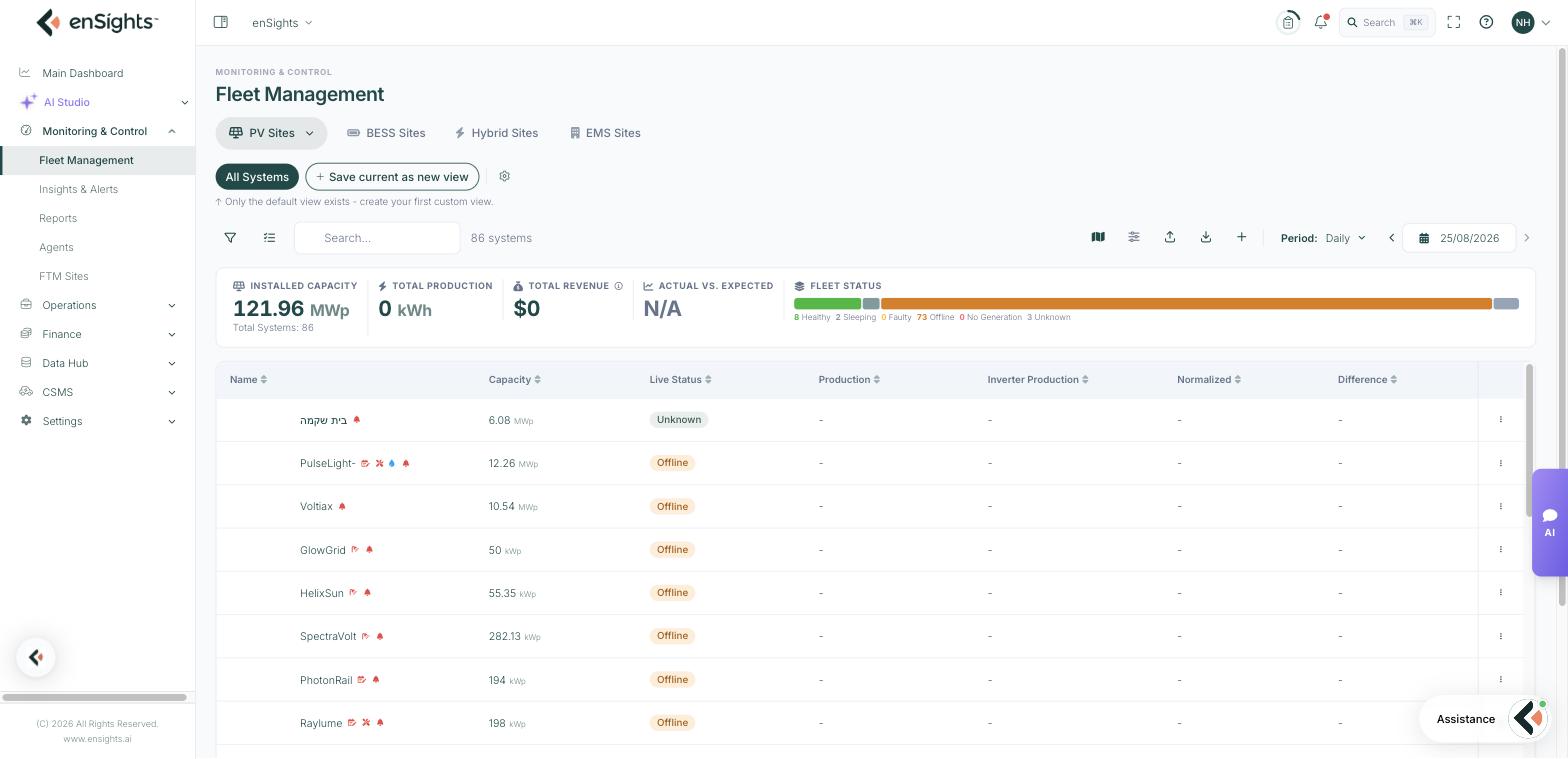
The fleet KPI strip
The cards above the table always describe the systems currently in the list — apply a filter and the KPIs recalculate.
- Installed Capacity — total DC capacity, with the system count underneath.
- Total Production — energy produced in the selected period.
- Total Revenue — production valued at each system's income per kWh. The info icon warns when systems are missing financial settings; those count as zero, so revenue reads low rather than wrong.
- Actual vs. Expected — production against the expected production plan, as a percentage.
- Avg Performance Ratio — the fleet's mean PR for the period.
- Fleet Status — a single bar split into Healthy, Sleeping, Faulty, Offline and No Generation. Hover any segment for the count and its share of the fleet; the counts double as a quick read on communication health.
The systems table
Out of the box the table shows Name, Capacity, Live Status, Production, Inverter Production, Normalized and Difference. Every column header sorts, and columns can be resized and reordered.
Live Status is the state of the site right now, not for the selected period: Healthy, Sleeping (night or no irradiance), Faulty, Offline (no communication) or No Generation. The small icons next to a system name flag things worth knowing — an automated cleaning system, an irradiance sensor, open alerts.
More than sixty columns are available, from production and revenue through PR, availability, irradiation, weather-adjusted energy and data-quality checks, plus a column for each of your tags. See Saved views, filters and columns for how to choose them.
Narrowing the list down
- Search matches on system name — the fastest way to one known site.
- Filter (funnel icon) opens the full filter panel: vendor, live status, performance category, customer, account manager, groups, capacity range, service-call status, alerts and tags.
- Group selector — the chevron on the PV Sites chip scopes the whole page to one of your system groups. It applies immediately.
- Period — Daily, Monthly, Yearly or Custom, with arrows to step through periods and a date picker to jump. Everything on the page — KPIs, table values, exports — follows this setting.
Acting on one system
The ⋮ menu at the end of each row is where per-system actions live:
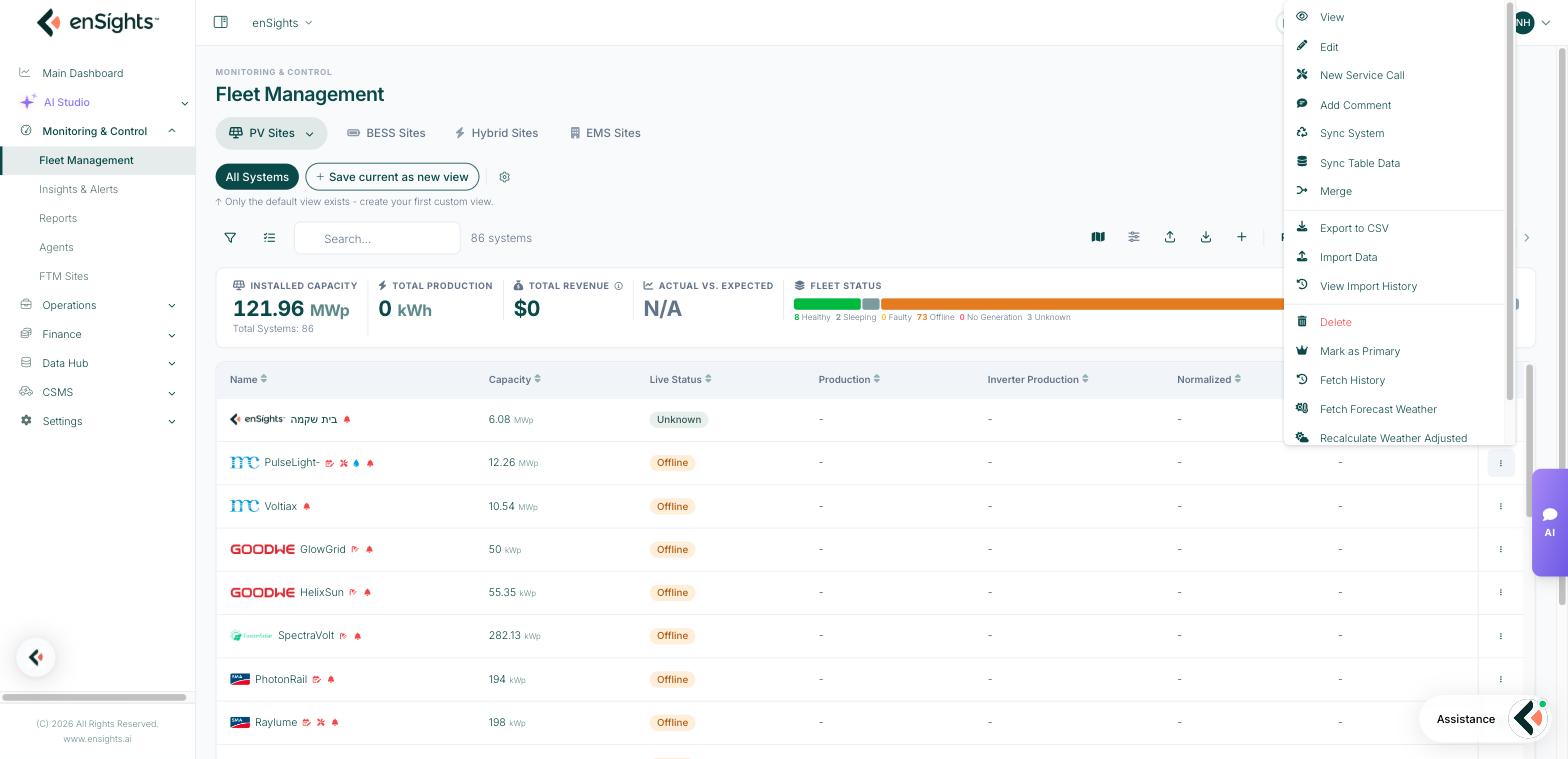
- View — open the site's own page (Info, Analysis, Insights, Invoices, Documents, Maintenance, P&L Tracker, Reminders).
- Edit — open System Settings for the site.
- New Service Call / Add Comment — raise maintenance work or leave an internal note.
- Sync System / Sync Table Data / Fetch History — pull fresh data from the vendor portal when a site looks stale.
- Recalculate Weather Adjusted — rebuild the weather-adjusted figures after correcting the site's inputs.
- Merge — combine a site with another (used where one physical site is reported as several).
- Export to CSV, Import Data, View Import History — data in and out for that one system.
- Delete — removes the system; treat as permanent.
Acting on many systems
Turn on Multiple Selection (the list icon left of the search box) to get checkboxes and a Choose action menu. With rows selected you can Sync System, Fetch History, Fetch Weather, Trigger weather-adjusted, set the production source to Inverter Production or Meter Energy for all of them, or delete. Cancel Selection clears the mode.
Changing the production source in bulk is the usual fix after a meter is commissioned — it decides which figure the Production column and every report use.
Getting data out
- Export offers Export Info (the site register — names, capacities, addresses, contacts) and Export Data (the metrics for the selected period and columns).
- Map switches to the geographic view of the same systems; see PV Systems Map.
Adding systems
+ opens Add Virtual System for a site you maintain by hand, and the upload icon opens Import systems data for a spreadsheet of readings. Sites that come from a vendor portal appear on their own once the integration is connected.
Common tasks
Find yesterday's underperformers. Set Period to Daily and step back one day → add the Actual vs. Expected column → sort ascending. The worst deviations rise to the top.
See which sites are off air. Filter → Live Status → Offline. Add Last update to see how long each has been silent.
Check a customer's portfolio. Filter → Customer → pick the customer. The KPI strip then reports that customer's fleet only.
Hide clutter. Filter → General → Hide Virtuals and Hide References to leave only real, metered sites.
Common questions
Production and Inverter Production disagree — which is right?
They are different sources: Production follows the site's configured production source (meter or inverters) while Inverter Production is always the inverter sum. A steady gap usually means a meter scaling factor or a missing inverter.
Total Revenue looks too low.
Systems without an income per kWh or financial settings count as zero. The info icon on the card names how many; fill in their financials in System Settings → Financials.
A site shows Offline but the customer says it is producing.
Offline means enSights has not received data, not that the site is down. Try Sync System, then check the vendor integration and the site's agent.