
CMMS: Service Calls
Operations → CMMS → Service Calls
What CMMS is
CMMS is the maintenance side of the portal. Monitoring tells you something is wrong; CMMS is where that becomes work with an owner, a due date and a record of what was done. It has four tabs: Service Calls, Cleanings, Calendar and Service Providers.
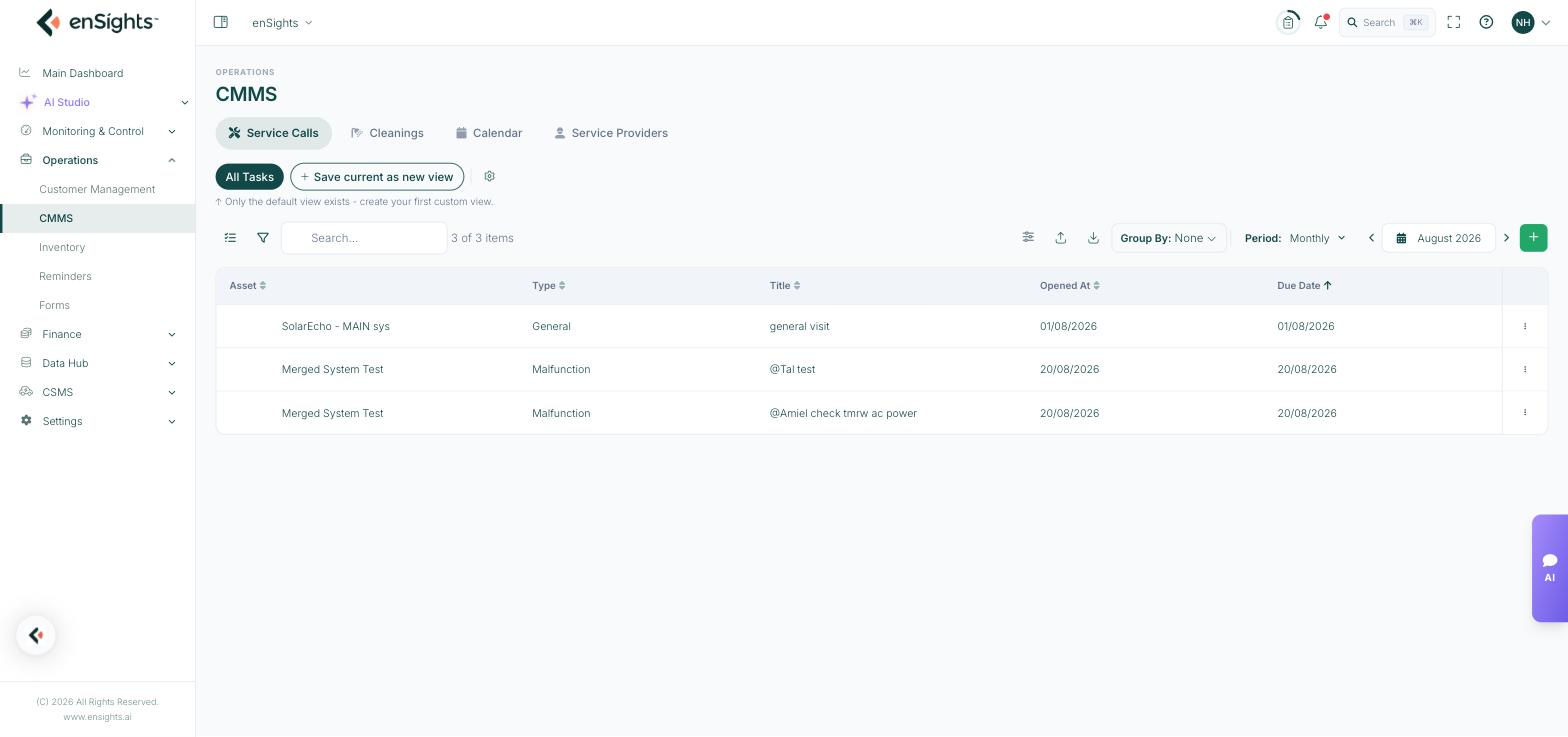
The service call list, grouped and filtered like every other list in the portal.
The list
Default columns are Asset, Type, Title, Opened At and Due Date. The column picker adds the rest of the working set: Description, Case Id, Technician, Component, Status, Planned Start Time, Closed At, Resolution, Costs, plus the customer's Customer, Email and Phone — and any custom fields and tags your tenant has defined.
Views, search, Group By, export and the period control behave as they do everywhere; the period defaults to Monthly, so a task due next month is not missing, it is one step forward.
Filtering the queue
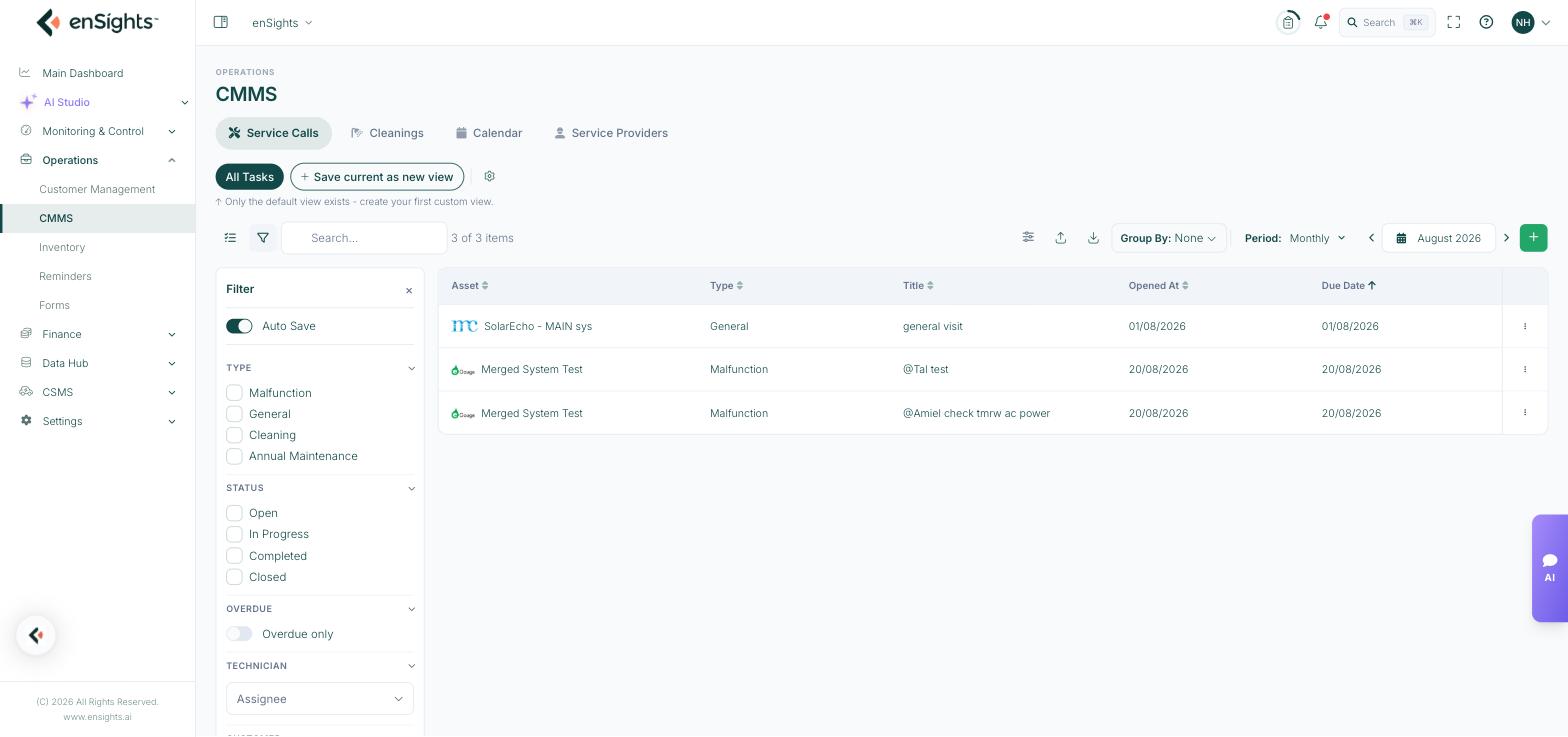
The filter panel: type, status, overdue, technician, customer and system.
- Type — Malfunction, General, Cleaning, Annual Maintenance.
- Status — Open, In Progress, Completed, Closed.
- Overdue only — the single most useful switch on the page.
- Technician — filter by assignee, which is how you build a per-technician worklist.
- Customer and System — scope to one account or one site.
Raising a service call
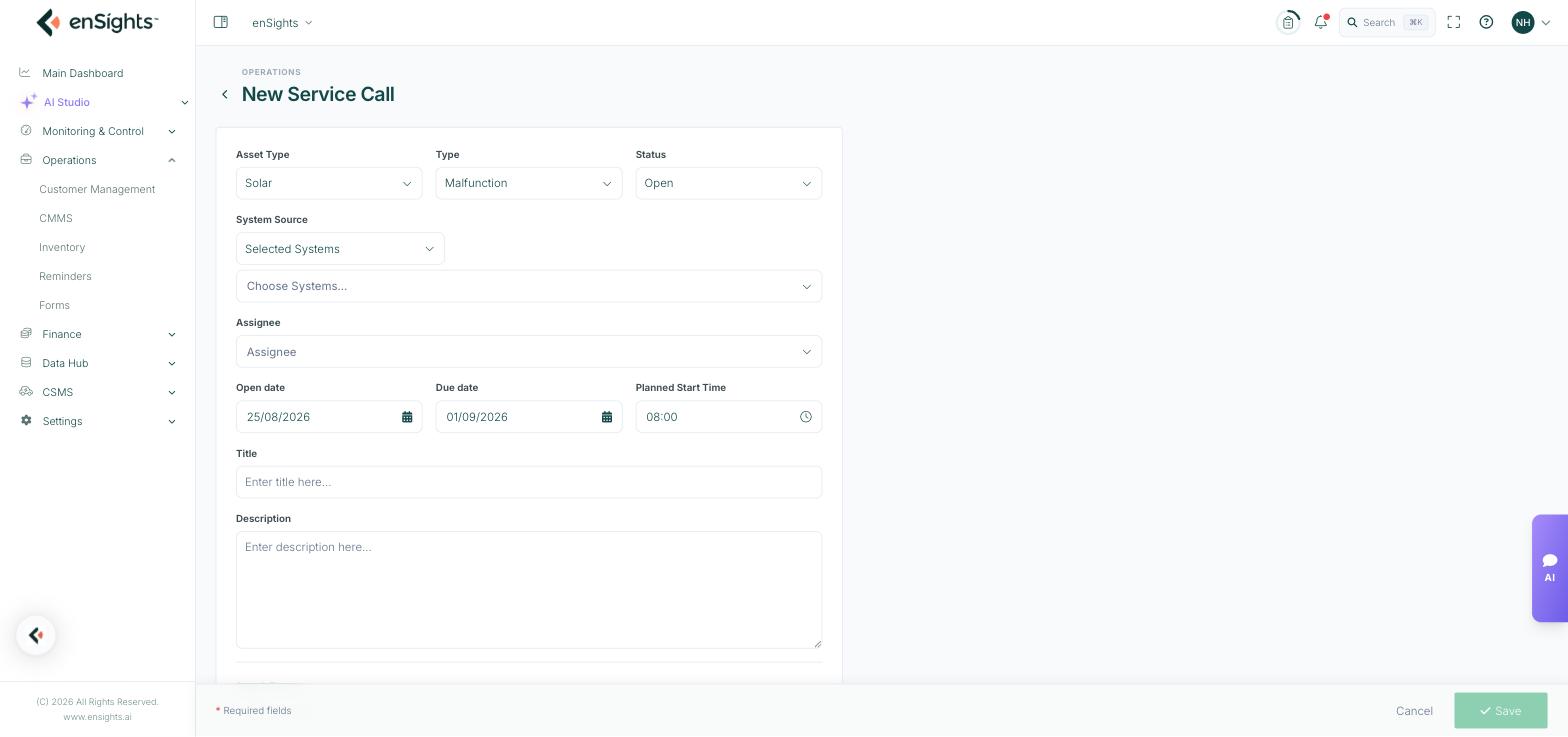
The New Service Call form.
- Asset Type — Solar, Storage or EV Charging.
- Type — Malfunction, General, Cleaning or Annual Maintenance. This is what the Type filter and the reports group on, so be consistent.
- Status — starts at Open.
- System Source — Selected Systems, Group or Customer. Choosing Group or Customer raises the job across a set of sites in one action, which is how a cleaning round or a firmware campaign is created.
- Assignee — the technician or service provider who owns it.
- Open date, Due date, Planned Start Time — the due date drives the Overdue flag and the calendar.
- Title and Description — what the technician needs to know before travelling.
- Attach Forms — attach a form template so the technician completes a structured checklist on site (see Forms).
- Inventory — search and attach the parts the job will consume, which reserves them against stock.
- Add Survey, Service Costs, file uploads and a High Priority switch complete the record.
Tenant-specific custom fields appear on this form too — anything your organisation added shows alongside the standard fields.
Working a call
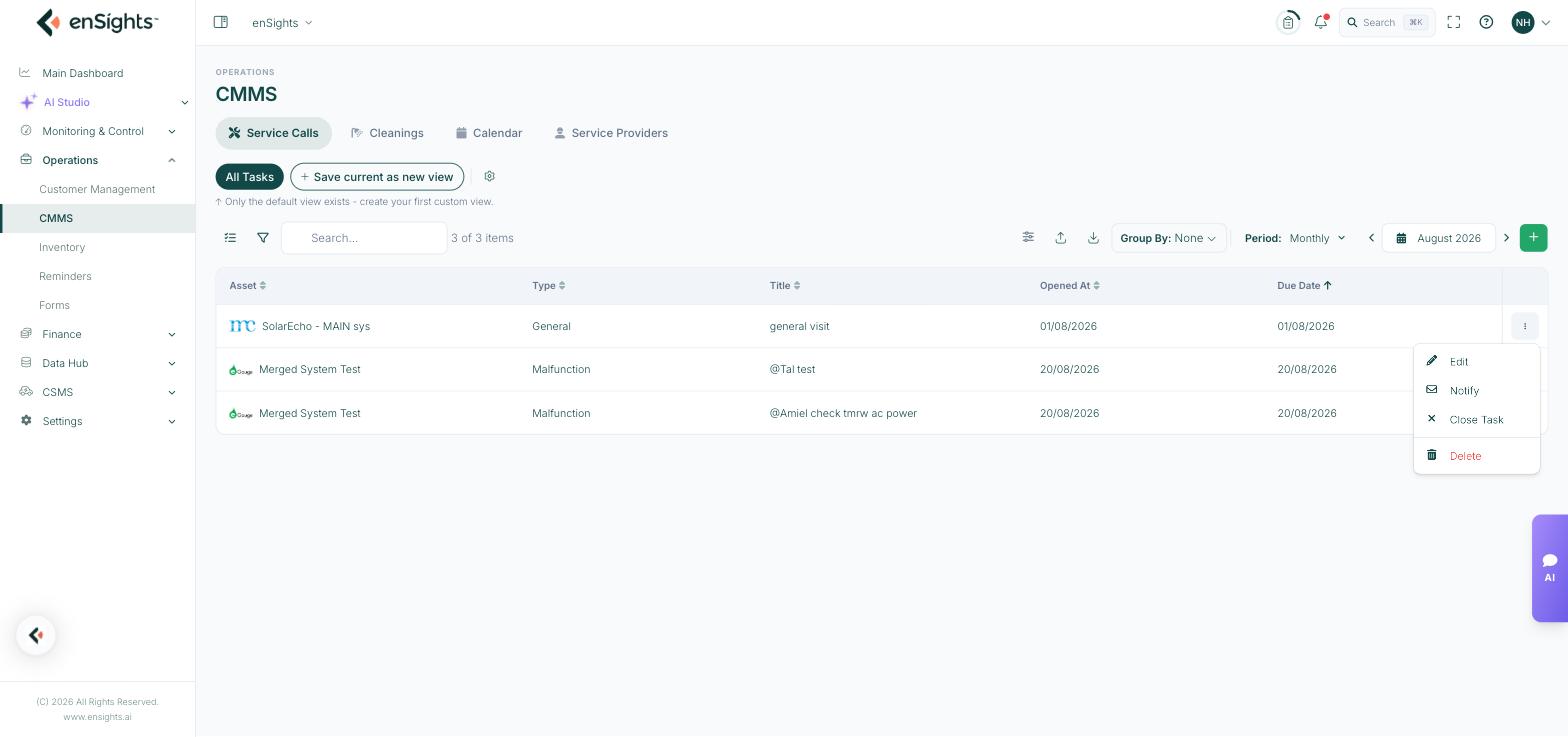
Row actions on a service call.
- Edit — update status, assignee, costs and resolution as the job progresses.
- Notify — tell the customer or the assignee. Whether the customer receives it depends on the notification toggles on their record.
- Close Task — record it as done.
- Delete — removes the record and its history; prefer closing.
Where service calls come from
Most start as an insight: New Service Call from a row in Insights & Alerts, or from a site's own Insights tab, carries the alert's context into the job. Others are planned work — an annual maintenance visit, a contracted cleaning — created directly here.
Once raised, the job is visible in three more places: the site's Maintenance tab, the CMMS Calendar, and the fleet list's Service Call Status filter.
Common tasks
Build today's worklist for a technician. Filter → Technician → their name, Status → Open and In Progress. Save it as a view named after them.
Catch what is late. Filter → Overdue only. Sort by Due Date ascending.
Raise one job across a portfolio. New Service Call → System Source → Group or Customer.
Send a technician with a checklist. Attach a form template on the service call; the completed answers land in Forms → Results.
Account for parts. Add them from Inventory on the call rather than adjusting stock by hand afterwards.
Common questions
A job I created is not in the list.
Check the period — the list defaults to the current month and the job may be due later — and any saved filters.
Did the customer see this?
Only if their record has Share Service Calls or Send Notifications on Service Calls switched on.
Should I close or delete?
Close. Deleting removes the maintenance history you will want at contract renewal or in a warranty claim.