
Groups
What this page is for
A group is a named set of assets. Once a group exists, you can filter by it, report on it, and — importantly — grant a user access to it as a single unit instead of ticking thirty individual sites.
Groups are how a fleet gets a workable shape: by customer, by portfolio, by region, by O&M contract, by whatever division your team actually thinks in.
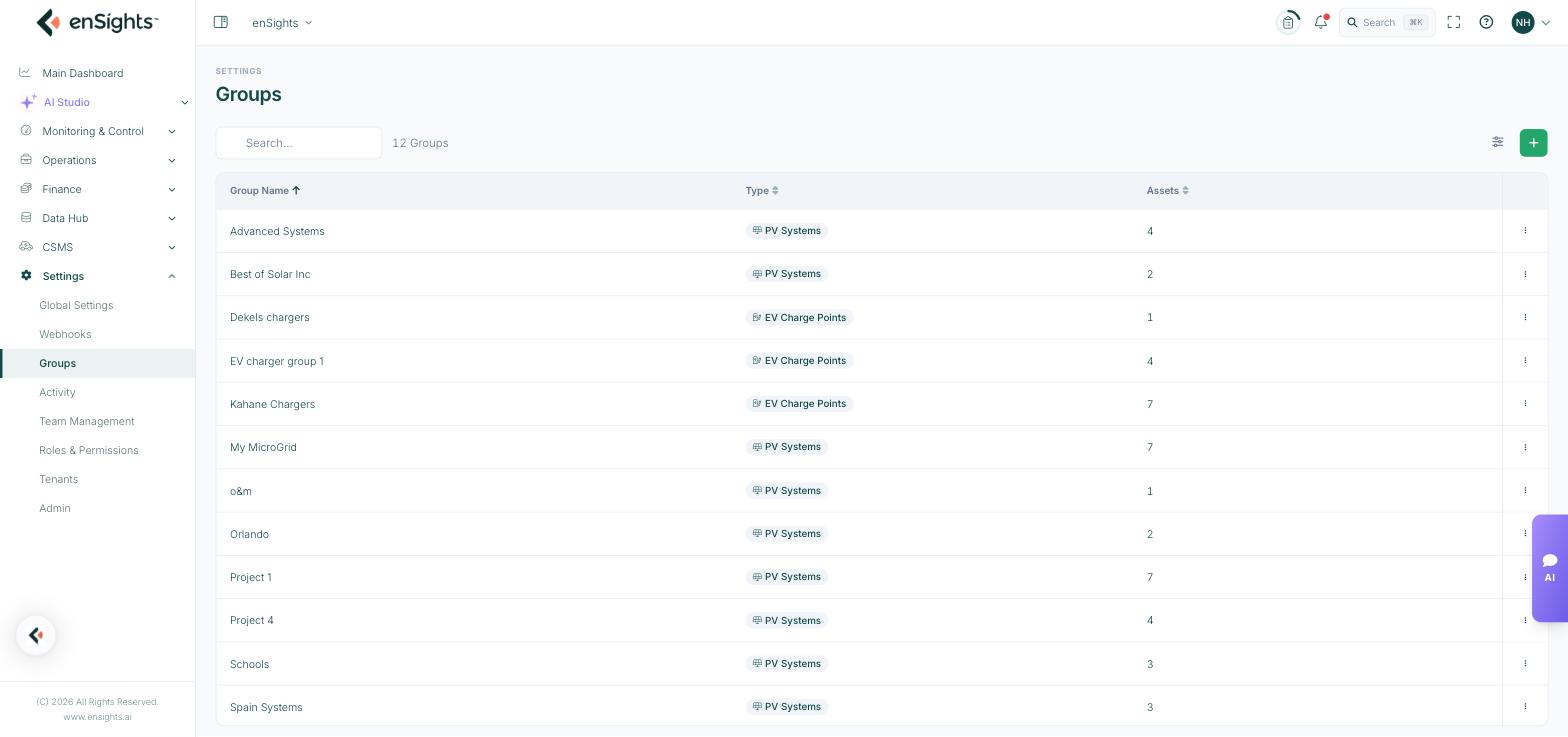
The list
Column | Meaning |
|---|---|
Group Name | The name shown wherever the group can be chosen. Sortable. |
Type | The asset type the group holds: PV Systems, BESS or EV Charge Points. |
Assets | How many assets are currently in the group. |
Above the table: a search box, the group count, a column-settings button and the + button that adds a group. Each row has a three-dot menu for editing and deleting.
Groups hold one asset type
A group is typed. "Kahane Chargers" is a group of EV charge points; "Schools" is a group of PV systems. You cannot mix chargers and PV systems in one group — if a customer has both, create one group per type, usually with parallel names.
How to create a group
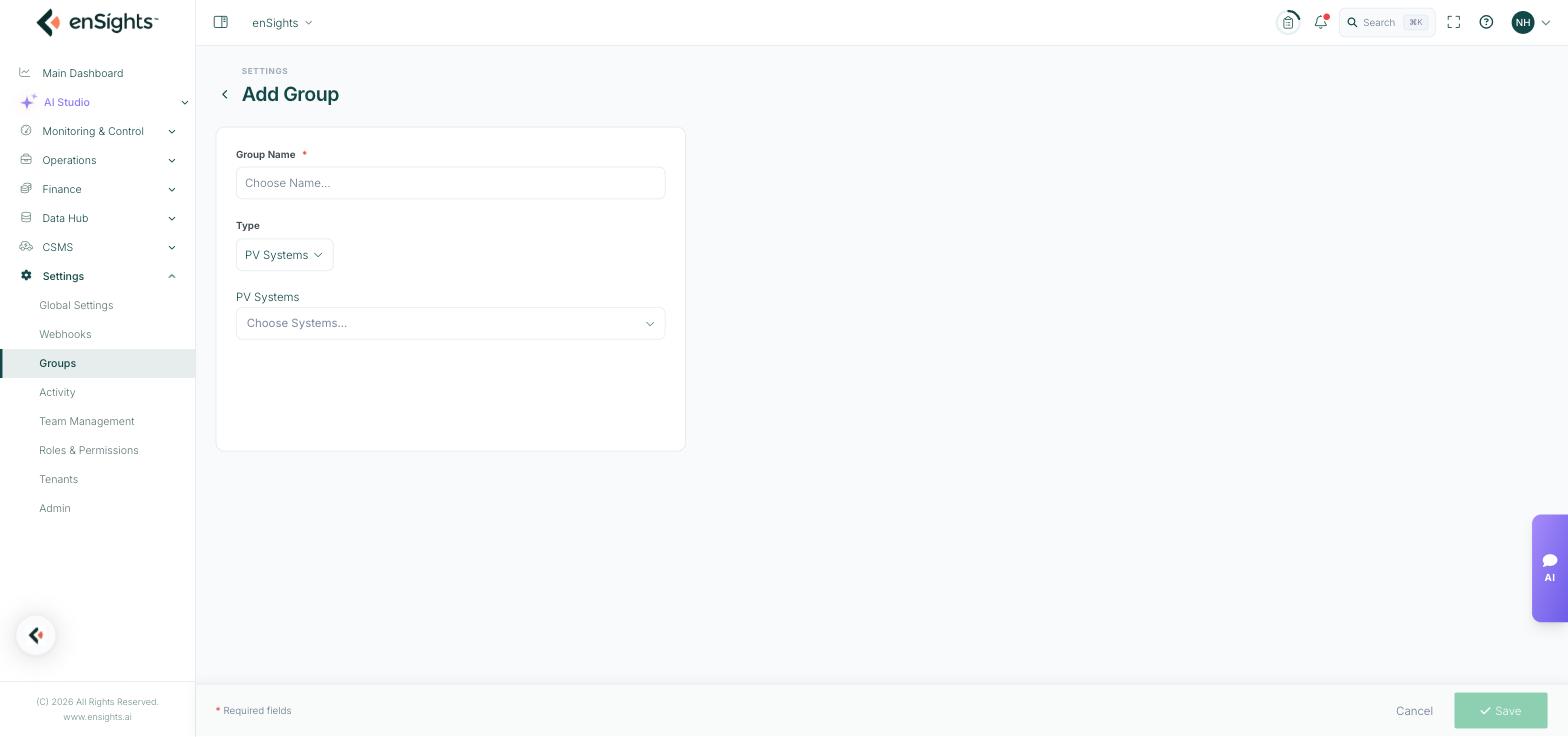
- Go to Settings → Groups.
- Press the + button at the top right.
- Enter a Group Name. Required.
- Choose the Type: PV Systems, BESS or EV Charge Points.
- Open the asset picker below and select the assets to include. The picker is searchable.
- Press Save.
How to change or remove a group
- Edit: open the row's three-dot menu, choose Edit, then add or remove assets and save. The group keeps its identity, so anything referencing it — saved views, user access — follows the new membership automatically.
- Delete: open the three-dot menu and choose Delete. The assets themselves are untouched; only the grouping goes.
Where groups are used
- Filtering — in fleet and system lists, to narrow the view to one group.
- Access control — in Team Management, the asset picker offers Assign Systems From: Custom or Groups. Choosing Groups means a user's access follows the group as it changes.
- Reporting — group-level comparison and reports scoped to a group.
- Billing — tenant charges can be split by group.
Notes
- Prefer group-based access to hand-picked lists. A user assigned a group sees new sites the moment they join it. A user given a custom list needs editing every time the portfolio changes.
- Deleting a group affects everyone using it. Users whose access was defined by that group lose it; saved views referencing it break. Check before deleting.
- An asset can belong to several groups at once.
- Name groups for what they are, not for who currently manages them — people move on faster than portfolios do.