
PV site: the Info tab
Fleet Management → PV Sites → click a system name → Info
Getting to a site
Clicking a system's name in the PV Sites list, or choosing View from its ⋮ menu, opens the site's own workspace. The header keeps the site name, its capacity in kWp and its live status badge, and the left rail holds the tabs: Info, Analysis, Insights, Invoices, Documents, Maintenance, P&L Tracker and Reminders.
Go to source in the top right opens the same site in the manufacturer's own portal — useful when you need a vendor-side setting or want to confirm a reading at its origin.
What Info shows
Info is the read-only summary of the site's record. It is the page to open when someone asks "which site is this, where is it, who owns it, when was it built".
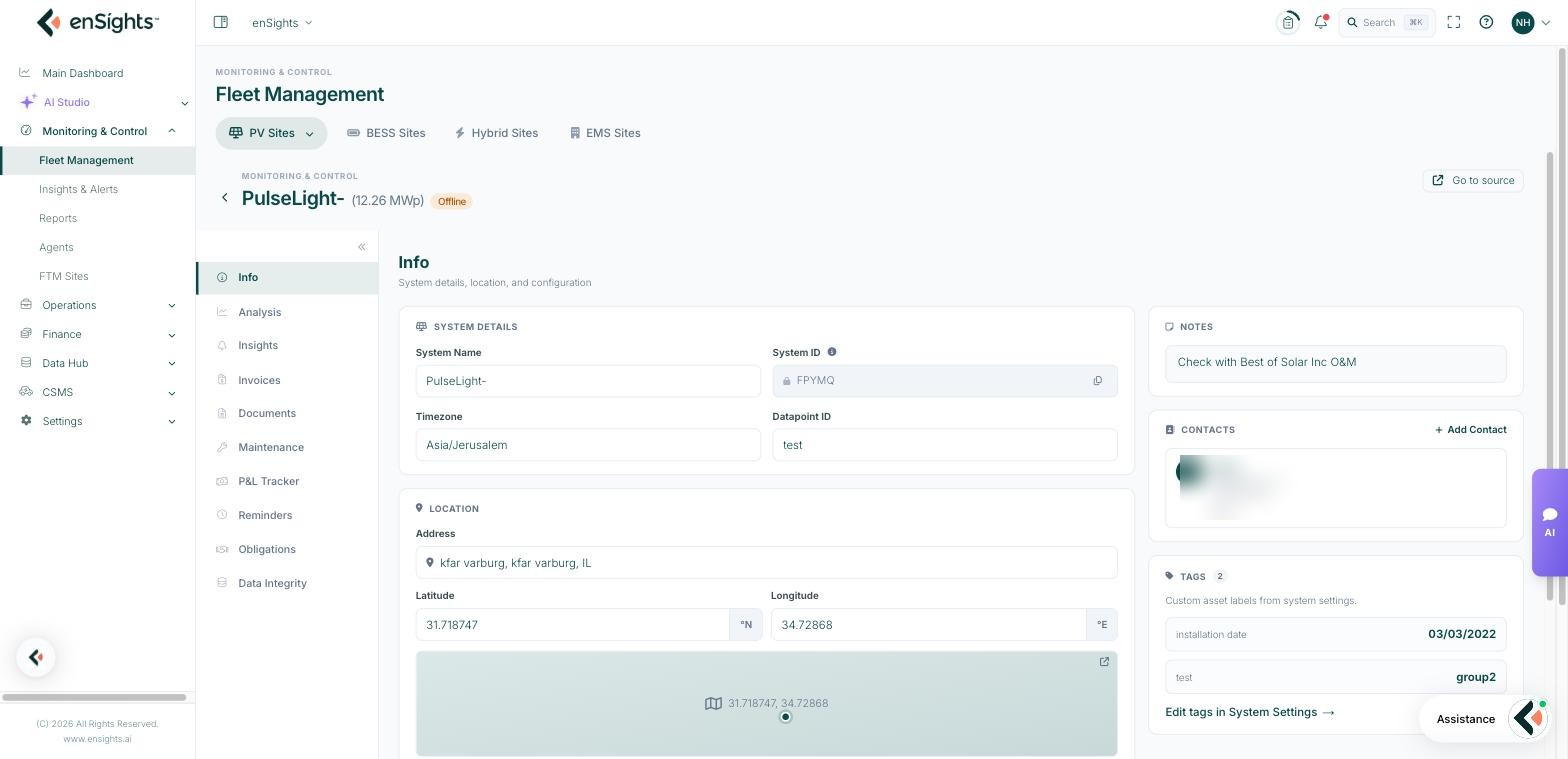
System Details
- System Name — the display name used everywhere in the portal.
- System ID — the short enSights identifier. Quote this in support requests.
- Timezone — the site's local timezone. Every daily total and alerting window is calculated in it, so a wrong timezone shifts production into the wrong day.
- Datapoint ID — the internal data-pipeline identifier, useful to support when a data question needs tracing.
Location
Address, latitude and longitude. Coordinates drive the weather and irradiance services as well as the map pin, so an approximate location produces approximate expected values.
Financial
Cost and Income per 1 kWh. Income per kWh is what turns production into the Revenue column on the fleet list and in reports; a site without it contributes zero revenue rather than an error.
Dates
Installation Date and Warranty Expires On. Installation date also anchors degradation calculations, so it is worth getting right.
Comments and Notes
The comments box is labelled clearly: internal notes about this system — not visible to customers. Use it for operational context ("access via the north gate, key with site manager"). The Notes area below shows the activity trail of what was changed and commented, and when.
Contacts
Add Contact keeps the people for this site — site manager, electrician, customer representative — with the record rather than in someone's phone.
Tags
The tags applied to this site, with their values, and a link through to System Settings where they are edited. Tags are how you build your own classifications (portfolio, contract type, region) and every tag can be shown as a column and filtered on in the fleet list.
Editing any of this
Info displays; System Settings edits. Get there from the tags link on this tab, or from Edit in the site's ⋮ menu on the fleet list. See System Settings: General, Advanced and Performance.
Common tasks
Check whether a data problem is a setup problem. Before investigating missing production, confirm timezone, coordinates and installation date here. Those three explain a surprising share of "wrong" numbers.
Hand a site over to a colleague. Contacts plus the internal comment box carry the local knowledge that would otherwise be lost.
Find the site in the vendor portal. Use Go to source rather than searching the vendor portal by name.
Common questions
Revenue is zero for this site.
Income per 1 kWh is empty. Set it in System Settings → Financials.
Daily totals look shifted by a day.
Check the timezone here first.
Can customers see the comments?
No. The comments on this tab are internal.