
Team Management
What this page is for
Team Management is the user list for your tenant. From here you invite people, decide what they can do, decide which assets they can see, and remove them when they leave.
The page is titled Users when you open it.
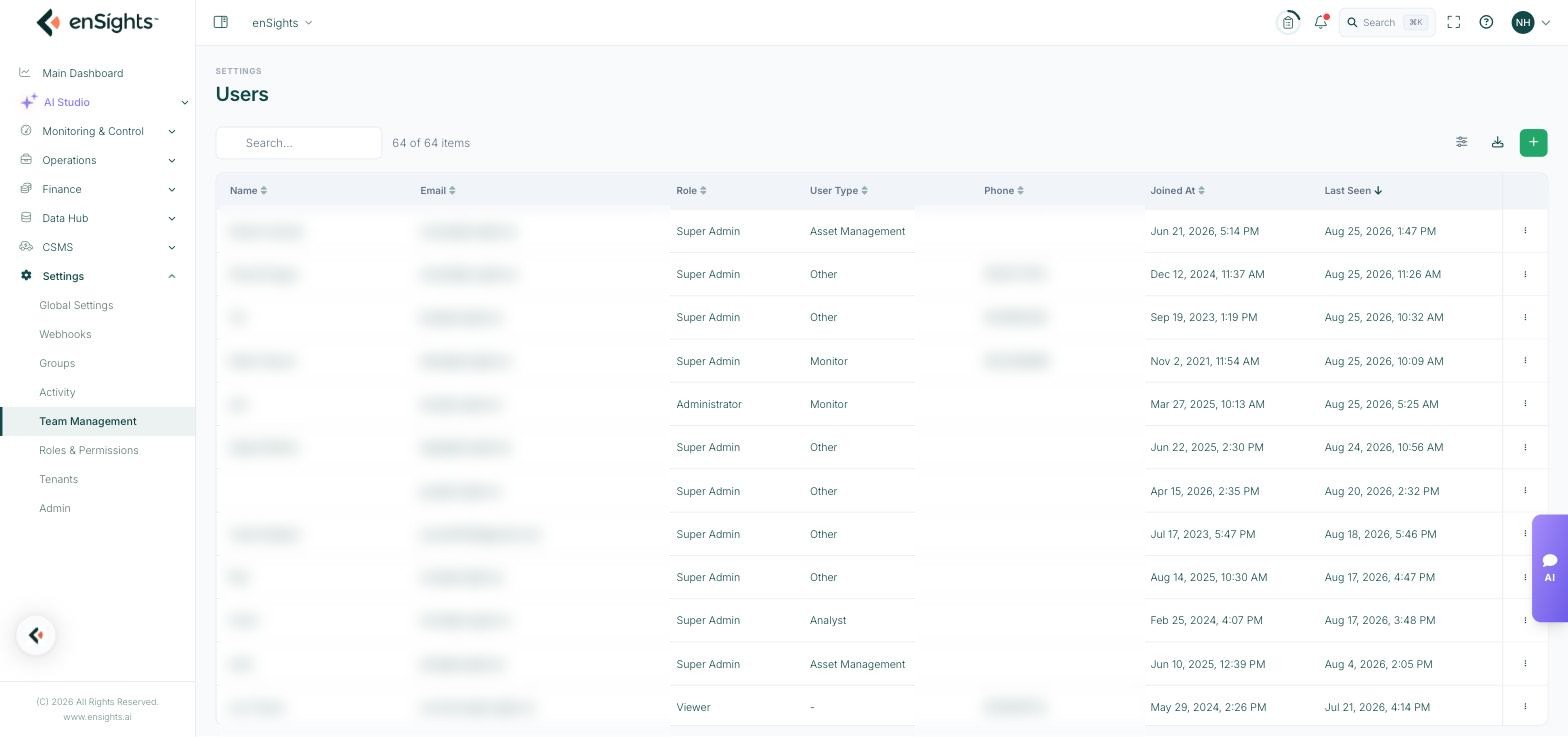
The list
Column | Meaning |
|---|---|
Name | The person's name. Can be blank if the account was created from an email address alone. |
Their sign-in address, and where invitations go. | |
Role | What they can do — Super Admin, Administrator, Viewer, Technician, or a custom role. |
User Type | What they do in the business: Monitor, Analyst, O&M, Field Technician, Asset Management, Finance or Other. |
Phone | Contact number, where recorded. |
Joined At | When the account was created. |
Last Seen | Their most recent activity. The fastest way to find dormant accounts. |
Above the table: a search box, the user count, a column-settings button, a download button that exports the list, and the + button that invites someone.
Role versus User Type
These are easy to confuse and do different jobs. Role is enforced — it determines what the platform permits, and is defined in Roles & Permissions. User Type is descriptive — it records the person's function so the platform can tailor defaults and so you can tell an analyst from a field technician at a glance. Changing User Type does not grant or remove any permission.
Row actions
The three-dot menu on each row offers:
- Edit — change their details, role, user type or asset access.
- Make Owner — transfer account ownership to this user.
- Lock — block sign-in while keeping the account and its history. The right move for someone on extended leave, or during an investigation.
- Sign Out — end their active sessions immediately. Useful after a role change, or if a device is lost.
- Delete — remove the account permanently.
Inviting a user
The + button opens Invite user, which sends an invitation email so the person can join the tenant.
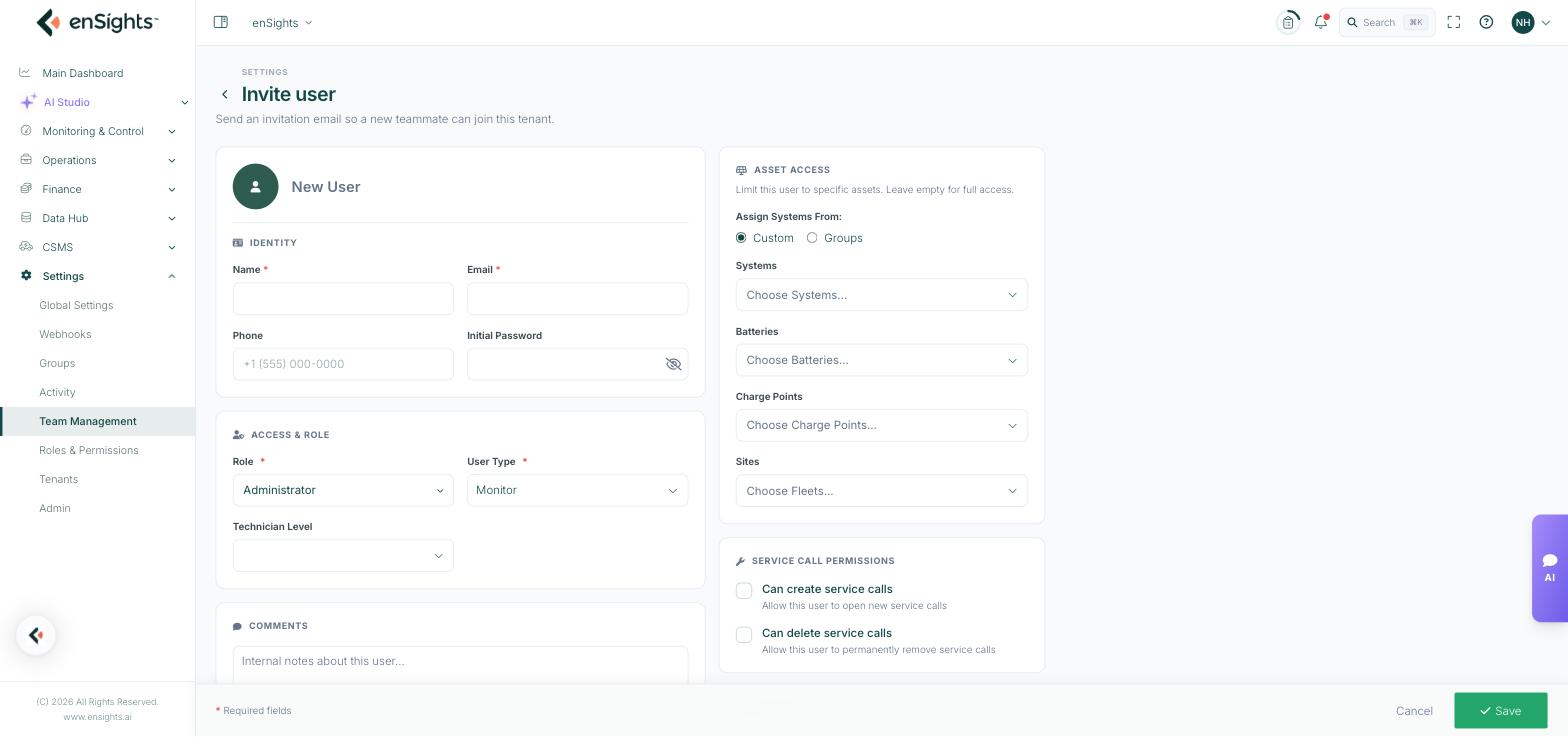
Identity
Name and Email are required. Phone is optional. Initial Password is optional and masked — leave it empty and the invitation flow handles it, which is the better habit.
Access & Role
- Role (required) — Administrator, Viewer, or any custom role you have created.
- User Type (required) — Monitor, Analyst, O&M, Field Technician, Asset Management, Finance or Other.
- Technician Level — None, Level 1, Level 2 or Level 3. Relevant for field technicians, and used when routing and escalating maintenance work.
Comments
A free-text box for internal notes about the user. Not shown to them.
Asset Access
This is the second half of the access model, and the more commonly misunderstood one. Leave it empty for full access. Filling it in restricts the user to the assets you name.
Assign Systems From offers two modes:
- Custom — pick individual assets. Precise, and stale the moment the portfolio changes.
- Groups — pick groups. Access then follows group membership automatically, which is why this is usually the better choice.
Below that, separate pickers for Systems, Batteries, Charge Points and Sites. Each asset class is granted independently — a user given PV systems but no batteries will not see your storage fleet.
Service Call Permissions
Two checkboxes, granted on top of the role:
- Can create service calls — lets the user open new service calls.
- Can delete service calls — lets the user permanently remove service calls. Grant sparingly; deleted calls take their history with them.
Interface
New UI opts this user into the new portal interface.
How to invite someone
- Go to Settings → Team Management.
- Press the + button.
- Enter their name and email.
- Choose a Role and User Type; set Technician Level if they are a technician.
- Under Asset Access, leave empty for full access, or choose Groups and select the groups they should see.
- Set the service call permissions if they need them.
- Press Save. An invitation email is sent.
Notes
- Empty asset access means everything. This is the single most common misconfiguration — an invite saved without touching Asset Access grants the whole fleet.
- Prefer Lock to Delete when someone leaves temporarily. Deleting is permanent and loses the association with their past actions.
- Sign Out after narrowing access. An existing session keeps the permissions it started with until it ends.
- Use Last Seen to review dormant accounts periodically — unused accounts with broad access are the quiet risk in any tenant.
- The export button produces the user list as a file, which is handy for an access review.