
Adding, importing and merging systems
Monitoring & Control → Fleet Management → PV Sites
Three ways a site gets into the portal
- From a vendor integration. Once your monitoring account is connected, its sites appear on their own and keep updating. This is the normal path and needs nothing on this page.
- As a virtual system. A site you maintain by hand, with no live feed — a legacy plant, a site whose portal has no API, or a placeholder for something under construction.
- By import. Readings brought in from a spreadsheet, either to backfill history or to keep a manually-read site current.
Add Virtual System
The + button on the PV Sites toolbar opens the full system editor with the same seven tabs as System Settings. Only a few fields are required to save: Display Name, Location, Installed Capacity DC and Vendor. The System Code is generated for you.
It is worth completing more than the minimum before you leave:
- General — timezone and coordinates, so daily boundaries and weather are right.
- Performance — the twelve-month P-50 plan, otherwise the site has no expectation to be measured against and will never show a meaningful deviation.
- Financials — income per kWh or a full model, otherwise the site contributes zero revenue.
- Alerts Management — a virtual system with no live feed should usually have communication alerts left off.
Virtual systems can be hidden from the fleet list with Filter → General → Hide Virtuals, which is useful when you want to look only at metered reality.
Importing data
The upload icon on the toolbar opens Import systems data for a bulk file; a single site can also be loaded from its own ⋮ menu with Import Data. Every import is recorded — View Import History on the same menu shows what was loaded and when, which is how you unpick a double-loaded month.
Before importing, check that the site's timezone is correct: timestamps are interpreted in the site's timezone, so an import into the wrong timezone lands production on the wrong days.
Getting fresh data on demand
Three row actions cover the "this site looks stale" case:
- Sync System — re-read the site from its vendor now.
- Sync Table Data — refresh the values behind the list.
- Fetch History — pull a longer historical window, used after a connection has been down or a site has just been connected.
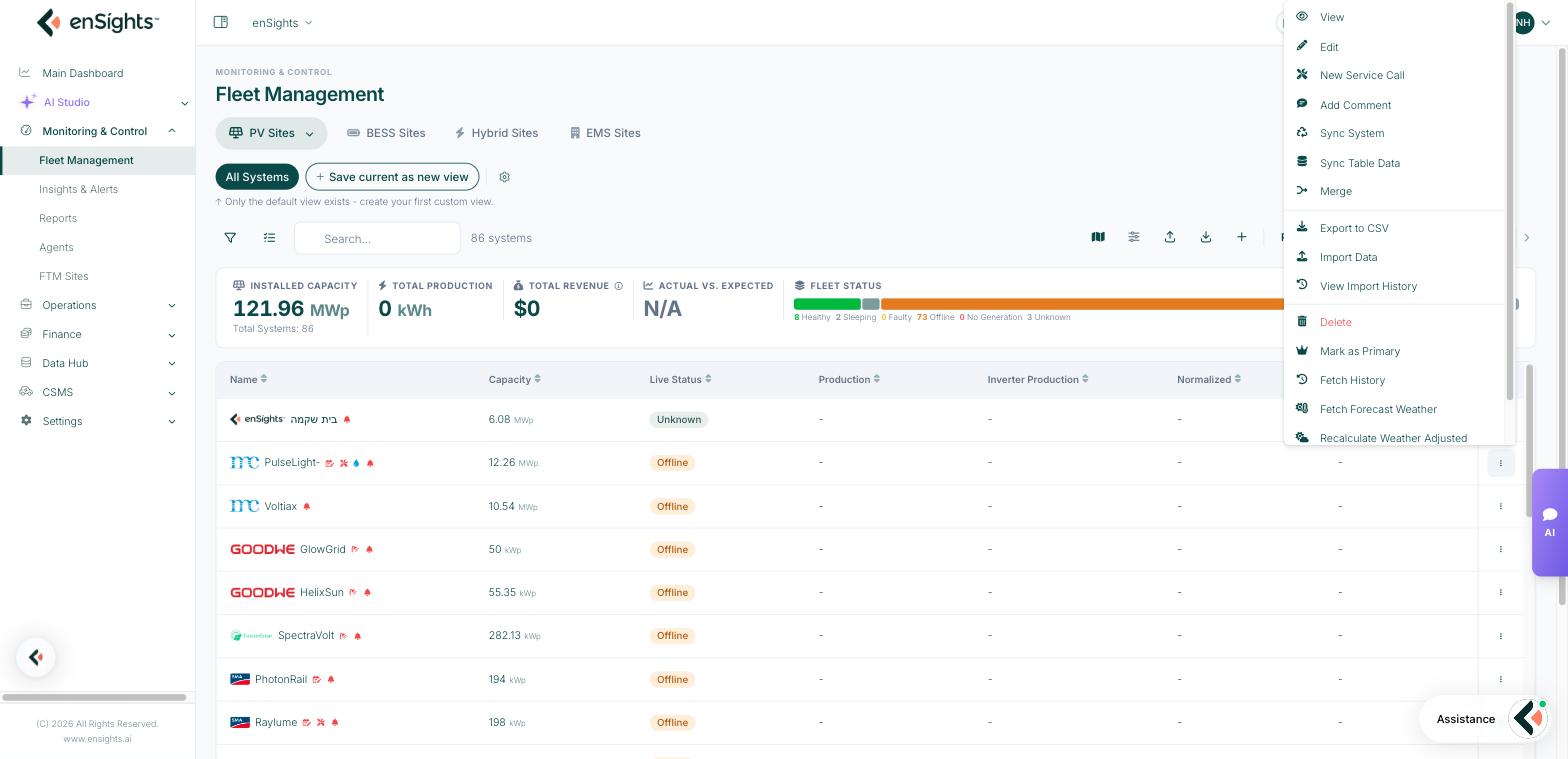
All three are available in bulk from Multiple Selection, along with Fetch Weather and Trigger weather-adjusted.
Merging and splitting
Vendors sometimes report one physical site as several systems, or a single system that is really two arrays under separate contracts. Merge in the row menu joins systems so the portal reports the physical site; splitting is handled by enSights support because it affects history.
The filter panel's General section exposes the results so you always know what you are looking at: Include Splitted Systems, Include Merged Systems, Only Show Splitted Systems and Show Systems with Parent System.
Deleting and restoring
Delete removes a system from the fleet. Deleted systems can be brought back into view with Filter → General → Show deleted systems, but treat deletion as permanent and prefer Suspend Alerts or a tag for sites that are merely dormant.
Common tasks
Add a site that has no monitoring feed. + → complete General, then Performance (P-50 plan) and Financials → Save. Import its monthly readings from the ⋮ menu.
Backfill history for a newly connected site. Row menu → Fetch History, then check the Analysis tab for gaps.
Fix a site that appears twice. Confirm both are the same physical site, then Merge. Check Import History first if one of them was created by an import.
Common questions
My new site shows no expected production.
The P-50 monthly plan is empty. Add it in System Settings → Performance.
Can I undo an import?
Use View Import History to see what was loaded and contact support to reverse it. Do not re-import to "overwrite" without checking, as it can double the totals.
Should a construction site be virtual?
A placeholder virtual system is fine, but suspend its alerts so it does not report communication faults for a site that is not built yet.