
Fleet Management: BESS Sites
Monitoring & Control → Fleet Management → BESS Sites
What this page is for
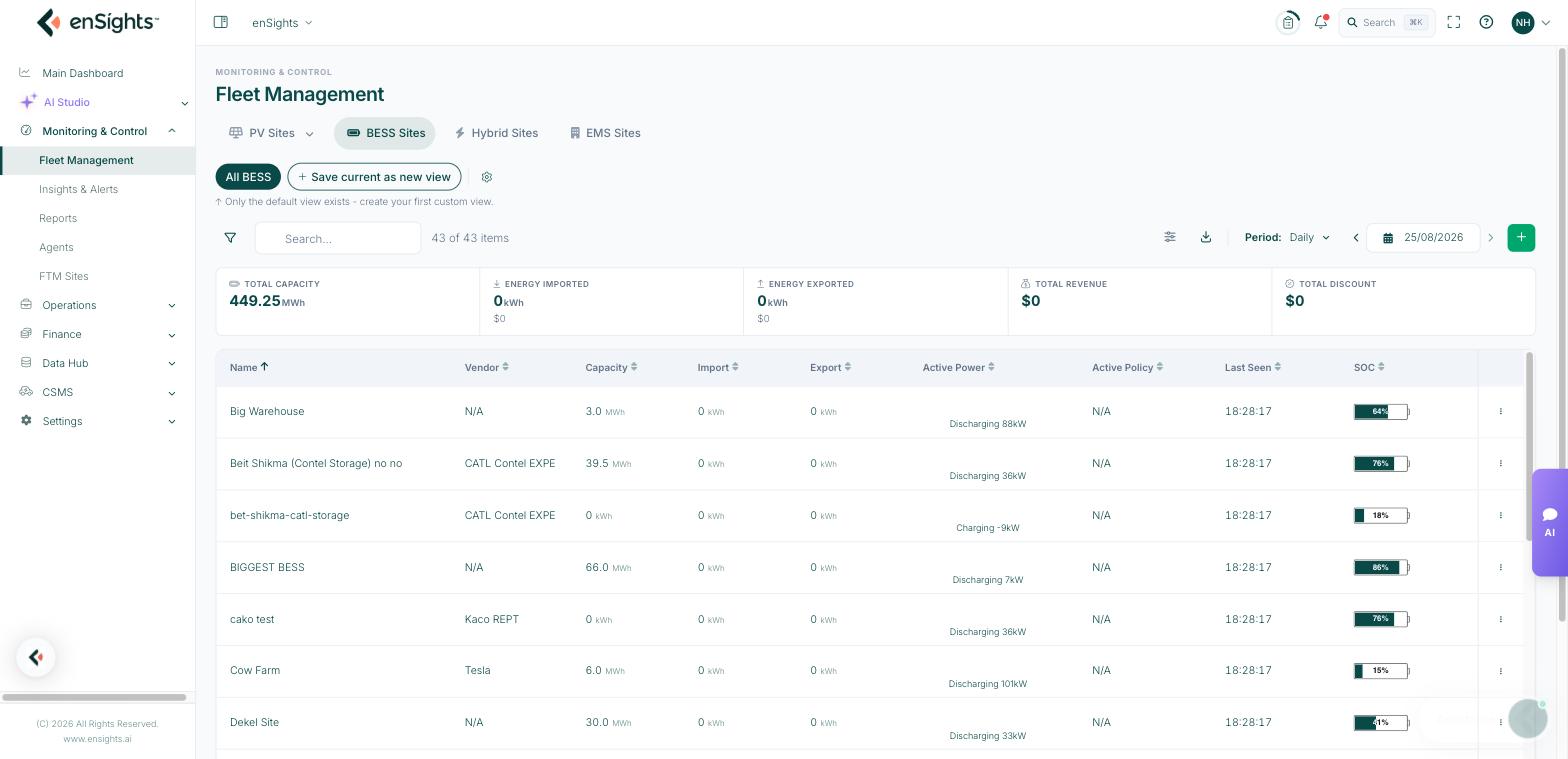
BESS Sites lists every battery energy storage system in the portfolio. Where PV Sites asks "how much did we generate", this list asks a different set of questions: how much energy went in and out, what did that cost and earn, and is each battery where it should be on state of charge.
The KPI strip
- Total Capacity — installed energy capacity across the batteries in the list (MWh).
- Energy Imported — energy charged into the batteries in the period, with its cost underneath.
- Energy Exported — energy discharged, with the revenue it earned.
- Total Revenue — the net financial result for the period.
Like every list, the cards describe the filtered set, not the whole tenant.
The table
The default columns are Name, Vendor, Capacity, Import, Export, Active Power, Active Policy, Last Seen and SOC.
- Active Power — what the battery is doing right now. Positive is discharging, negative is charging, depending on your site convention.
- Active Policy — the storage policy currently in force. Blank or N/A means nothing is scheduled, which is the usual reason a battery "does nothing".
- SOC — state of charge, shown as a small bar so a fleet of low batteries is visible at a glance.
- Last Seen — when the battery last reported. This is the field to check before believing any of the others.
The full column catalogue adds Battery Id, Import Cost, Export Cost, Host, Site Limits, Active BESS, Active DC/DC, Active Status, Availability, Created At and SoH (state of health), plus your tag columns.
Finding batteries
The filter panel is shorter than the PV one and grouped as Vendor, Batteries, Customer, Service Call Status, Capacity, Tags, Alerts and More. Search matches the battery name. Views, columns and period behave exactly as described in Saved views, filters and columns.
Row actions
- Edit — the battery's settings: name, capacity, serial number, IDs, address, timezone, vendor, host and port.
- SLA & Alerts settings… — thresholds, severities and recipients for this battery's alerts.
- Copy to Another Tenant… — duplicate the battery definition into another tenant, used when a site changes owner or for template setups.
- Availability Events Job — recompute the availability series after data is backfilled or corrected.
- Delete — treat as permanent.
+ at the right of the toolbar adds a battery; the download icon exports the current list.
Opening a battery
Click the name to open the battery's own page, which has its own tabs — Info, Analysis, Activity Logs, Insights, Documents and Maintenance. See Battery (BESS) site detail.
Common tasks
Find batteries that are not being dispatched. Add the Active Policy column and sort by it — the blanks are batteries with no active policy. Fix them in the EMS site's Policies tab.
Spot a fading battery. Add SoH and sort ascending. Falling state of health across a year is the signal for a warranty conversation.
Check yesterday's arbitrage. Period → Daily, step back a day, and read Energy Imported cost against Energy Exported revenue.
Confirm a battery is reporting. Add Last Seen and sort descending; anything hours old needs the agent and integration checked.
Common questions
Import and Export are zero but the battery is online.
Zero movement usually means no active policy for the period, or a policy whose schedule blocks do not cover it. Check Active Policy first.
SOC shows 0% on a healthy battery.
0% with an old Last Seen is stale data rather than an empty battery.
Where do RTE and availability come from?
They are computed on the battery's own page: round-trip efficiency needs at least one full charge/discharge cycle, and reads "No full cycle recorded yet" until then.