
AI Studio: Chat
What this page is for
Chat is the enSights assistant. You type a question about your fleet and it answers from your own data — production, alerts, assets, maintenance records. It is labelled Beta, and the footer notes that it can make mistakes.
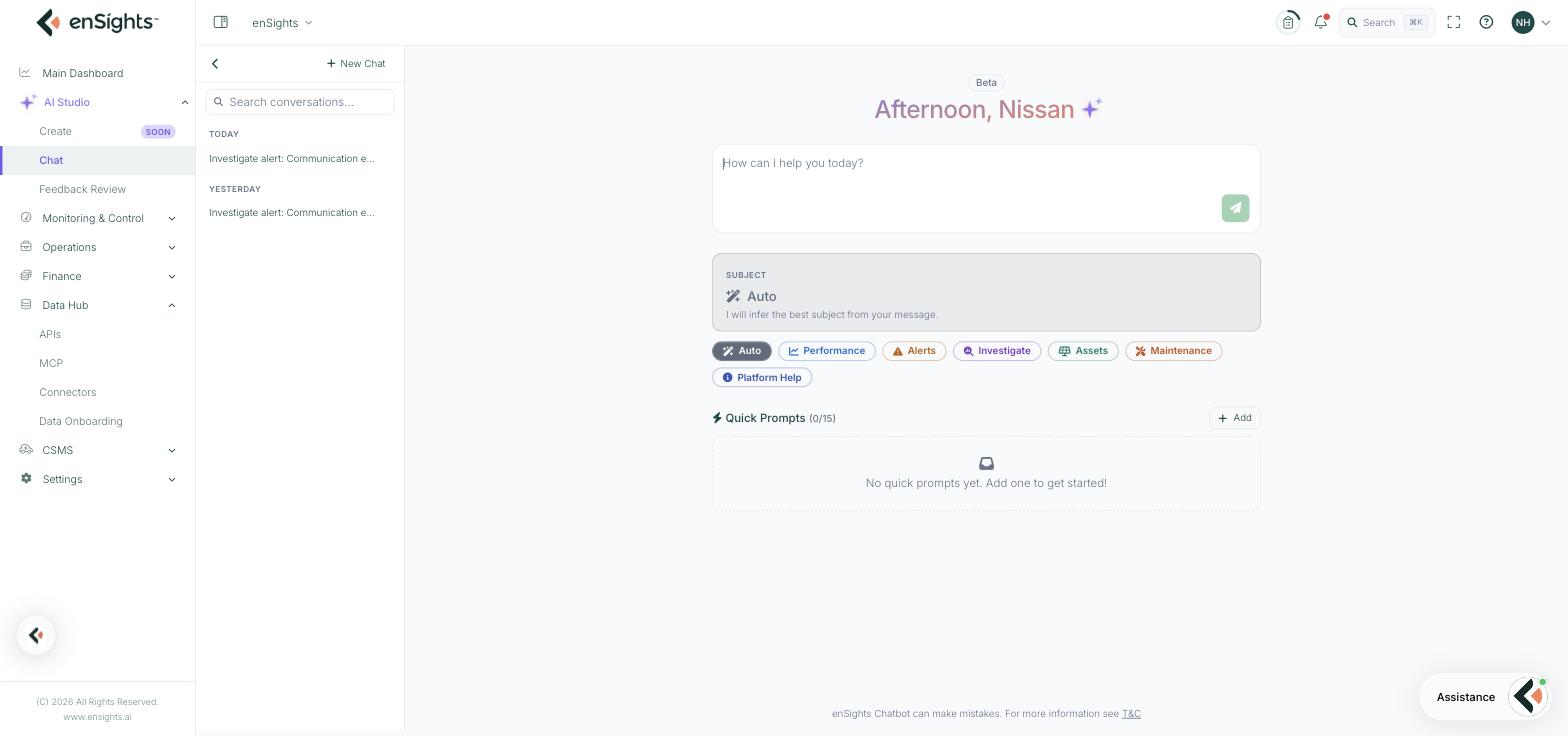
Layout
A conversation list runs down the left, grouped by day, with a New Chat button and a search box above it. The main pane holds the message box and, on a new chat, the subject selector and quick prompts. Each conversation in the list has a small menu offering Rename and Delete.
Subjects
Above the message box, a Subject selector steers the assistant toward a kind of question. Auto is the default and infers the subject from your message; the rest set it explicitly:
Subject | Use it for |
|---|---|
Auto | Anything. The assistant infers the best subject from your wording. |
Performance | Production, yield, performance ratio, comparisons between sites or periods. |
Alerts | What is open, how severe, which sites are affected. |
Investigate | Working a specific alert or anomaly through to a diagnosis. |
Assets | Questions about the fleet itself — counts, capacities, equipment, configuration. |
Maintenance | Service calls, cleanings, technicians, what is overdue. |
Platform Help | How to do something in enSights, rather than a question about your data. |
Auto is right most of the time. Setting a subject explicitly helps when a question could be read two ways — "what is wrong with site 12682" is an Investigate question, not an Alerts one, and saying so gets you the deeper answer.
Quick Prompts
Your own saved prompts, up to fifteen, shown on the new-chat screen so a question you ask every morning is one click rather than retyping.
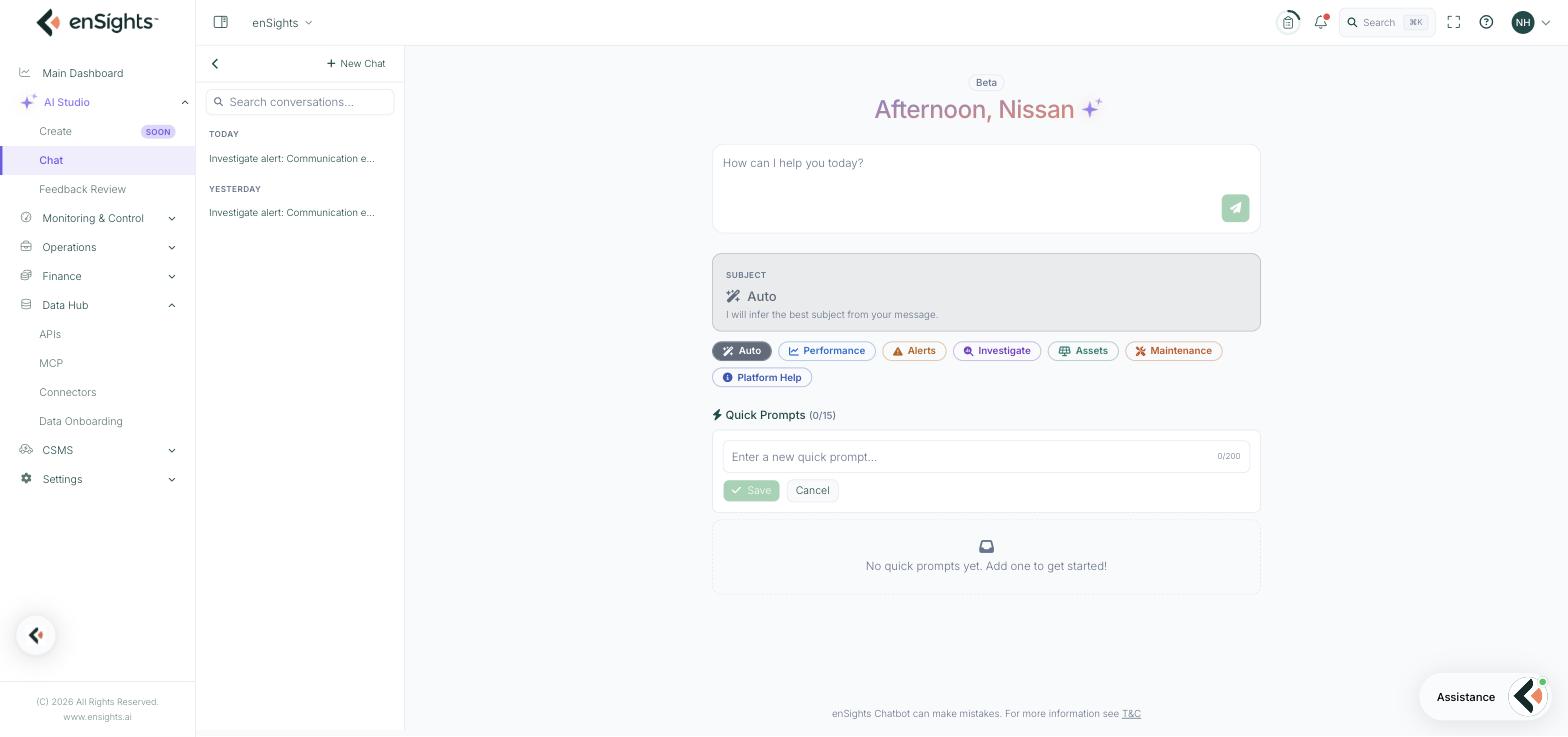
How to save one
- On a new chat, press Add beside Quick Prompts.
- Type the prompt — up to 200 characters, with a counter shown.
- Press Save.
Write them as the question you actually ask, not a topic: "which sites produced less than 80% of expected yesterday" is a quick prompt; "performance" is not.
What an investigation looks like
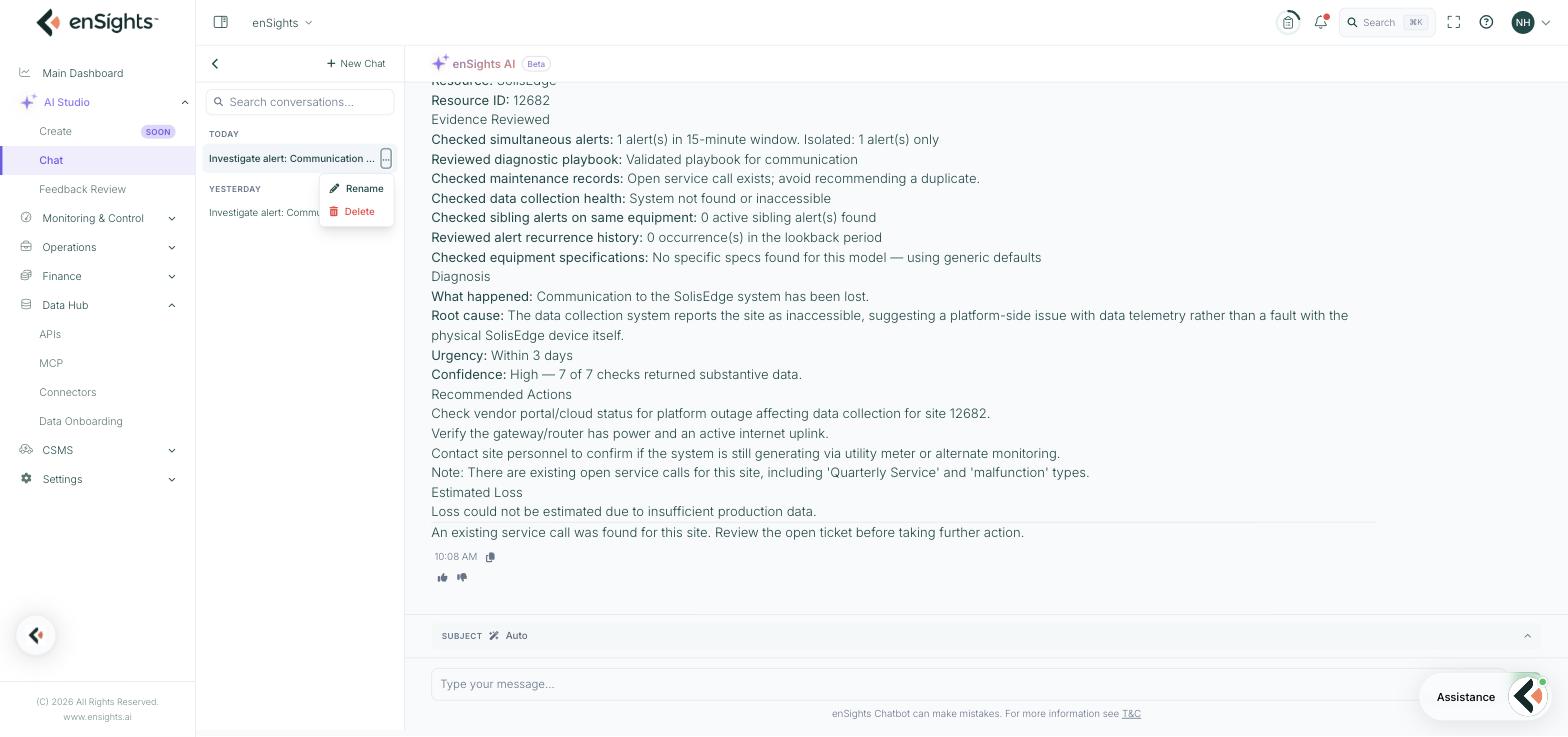
The Investigate subject produces a structured answer rather than a paragraph. On a real communication-error alert it returned:
Section | What it holds |
|---|---|
Component Under Investigation | Component type, resource and resource ID — so you know exactly which asset is being discussed. |
Evidence Reviewed | The checks it actually ran, each with its result: simultaneous alerts in the window, the diagnostic playbook, existing maintenance records, data collection health, sibling alerts on the same equipment, alert recurrence history, equipment specifications. |
Diagnosis | What happened, root cause, urgency, and a confidence statement that names how many checks returned substantive data — for example "High — 7 of 7". |
Recommended Actions | Concrete next steps, plus notes such as an existing open service call for the same site so you do not raise a duplicate. |
Estimated Loss | The energy or revenue impact, or an explicit statement that it could not be estimated and why. |
Two things about that output are worth noticing. It tells you what it checked, which lets you judge the conclusion rather than take it on trust. And it tells you when it could not do something — "loss could not be estimated due to insufficient production data" — which is usually a pointer at a data-onboarding gap rather than a limitation of the assistant.
Rating an answer
Under each answer sit a thumbs up and thumbs down. Rating it sends the whole conversation to Feedback Review, where someone can look at what went wrong and track it to a conclusion.
This is the only route the assistant has to improve. An answer that was wrong and unrated changes nothing.
How to get better answers
- Name the asset. A system name or ID removes all ambiguity about which site you mean.
- Name the period. "Last week" and "in July" produce sharper answers than no timeframe at all.
- Ask one thing at a time. A compound question tends to get a compound answer with the weakest part buried in it.
- Follow up in the same conversation. It keeps context, so "and the month before?" works.
- Verify anything that matters. Check the figure on the screen it came from before it reaches a report or a customer.
Notes
- Answers follow your own access. A user restricted to certain assets gets answers about those assets only.
- The assistant reads what the platform holds. It does not know commercial context that lives outside enSights.
- A site with incomplete onboarding produces vaguer answers — see Data Hub: Data Onboarding.
- Deleting a conversation is permanent, and removes the context the assistant was using in it.
- Chat is gated by the ChatBot permission in Roles & Permissions and the ChatBot tenant feature.