
AI Studio: AI Team
AI Team gives you a team of AI Specialists that do recurring jobs for you: they review alerts, production and service calls on a schedule, price what they find, and bring you a short list of decisions. Open it when you want to start the day from what needs you, not from hundreds of alerts.
Find it under AI Studio → AI Team.
How it works
Every job the team does is a routine. Each run follows the same path:
- Run on a schedule (for example, every day at 08:00), or when you click Run now.
- Gather and judge. The Specialists read your alerts, production, service calls and contracts, and rank what they find by what it costs.
- Propose. The routine writes a verdict and drafts the changes, such as new service calls or rescheduled tickets.
- You decide. Nothing changes in enSights until you approve.
Every number in a verdict comes from your data. When data is thin, the verdict says so rather than showing a confident number.
The four tabs
Tab | What it's for |
|---|---|
Control Room | Your starting point. What the team did in the last 24 hours and what needs your decision. |
Routines | Every routine in your organization, its schedule and its last result. Create new routines here. |
Specialists | The team itself: who does what and when each one runs next. |
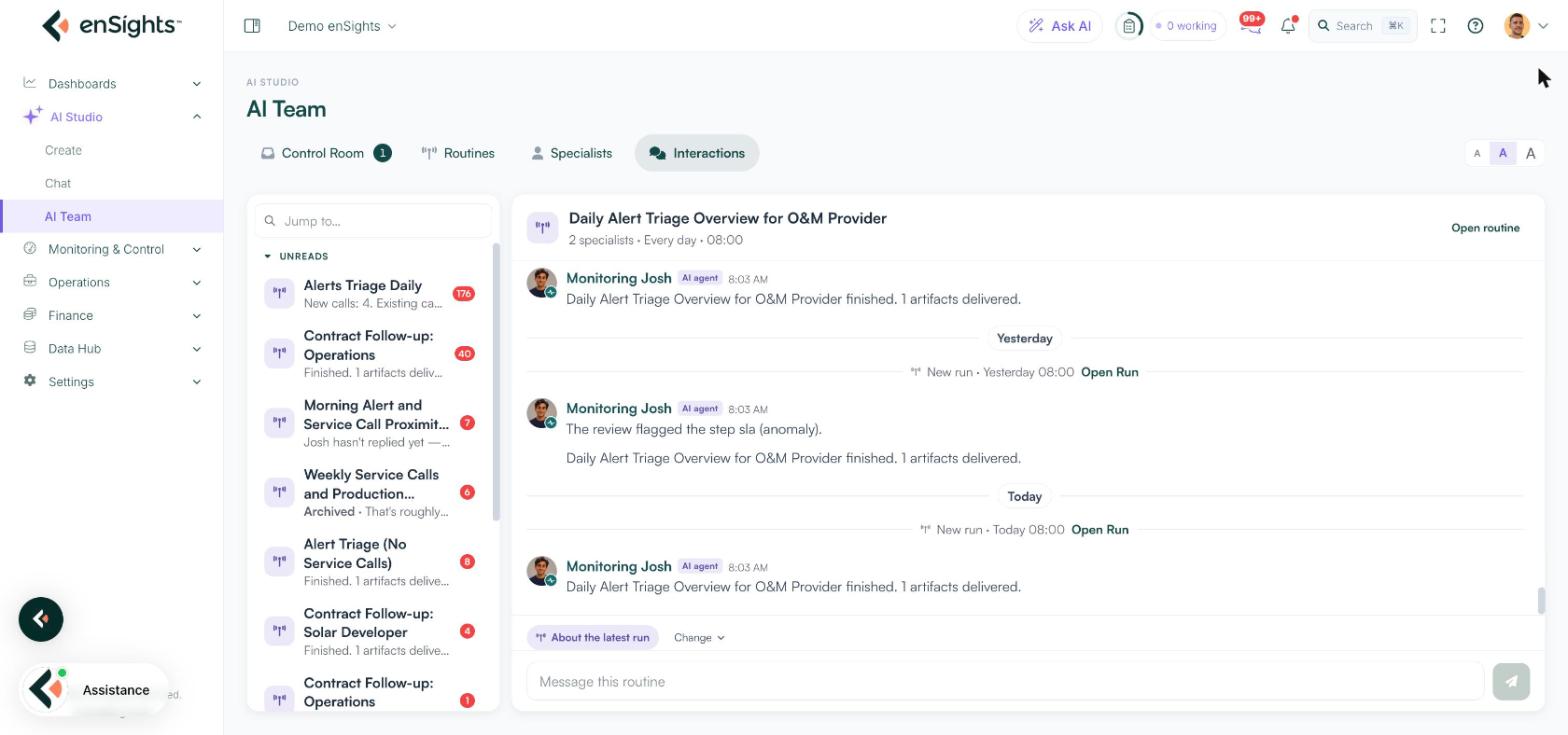
Interactions | A conversation thread per routine. Ask about a run or give the team feedback. |
The A A A buttons on the right change the text size.
Control Room
The summary at the top tells you in one sentence what the team did in the last 24 hours. Below it:
Card | What it shows |
|---|---|
Reviewed by specialists | How many systems and alerts the team looked at, and how many were handled as routine. |
Action needed | Open items waiting for you, and how many came from the latest runs. |
Potential Revenue Savings | The estimated daily value of the items waiting for you. |
Approved Items | What the team carried out after you approved, over the last 7 days. |
Your team right now shows each Specialist's status: waiting on you, or when its next run is.
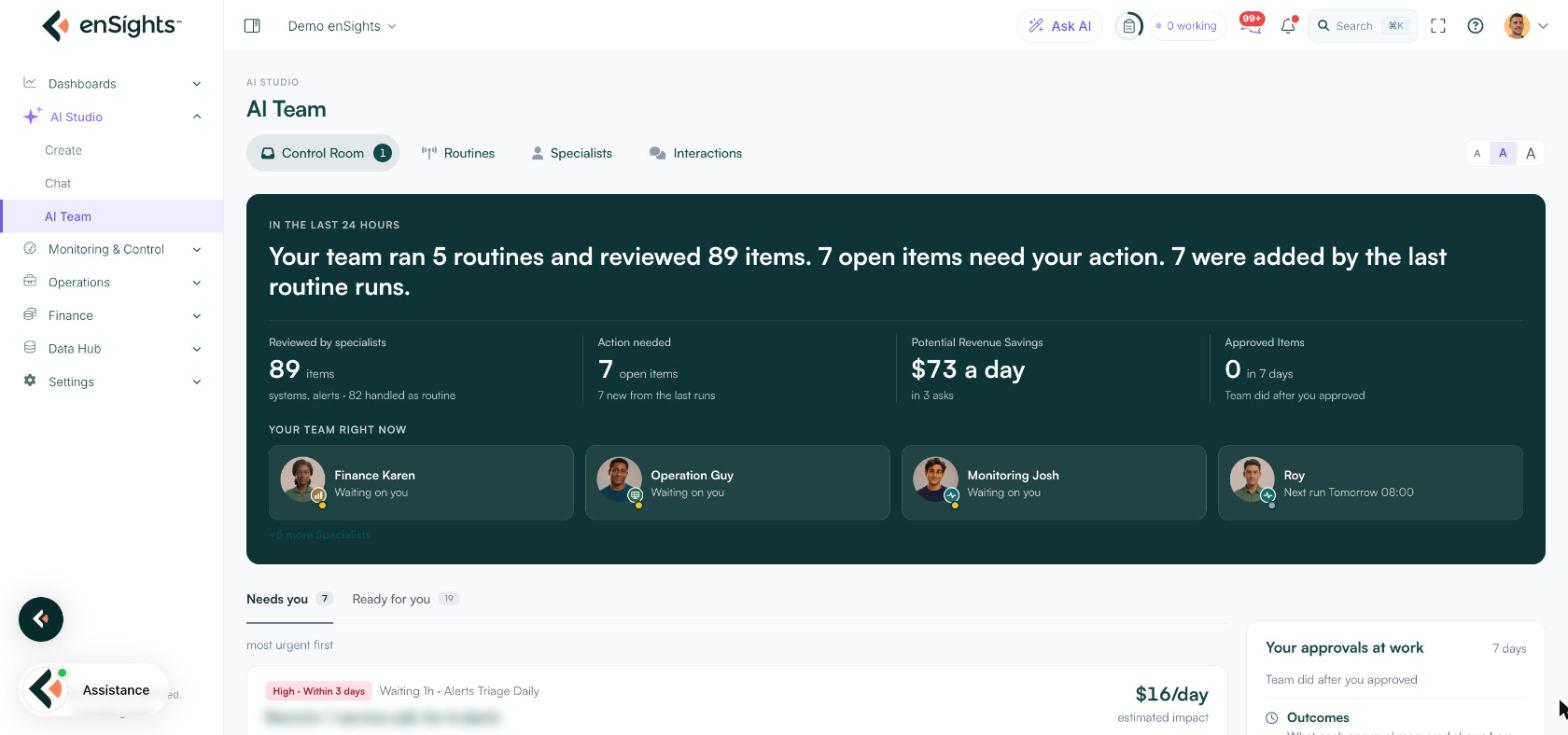
Below the summary, Needs you lists the decisions waiting for you, most urgent first. Each card shows the urgency, which routine raised it, the estimated impact and what it proposes. Ready for you lists finished results to read.
Button | What it does |
|---|---|
Open | Opens the full run: the verdict and every step behind it. |
Dismiss | Removes the item without changing anything. |
Review N items | Takes you to the proposed changes so you can approve them. |
Reading a run
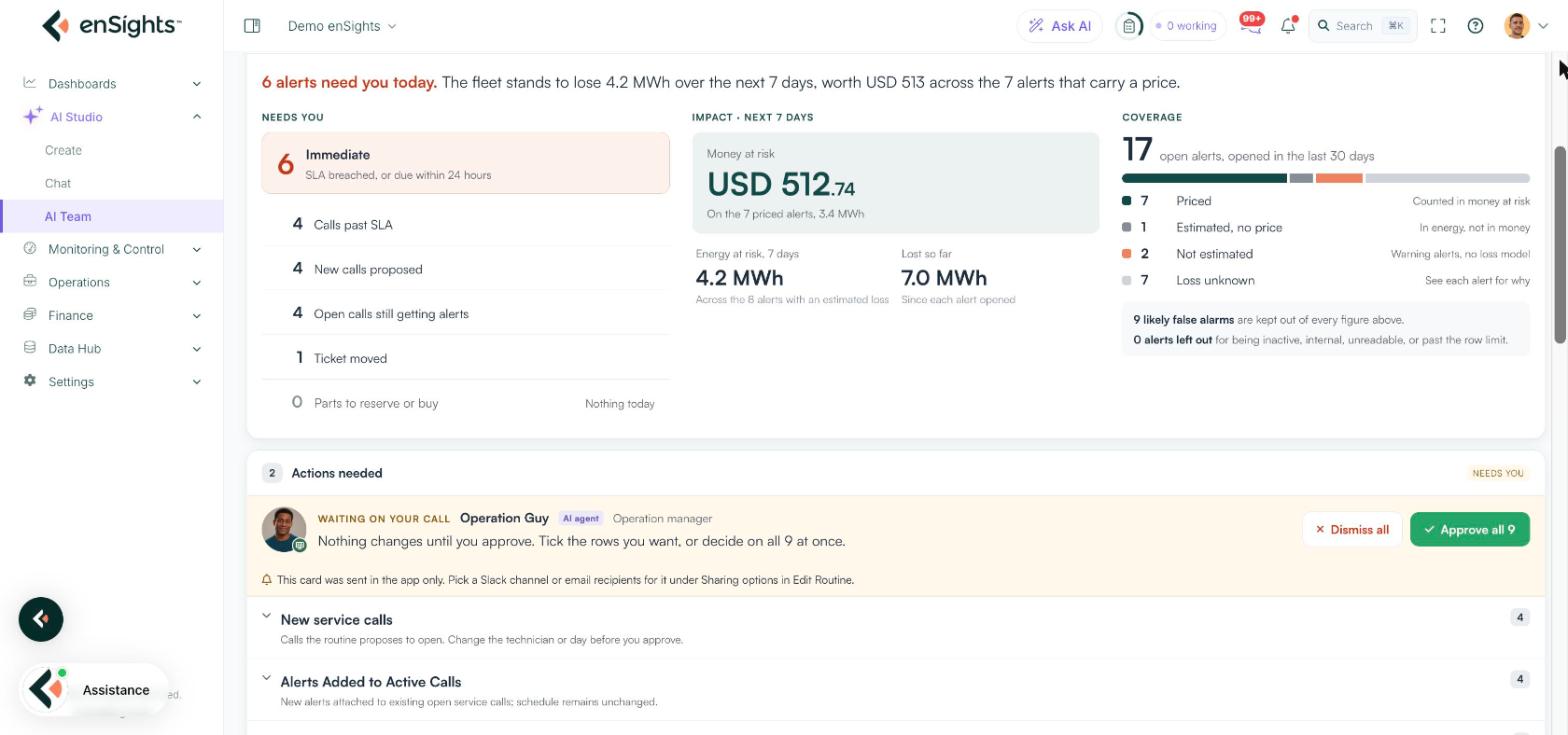
A run opens on the Verdict. It says in one line what needs you today and what is at stake, then breaks it down:
- Needs you: what is urgent, such as calls past SLA and new calls proposed.
- Impact: money and energy at risk over the next 7 days, and what has been lost so far.
- Coverage: how many alerts were priced, estimated without a price, or could not be estimated. Likely false alarms are kept out of every figure.
Under Actions needed, the changes are grouped: new service calls, alerts added to open calls, rescheduled or reassigned tickets, parts to reserve and purchase requests. Tick the rows you want, or use Approve all or Dismiss all. You can change the technician or the day of a new service call before you approve.
The Steps tab shows everything the Specialists did to reach the verdict, so you can check where each number came from. Use the arrows next to the run number to move between runs.
Routines
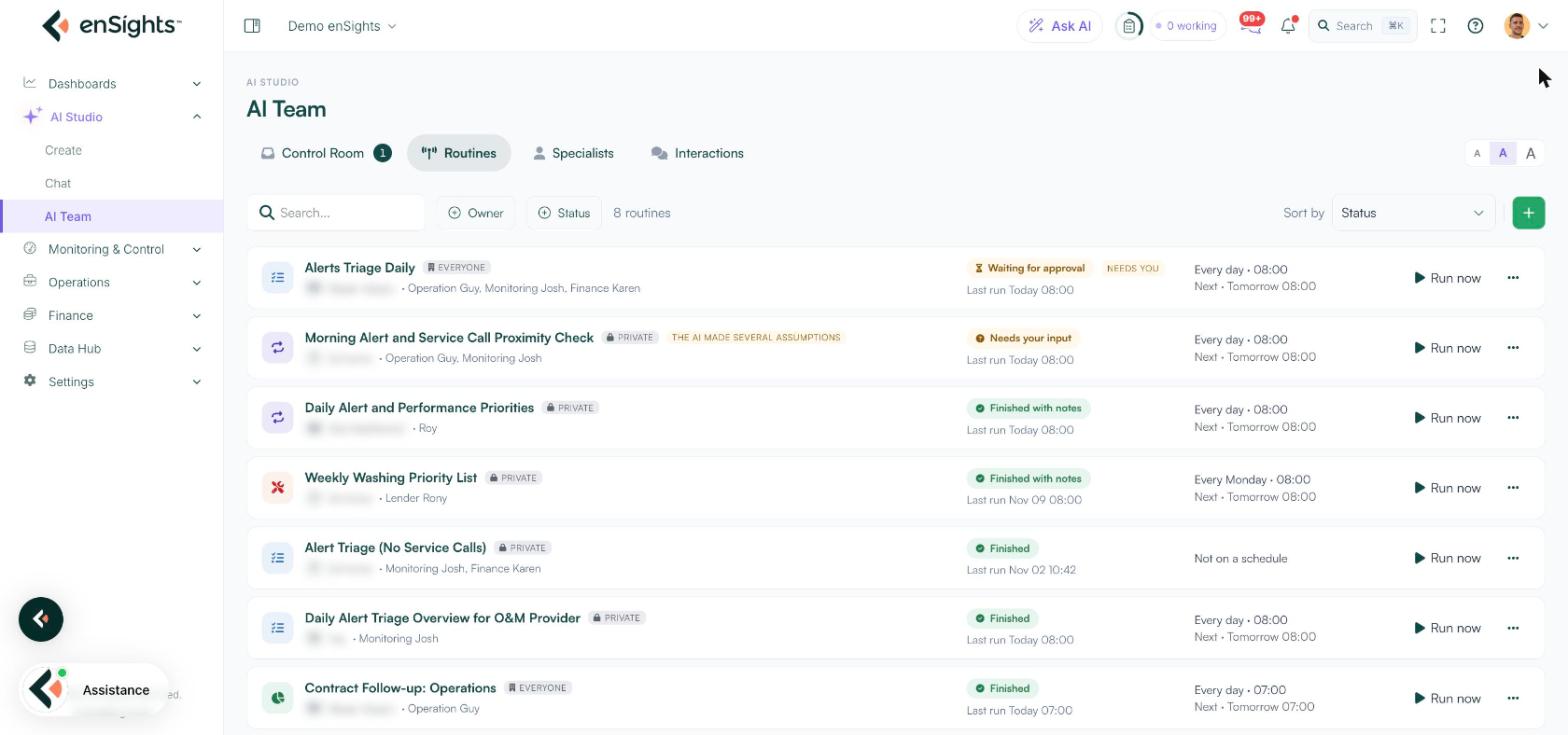
The Routines tab lists every routine with its owner, the Specialists who run it, its status, its schedule and when it runs next. Search, filter by Owner or Status, or click Run now to run one immediately.
Status | Meaning |
|---|---|
Waiting for approval | The run proposed changes and is waiting for you. |
Needs your input | The routine is missing something only you can answer. |
Finished with notes | Finished, with something worth reading. |
Finished | Finished, nothing to approve. |
Everyone means the whole organization sees the routine; Private means only its owner does.
Specialists
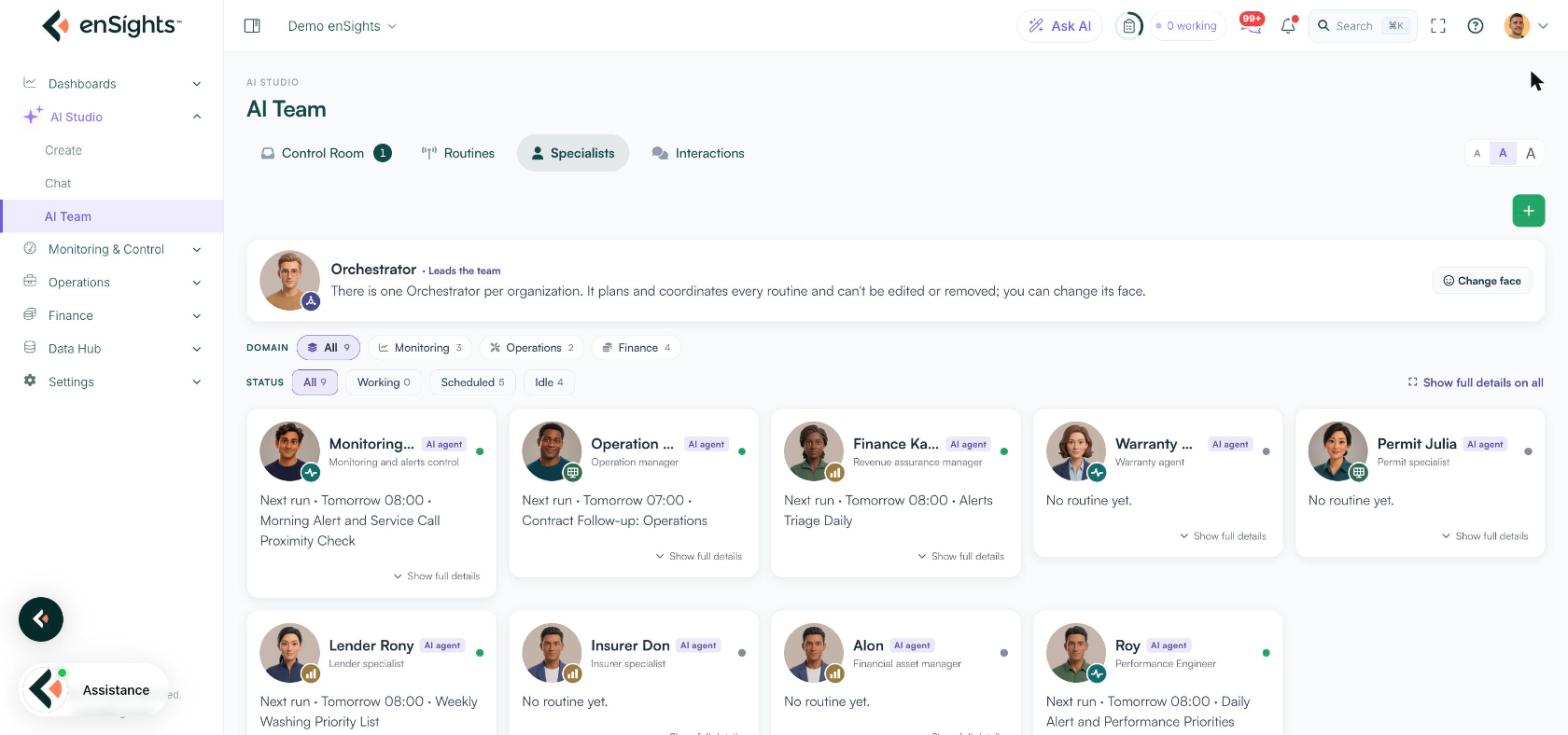
Each Specialist owns one area, such as monitoring, operations or finance. The Orchestrator leads the team: it plans and coordinates every routine. There is one per organization, and you can change its face but not edit or remove it.
Filter by Domain or Status. Each card shows the Specialist's next run and latest result. Use Interact to talk to a Specialist and Add a routine to give it a new job.
Interactions
Every routine has its own thread. Each run posts what it found, with Open Run to jump to the result. Type in Message this routine to ask a question about the latest run or tell the team what to do differently next time.
How to
Start your day from the Control Room
- Go to AI Studio → AI Team.
- Read the summary to see what the team did overnight.
- Work through Needs you from the top. Click Open to check the verdict, then approve or dismiss.
Approve service calls from a triage run
- Open the run from Needs you.
- Scroll to Actions needed and expand New service calls.
- Change the technician or the day if you need to.
- Tick the rows you want and approve them, or click Approve all.
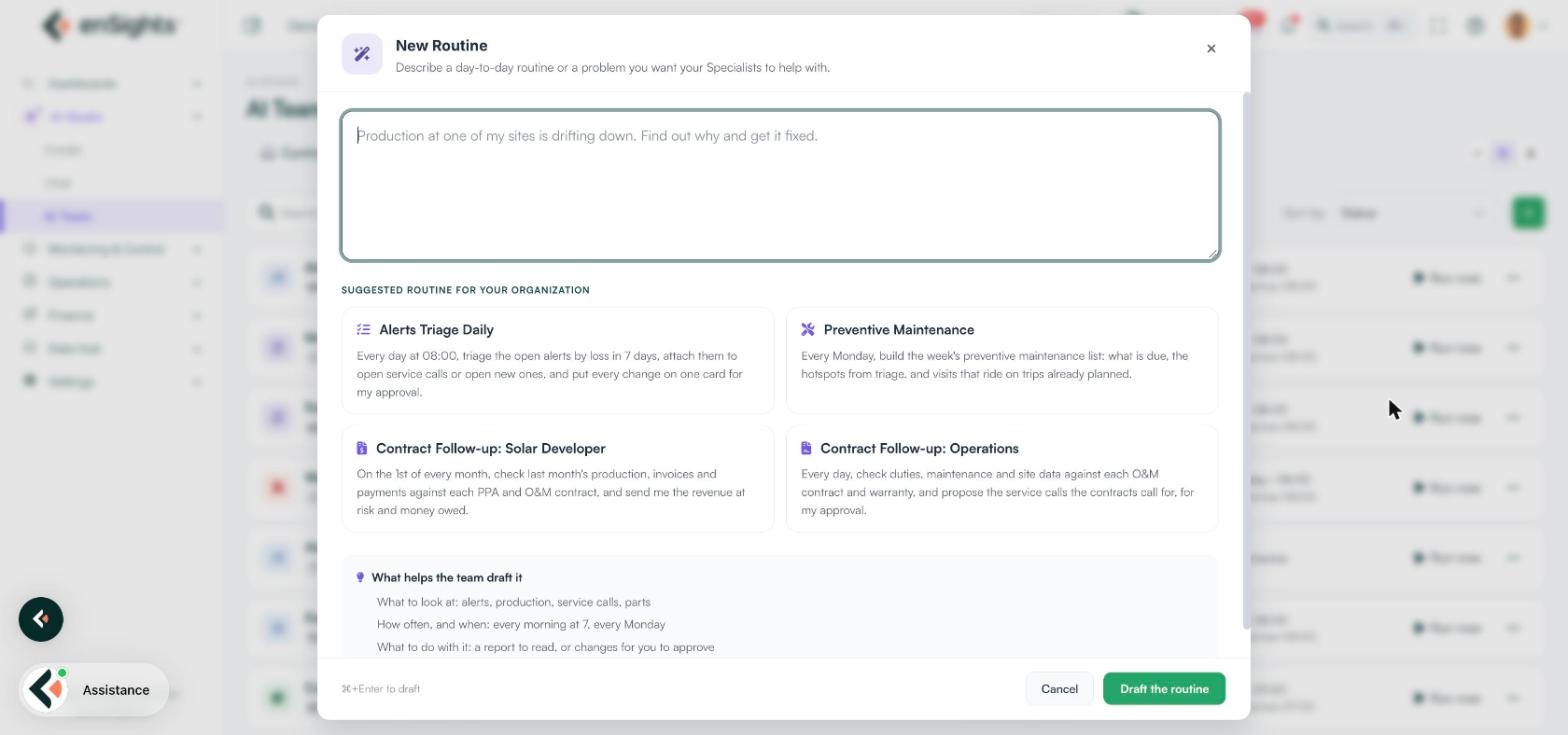
Create a routine
- On the Routines tab, click +.
- Pick a suggested routine, or describe the job in your own words: what to look at, how often, and what you want back (a report to read, or changes to approve).
- Click Draft the routine, review the draft and set the schedule.
Send a routine's results to Slack or email
- Open the routine and click Edit Routine.
- Under Sharing options, pick a Slack channel or email recipients.
Notes
- Nothing happens until you approve. A routine can propose service calls and ticket changes, but it never creates or changes them on its own.
- Results appear in the app only until you set Sharing options for the routine.
- Estimated impact is shown in money when the alert can be priced, and in energy (for example kWh/day) when it can't. Check Coverage in the run to see which alerts were left out of the money figure and why.
- The Outcomes panel ("Your approvals at work") will show what each approval recovered once outcome tracking is available.