
Finance: SREC Reporting
What this page is for
SREC Reporting tracks the monthly production readings reported for your systems' Solar Renewable Energy Certificates (SRECs). Open it to see which systems still need reporting this month, which readings went through, which failed, and roughly what the month is worth.
Find it under Finance → SREC Reporting. Everything on the page follows the month picker at the top right.
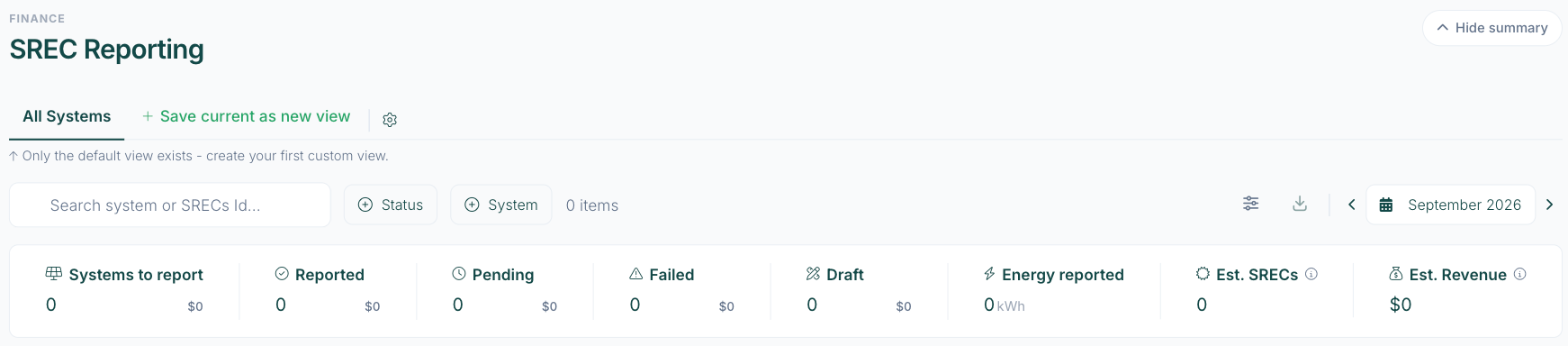
The summary row
Figure | What it shows |
|---|---|
Systems to report | Systems that need a reading for the selected month. |
Reported , Pending , Failed , Draft | How many readings are in each status, with their estimated value underneath. |
Energy reported | Total energy in the readings reported for the month. |
Est. SRECs | One SREC per whole MWh of reported energy. |
Est. Revenue | Estimated SRECs at a flat $40 each. |
Hide summary at the top right collapses the row when you only need the table.
The table
Column | Meaning |
|---|---|
System | The system being reported. |
Aggregator | The SREC aggregator the system reports through. |
SRECs Id | The system's ID in the SREC program. |
Meter Value and Meter Date | The meter reading reported, and when it was taken. |
Date Reported | When the reading was submitted. |
Energy Produced | The system's production for the period. |
Status | Reported, Pending, Failed or Draft. |
Search by system name or SRECs Id, narrow the list with the Status and System filters, and download what you see with the download icon. Like other tables, you can save a filtered layout as a view with Save current as new view.
Why a reading failed
Failed rows have a red bar on the left. Hover the Failed badge to see the reason the reading was rejected, for example Submitted Meter Date is not within reporting period. Filter Status to Failed to work through them in one list.
The Notes column is hidden by default. Turn it on from the column settings (the sliders icon next to download).
How to
- Close out the month. Pick the month, then filter Status to Failed and Draft. Those are the readings that still need action before the reporting window closes.
- Check a single system. Search for its name or SRECs Id and compare Meter Value and Energy Produced with what you expect.
- Estimate the month's SREC income. Read Est. SRECs and Est. Revenue in the summary row.
Notes
- Only whole MWh count towards Est. SRECs: 2.9 MWh is 2 SRECs.
- Est. Revenue uses a flat $40 per SREC, not your contracted or market price. Treat it as an indication, not an invoice figure. A configurable price per SREC is coming.
- Only systems set up for SREC reporting appear here. If one you expect is missing, contact support.
Readings for a month that hasn't been submitted yet show as Draft. Move the month picker forward to see what's queued for the next report.