
Sigenergy
This page explains how to connect Sigenergy sites to enSights. It is for whoever manages your organization's SigenCloud account and is onboarding Sigenergy sites. Once connected, your Sigenergy sites show up in enSights alongside the rest of your fleet, so you no longer need to log in to SigenCloud to check them.
What you get
enSights reads your Sigenergy sites through the official SigenCloud API. A Sigenergy site is set up as a meter-based hybrid site: the PointGuard site meter is the main source, and battery data is added where Sigenergy provides it.
Data | What it shows |
|---|---|
Meter power and energy | What the site produces, matching SigenCloud for the same period. |
Consumption power and energy | What the site consumes, when the meter measures it. |
Battery power and state of charge (SOC) | Charging and discharging power, and the battery level in %. |
Battery charged and discharged energy | Daily and monthly totals. |
The connection is read only. enSights does not send any commands to your Sigenergy equipment.
Before you start
- An App Key and App Secret for the SigenCloud API. These are API credentials, not your SigenCloud username and password. Request them from Sigenergy through the SigenCloud developer portal or your Sigenergy contact.
- Which SigenCloud server your account is on: US or Europe.
How to
Connect your Sigenergy sites
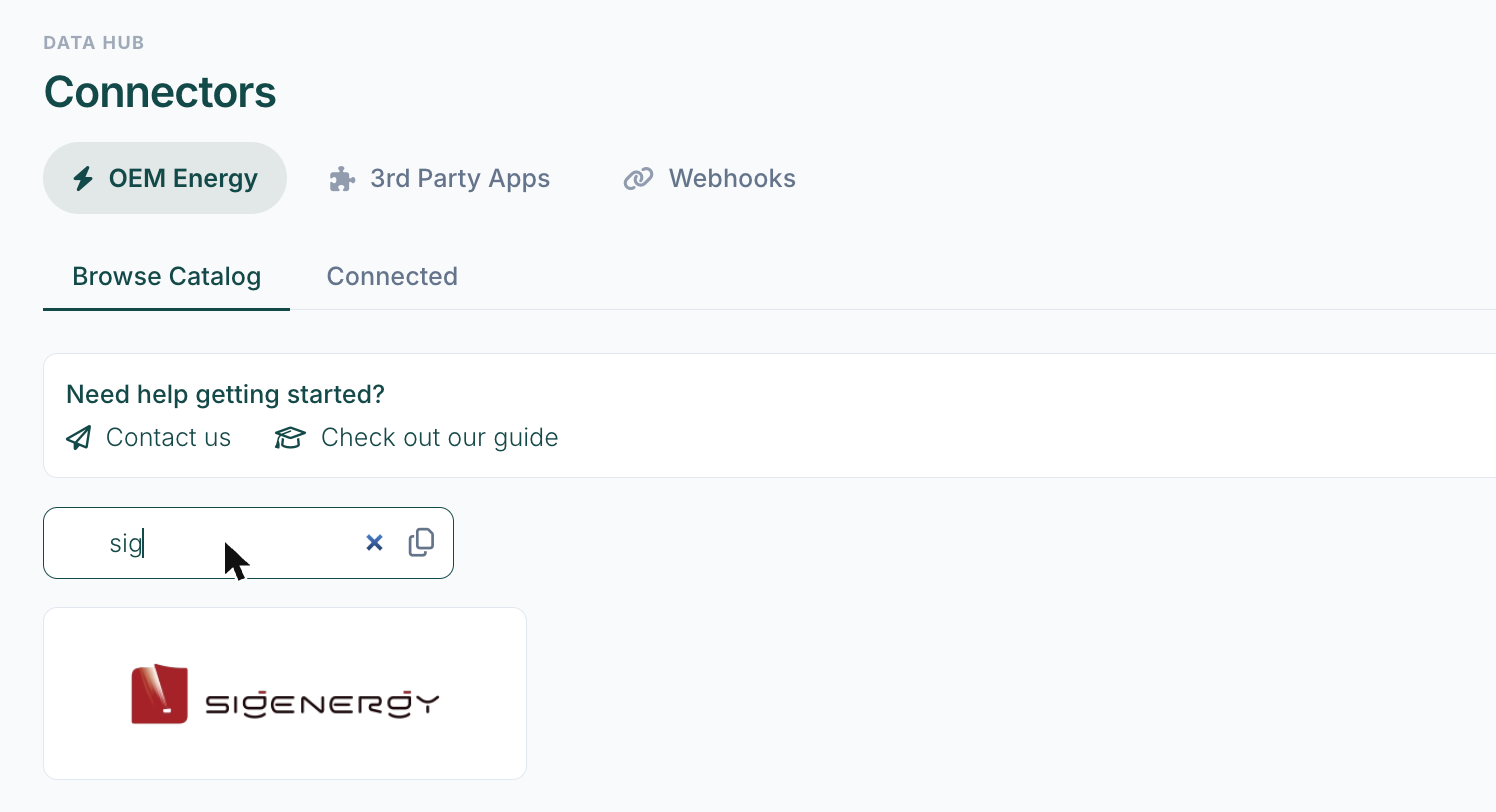
- Go to Data Hub → Connectors, open OEM Energy and select Browse Catalog.
- Type sig in the search box and select the Sigenergy card.
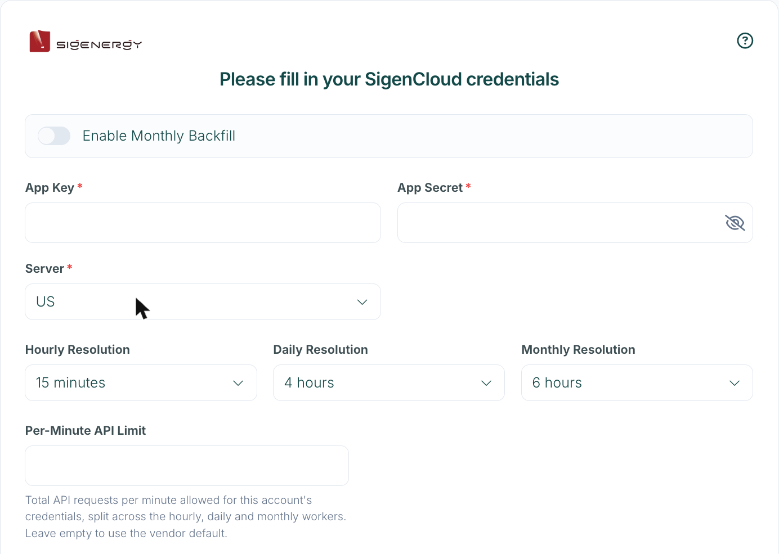
- Enter your App Key and App Secret, and choose your Server (US or Europe).
- Leave the resolution settings and Per-Minute API Limit on their defaults unless enSights support tells you otherwise.
- Select Save. enSights finds your Sigenergy meters and maps each meter to one system.
- Find the new connection under Connected to check its status.
Load past data
When a site is first connected, enSights loads its history. Sigenergy limits how often its API can be called, so history loads slowly: 30 days for one site takes about an hour. Load about 30 days at a time, and if you can, run longer loads at the site's night time.
Form fields
Field | What it does |
|---|---|
Enable Monthly Backfill | Loads past monthly data for the connected sites. |
App Key / App Secret | Your SigenCloud API credentials. Required. |
Server | The SigenCloud region your account is on: US or Europe. Required. |
Hourly / Daily / Monthly Resolution | How often enSights refreshes each type of data. Defaults: 15 minutes, 4 hours, 6 hours. |
Per-Minute API Limit | The total API calls per minute allowed for these credentials. Leave it empty to use the Sigenergy default. |
API Call Estimator | Estimates how many API calls your sites will use with the chosen settings. |
Notes
- Live data can lag while history loads. While a site is loading history, its live readings can arrive late. No data is lost: the next fetch fills in the whole day. A very long history load can delay readings enough to raise a communication alert during the day.
- A dash is not a zero. If the meter does not measure consumption, consumption shows "-", not 0.
- Battery round-trip-efficiency cycles show no energy. Sigenergy does not provide the lifetime battery counters this calculation uses. Battery power, SOC and daily and monthly charged and discharged energy are all available.
- Wrong credentials or SigenCloud errors raise an API connection alert on the affected systems, not a silent gap in the data. See API connection alerts: Server Error and Wrong API Credentials.
- Treat the App Key and App Secret like a password. Do not send them in plain email or chat.