
Passwords: the rules and the suggested password
What this covers
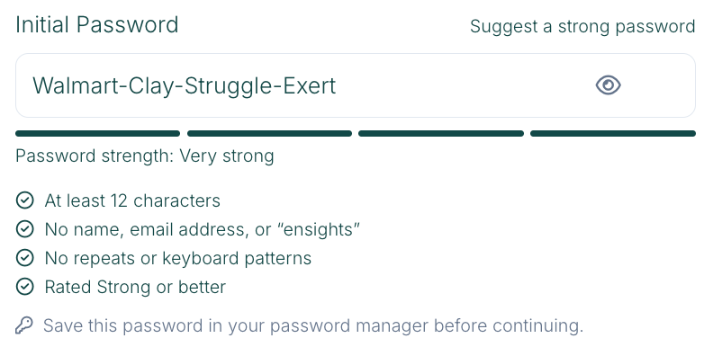
Every password set in enSights follows the same rules, wherever it is set: when you accept an invitation, when you are asked to reset it, when you change it, and when an admin sets an initial password for a team member or a portal user. The rules are listed under the field before you start typing, and each one ticks off as you go, so you never find out what was wrong only after you press Save.
The rules
Rule | What it means |
|---|---|
At least 12 characters | Length matters more than anything else. Spaces and any symbol are allowed, so a short sentence makes a good password. |
No name, email address, or "ensights" | The password can't contain the person's name, their email address or the word ensights. |
No repeats or keyboard patterns | Runs like aaaaaaaa, qwerty or 12345678 are rejected. |
Rated Strong or better | The four-bar Password strength meter under the field looks for dictionary words, dates and patterns. The password has to reach Strong. |
What enSights deliberately doesn't ask for: a forced mix of upper case, lower case, digits and symbols. Rules like that produce passwords such as Password1!, which are easy to guess. A long password with no pattern in it is stronger.
Suggest a strong password
Click Suggest a strong password above the field and enSights fills one in, for example four random words joined by hyphens. It is long and strong, but still easy to type on a phone. The meter goes to Very strong and every rule ticks.
Copy it into your password manager before you save. The field reminds you: Save this password in your password manager before continuing. The eye icon at the end of the field shows or hides what you typed.
How to
- Set a portal user's first password. Go to Operations → Customer Management, open the customer and edit the user under Portal Users. Under Initial Password, click Suggest a strong password, copy it, click Save Changes, and send it to the user through a different channel from their username.
- Choose a password you can remember. Use three or four unrelated words, or a short sentence that means something only to you. Keep typing until all four rules show a tick.
- Find out why a password is refused. Look at the list under the field. The rule without a tick is the one to fix.
Notes
- Existing passwords keep working. The rules apply the next time a password is set.
- When you add a team member, leaving Initial Password empty is usually better: the invitation email lets them choose their own. See Team Management.
- Single sign-on users sign in with their company account and never set an enSights password. See Global Settings: Security.