
Finance: Revenue Assurance — Data Feeds
What this page is for
Data Feeds is where every file enters Revenue Assurance. Each feed takes only the file it is built from; you upload it on its own row, enSights checks it, and only then adds it to the projects database. Open it at onboarding to load a project's history, and every month to add the newest reports.
Find it under Finance → Revenue Assurance → Performance Dashboard → Data Feeds. The Upload Data button on any Revenue Assurance page brings you here too.
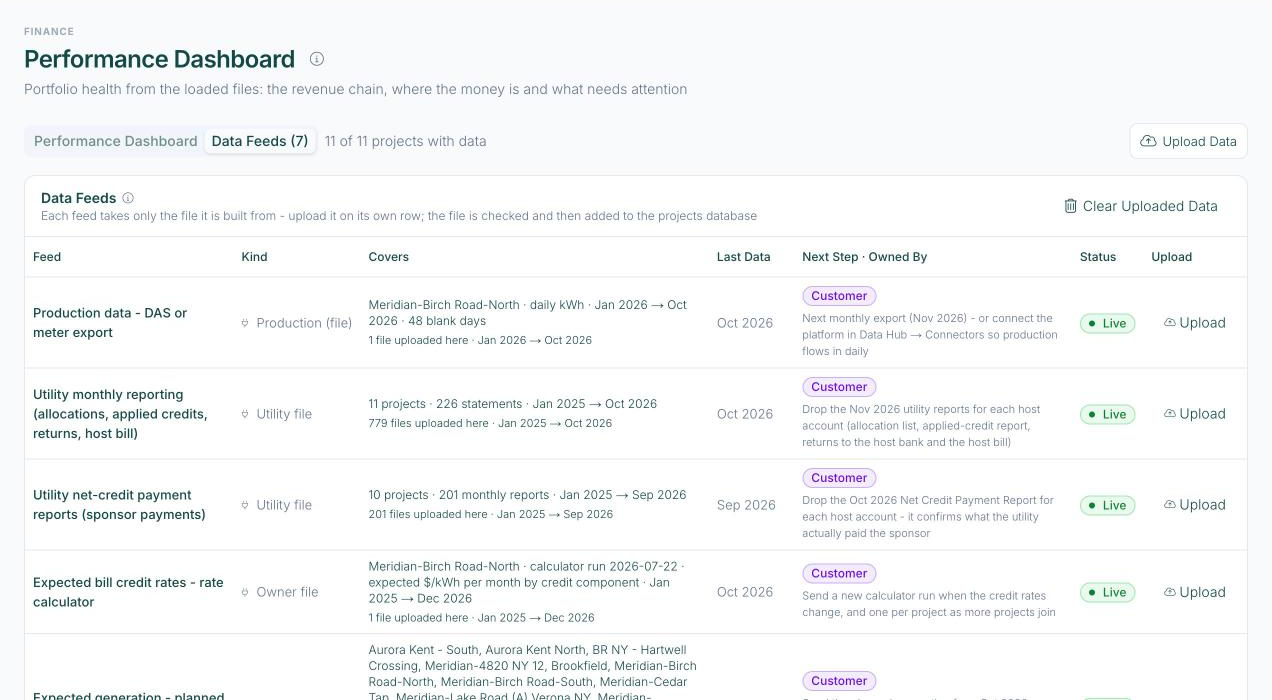
The feeds table
Column | Meaning |
|---|---|
Feed | The data the feed carries. |
Kind | Who produces the file: a production export, a utility file, an owner file or an aggregator file. |
Covers | The projects and months loaded, and how many files were uploaded here. |
Last Data | The newest month in the feed. |
Next Step · Owned By | What has to happen next and who owns it. Customer means you send the next file; enSights owns a step only while it is mapping a new report format. The month moves on with each upload. |
Status | Live once the feed has data. |
Upload | Opens that feed's uploader. |
Clear Uploaded Data at the top right removes the files uploaded on this tab. Use it with care.
The feeds
Feed | What it carries |
|---|---|
Production data - DAS or meter export | Daily or monthly kWh from your DAS or meter-data platform, any vendor. If your platform has a connector, connect it in Data Hub → Connectors instead. |
Utility monthly reporting | The utility's monthly reports per host account: the allocation list, the applied-credit report, returns to the host bank, and the host bill with its credit statement. |
Utility net-credit payment reports | What the utility actually paid the sponsor, per bill period. This row appears once utility data is loaded. |
Expected bill credit rates - rate calculator | The expected $/kWh per month, by credit component. Optional. |
Expected generation - planned kWh and P50 | The owner's planned generation per project and month. Optional; nothing is estimated without it. |
Subscriber roster | The aggregator's roster export of subscriber accounts. |
Aggregator report - production, invoiced and collected | The aggregator's monthly report: production, allocated kWh, invoiced, collected, and invoice and collection dates per project. |
The uploader
Click Upload on a row. The dialog says what the feed lands on and the last month already loaded.
- The production feed opens with a connector notice. If your DAS or inverter platform is a supported connector, connect it in Data Hub → Connectors and production flows in daily; this uploader is for other platforms and one-off backfills.
- About this feed is folded by default. Open it for This feed accepts, How a file is recognised and Period and rule. Your choice is remembered.
- The Example buttons download a template file with the right headers and one placeholder row.
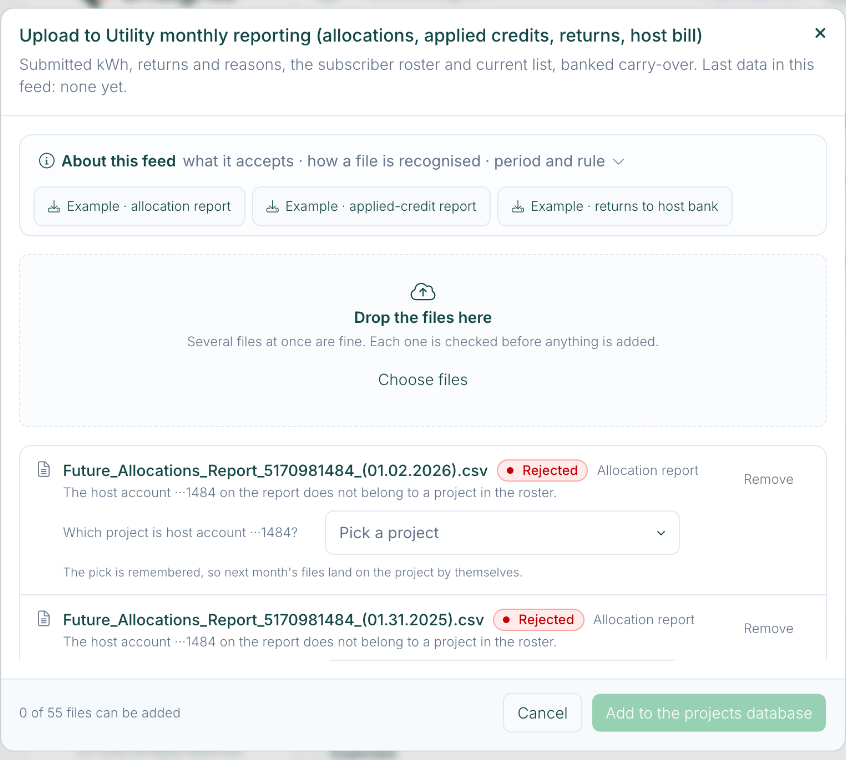
- Drop several files at once, or click Choose files. Each one is checked on arrival.
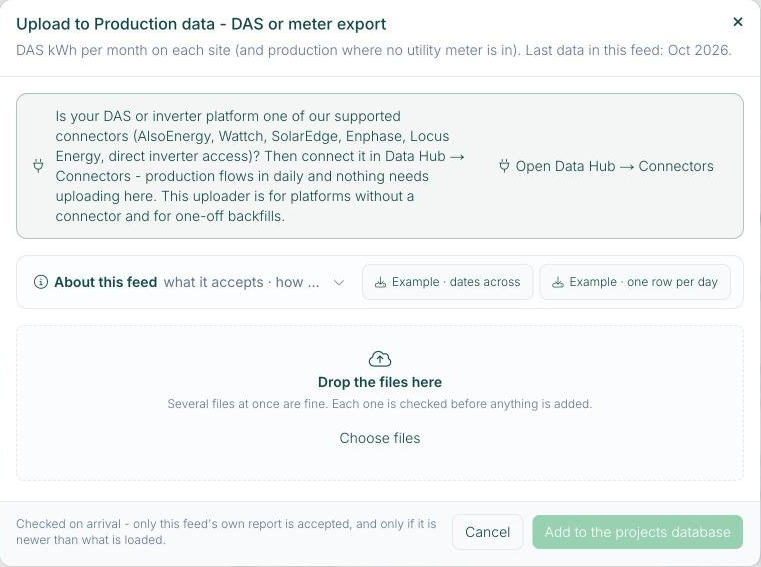
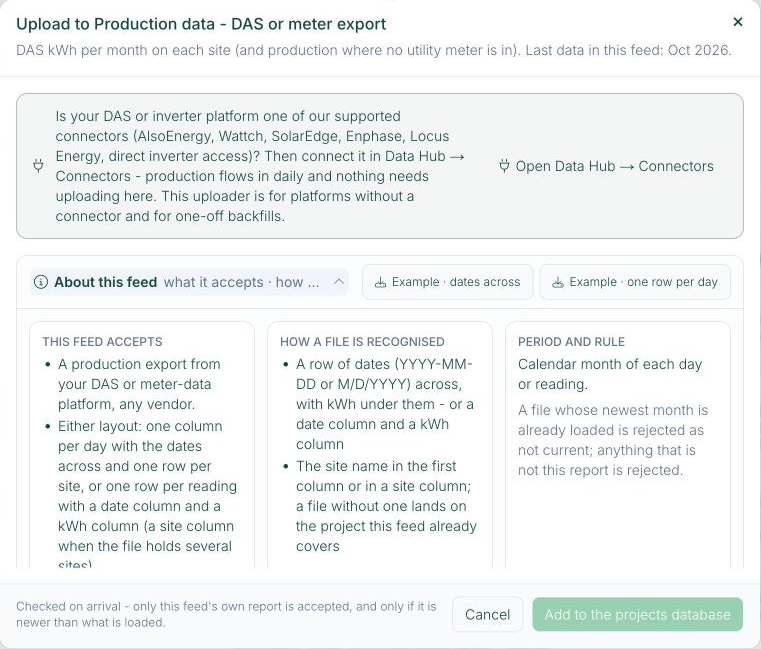
Checked or Rejected
Every file is listed with Checked and what it holds (report type, month, project, accounts, kWh), or Rejected and the reason. Remove any file you don't want. The footer counts the files that can be added, and Add to the projects database adds them. Nothing is added before you click it.
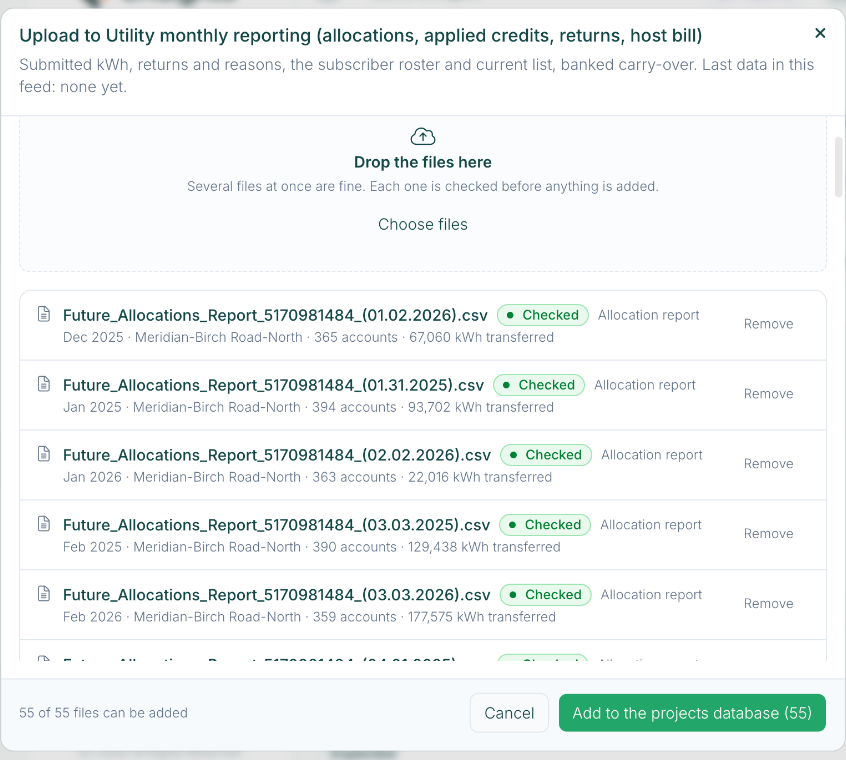
The first time a utility report arrives for a host account enSights hasn't seen, it asks which project the account belongs to. Pick it once; next month's files land on the right project by themselves.
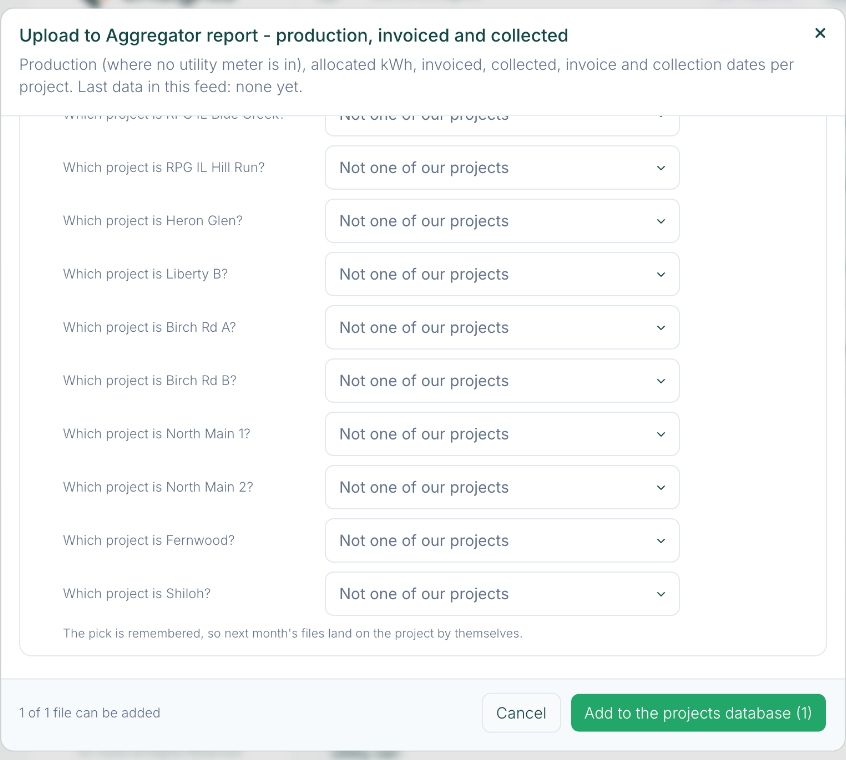
The aggregator's report may name projects differently from your roster, and may include projects that aren't yours. Map each name once, or choose Not one of our projects to leave it out.
How to
Load a new project's history
- Create the project in Finance → Projects.
- Upload the utility's monthly reports for every month you have, then the payment reports.
- Upload the aggregator report and map its project names.
- Add production, the roster and the optional expected files.
- Check that every feed you need shows Live.
Add this month's files
- Read Next Step on each row to see which file is due.
- Click Upload on that row, drop the files, and check they all show Checked.
- Click Add to the projects database. Every page updates.
Fix a rejected file
- Read the reason on the file's line.
- If it is the wrong report, upload it on the row it belongs to. Open About this feed to see what each feed accepts.
- If it is "not current", that month is already loaded.
Notes
- A file whose newest month is already loaded is rejected as not current, so the same file can't be added twice.
- One exception: an applied-credit report uploaded before 13 November 2026 is accepted once more. Upload those reports again so Reconciliation can use their credit total for bill periods that have no host bill yet.
- Only the feed's own report is accepted on each row.
- Upload a large month-end drop in a few selections of a few MB each rather than all at once.