
Set your default page
Choose the page you land on after you log in. If you spend your day in PV Sites, P&L or Service Calls, star that page once and enSights opens there every time.
How it works
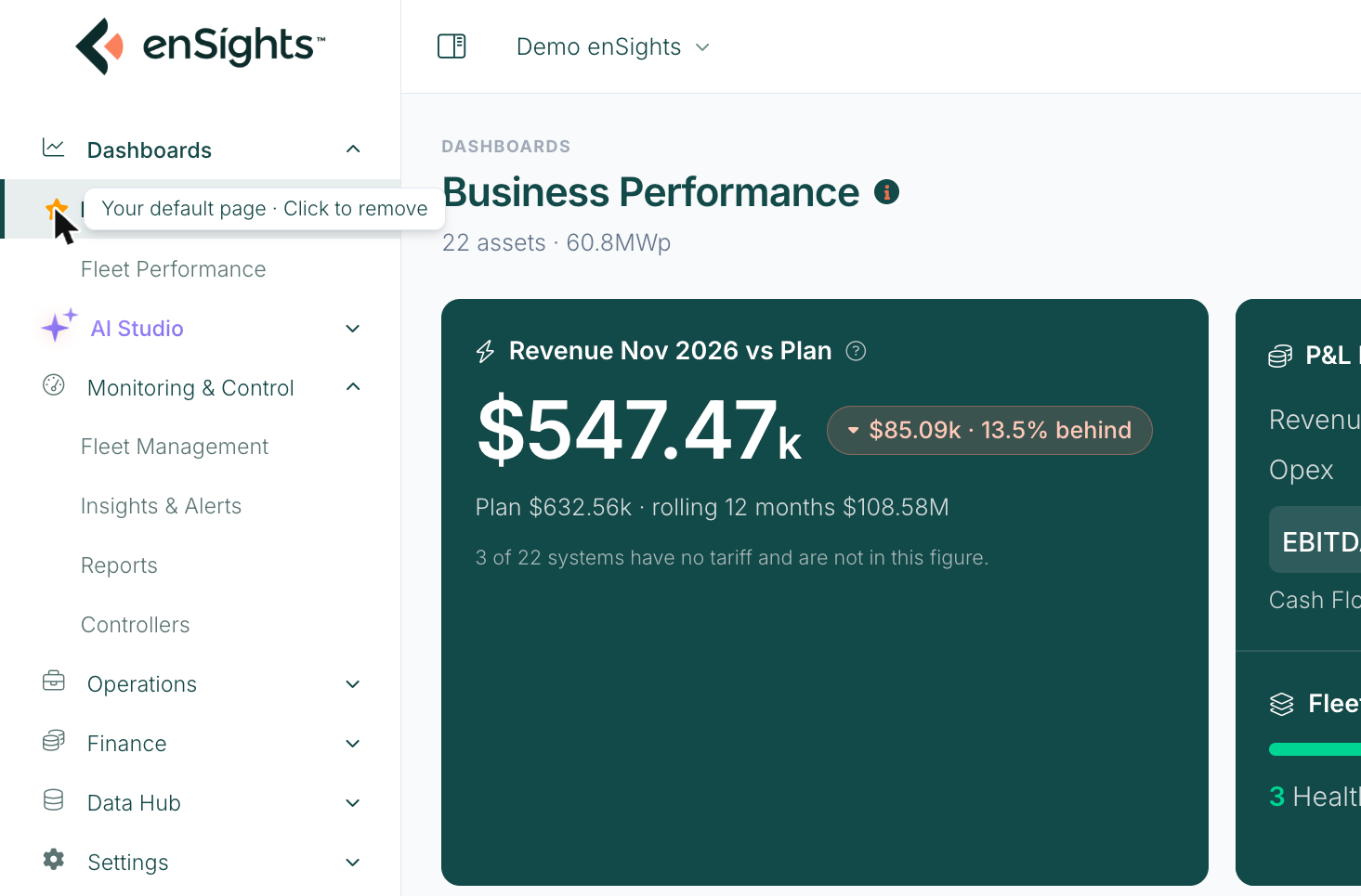
Every page in the left menu has a star. Hover over a page and click the ☆ next to its name. The star turns amber ★, and that page is now your default page.
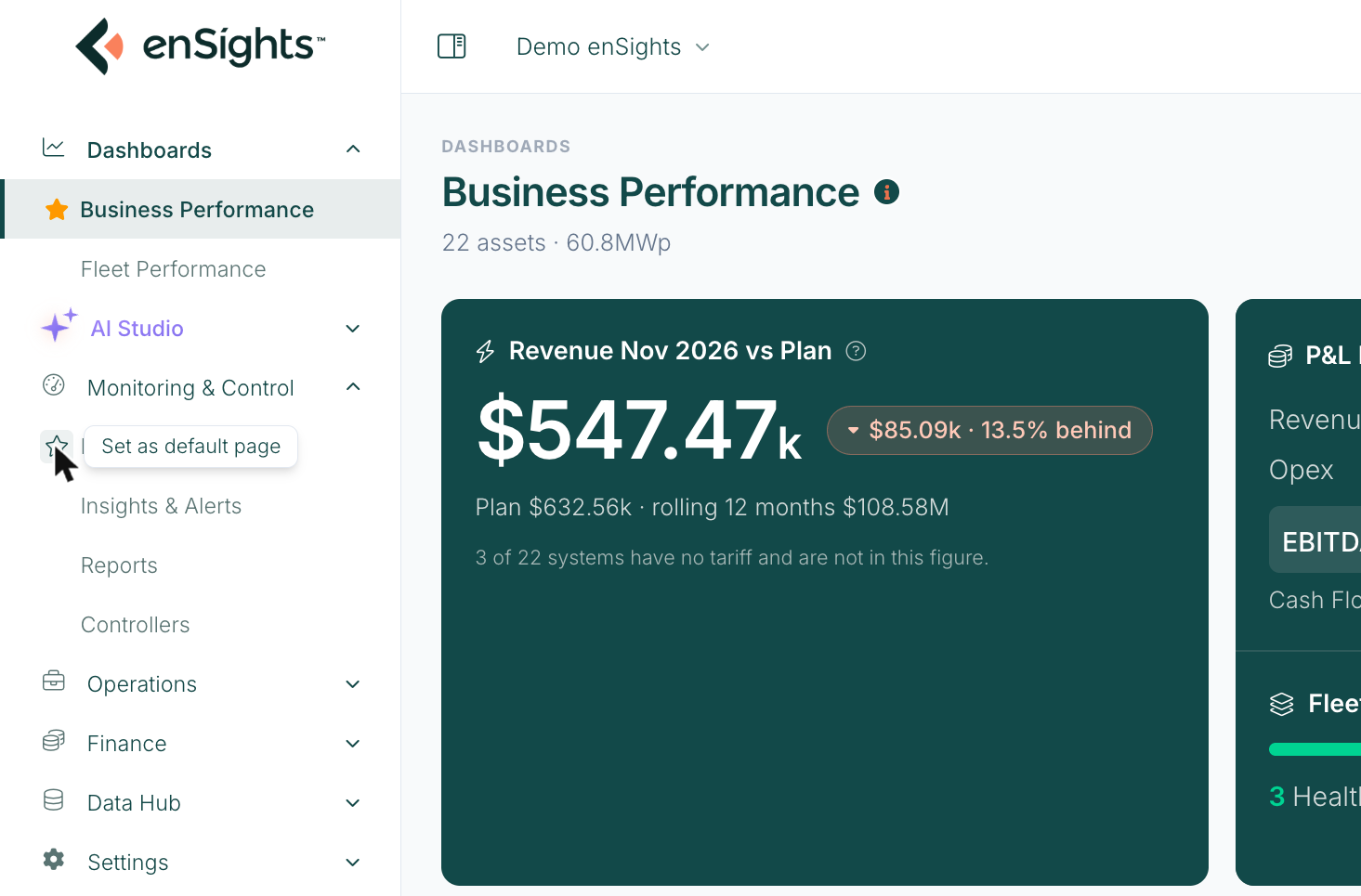
Only one page can be your default at a time. Starring a new page moves the amber star there.
What you see | What it means |
|---|---|
☆ outline star (on hover) | Click to make this page your default page. |
★ amber star | This is your default page. Click it to remove it. |
No star on a section name | Sections such as Dashboards or Operations only open and close. Star one of the pages inside. |
Good to know
- It's yours alone. Your default page doesn't change anything for other users in your account, and an admin can't set it for you.
- It follows you. The choice is saved to your user, not your browser, so it works on any computer or device.
- One per account. If you work in more than one account, you can pick a different default page in each.
- Tabs and views keep their own star. Your default page opens on the tab and saved view you've starred on that page.
- Links still win. If you open enSights from a shared link, you go to that link, not to your default page.
- No default set? You land on Dashboards → Fleet Performance.
How to
Start every day on your working page
- Open the left menu and find the page you use most.
- Hover over it and click the ☆.
- Log in next time and you'll land there.
Go back to the standard start page
- Hover over the amber ★ in the left menu.
- Click it. You'll land on Fleet Performance from your next login.
Notes
- The star isn't shown when the left menu is collapsed. Expand the menu to set your default page.