
QuickBooks: connect and sync invoices
Connect your QuickBooks Online company to enSights to bring your invoices in. Once connected, you match each QuickBooks customer to an enSights site, and the invoices for those customers show up in Finance → Invoices, next to your sites' production.
The connection is read-only. enSights never writes to QuickBooks, and it never sees your Intuit password.
Before you start
- You need a QuickBooks Online user who can sign in to the company you want to connect.
- Your sites should already be set up in enSights, so there is something to match customers to.
1. Connect QuickBooks
- Go to Data Hub → Connectors and open the 3rd Party Apps tab.
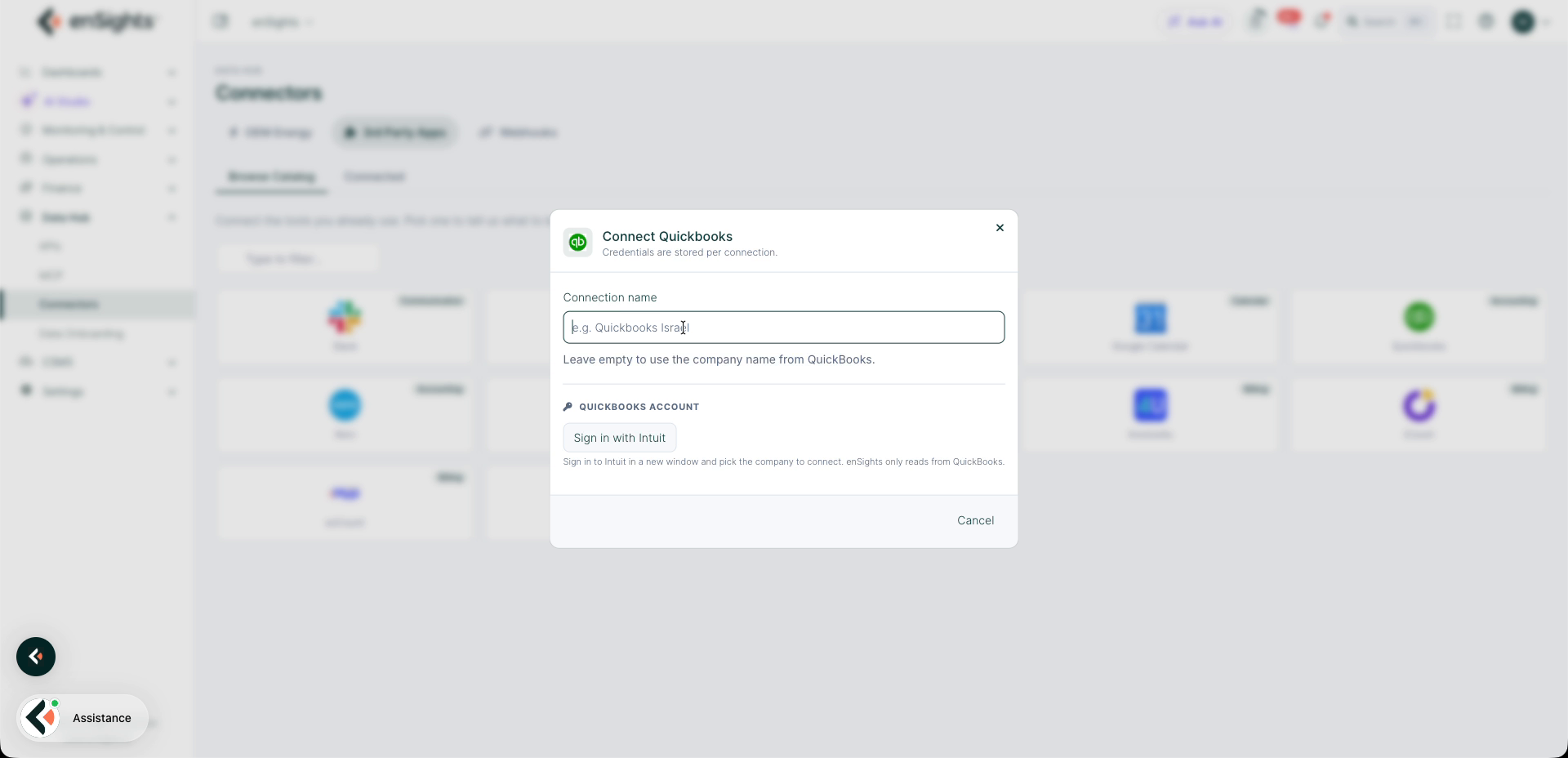
- In Browse Catalog, click Quickbooks.
- Give the connection a name, or leave Connection name empty to use the company name from QuickBooks.
- Click Sign in with Intuit. A new window opens. Sign in and pick the company to connect. The dialog shows Waiting for Intuit… until you finish, then closes on its own.
2. Match customers to sites
After you connect, enSights opens the connection's settings page. Under Customers to Sites it lists every QuickBooks customer and suggests the enSights site each one belongs to.
- Review each suggestion. If it's wrong, pick the right site from the enSights Site list. Leave a customer on Select a site if it isn't one of your sites.
- To accept every suggestion at once, click Approve All Suggested.
- Click Save Changes.
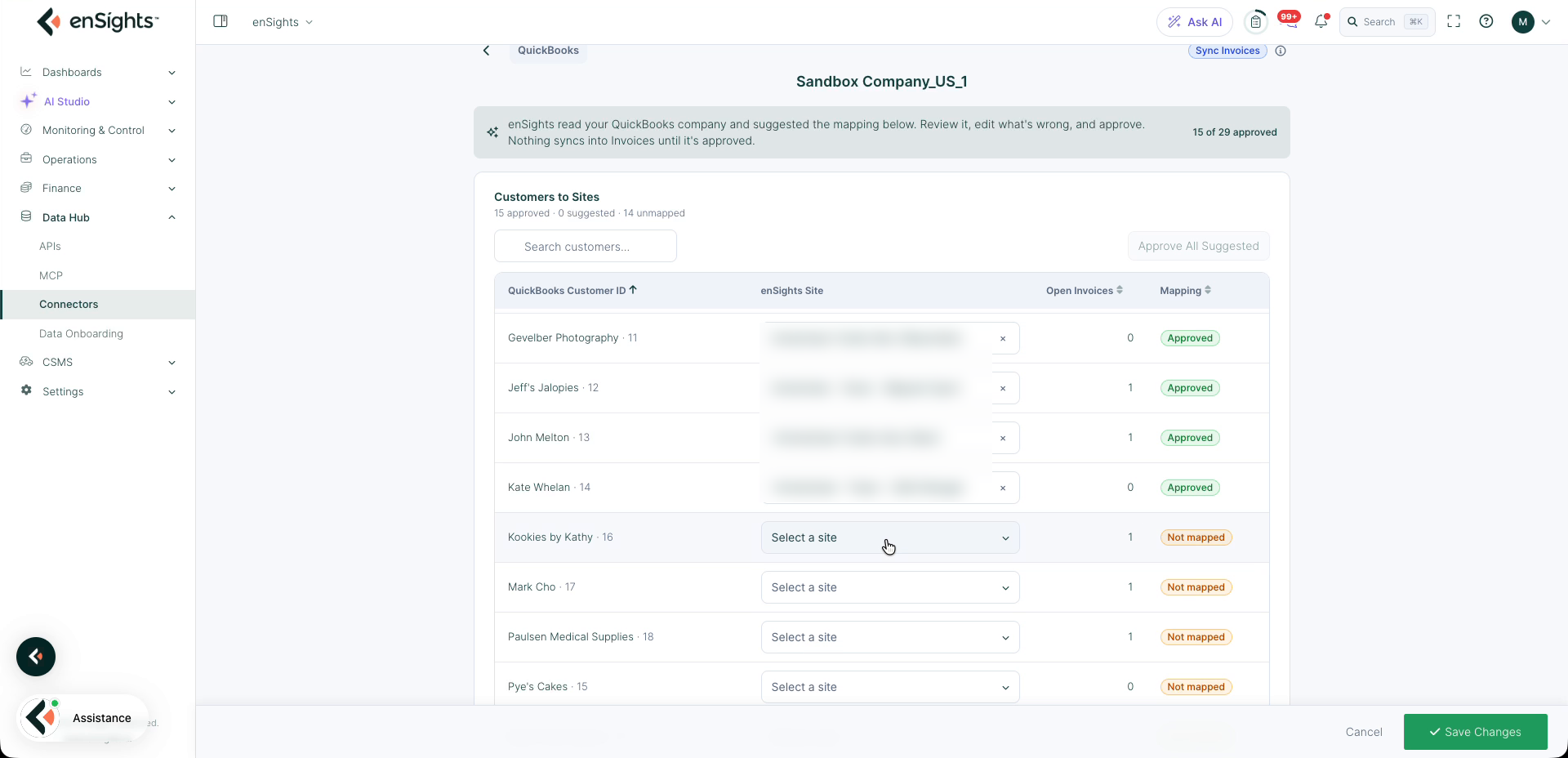
On screen | What it means |
|---|---|
Approved | The customer is matched to a site. Its invoices sync. |
Not mapped | No site is chosen. Its invoices don't sync. |
Open Invoices | How many invoices are still open for that customer in QuickBooks. |
X of Y approved | How many customers are matched so far. |
Nothing syncs into Invoices until a customer is approved. You can come back and match more customers at any time.
3. See your invoices
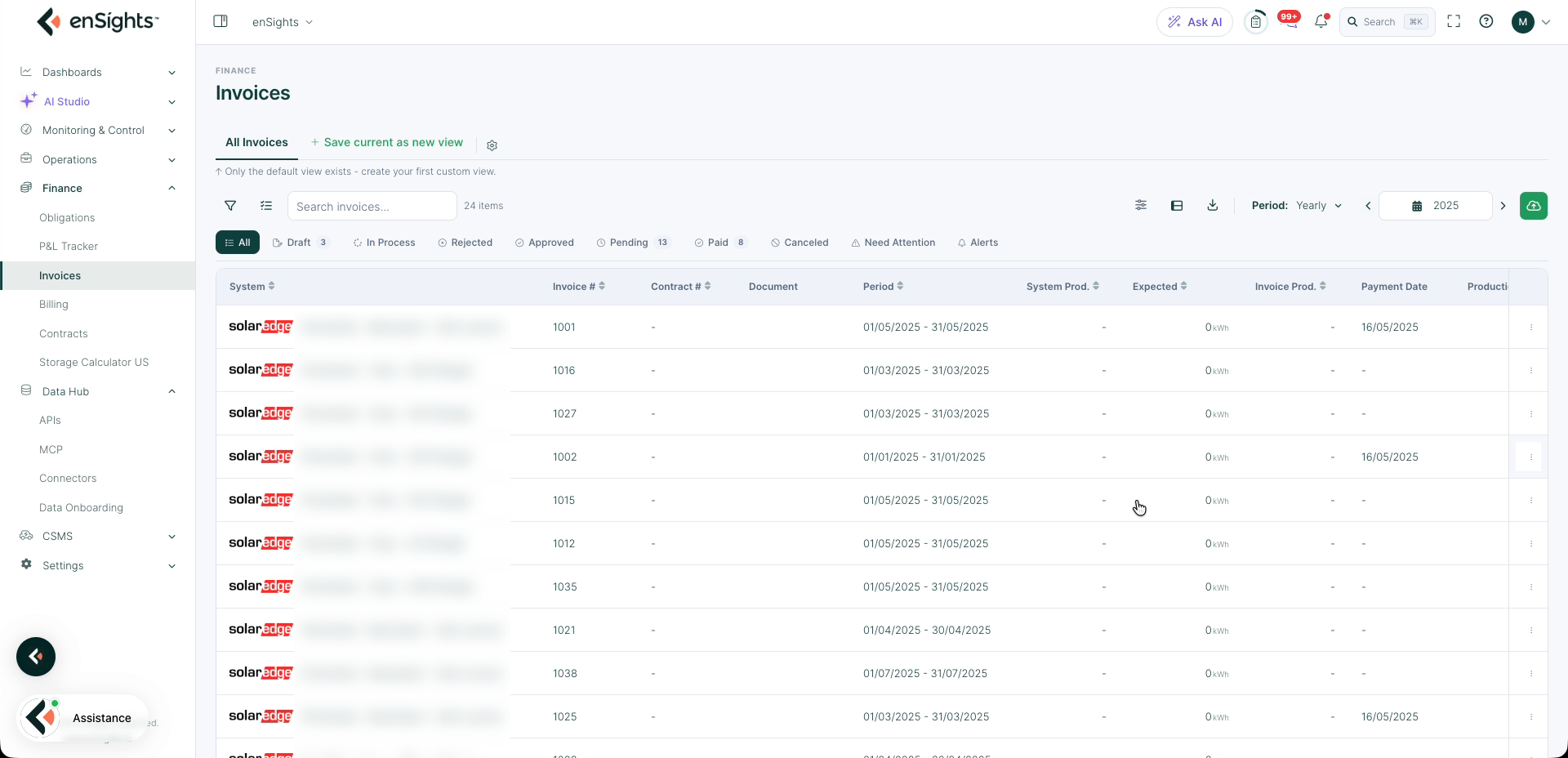
Go to Finance → Invoices. Invoices from approved customers appear in the list with their site, invoice number, period and payment date.
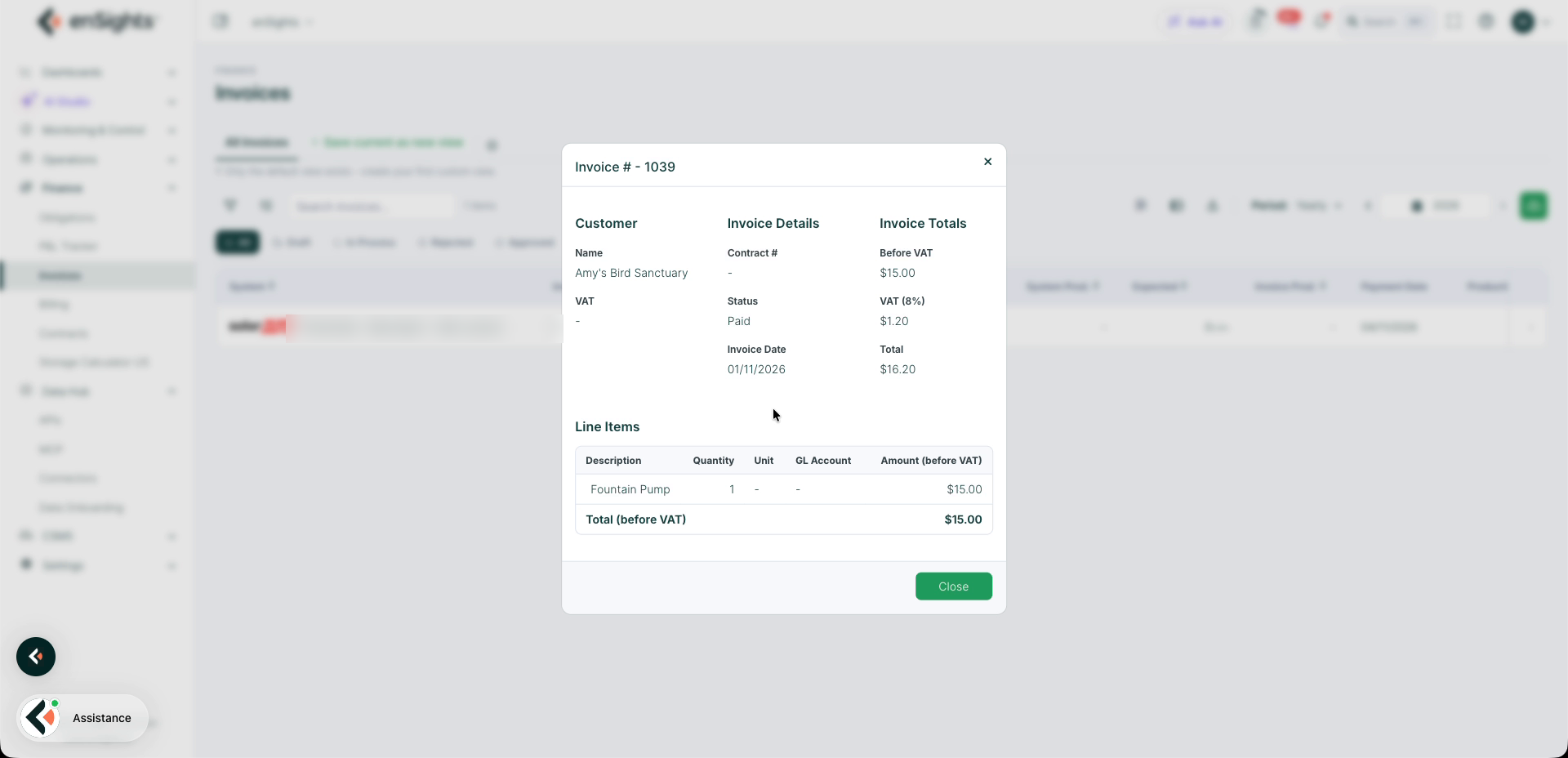
Click an invoice to open its details: customer, status, invoice date, totals before and after VAT, and each line item.
Check that sync is on
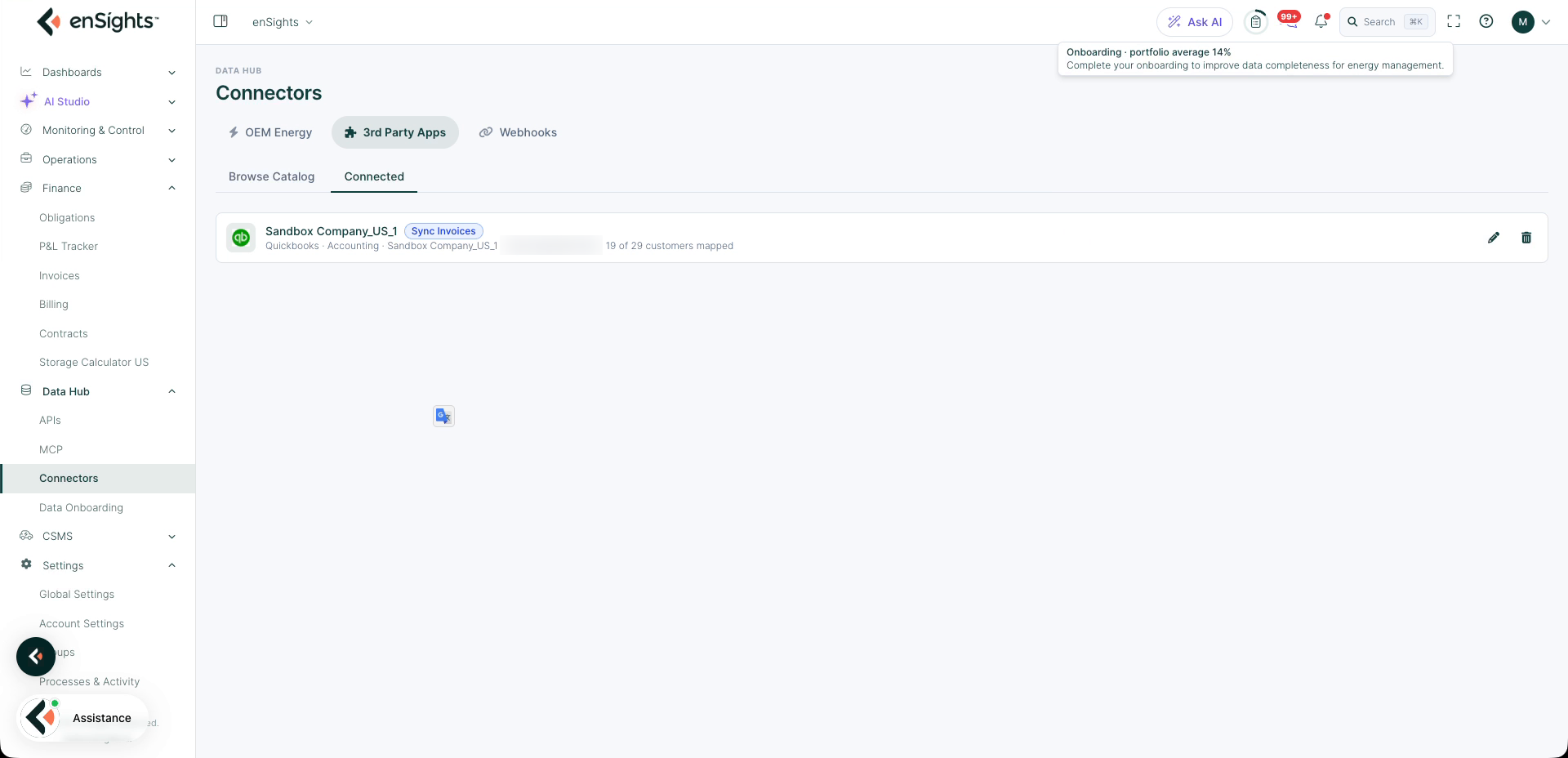
- Data Hub → Connectors → 3rd Party Apps → Connected lists your QuickBooks connection with a Sync Invoices badge and how many customers are matched. Use the pencil icon to change the mapping.
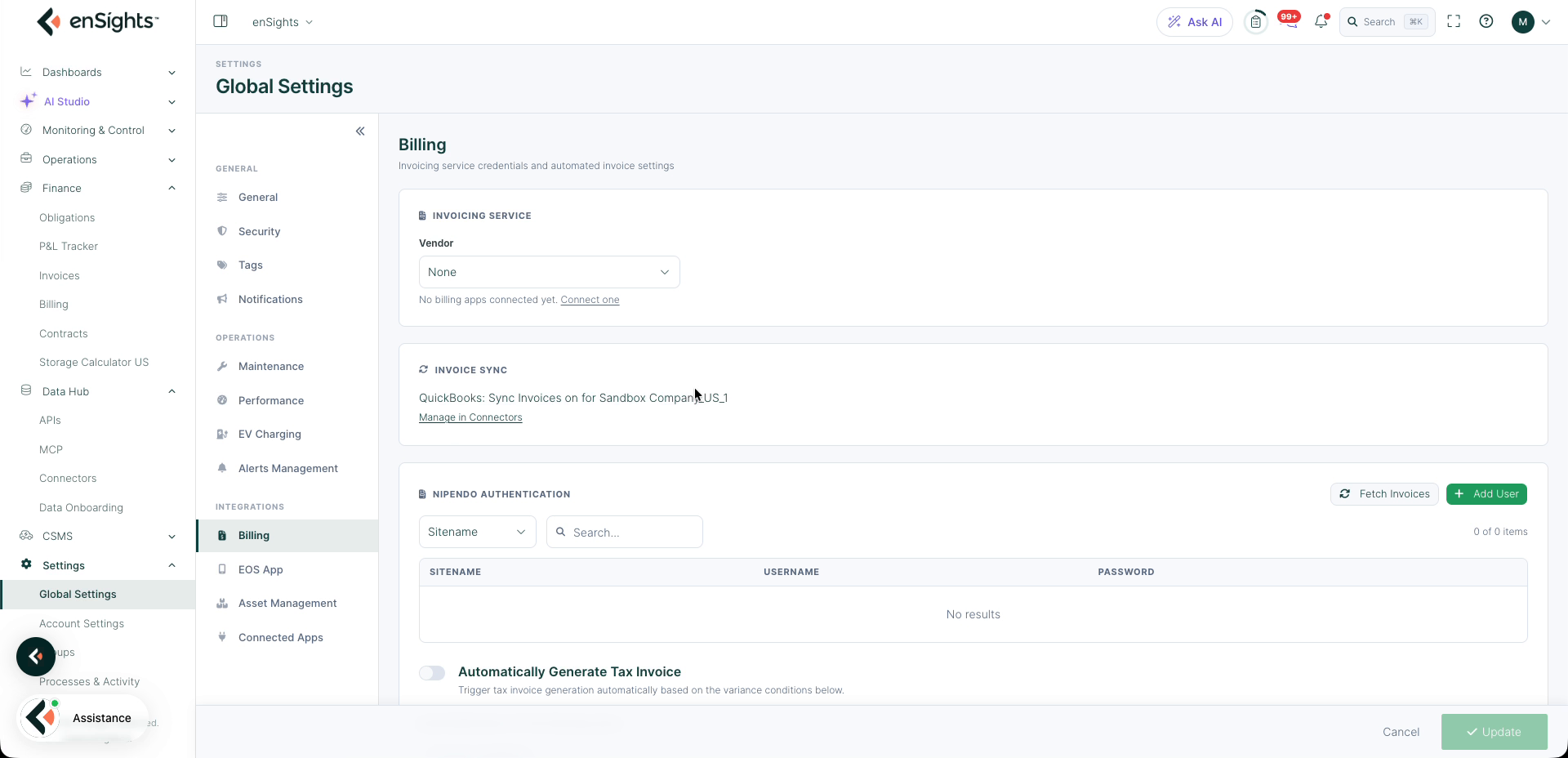
- Settings → Global Settings → Billing shows Invoice Sync: "QuickBooks: Sync Invoices on for <your company>", with a Manage in Connectors link.
Notes
- Changes you make in enSights never reach QuickBooks. To fix an invoice, change it in QuickBooks.
- Invoices for customers you haven't matched to a site are not shown in enSights.
- One QuickBooks customer can be matched to one site.